

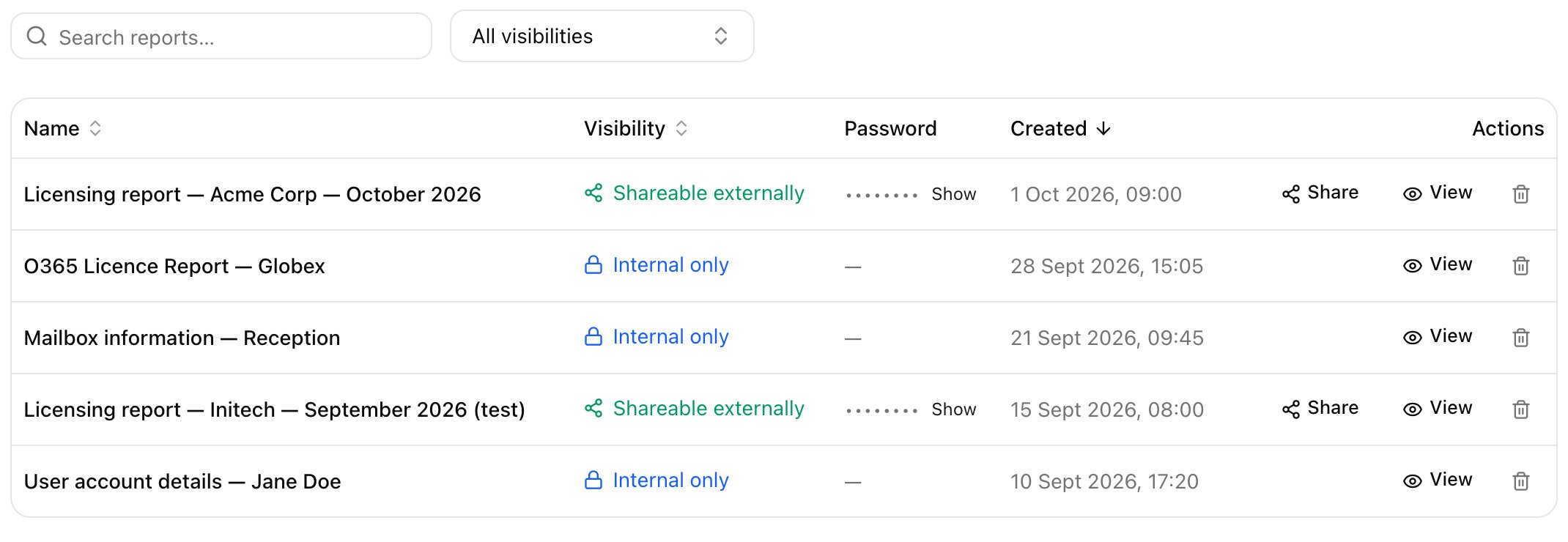
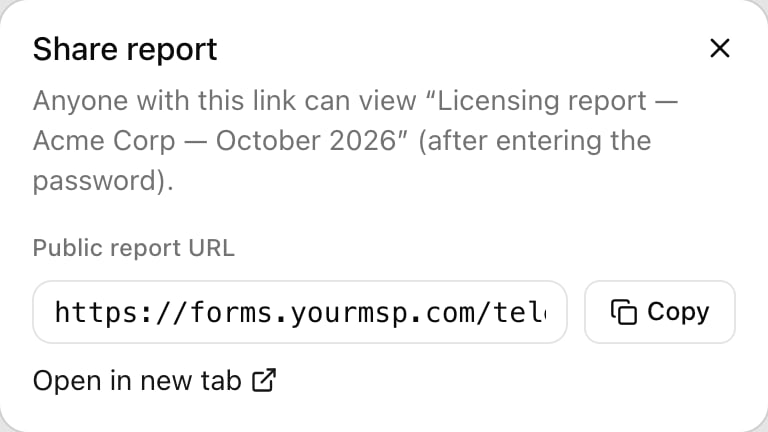
Run a report: the Reports tab, reading a licence report, Export CSV, Save Report and sharing (1:11).
Schedule a monthly licensing report
1
Open Scheduled reports
Go to Settings > Scheduled reports and click Set up on the client’s row. Each client can have one schedule.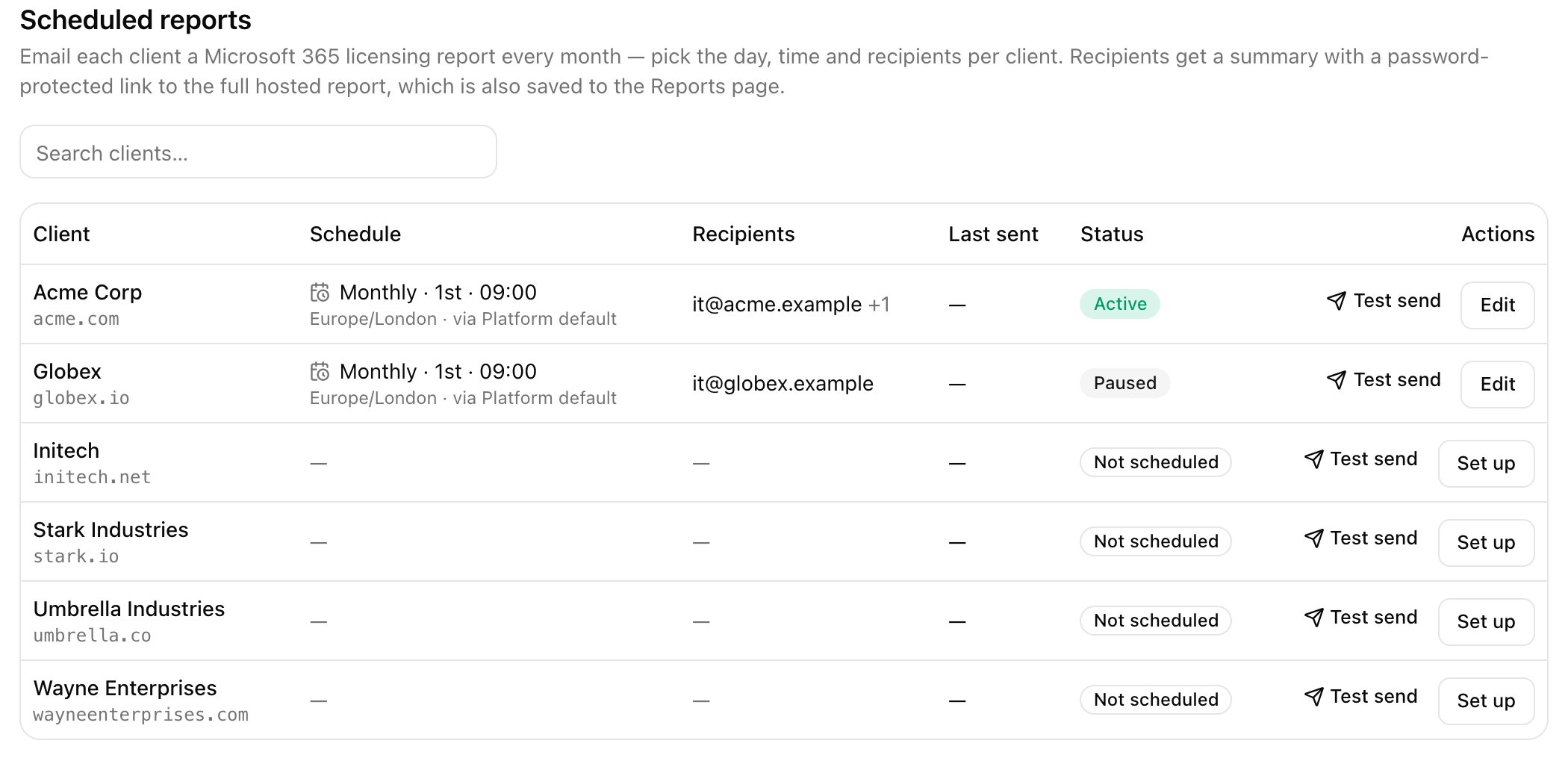
2
Set the day, time and recipients
Set Day of month, Time and Timezone, add Recipients, optionally pick a sending profile under Send via, and click Save schedule.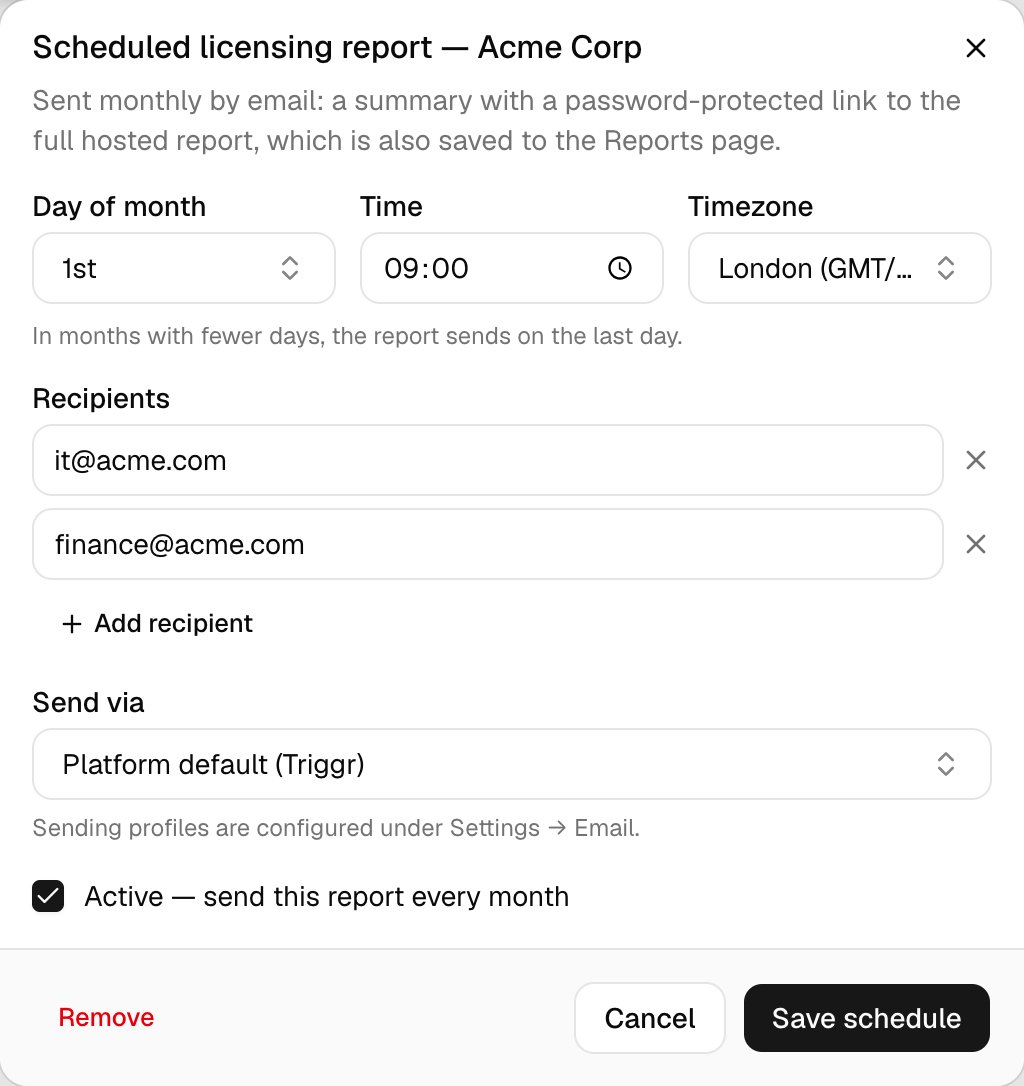
3
Send a test
Click Test send on the row, choose Send to and Send via, and click Send test. The subject starts with
[Test], and its report is saved to Reports marked (test).What your clients see
What your clients see: the emailed licensing report, the password-protected report page, and running a report from your homepage (1:13).
- The shared report page: the link from the monthly email opens a page with your logo. They enter the password and click View report to see licence use and each user’s licences, as they were when the report was made.
- Your homepage: to let clients run a report themselves, open it in Config, set it to Public form only or Internal + public, and tick List on homepage. Optionally use Restrict access to limit it to groups. Their staff sign in to your homepage with their Microsoft work account and run it against their own company’s tenant, with the same views and Export CSV. See Share your forms.
Troubleshooting
Last send had a problem
Last send had a problem
Hover over it to read the error, fix the cause, then click Test send.
“That password isn’t right — check the email you received.”
“That password isn’t right — check the email you received.”
Use the password from the same email as the link, or click Show on the report’s row.
A client's licences are on an annual term but the report doesn't show it
A client's licences are on an annual term but the report doesn't show it
Term and renewal dates appear once the client’s licences are mapped to your distributor.