

Add your clients: adding one, fixing what isn't ready, the desktop agent and checking Microsoft access (1:27).
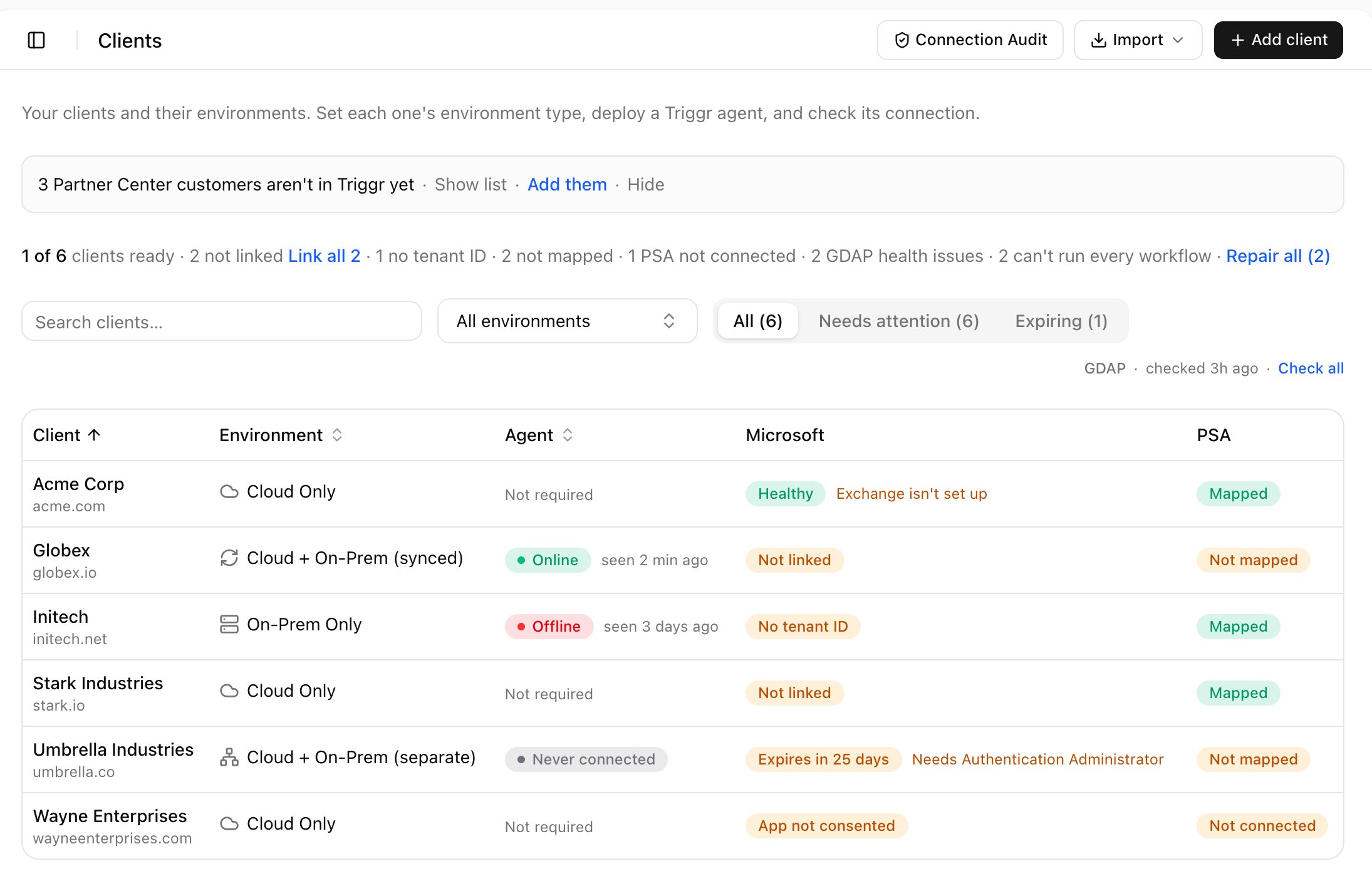
Clients. Needs attention filters to clients with a gap.
Add clients
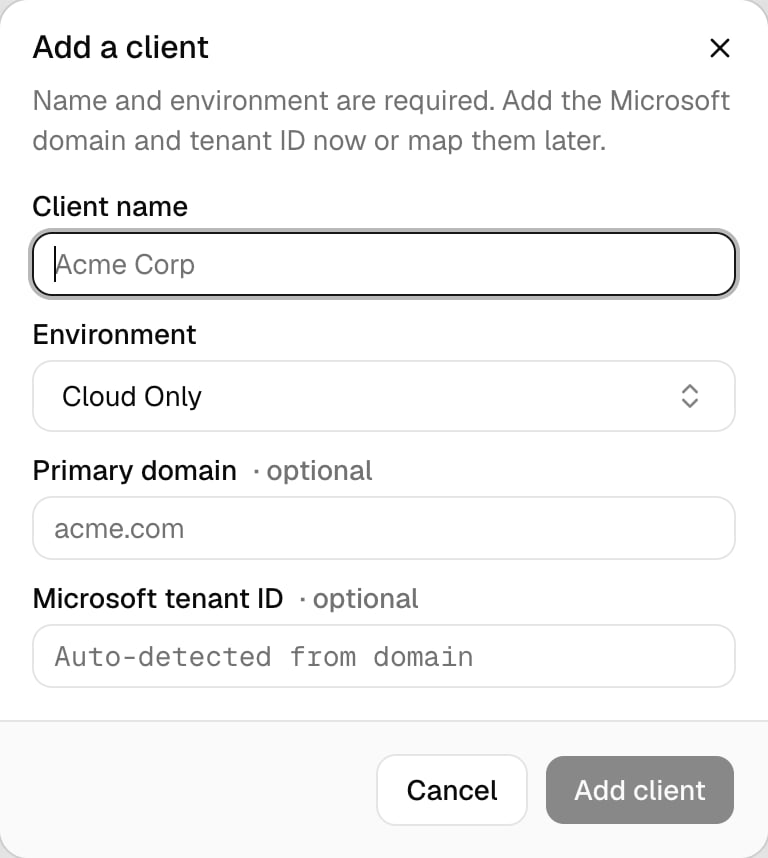
- Import from Partner Center
- Add one yourself
With a GDAP connection, click Import > Microsoft Partner Center, tick the customers and click Import. Then click Link all on Clients to link them to GDAP.
Fix what’s not ready
Click a client. Readiness shows a button for each gap: Link to GDAP, Add tenant ID, Approve access (per-client app, as the client’s admin) or Map to your PSA. Under Details, fields save as you leave them, and Look up from domain fills in the tenant ID.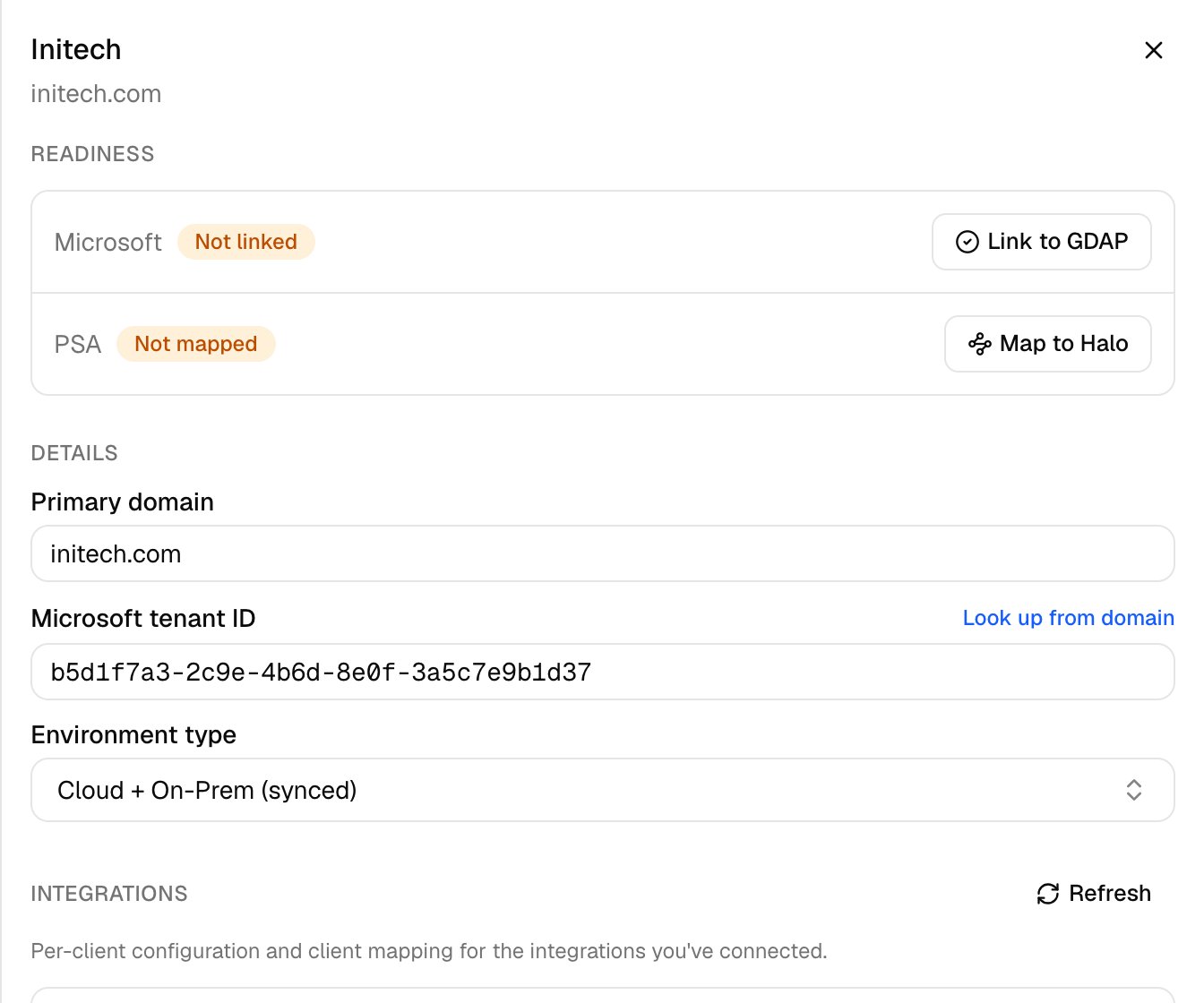
Keep an eye on Microsoft access
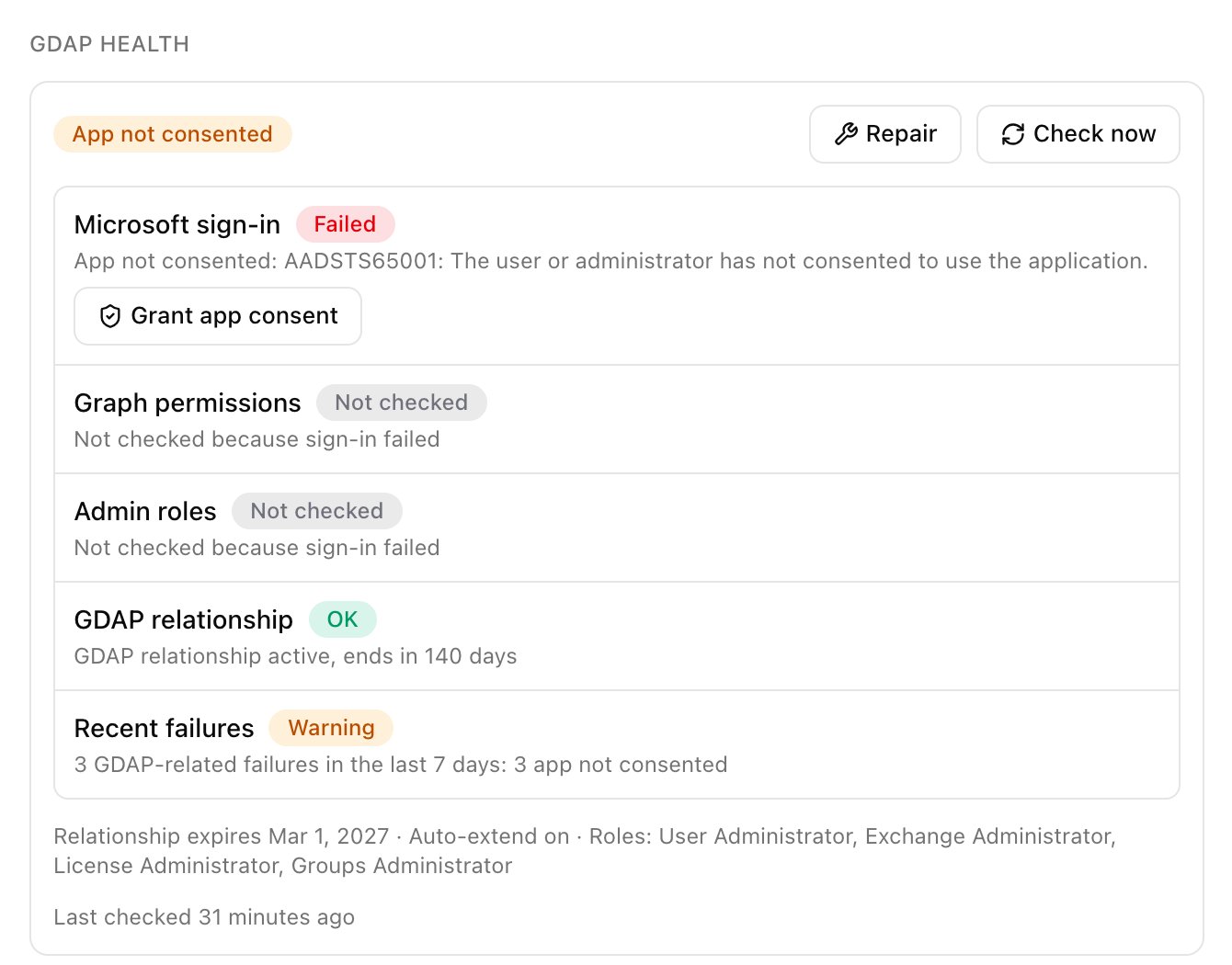
Core checks every GDAP client overnight. Click a client’s Microsoft status to open GDAP health; Check now rechecks it, and Check all and Repair all above the table cover every client.- Missing permissions or App not consented: click Repair (admins).
- Missing roles: add the role in Partner Center. See Recommended roles.
- Expires in N days: extend the GDAP relationship in Partner Center. Expiring lists these clients.
Deploy the desktop agent
Clients with on-premises Active Directory have an Agent section in their panel.1
Generate credentials
Click Generate agent credentials and copy the Client ID and secret, then click Done — hide secret. The secret shows once; Regenerate replaces it and revokes the old one.
2
Install the agent
Run the install script as administrator on a domain-joined Windows server.
3
Check it's online
Click Refresh. The status should read Online; Never connected means the service hasn’t reached Triggr yet, so check the script’s output.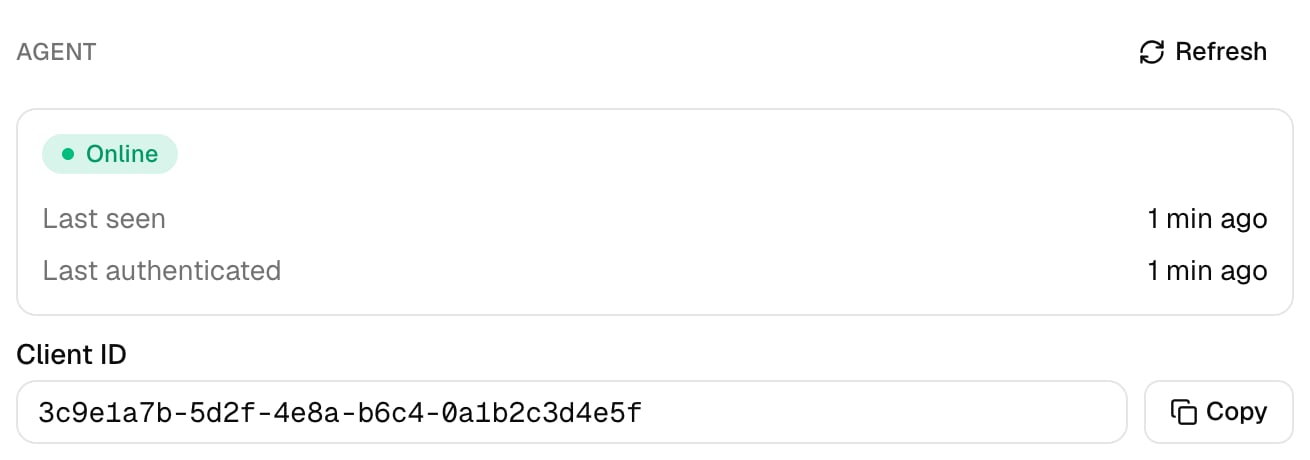
Troubleshooting
“Couldn't find a Microsoft tenant for that domain”
“Couldn't find a Microsoft tenant for that domain”
Check the domain, or paste the tenant ID from the client’s Microsoft Entra admin center.
“Couldn't link this client — add its Microsoft tenant ID first.”
“Couldn't link this client — add its Microsoft tenant ID first.”
Fill in Microsoft tenant ID under Details, then click Link to GDAP again.
“Your organisation isn't connected to Microsoft Partner Center”
“Your organisation isn't connected to Microsoft Partner Center”
On the Microsoft setup’s Sign in step, click Sign in on Connect Partner Center, then click Try again on the import page.
“Triggr's Microsoft sign-in needs renewing — every client is affected.”
“Triggr's Microsoft sign-in needs renewing — every client is affected.”
Click Renew, then Redo on Connect Microsoft Graph and Connect Partner Center, signing in as the service account.
A client's staff see “These requests aren't available”
A client's staff see “These requests aren't available”
The client’s Microsoft tenant ID in Core doesn’t match their account’s tenant.