

Your team and permissions: invitations, roles, a group of approvers, and removing someone safely (1:29).
Invite your team
1
Open Members
Click your organisation’s name at the top right, then Manage > Members.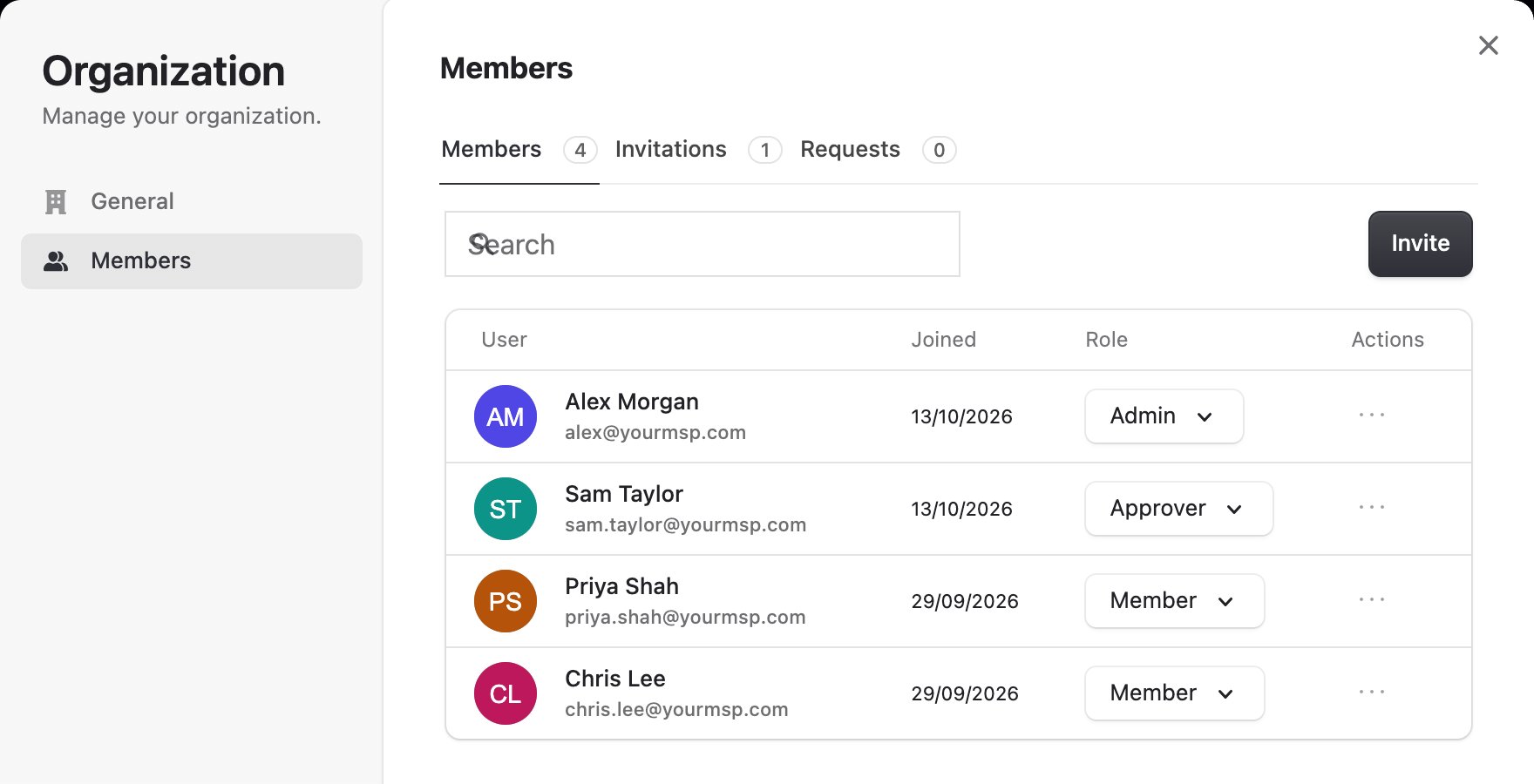
2
Send invitations
Click Invite, enter email addresses separated by spaces or commas, choose the Role and click Send invitations.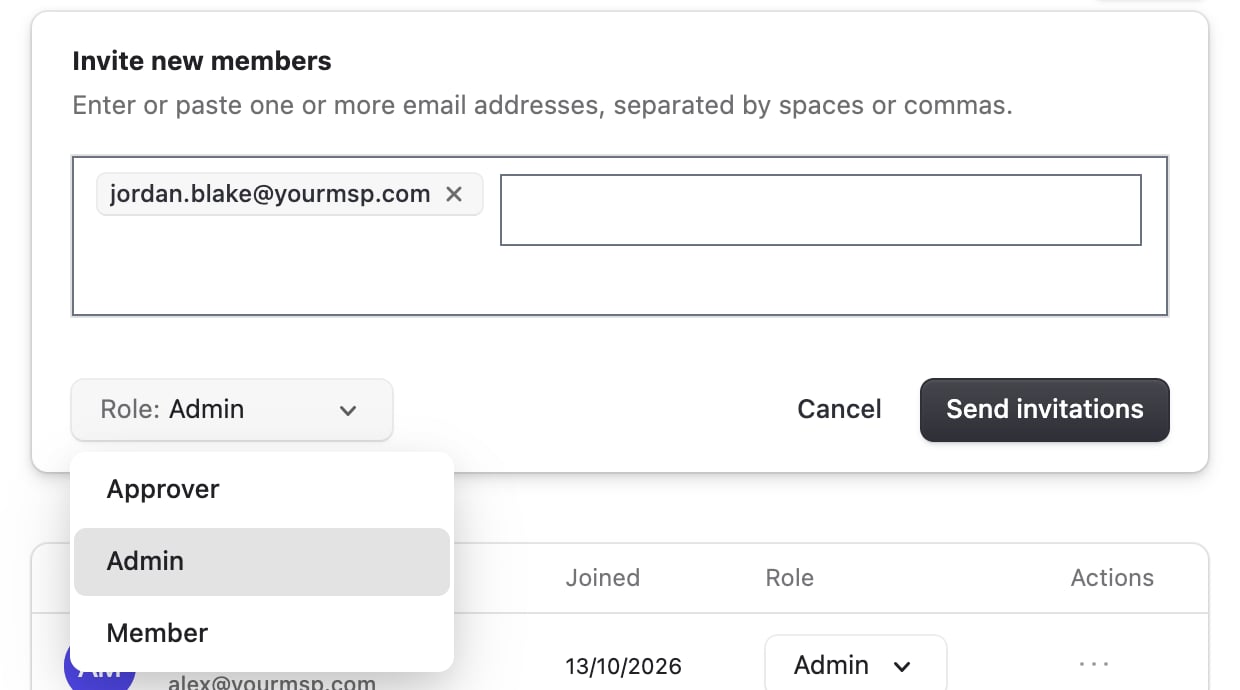
3
Let them accept
Each person follows the emailed link, then signs in at app.triggr-app.com.
Roles
Studio has three roles. You can’t add your own or change what a role includes.
Whatever their role, anyone can answer an approval sent to their email address or to a user group they’re in, and complete tasks on Manual Steps.
Group your approvers
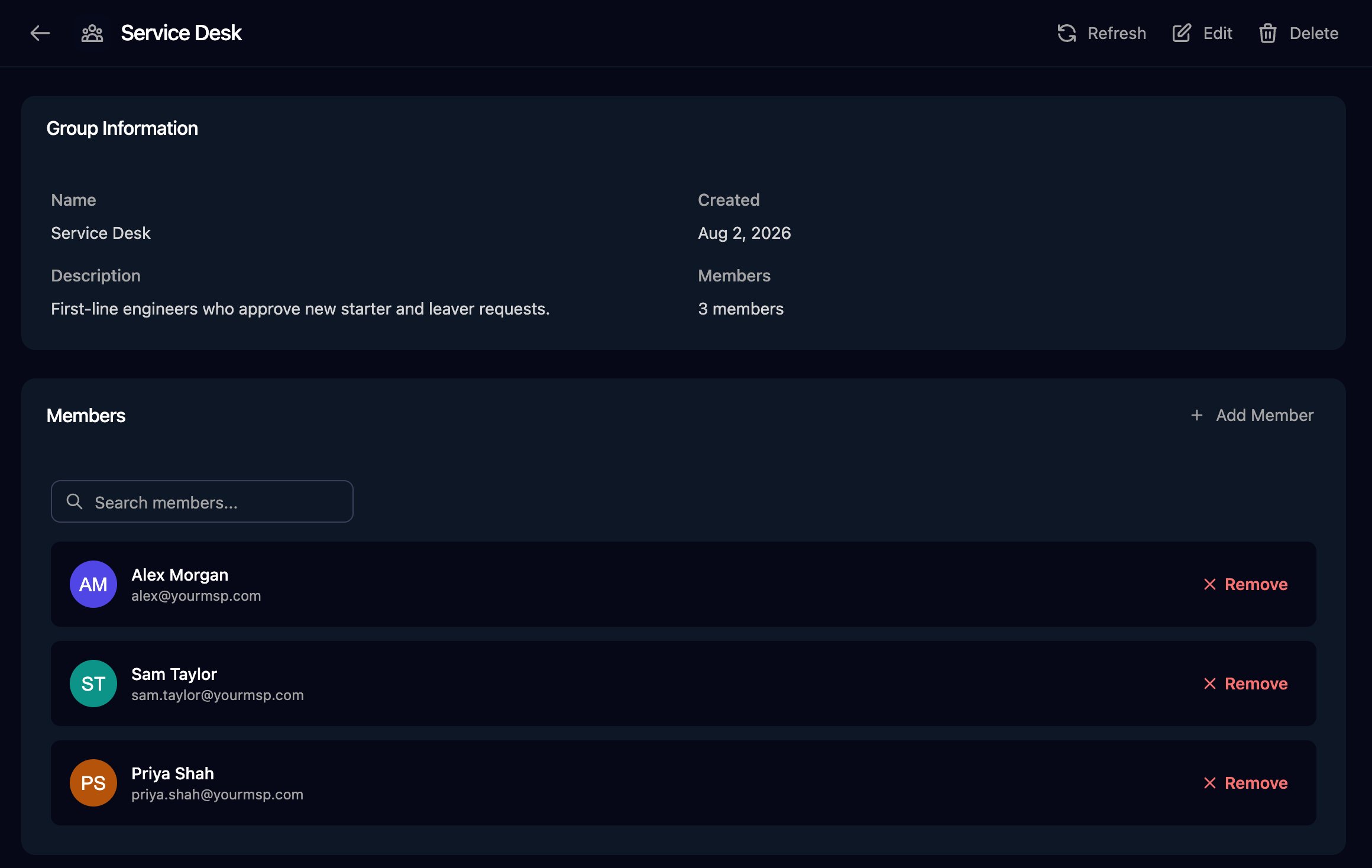
A user group lets anyone in it answer an approval, so requests don’t wait for one person. Find them in Settings > User Groups.1
Create a group
Click New Group, enter the Name and Description, and click Create Group.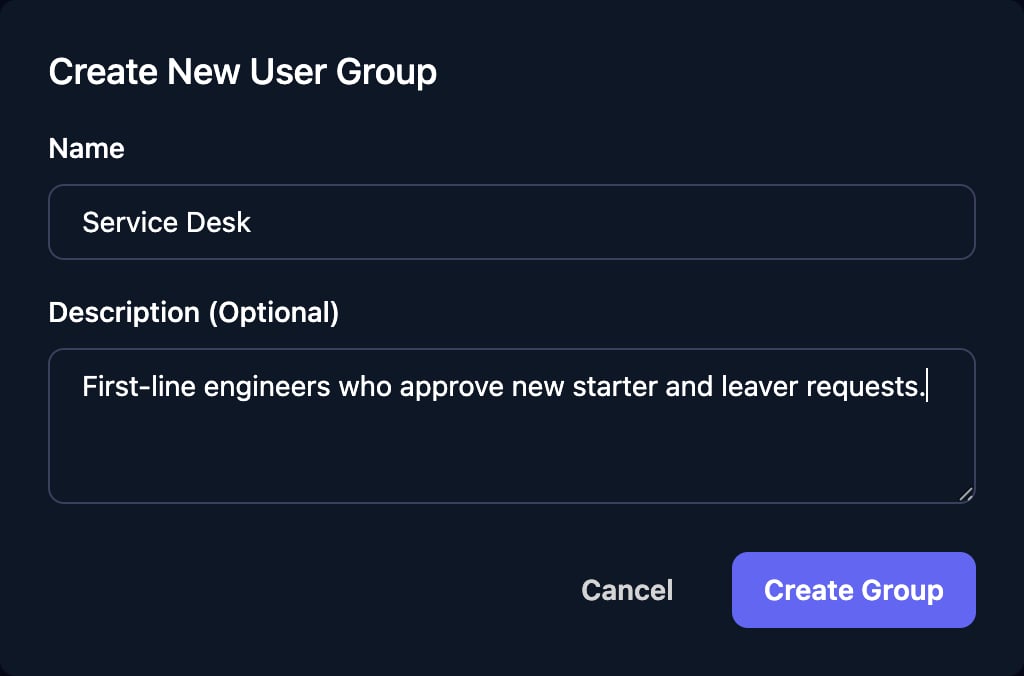
2
Add people
Click Members on the group’s row, then Add Member, point to a person and click Add. The dialog closes after each one, so click Add Member again for the next.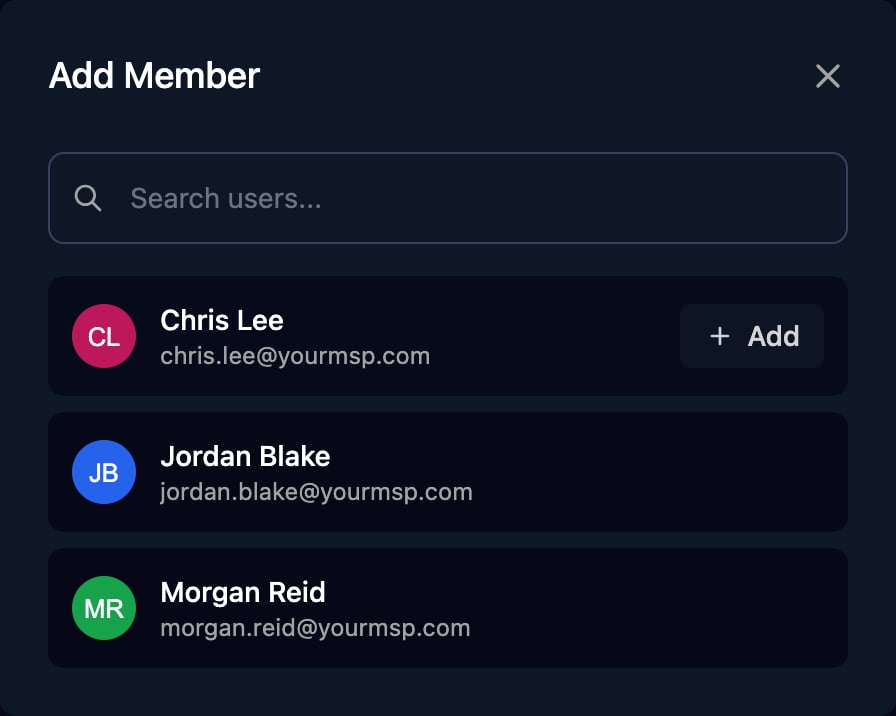
3
Send approvals to it
In a workflow, set a Human In The Loop or Approval With Logging step’s Approval Type to Group and choose the User Group.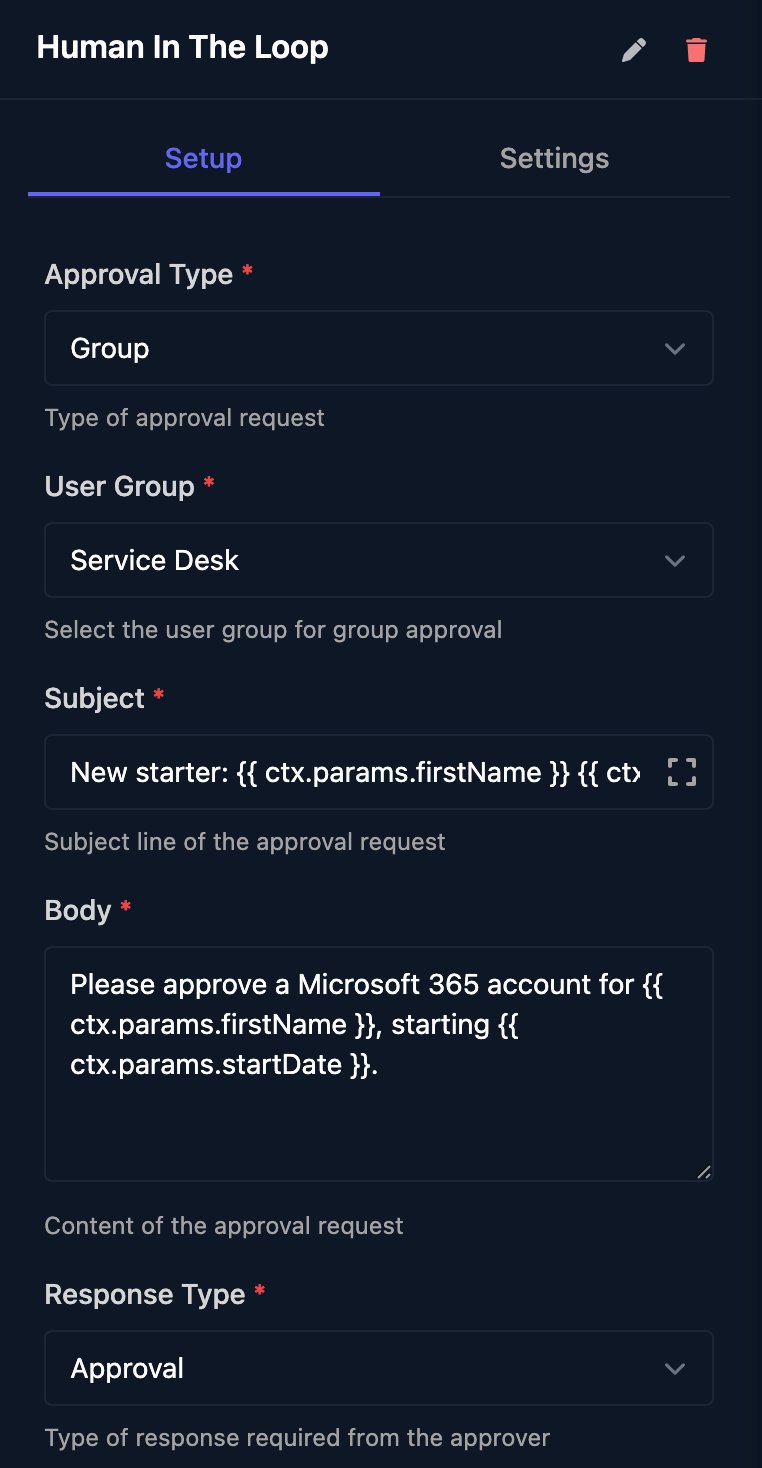
Remove someone
1
Take them out of your user groups
Open each group in Settings > User Groups and click Remove on their row. Do this first: removing someone from the organisation leaves them in every group, listed as Unknown.
2
Remove them from the organisation
On Members, click … on their row, then Remove member. They lose access to Studio and Triggr Core at once.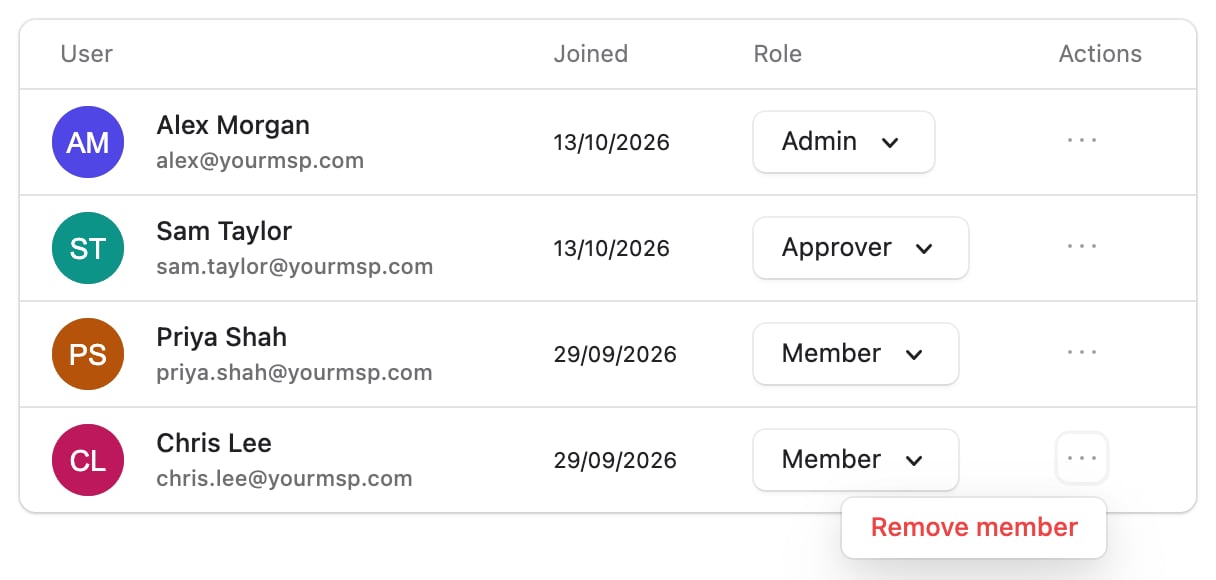
3
Revoke their MCP tokens
Removing someone doesn’t stop their tokens. Go to Settings > MCP, click Revoke on each one, then Revoke Token; the list doesn’t show owners, so name tokens after the person who uses them.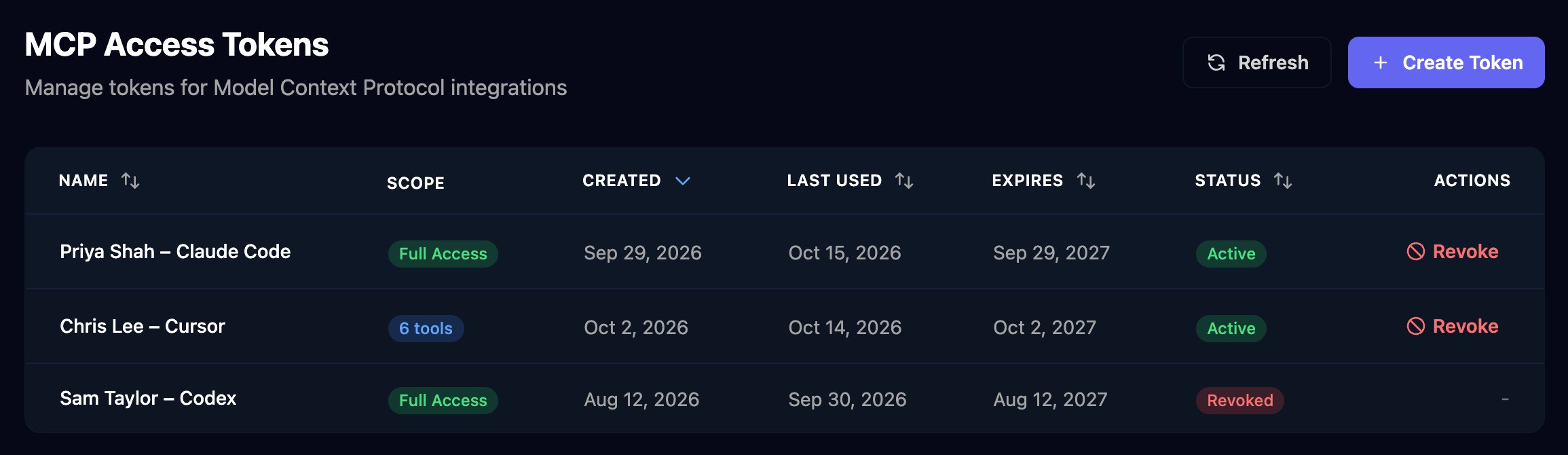
4
Tidy up
Revoke any API Keys they knew (keys belong to the organisation, not a person).
Partner Access
When a portal provider that partners with Triggr asks to embed your forms, the request appears in Settings > Partner Access (admins only). Click Approve or Deny: approving lets the partner show your Microsoft-authenticated forms in its own portal and sign your clients’ users in, for every client you manage. Revoke on an Active row stops that at once.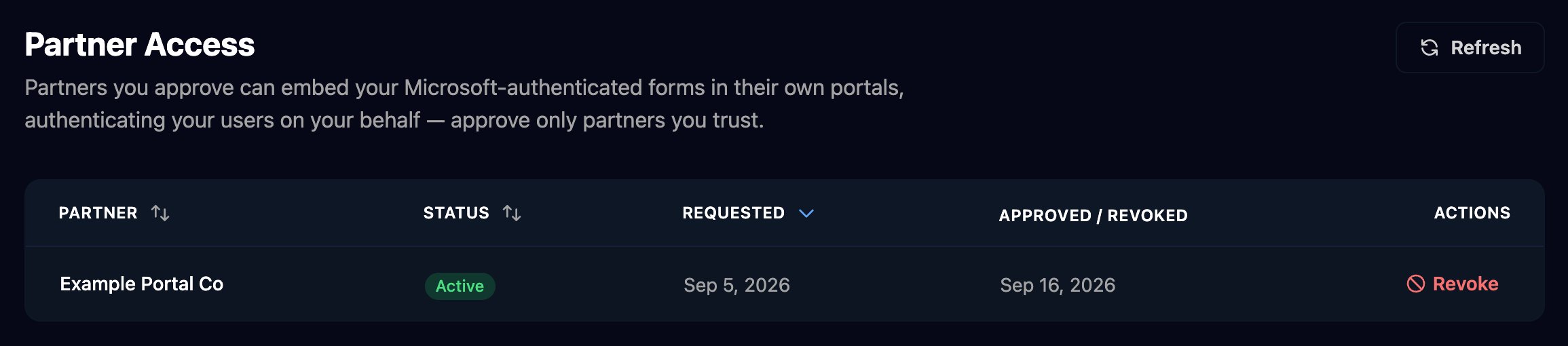
FAQ
A teammate can't see Clients, Forms, Workflows, Integrations or Settings
A teammate can't see Clients, Forms, Workflows, Integrations or Settings
Member sees only Internal Apps and the Dashboard; Approver adds Clients, Forms and Workflows; Integrations, Settings and the New buttons need Admin.
A group member can't find an approval
A group member can't find an approval
Group approvals don’t email anyone. Check they’re in the group the step names, then look on Approvals.
I denied or revoked a partner by mistake
I denied or revoked a partner by mistake
A denied or revoked request stays revoked, even if the partner asks again. Contact Triggr support.