

Cache a result: publishing a workflow's list, caching it daily, filling it now and using it in a form dropdown (1:28).
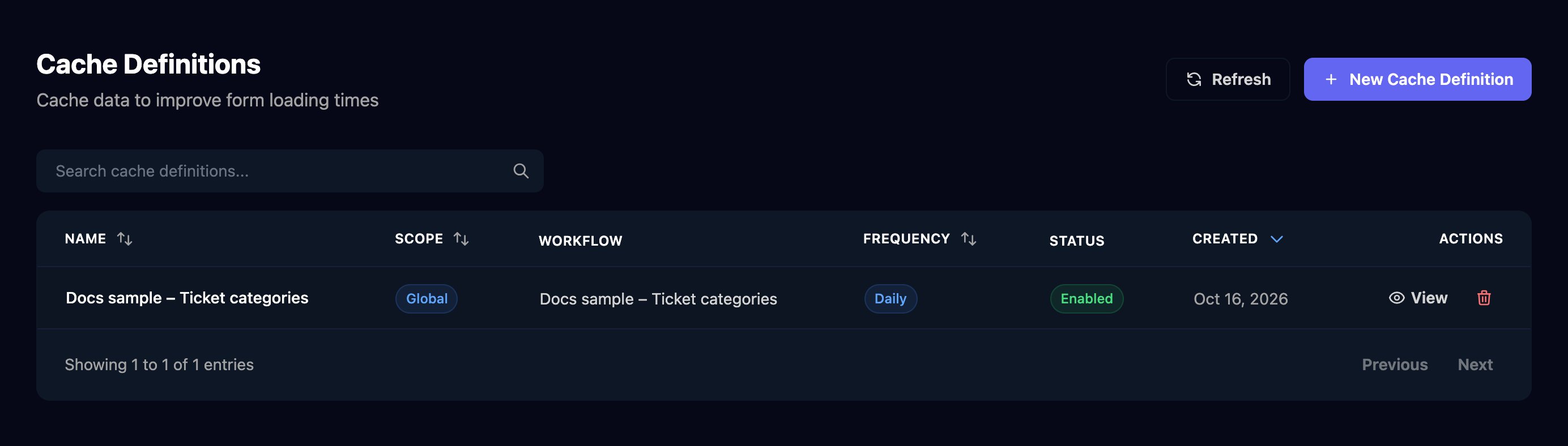
Example: ticket categories for a form
1
Publish the list from a workflow
Build a workflow whose last data step produces the list, such as 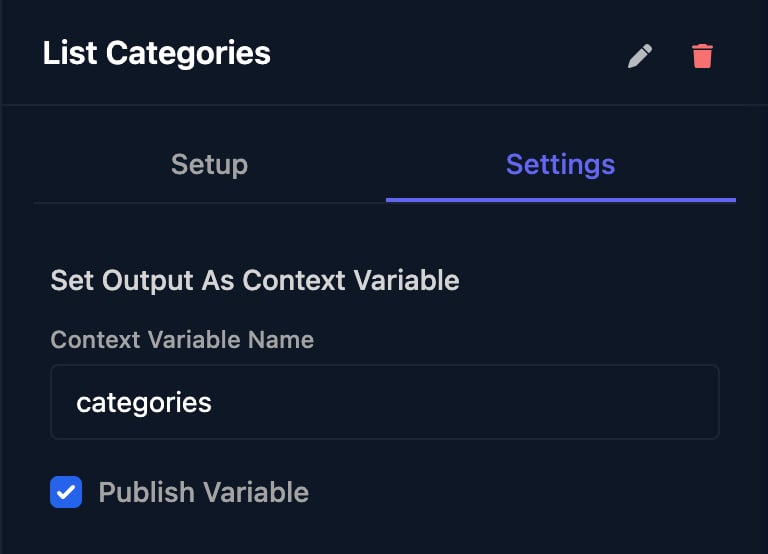
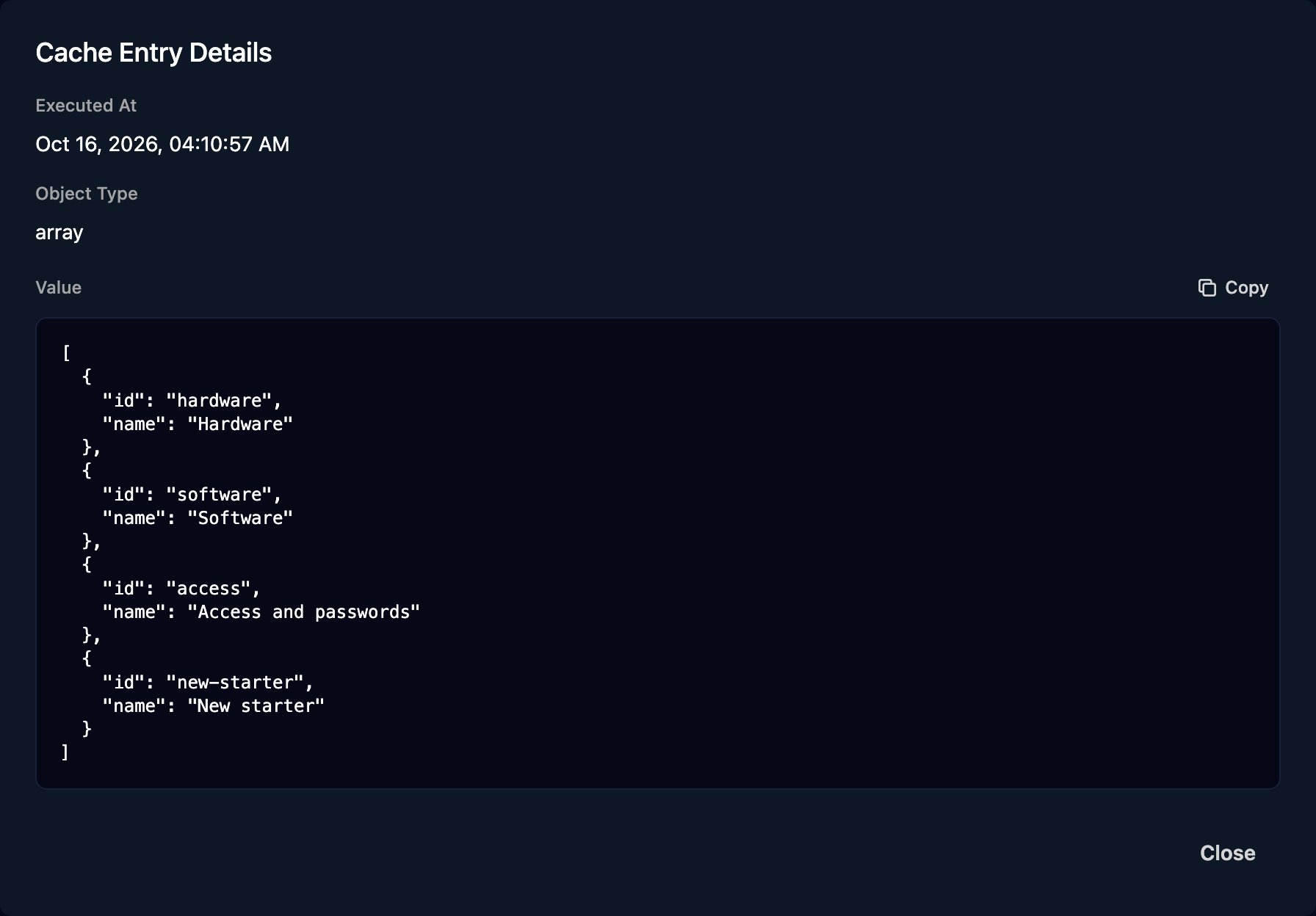
{ "id": …, "name": … } items from your PSA, ending at a Finish Workflow step. On that step’s Settings tab, enter a variable name, tick Publish Variable and save (see Save an output under a short name).2
Create the cache definition
Click New Cache Definition, name it, set Scope to Global, choose the workflow, enter the variable’s name as the Published Variable Name, pick a Frequency and click Create Cache Definition.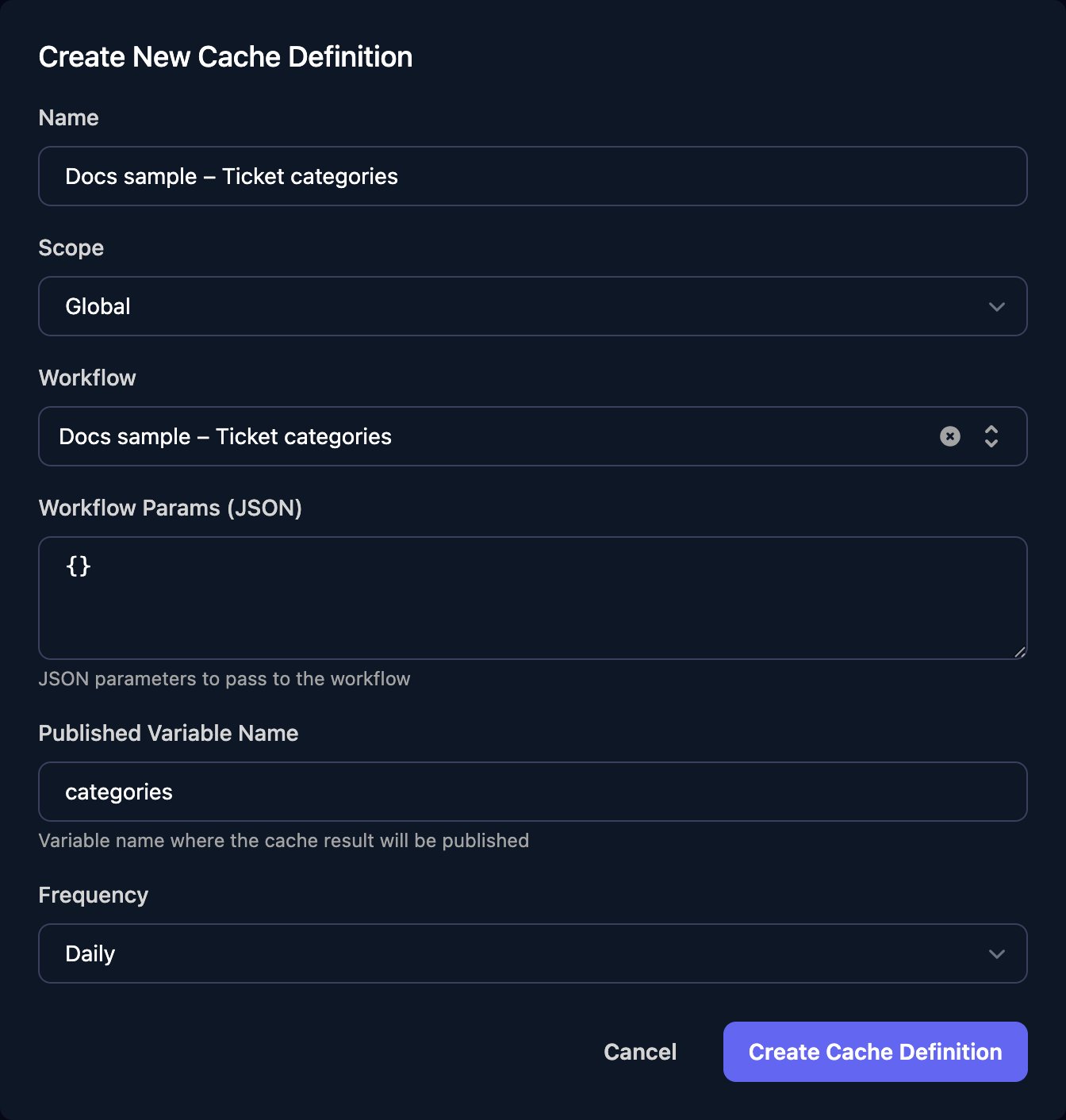
{}.3
Fill it now
Open the definition, click Run on Demand and confirm; otherwise it first fills at its next scheduled time.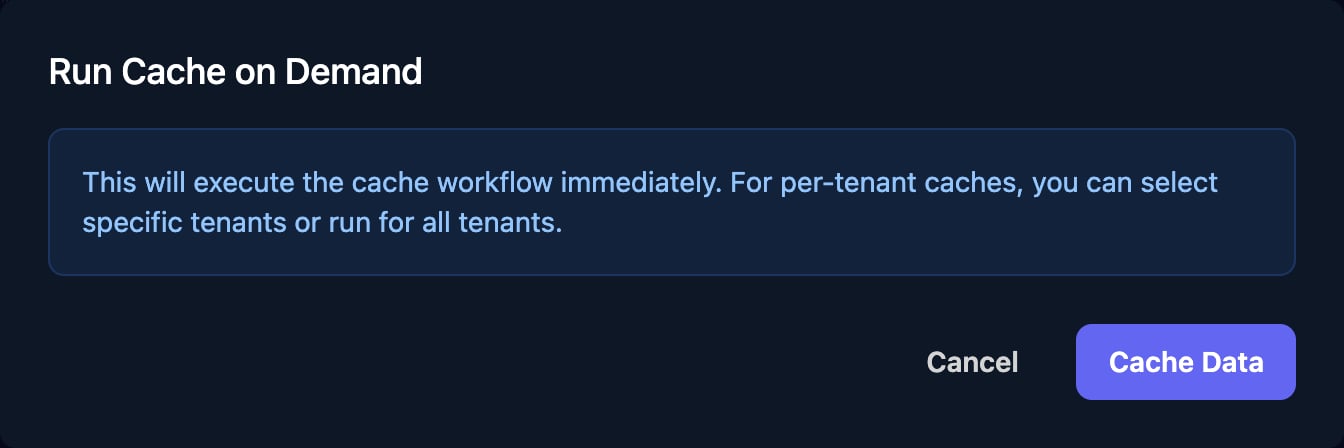
4
Check the value
Refresh the page: Current Cache Value shows when it was filled, and Execution Logs lists each run.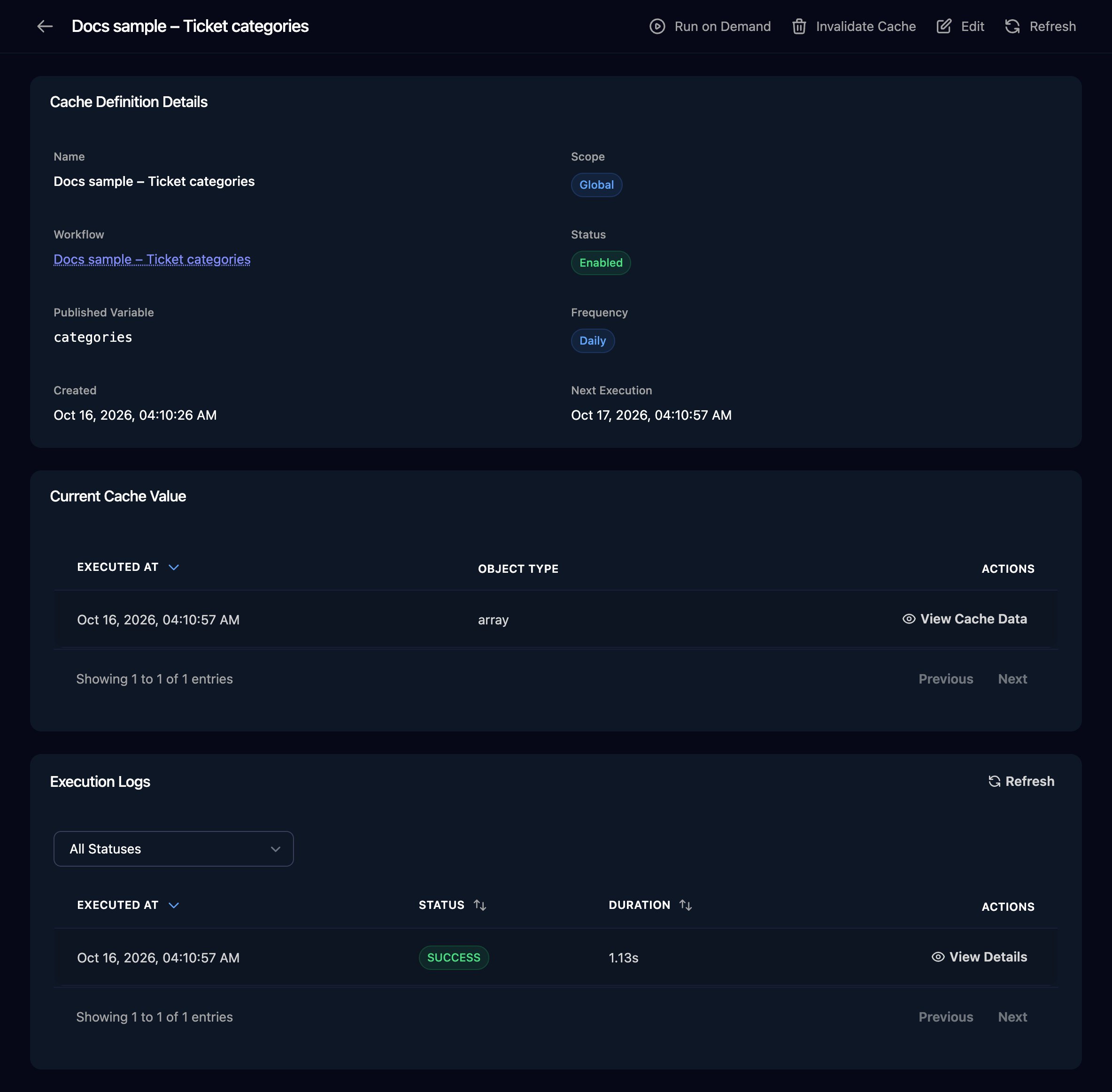
5
Use it in a form
In the form designer, click a Select field, set Options Source to Use cache and choose the cache definition. Value Key and Label Key start as 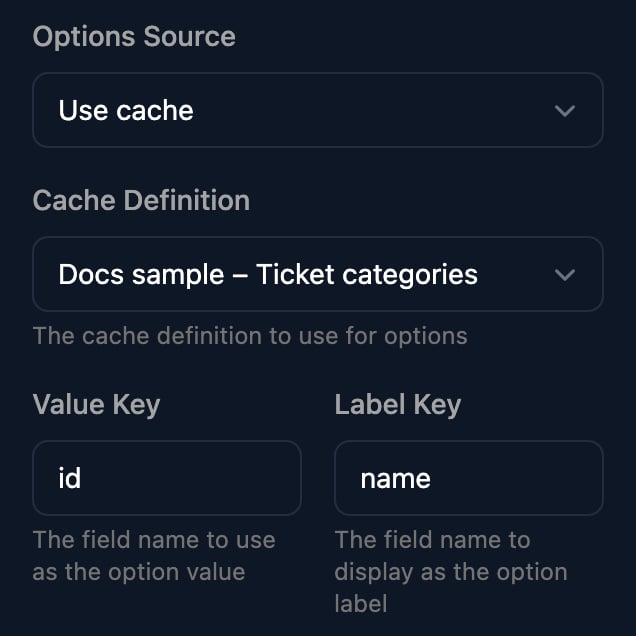
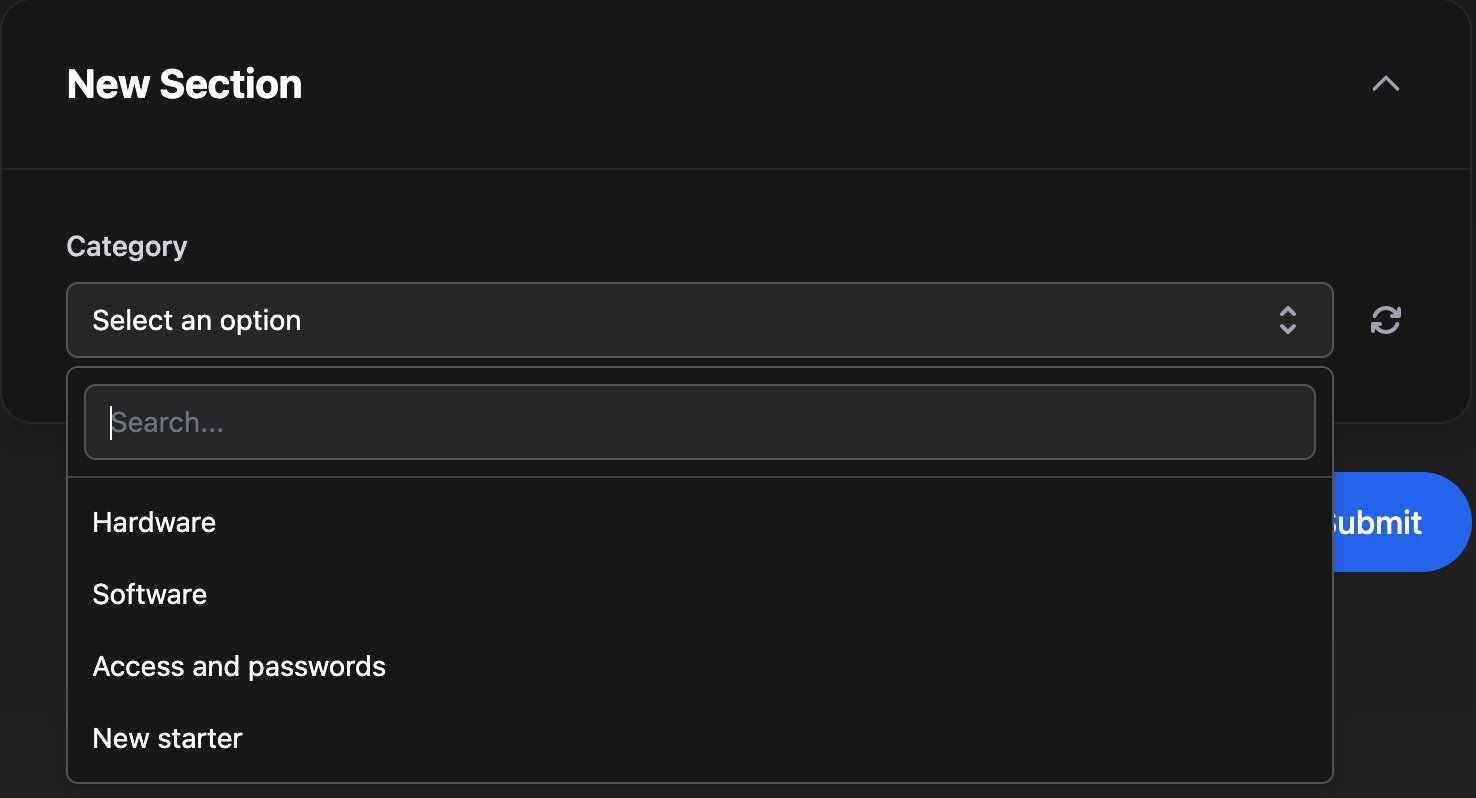
id and name; change them if your items use other fields.Read it in a workflow
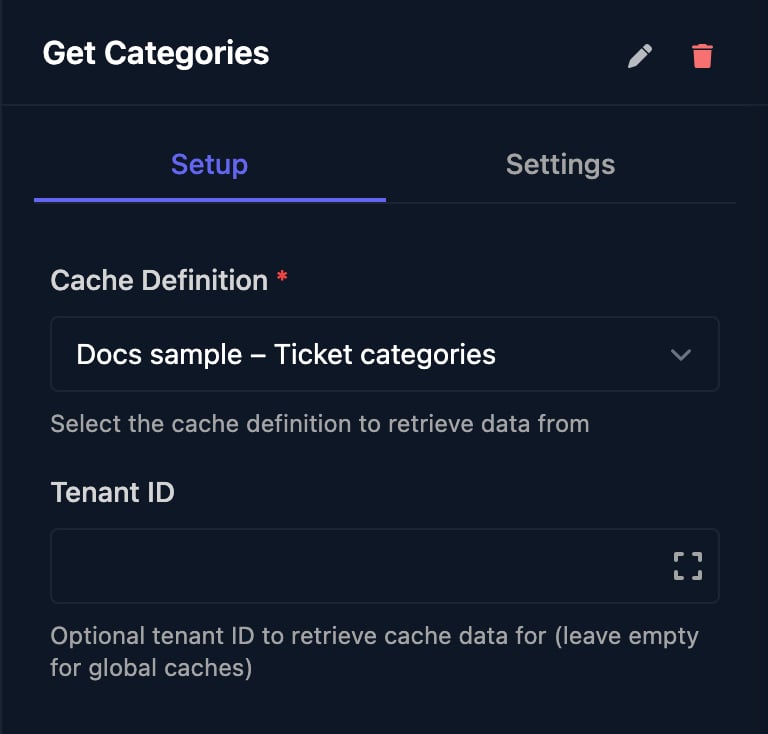
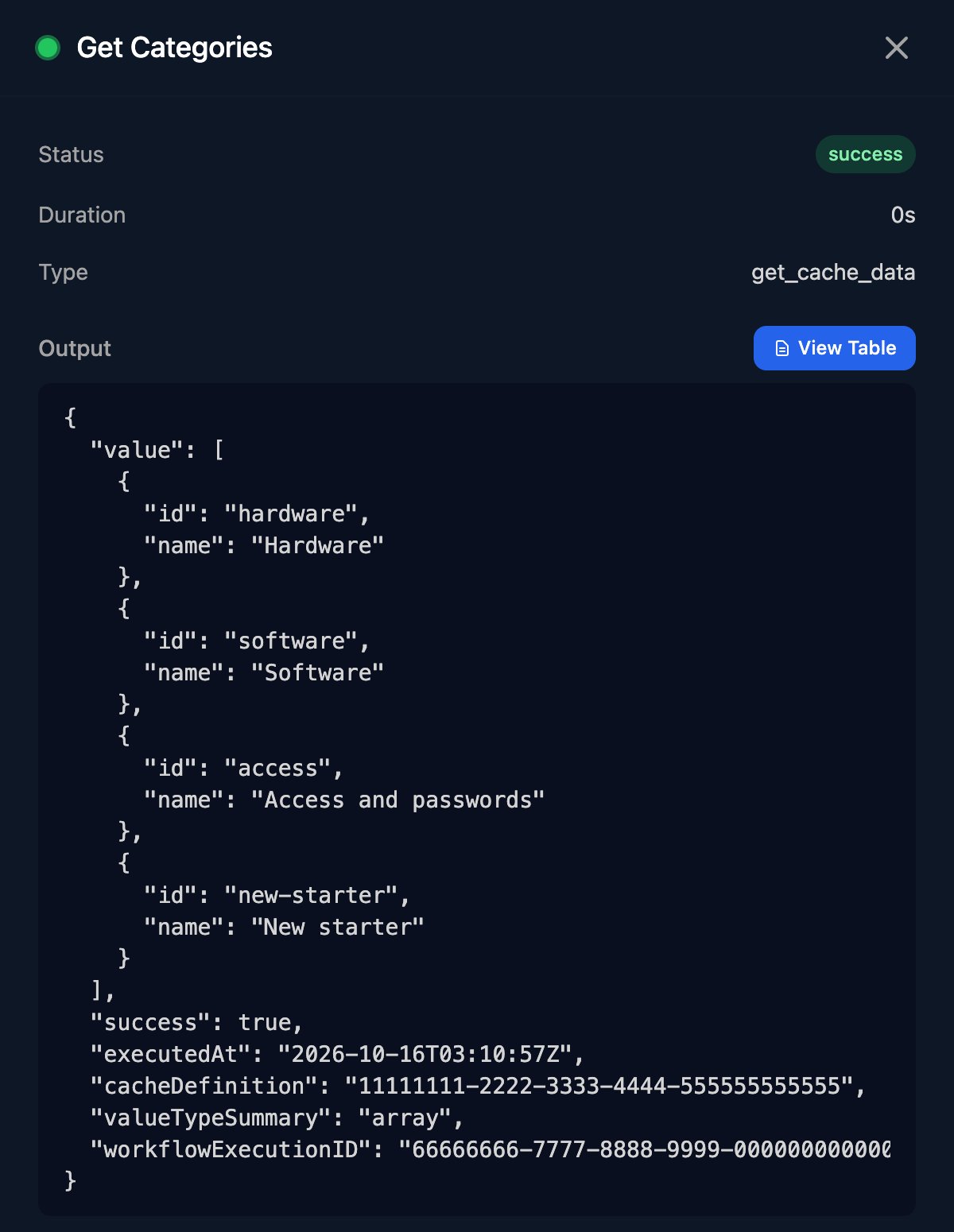
Add Get Cache Data from Cache, choose the cache definition and leave Tenant ID empty for a global cache. The stored value is invalue: {{ ctx.steps['Get Categories'].value }}.
When a workflow adds a ticket category in your PSA, for example, end it with Refresh Cache Data so the form shows it straight away.
How it refreshes
- The frequency counts from when you created the definition: a Daily cache created at 09:10 UTC refreshes at about 09:10 UTC each day.
- A stored value stays until a run replaces it; if a run fails, forms and workflows keep the last good value and Execution Logs shows why.
- Each run has 5 minutes, and a value can be up to 10 MB.
- Invalidate Cache deletes the stored values; Edit changes the definition or disables it, and changing its workflow, published variable or scope also clears the values.
Per-client caches
With Scope set to Per Tenant, Triggr stores a value per client, or for the clients you pick. Each run gets the client’s ID inctx.metadata.tenantId, so start the workflow with a Set Client From Form step to load that client’s variables and integrations. A form reads the signed-in person’s client’s value; in Get Cache Data, set Tenant ID to {{ ctx.client.id }}.
Troubleshooting
“published variable '…' not found in workflow result” or “no published variables found in workflow result”
“published variable '…' not found in workflow result” or “no published variables found in workflow result”
Check the step’s Settings tab has Publish Variable ticked, the name matches the definition, and the run reaches Finish Workflow.
“workflow execution timed out after 5 minutes”
“workflow execution timed out after 5 minutes”
Fetch less, or split the workflow into several caches.
The form's dropdown is empty
The form's dropdown is empty
The cached value must be a list of items that each have the Value Key and Label Key fields; check its shape with View Cache Data.
“tenantID is required for per-tenant cache definitions”
“tenantID is required for per-tenant cache definitions”
The Get Cache Data step for a Per Tenant cache needs Tenant ID set to
{{ ctx.client.id }}.“cache definition is disabled”
“cache definition is disabled”
On the definition’s page, click Edit, set it to Enabled and save.
Can an internal app or an AI assistant read a cache?
Can an internal app or an AI assistant read a cache?
An internal app can’t. An AI assistant connected through MCP can, with Cache tools such as
get_cache_entries and run_cache.