

Clients and variables: adding a client, giving it variables and finding your org variables (1:20).
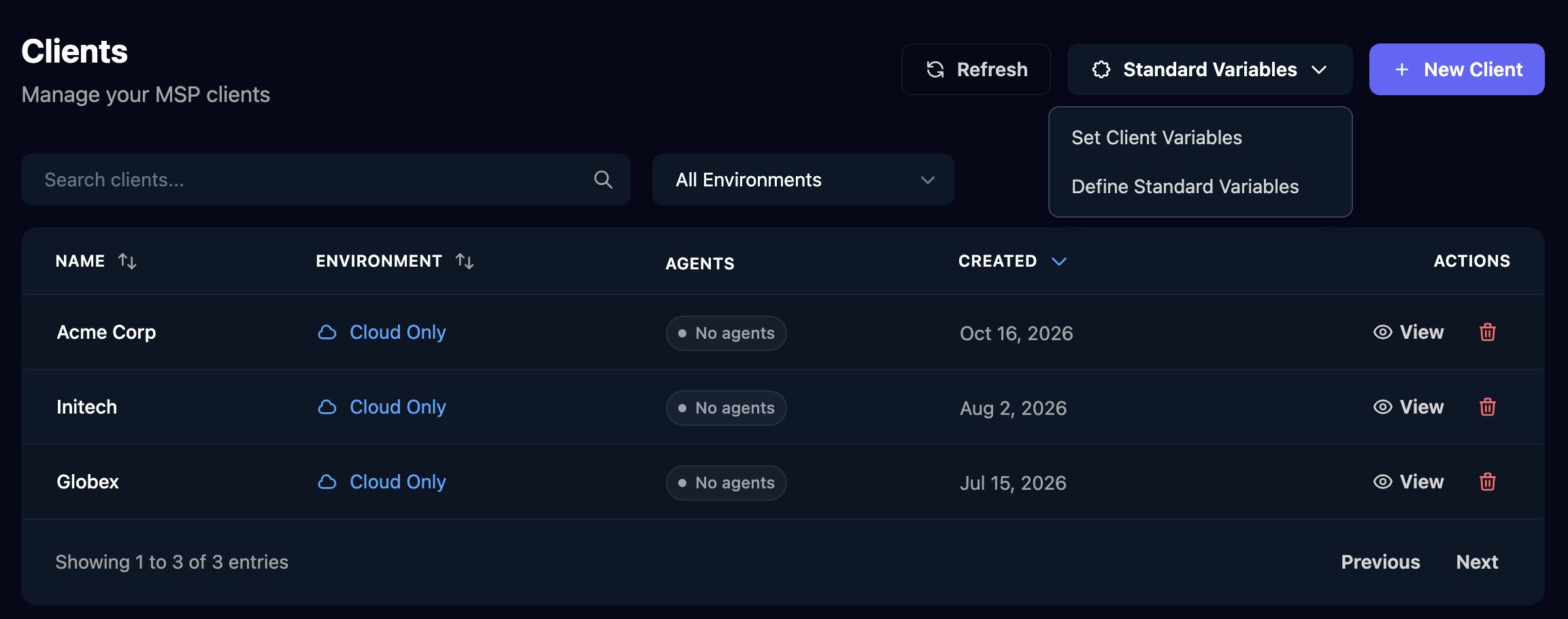
Add a client
1
Create it
In Clients, click New Client, enter the name, choose the Environment and click Create Client.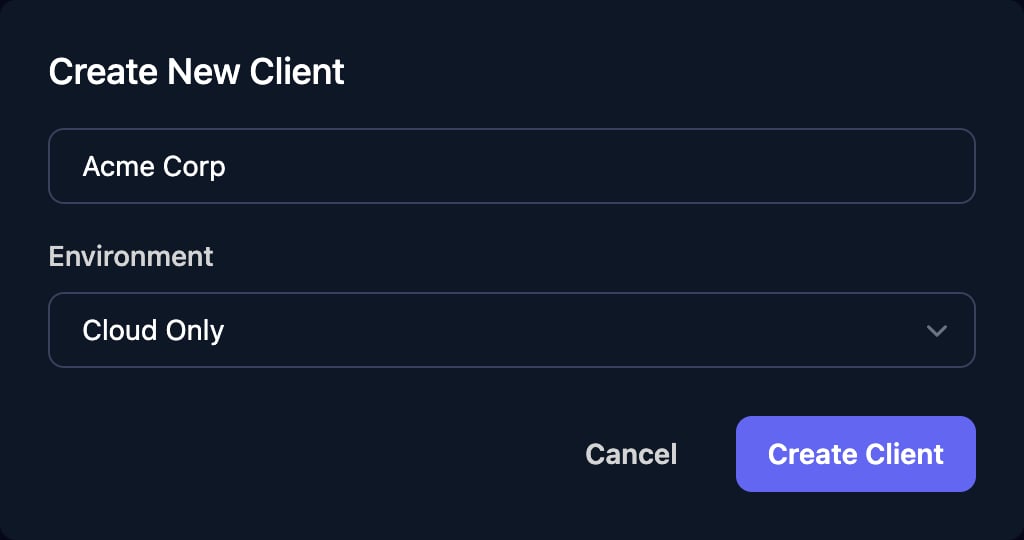
2
Open it
Click View on its row. Edit changes the name or environment; Agent Credentials sets up the desktop agent.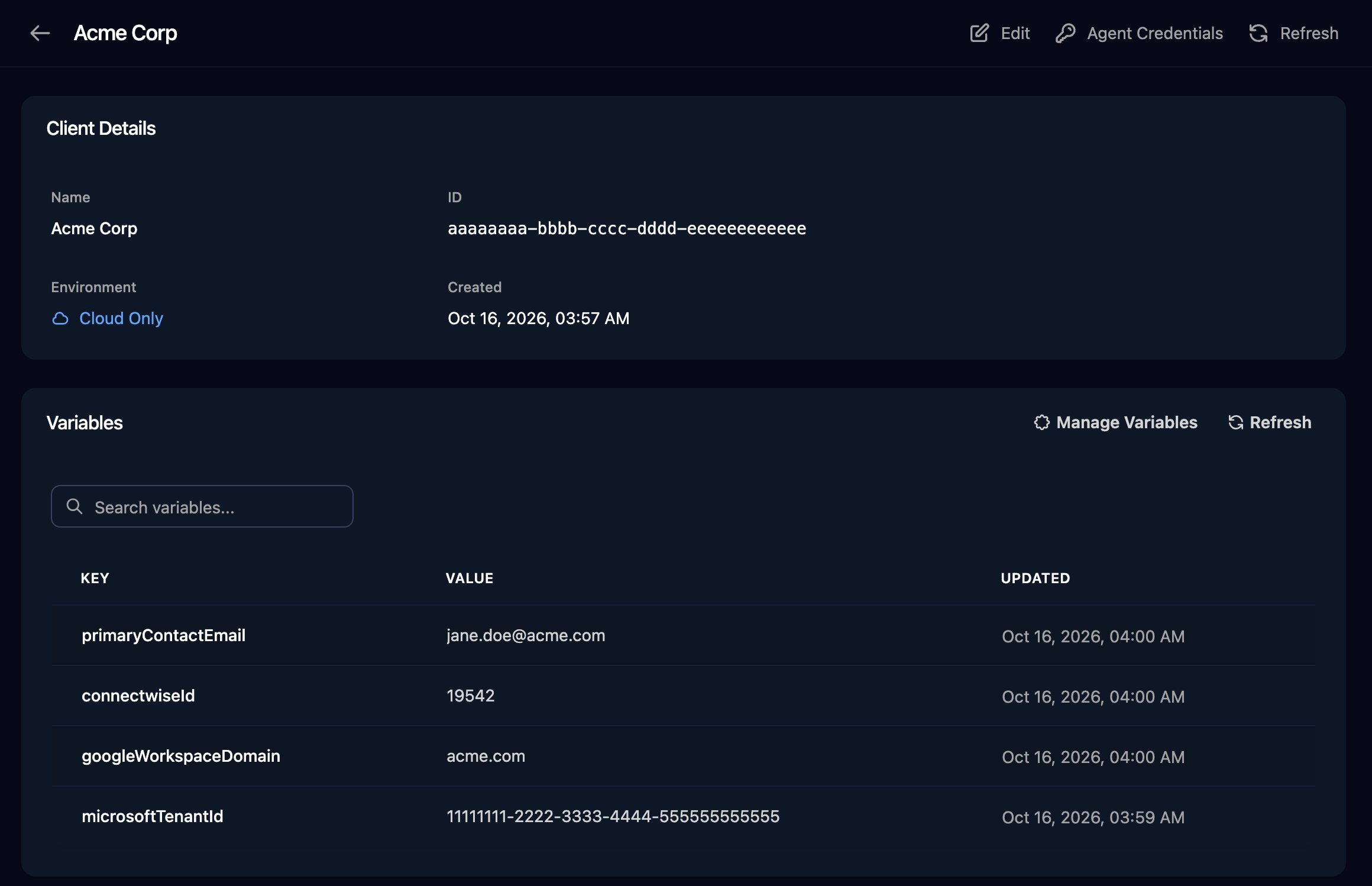
Give it variables
1
Open its variables
Click Manage Variables on the client’s Variables card.
2
Add a variable
Click New Variable, enter the Key and Value, and click Create Variable.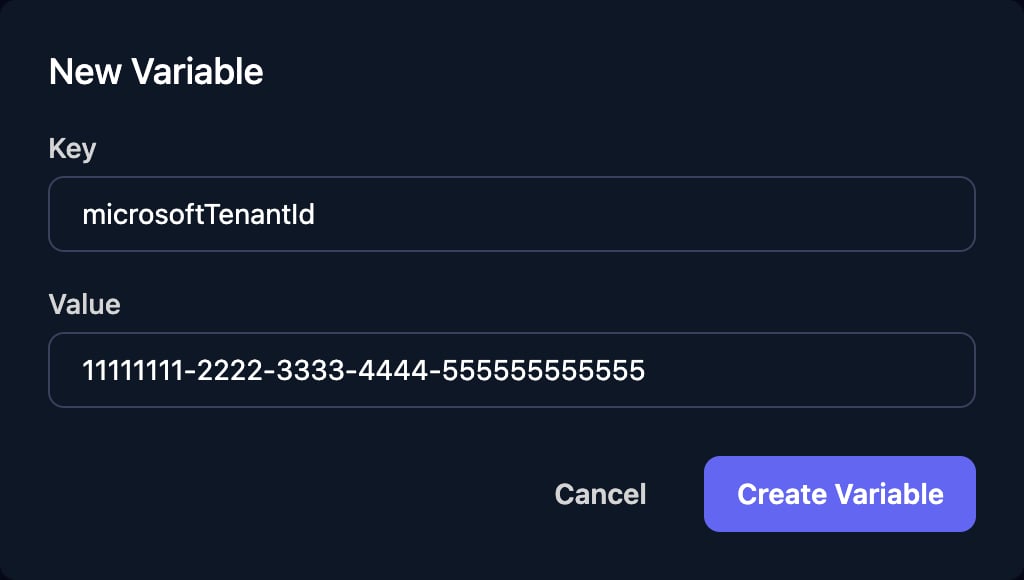
3
Fill in anything Not Set
Click Set Value on any standard variable marked Not Set.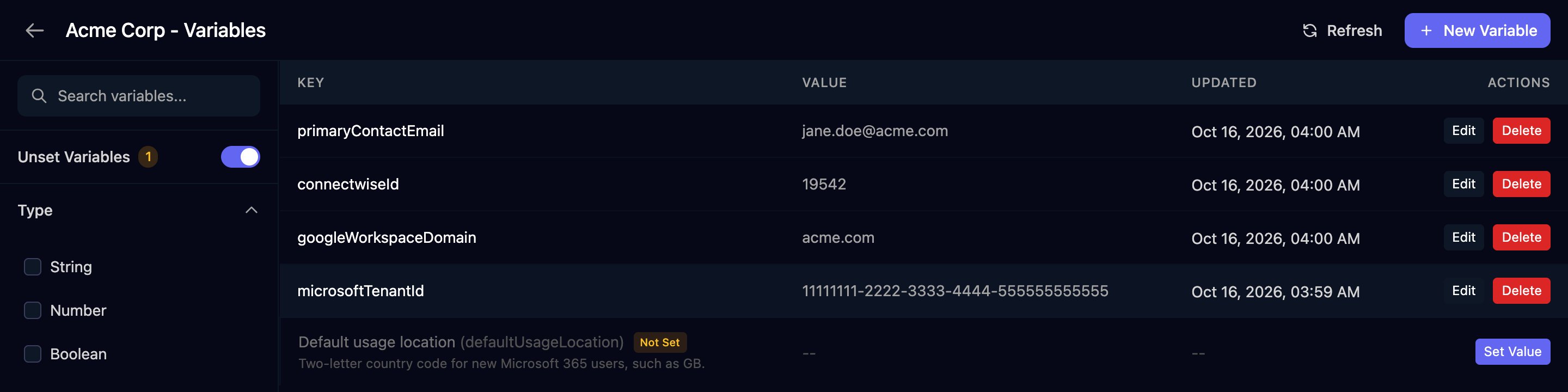
microsoftTenantId works, MicrosoftTenantID doesn’t. A value that’s a number, true, false or JSON reaches workflows as that type; anything else is text.
Integration IDs come from mapping instead: map clients on an integration’s Client Mapping card, or click Map or Edit Mapping on the client’s Integrations card, and Triggr saves each match as a variable.
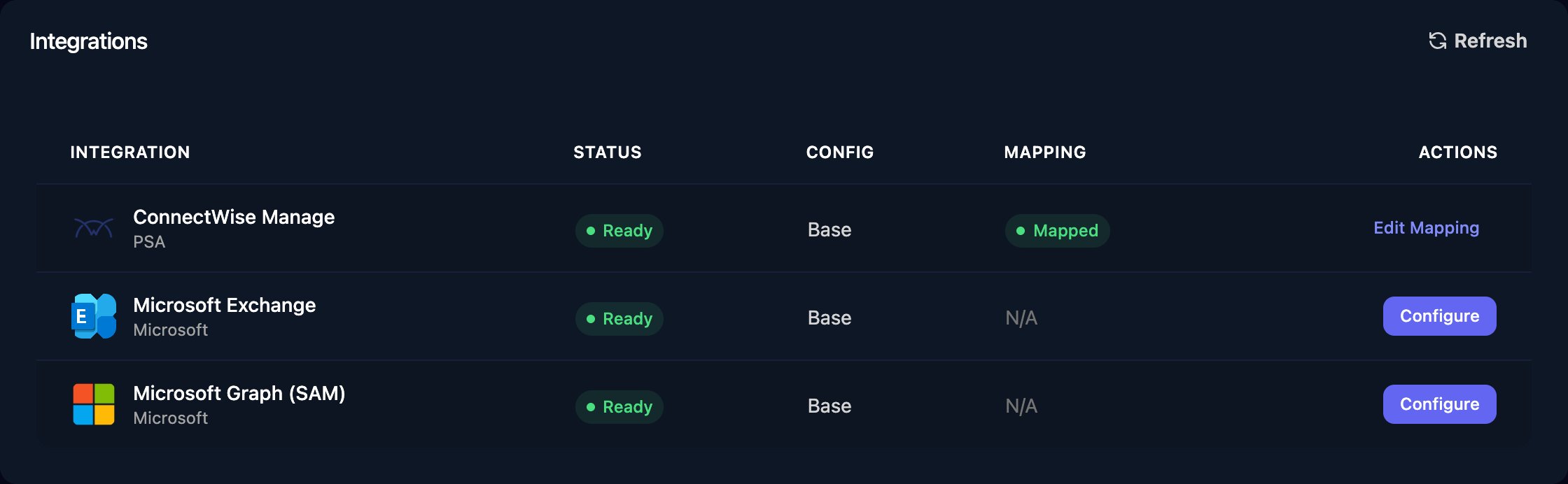
Variables Triggr uses
Other Client Mapping cards save an ID for your workflows to pass into that integration’s actions:
autoElevateCompanyId, auvikTenantId, dattoBcdrOrganizationId, dattoSaasProtectionId, dattoSiteId and dattoSiteUid, duoAccountId, fieldEffectOrganizationId, hubspotId, huduId, huntressId, itGlueId, ncentralCustomerId, ninjaId, organizationId (DNSFilter), sentinelOneSiteId and syncroId. Each integration’s guide says which actions take it.
Use variables in a workflow
Once a Client step such as Set Client From Form has run,ctx.client holds the client’s id, name, environment and every variable; org variables are in ctx.org:
environment is cloudOnly, onPremOnly, cloudAndOnPremSeparate or cloudAndOnPremSynced. A client mapped to several external clients has the first ID in haloId, all of them in haloIdList and a comma-separated list in haloIdCsv; the same goes for every mapping. See Expressions for everything else a template can read.
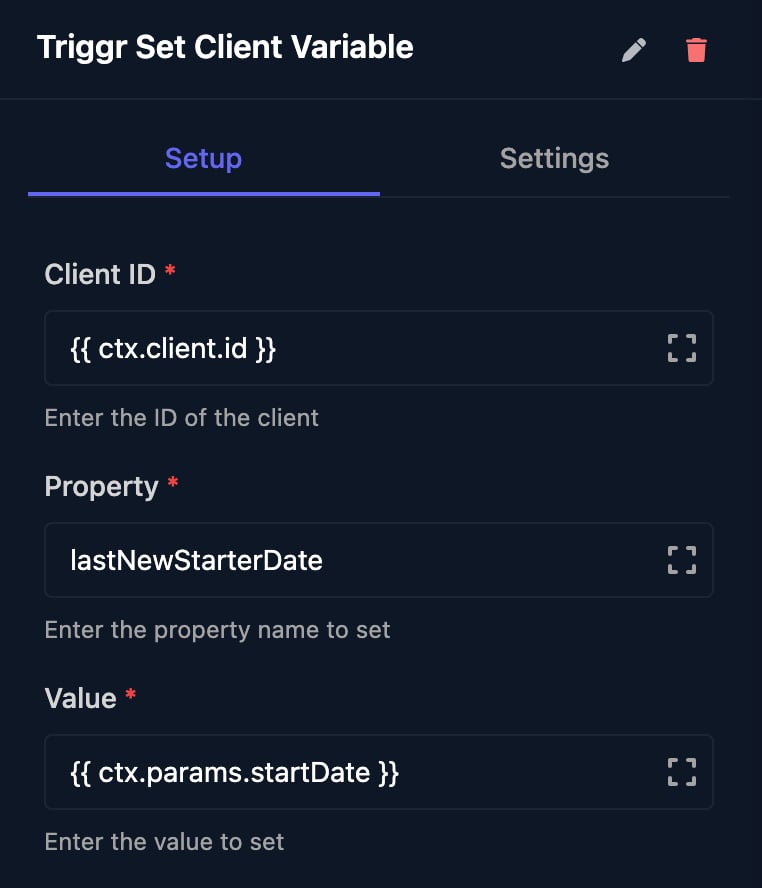
To save a value back, add the Triggr group’s Set Client Variable step with Client ID {{ ctx.client.id }}. An empty Value deletes the variable.
Standard variables
Standard variables are the checklist of variables every client should have. They don’t hold values: a client without one shows Not Set, and a template that reads it fails with “Missing or invalid variable”.1
Define them
In Clients, click Standard Variables > Define Standard Variables, then New Variable. Enter the Key, Label and Description, and click Create Variable.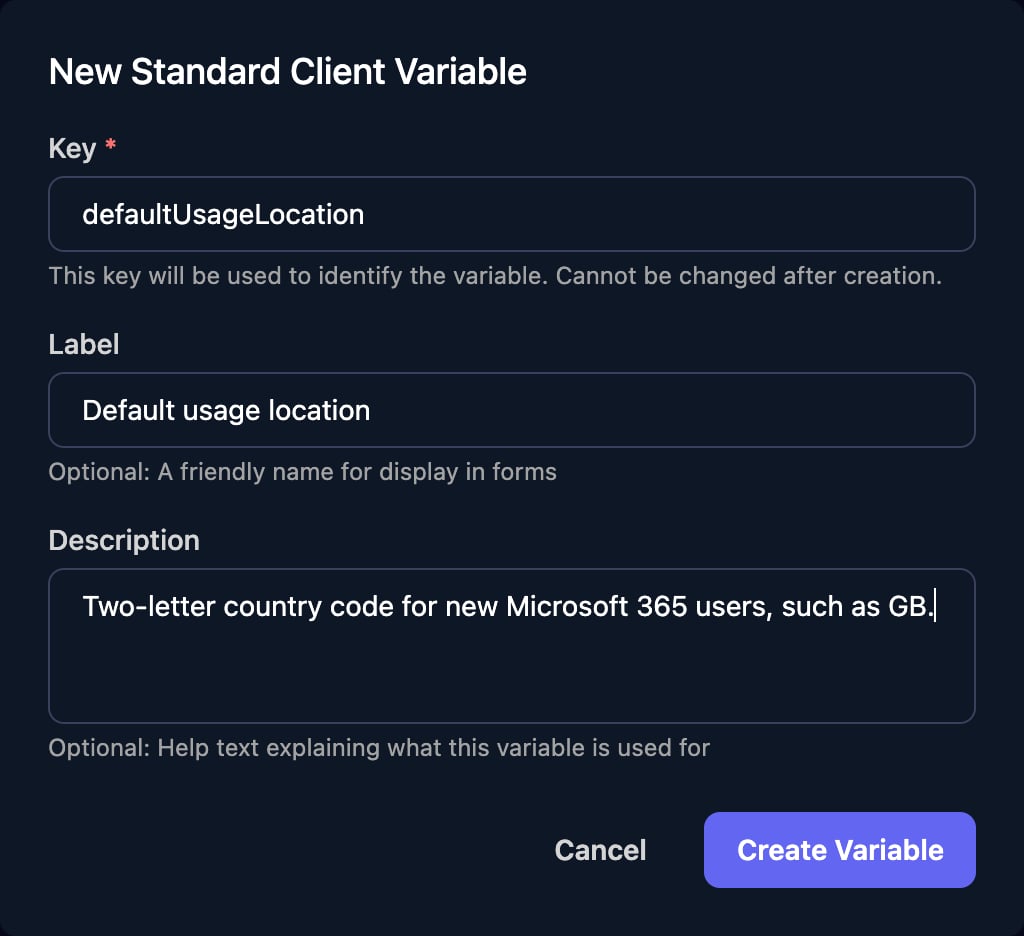

2
Fill them in for every client
Click Standard Variables > Set Client Variables. Type in a cell and press Enter to save; Esc cancels.
Org variables
Org variables apply to your whole organisation. Find them in Settings > Org Variables; workflows read them asctx.org.<key>, and form fields can show or hide on them.

1
Preferred Microsoft Connection Method
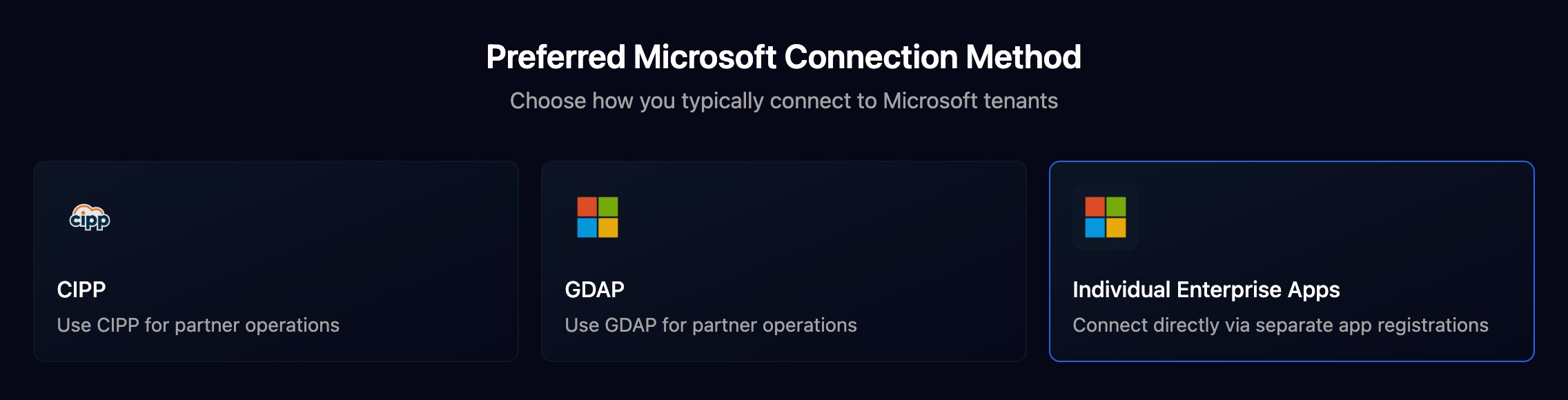
2
Preferred PSA
Pick your PSA and click Finish.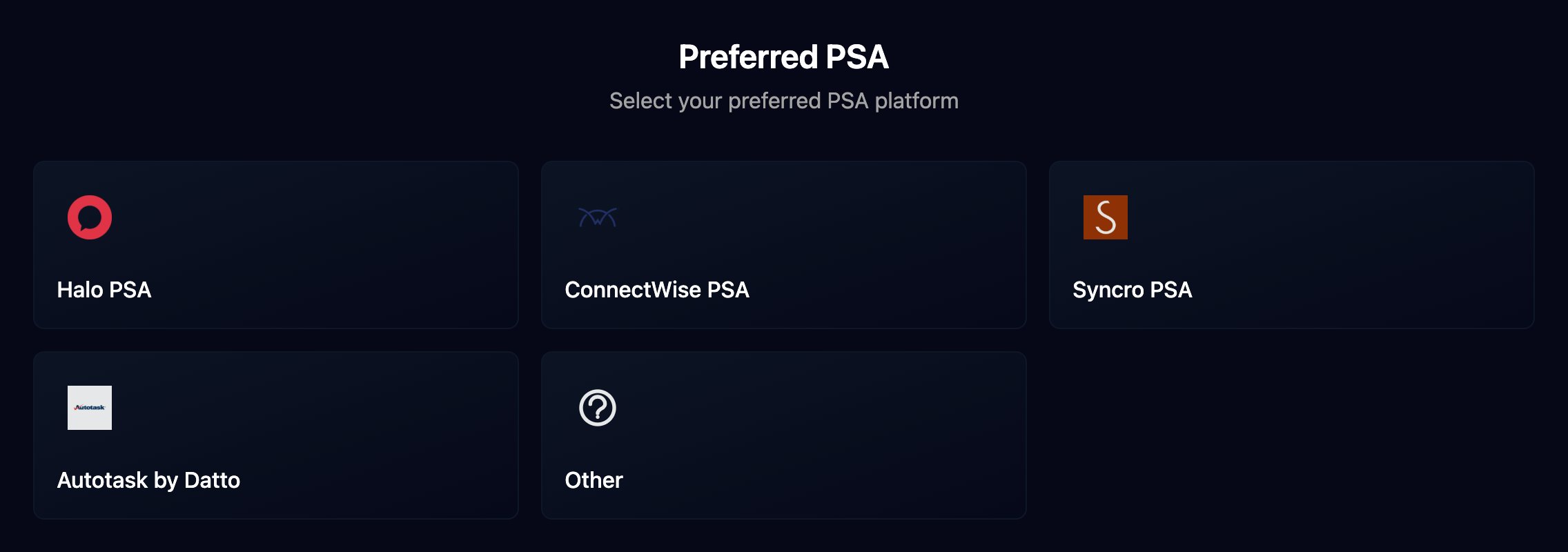
Triggr Core’s PSA and Microsoft settings save the same two variables, so changing them in either app changes both.
FAQ
“Failed to save variable” when I add a variable
“Failed to save variable” when I add a variable
The client may already have a variable with that key. Click Edit on its row instead.
“org.defaultPSA not found or empty” or “unsupported PSA system: …”
“org.defaultPSA not found or empty” or “unsupported PSA system: …”
Create Ticket needs
defaultPSA set to halo, connectwise or autotask. Run Setup Wizard and pick your PSA.“org.defaultMicrosoftConnection not found or empty”
“org.defaultMicrosoftConnection not found or empty”
Run Setup Wizard and choose a Microsoft connection method, or set the step’s Connection Type.
“microsoftTenantId not found in tenant metadata. CIPP requires a tenant filter.”
“microsoftTenantId not found in tenant metadata. CIPP requires a tenant filter.”
The run’s client has no
microsoftTenantId. Add it on Manage Variables.I changed a variable but the run used the old value
I changed a variable but the run used the old value
ctx.client is read when the run sets its client, so changes apply from the next run, including values written by Set Client Variable earlier in the same run.I can't see New Client or Standard Variables
I can't see New Client or Standard Variables
They need the Admin role. See Team and permissions.