

<app@triggr-app.com>.
Send from your own mailbox: adding a Microsoft 365 profile and an SMTP profile, testing it, and choosing a profile on a Send Email step (1:25).
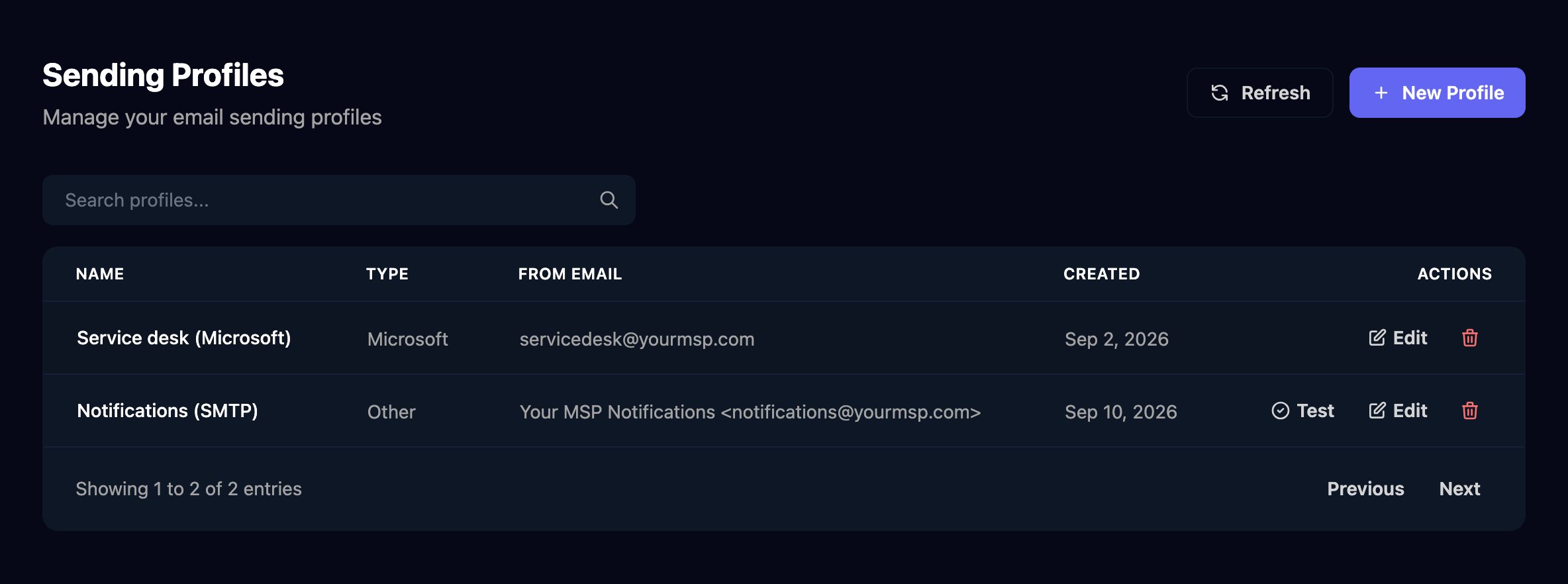
Create a profile
- Microsoft 365 mailbox
- SMTP server
Connect Microsoft Email in Integrations first.Microsoft profiles have no Test button: run a workflow that emails you instead.
1
Start a profile
In Settings > Sending Profiles, click New Profile and leave Profile Type on Microsoft.
2
Name it and add the mailbox
Enter a Name (2 to 50 characters) and a mailbox in the connected tenant as From Email, then click Create Profile.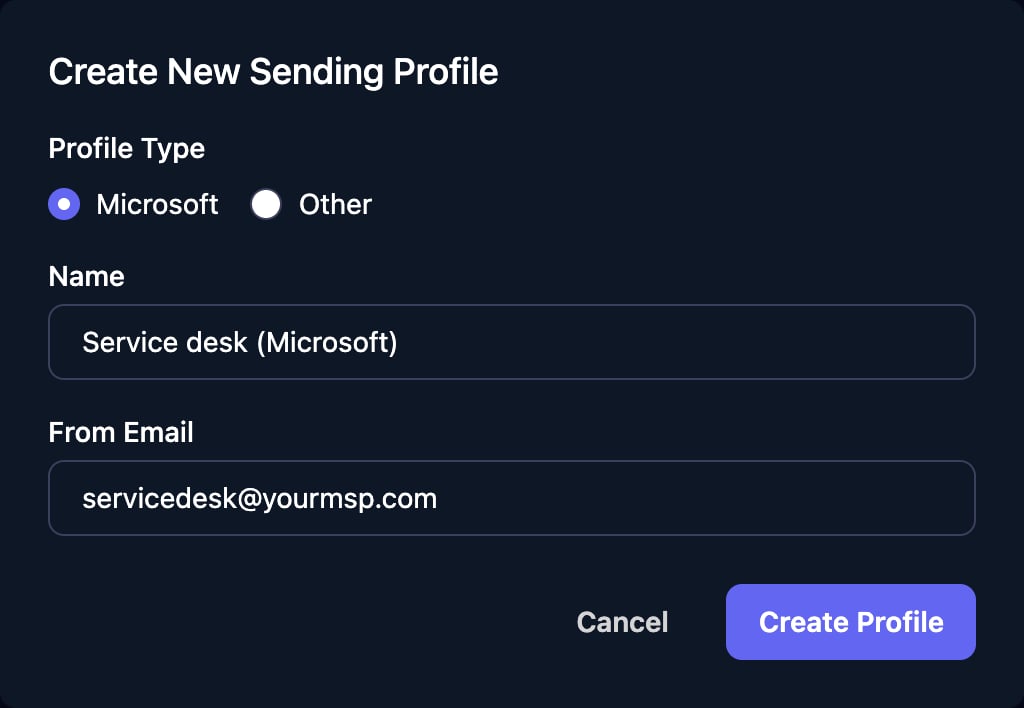
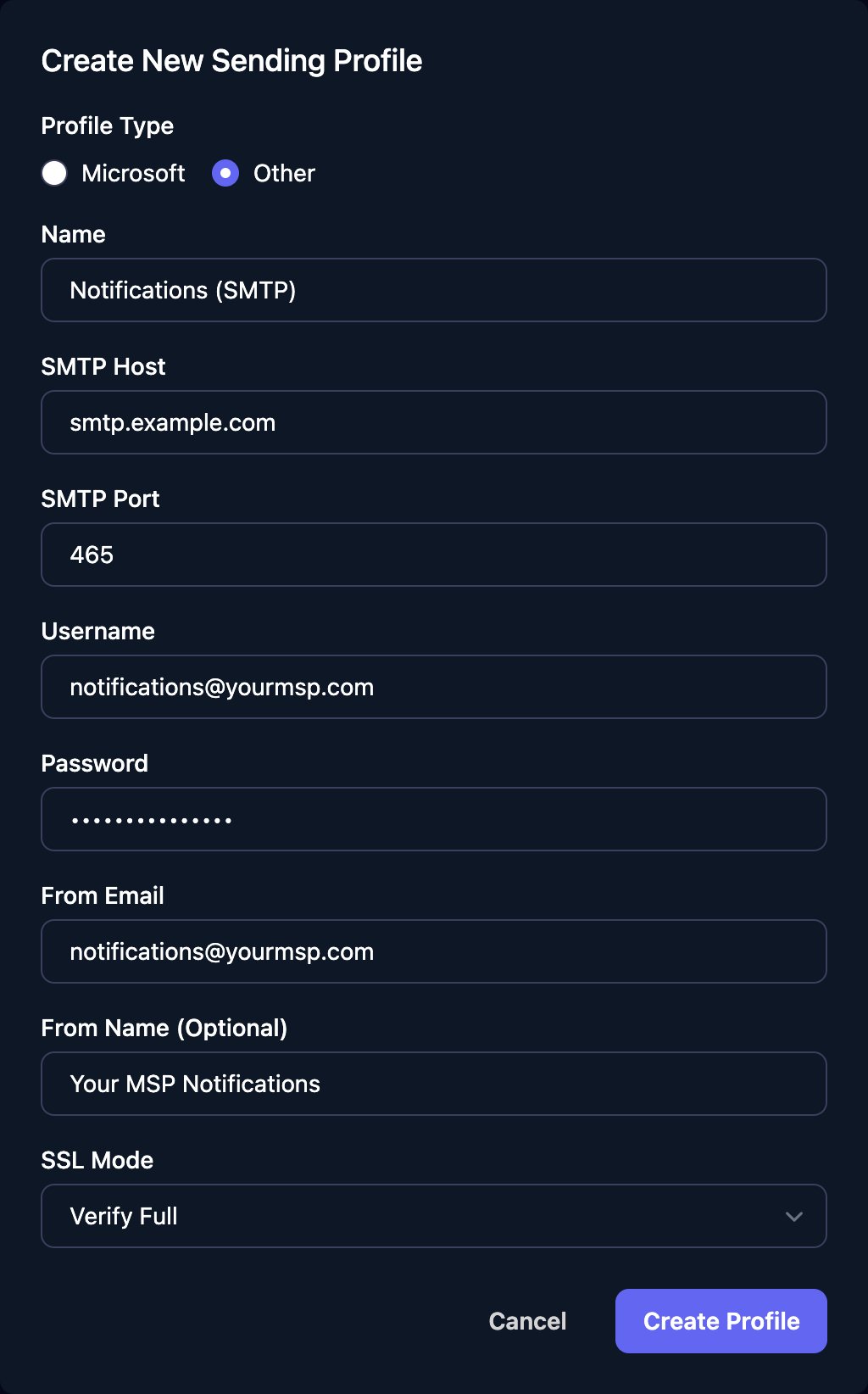
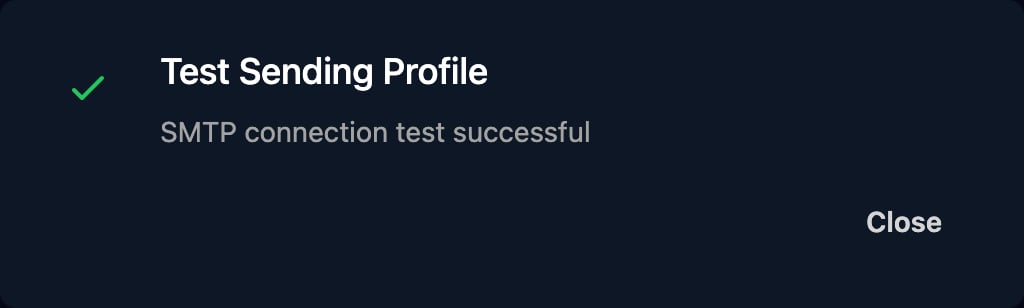
Use it in a workflow
On a Send Email step, choose the profile in Sending Profile and click Save. The list shows each profile’s From Name and From Email, not its Name. Await Form Submission steps have the same setting.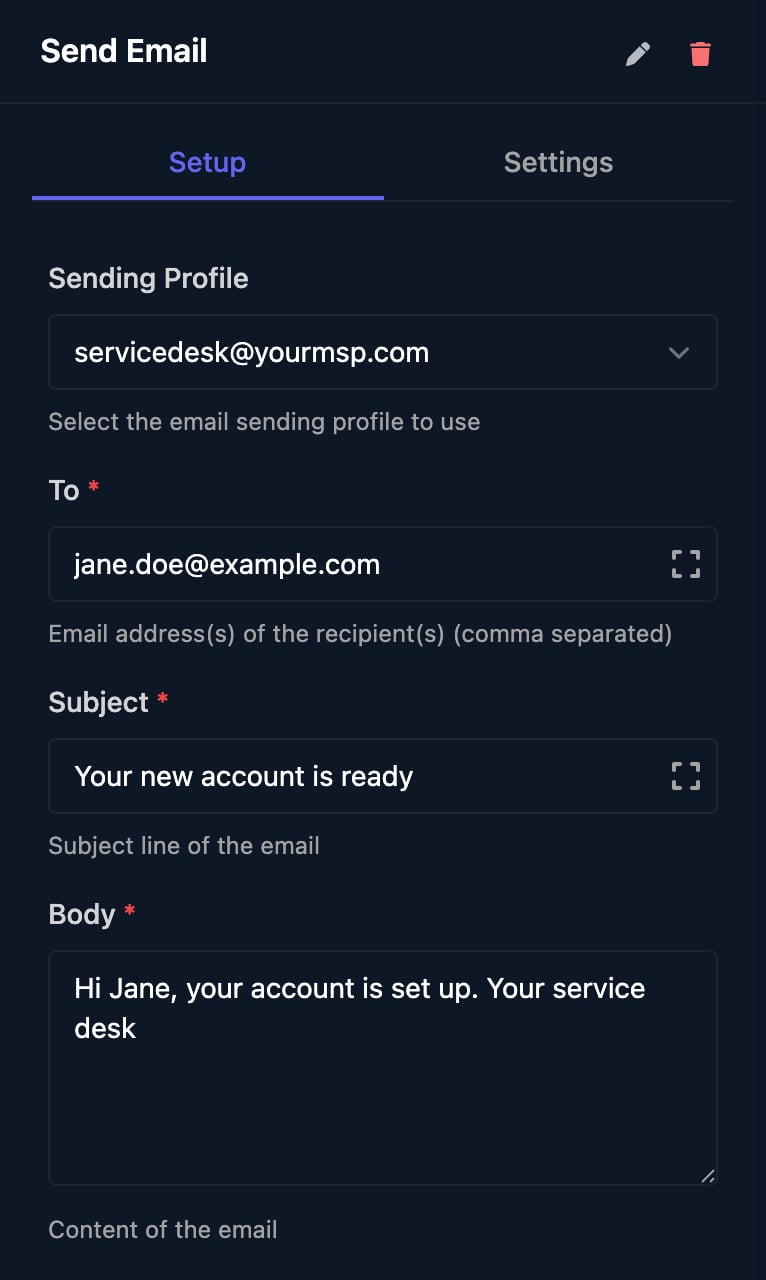
Studio’s approval emails always come from
app@triggr-app.com. Profiles are shared with Triggr Core, where you choose one for approval requests and reports: see Add your branding.Change or remove a profile
Click Edit to change a profile. For an SMTP profile, enter the Password again before you click Save Changes. To remove it, click its bin icon, then Delete Profile. Switch any Send Email steps to another profile first, or they’ll fail.Troubleshooting
“Failed to connect to SMTP server: …”
“Failed to connect to SMTP server: …”
Check SMTP Host and SMTP Port. If the server only accepts known senders, allow Triggr’s IP addresses.
“Failed to start TLS: …” or “Failed to establish TLS connection: …”
“Failed to start TLS: …” or “Failed to establish TLS connection: …”
The SSL Mode doesn’t match the port: Require goes with 587 and Verify Full with 465.
“Failed to authenticate: …”
“Failed to authenticate: …”
Check Username and Password; many providers need an app password for SMTP. For a Microsoft 365 mailbox, use a Microsoft profile instead.
Send Email fails with “SMTP authentication failed: unencrypted connection”
Send Email fails with “SMTP authentication failed: unencrypted connection”
Edit the profile: set SSL Mode to Verify Full and SMTP Port to 465, which your provider must support.
“Failed to set sender: …”
“Failed to set sender: …”
The account can’t send as From Email. Use its own address, or one it’s allowed to send as.
“invalid from email address format”
“invalid from email address format”
From Email must be a single address, such as
notifications@yourmsp.com.Send Email fails with “failed to get sending profile”
Send Email fails with “failed to get sending profile”
The profile was deleted, or, for a Microsoft profile, the Microsoft Email integration isn’t connected or its Admin Consent isn’t Granted.
A Microsoft profile fails with ErrorAccessDenied
A Microsoft profile fails with ErrorAccessDenied
Triggr can’t send as that mailbox. See Microsoft 365 email troubleshooting.