

Slide decks: the assistant builds a quarterly review, then you change a slide, pick a theme, present and export it (1:22).

Build a quarterly review
1
Start a deck
Click New deck. The designer opens with one cover slide; click the name at the top to rename it.
2
Describe it to the assistant
Tell the assistant what the deck is for and the facts to use, then press Enter: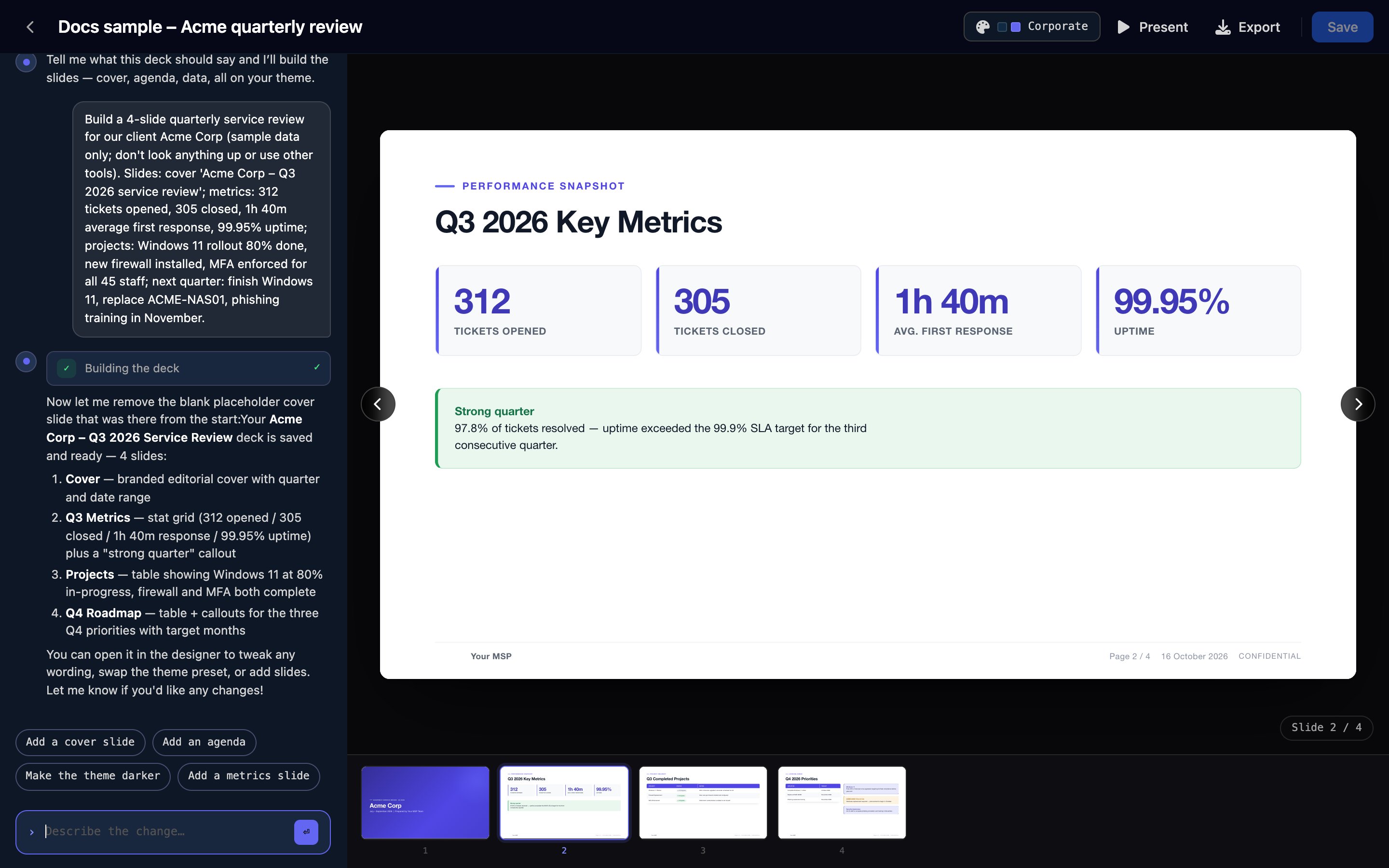
Build a 4-slide quarterly service review for Acme Corp. Cover: Acme Corp – Q3 2026 service review. Metrics: 312 tickets opened, 305 closed, 1h 40m average first response, 99.95% uptime. Projects: Windows 11 rollout 80% done, new firewall installed, MFA enforced for all 45 staff. Next quarter: finish Windows 11, replace ACME-NAS01, phishing training in November.
3
Pick a theme
Click the theme button (Corporate on a new deck) to choose a preset and set brand and accent colours, palette and fonts.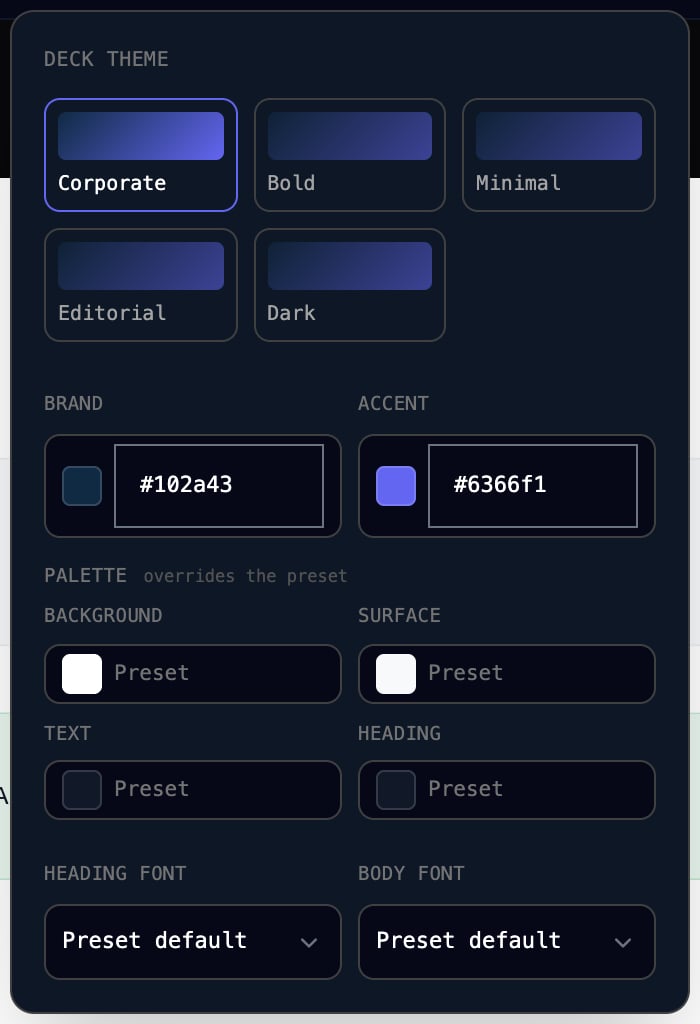
4
Present or export it
Present shows the deck full screen (arrow keys move between slides, Esc leaves). Export offers Download HTML or Download PDF; PDF opens your browser’s print dialog, where you choose Save as PDF.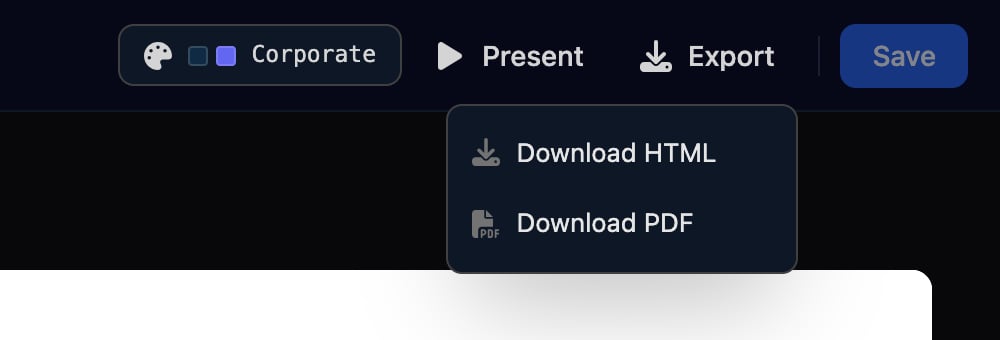
FAQ
Can I edit a slide myself?
Can I edit a slide myself?
Ask the assistant, naming the slide and the change: “On slide 2, change the uptime to 99.97%”.
Can a workflow build a deck?
Can a workflow build a deck?
No. An AI assistant connected through MCP can, with Decks tools such as
create_deck and update_deck. For a page a workflow fills in every month, use a report template.Can I export to PowerPoint?
Can I export to PowerPoint?
Export as PDF or HTML instead.
A slide shows “Over-filled — auto-shrunk”
A slide shows “Over-filled — auto-shrunk”
Its content is bigger than a 16:9 slide. Ask the assistant to trim the slide or split it in two.
I can't see the assistant
I can't see the assistant
It’s available to organisation admins. Ask an admin to build or change the deck.