

Build your first workflow: New starter setup built from the New starter request form, saved, tested with Manual Trigger and its run read (1:27).
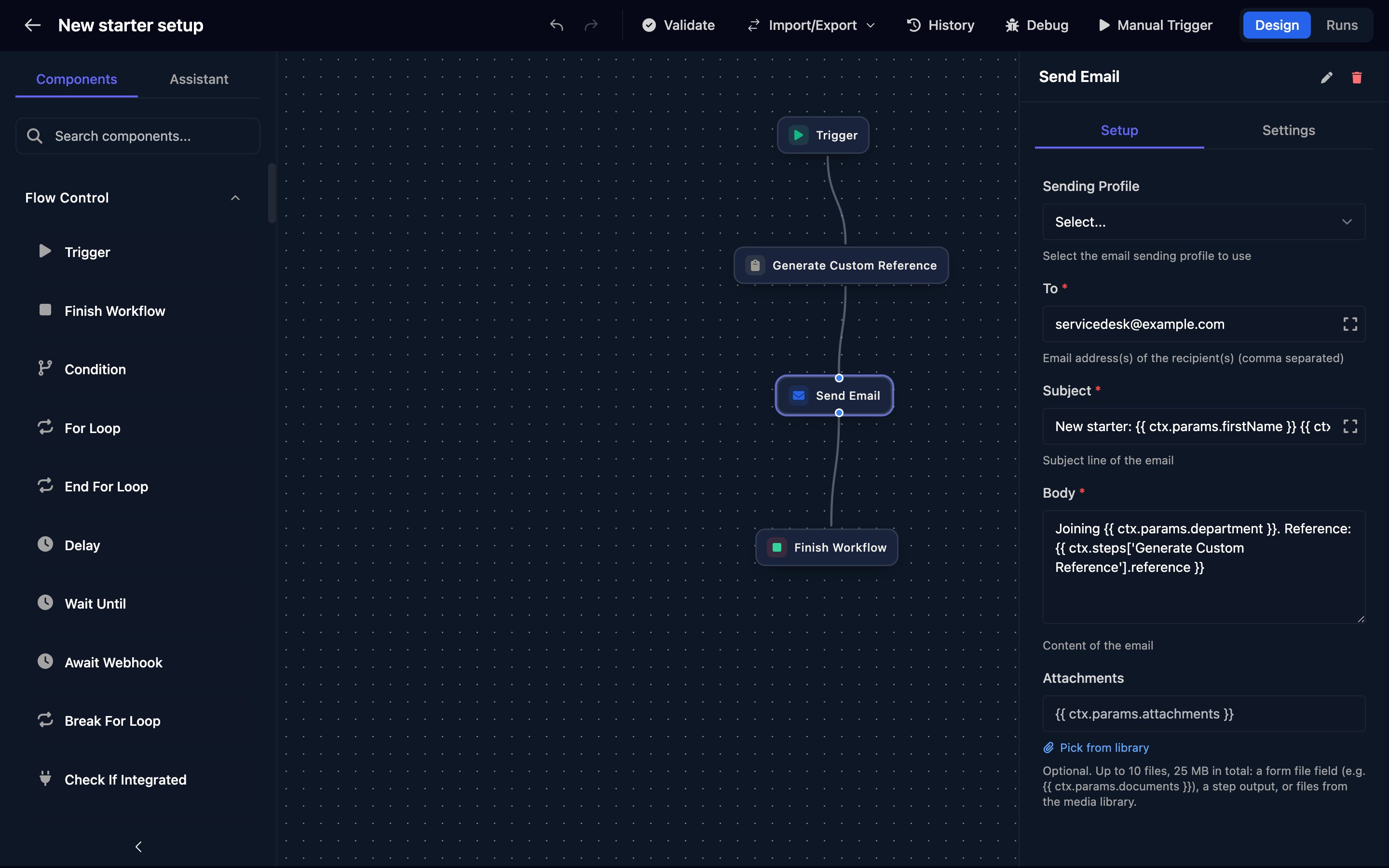
The workflow designer: steps on the left, the canvas in the centre, the selected step's setup on the right.
Build a new starter workflow
This workflow emails your service desk when someone submits the New starter request form from Introduction to forms.1
Create the workflow
In Workflows, click New Workflow, name it 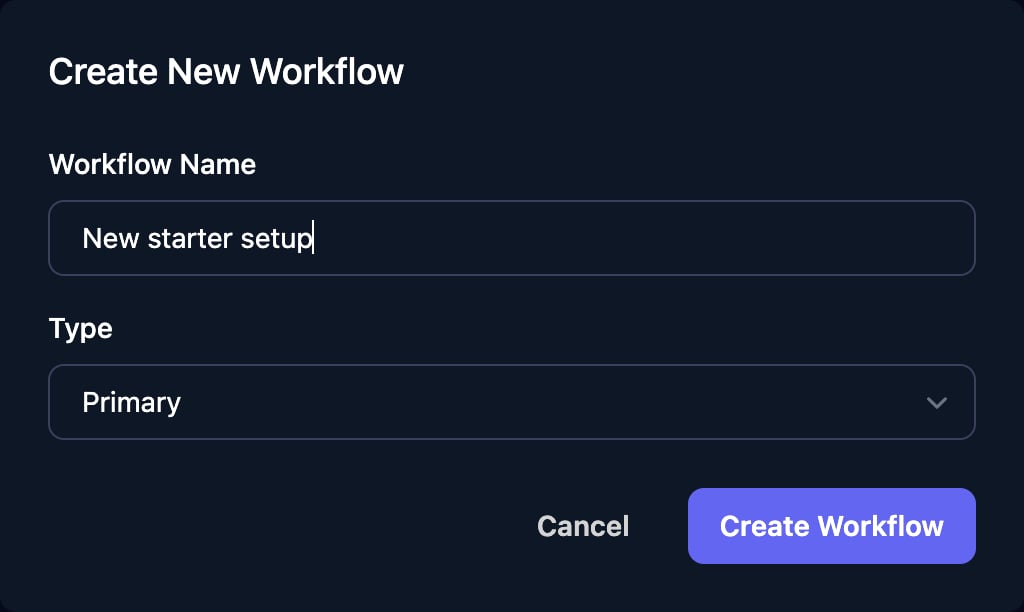
New starter setup and click Create Workflow.2
Add a form trigger
Drag Trigger from Flow Control onto the canvas. Click Add Trigger and choose New starter request as the Form. A new trigger’s type is already Form.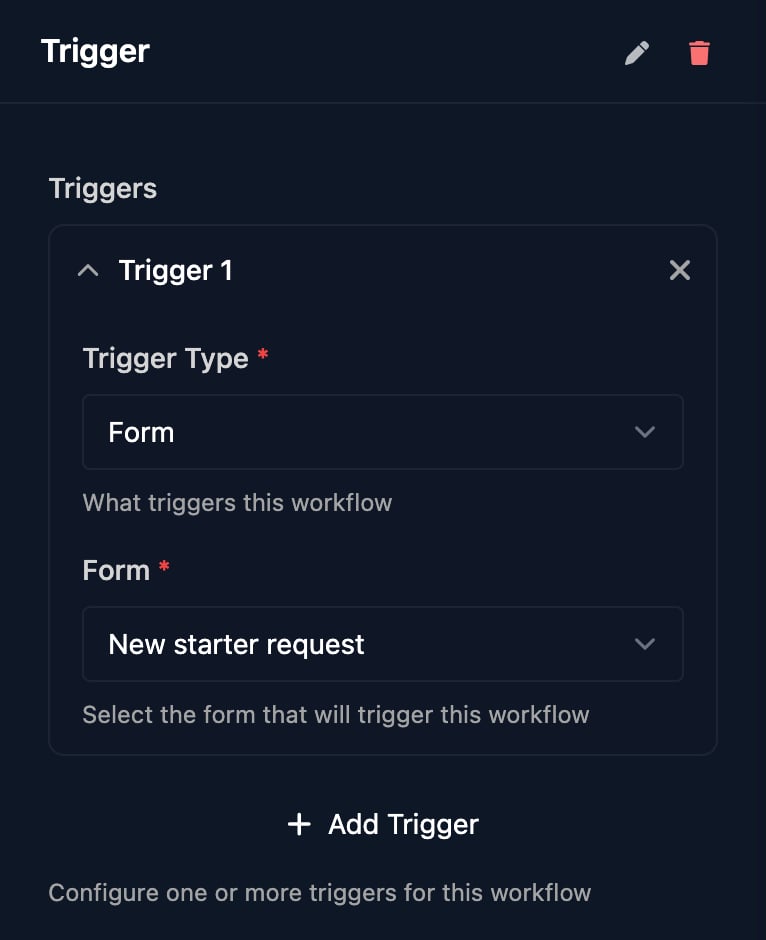
3
Add the steps
Drag Generate Custom Reference (Utilities), Send Email (Communication) and Finish Workflow (Flow Control) below it, then drag from the dot under each step to the dot on top of the next. To find a step, type its name in Search components.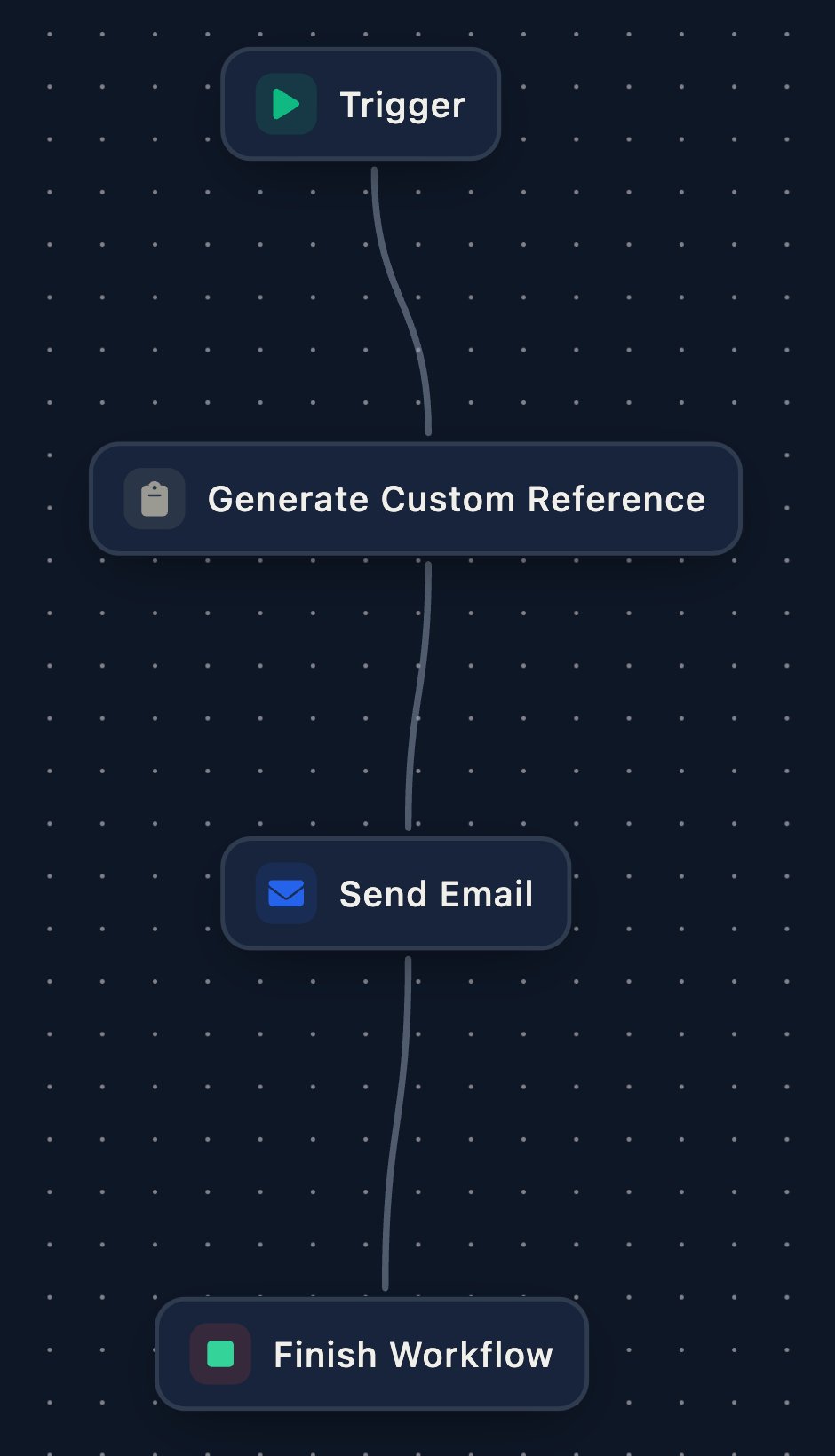
4
Fill in the email
Click Send Email and fill in Setup, leaving Sending Profile empty to send from Triggr: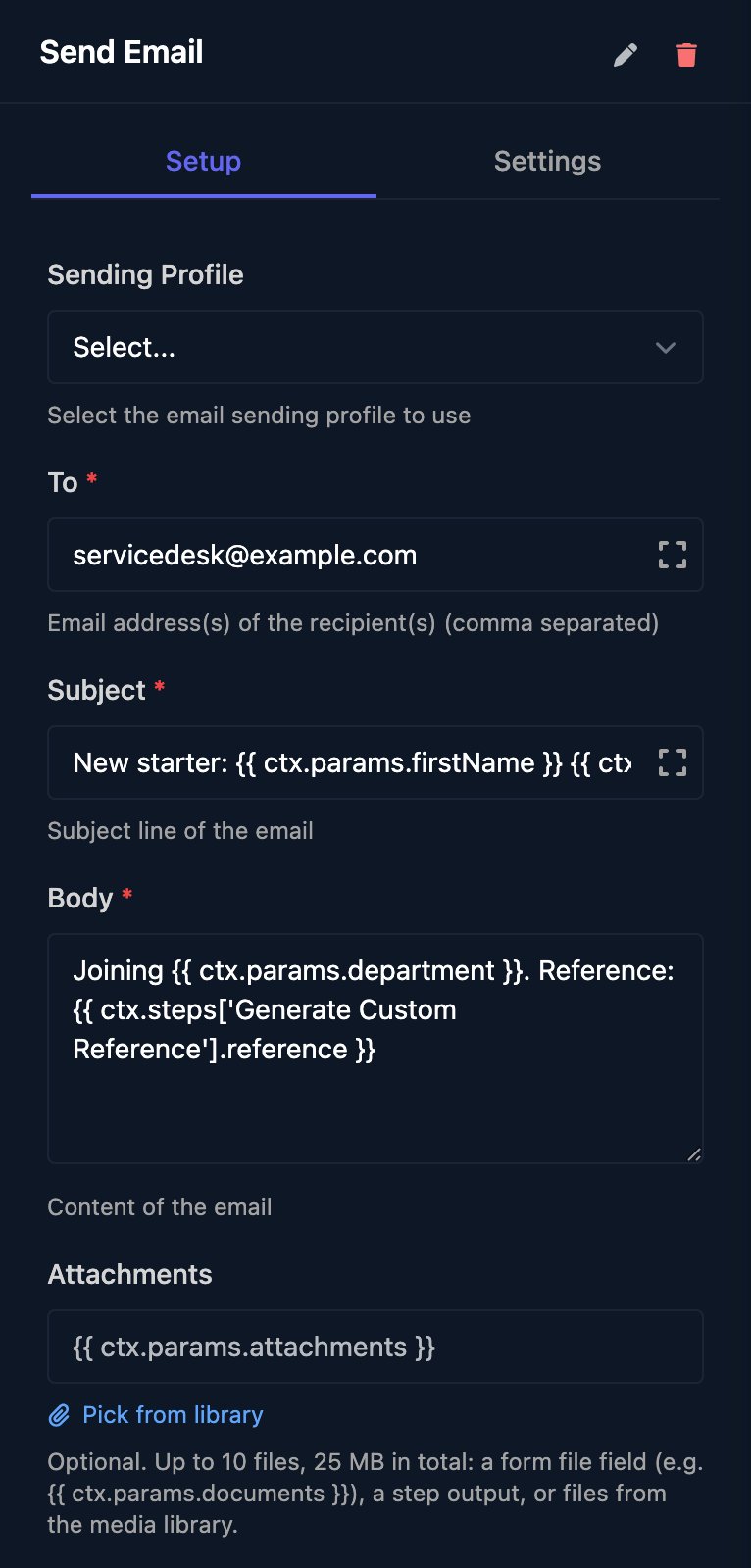
- To: your service desk’s address
- Subject:
New starter: {{ ctx.params.firstName }} {{ ctx.params.lastName }} - Body:
Joining {{ ctx.params.department }}. Reference: {{ ctx.steps['Generate Custom Reference'].reference }}
5
Save and test it
Click Save at the bottom of the canvas (or press ⌘S or Ctrl+S), then Manual Trigger. Enter test answers and click Trigger Workflow.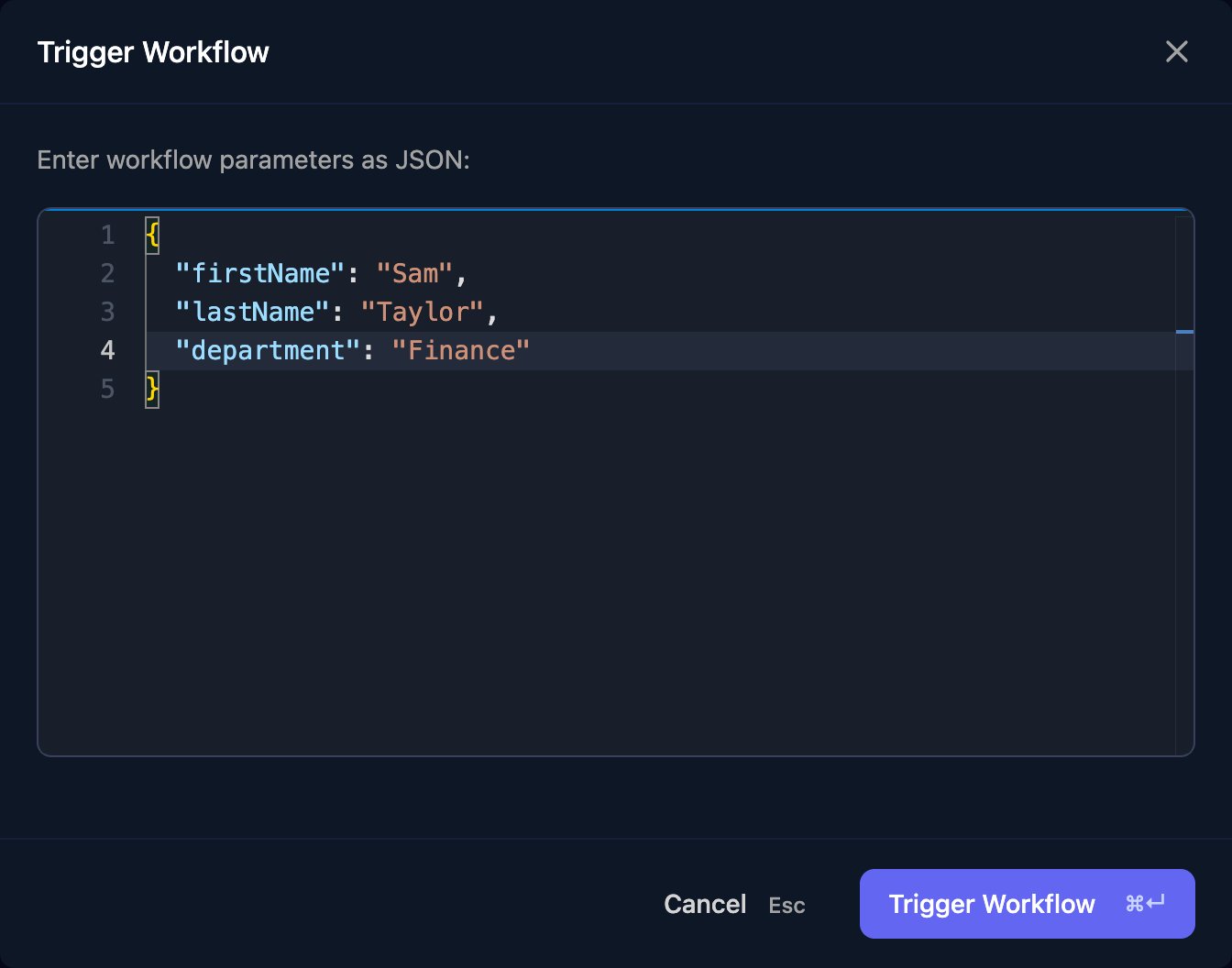
6
Read the run
The run opens on the right. Click a step to see its Output.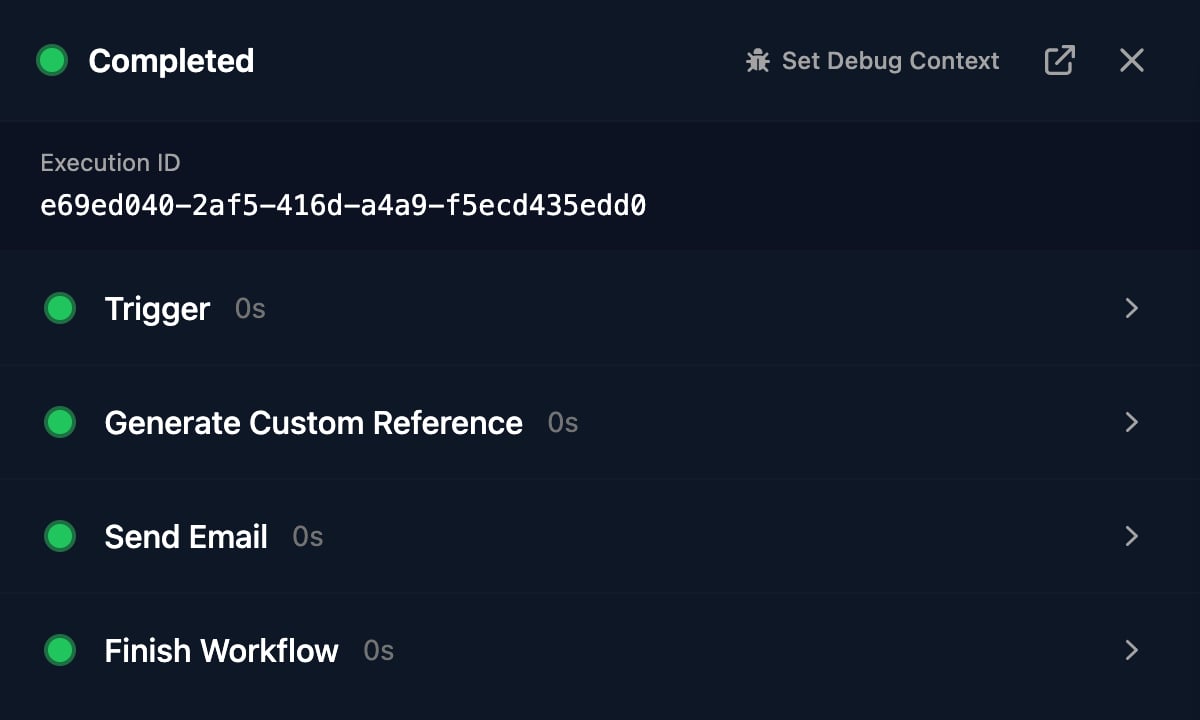
Pass data between steps
ctx.params holds the trigger’s data and ctx.steps['Step name'] holds an earlier step’s output. In a one-line field such as Subject, type {{ ctx.params. to pick one of the trigger form’s fields, or {{ ctx.steps[' to pick an earlier step. See Data and expressions for every value you can read, and Step types for every step and its output fields.
Triggers
A workflow starts from a Form submission, a Cron schedule in UTC, a Webhook POST, Manual Trigger, another workflow, an internal app or a PSA ticket. See Workflow triggers.Runs
Runs in the designer header lists this workflow’s runs, and Workflows > Executions lists every run. A run is Completed when it reaches Finish Workflow with Outcome Success, stays Running while it waits for an approval, a manual step or a delay, and is Failed when a step fails, it reaches Finish Workflow with Outcome Fail, or someone clicks Terminate Run. End every path with Finish Workflow: a path without one leaves the run Running. See Debug a failed run and Approvals and manual steps.Troubleshooting
A step fails with “Missing or invalid variable”
A step fails with “Missing or invalid variable”
The run has no value at that path. Check it against the form’s Field ID, your test JSON or the step’s name, and click Validate to find other mistakes before you run.
New Workflow or Manual Trigger is missing
New Workflow or Manual Trigger is missing
Ask an admin for permission to edit and run workflows.