

{{ ctx.steps['Step name'].field }}: see Data and expressions.
Workflow steps: the Components panel, a Condition and a Slack step added to New starter setup, and their output in a test run (1:27).
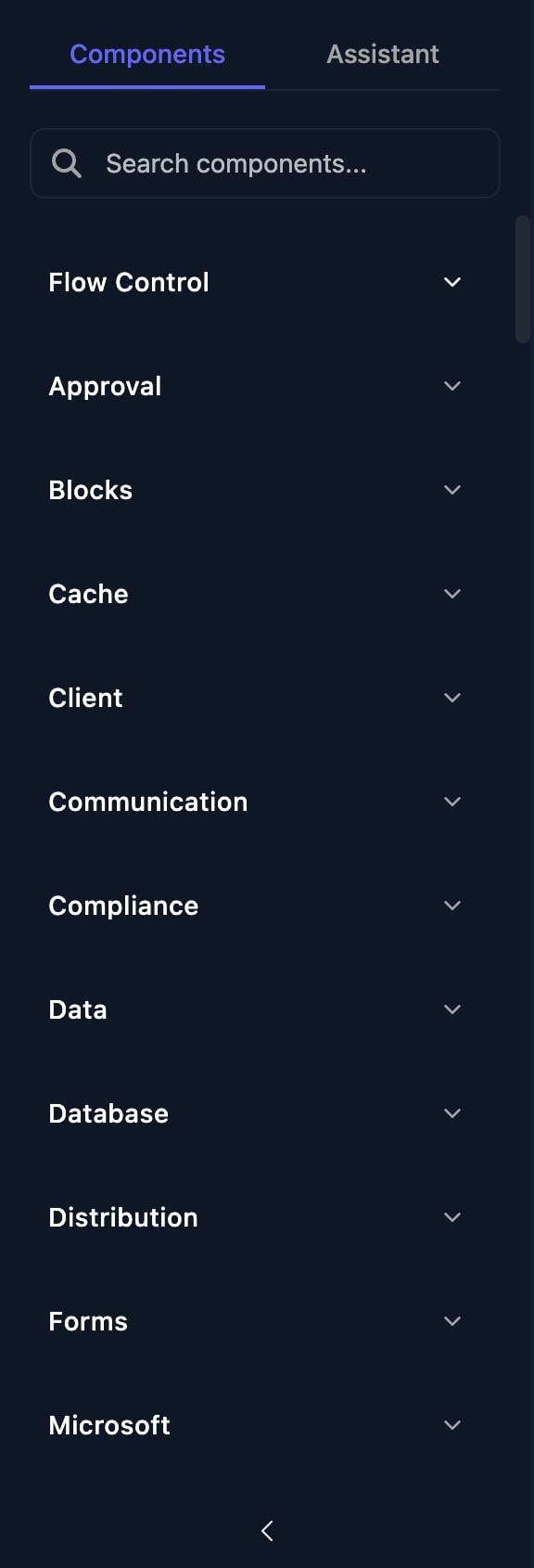
Flow Control
Condition
Add a Condition per branch, each with an expression and a Label. Triggr tries them top to bottom and follows the first that’s true, otherwise the Default Branch.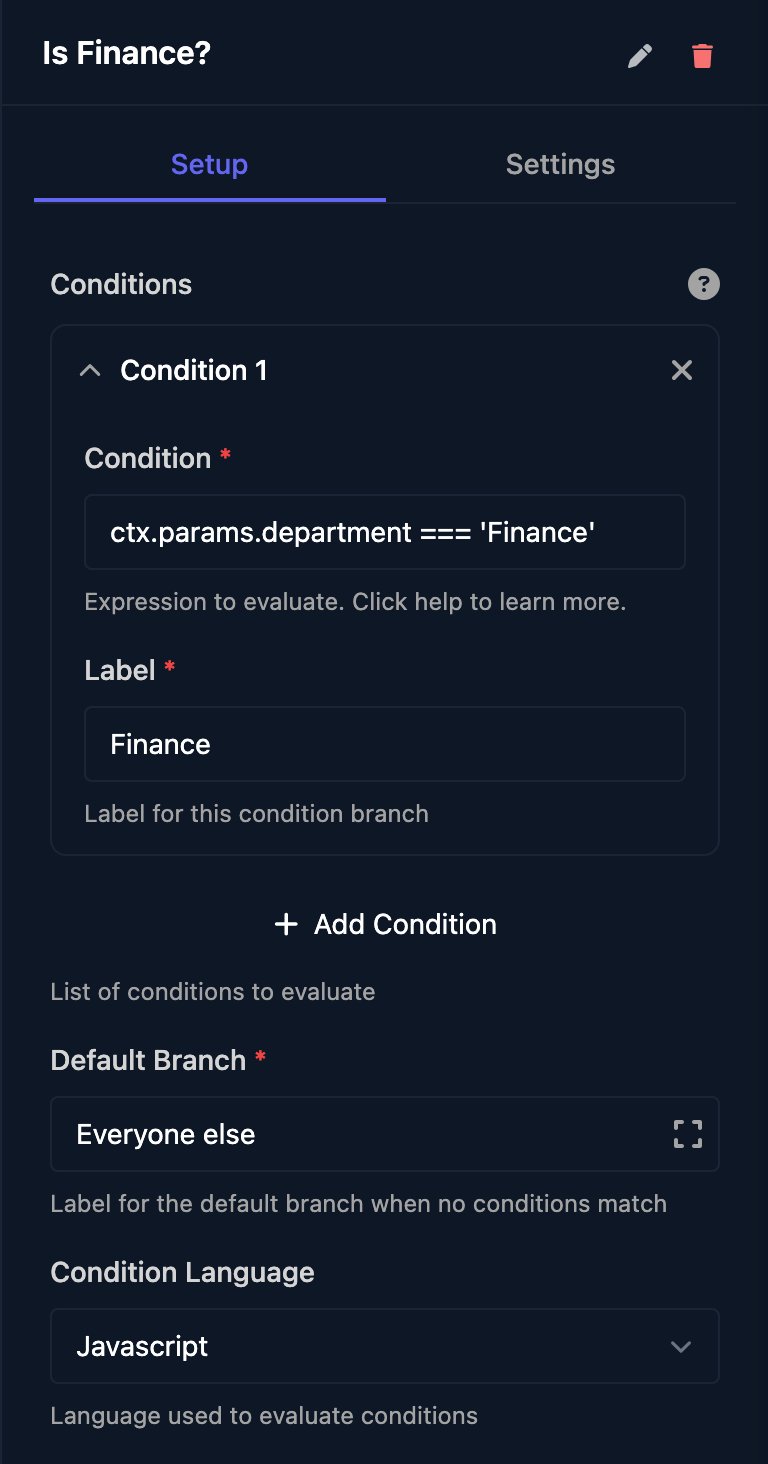
ctx. paths without braces: ctx.params.department === 'Finance'. The default, Triggr Lang, drops ctx. and needs double quotes: params.department == "Finance".
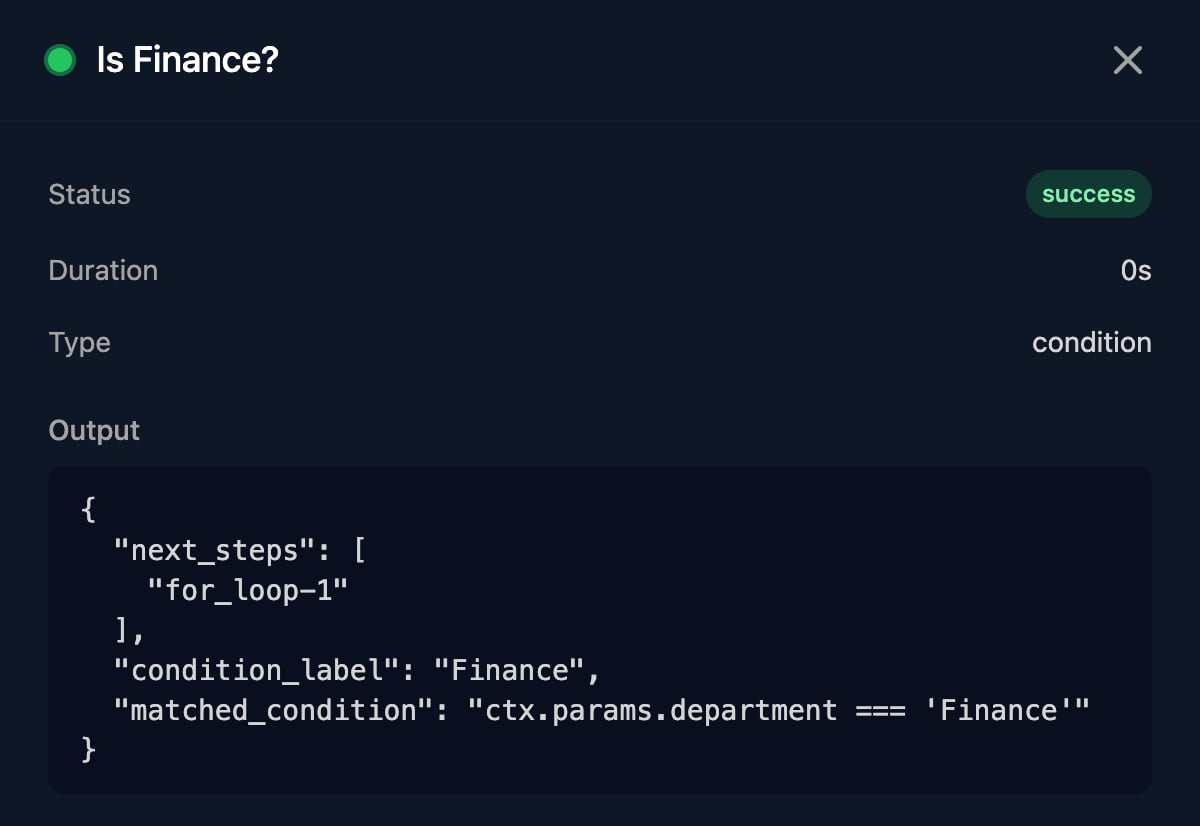
In a run, condition_label shows the branch taken, or Default when no condition matched:
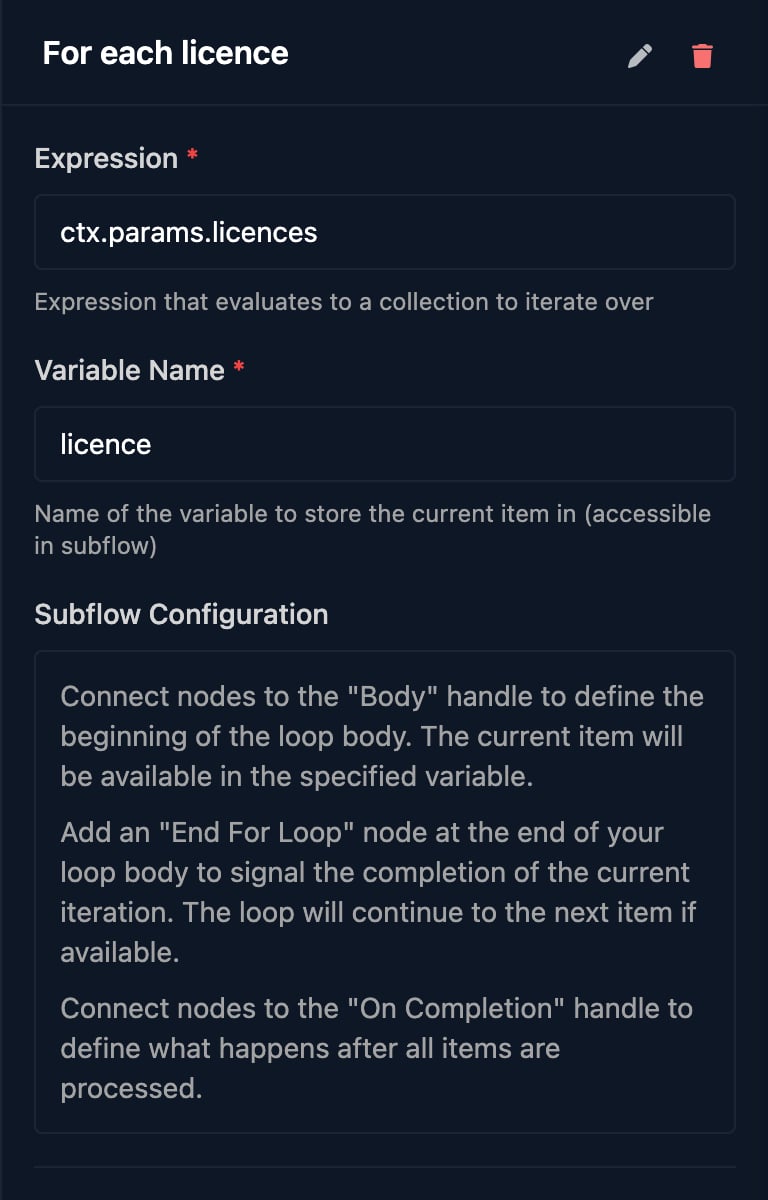
For Loop
Expression is JavaScript that returns a list, such asctx.params.licences. The body reads the current item as ctx.<Variable Name>: {{ ctx.licence }}, or {{ ctx.user.mail }} for a list of objects.
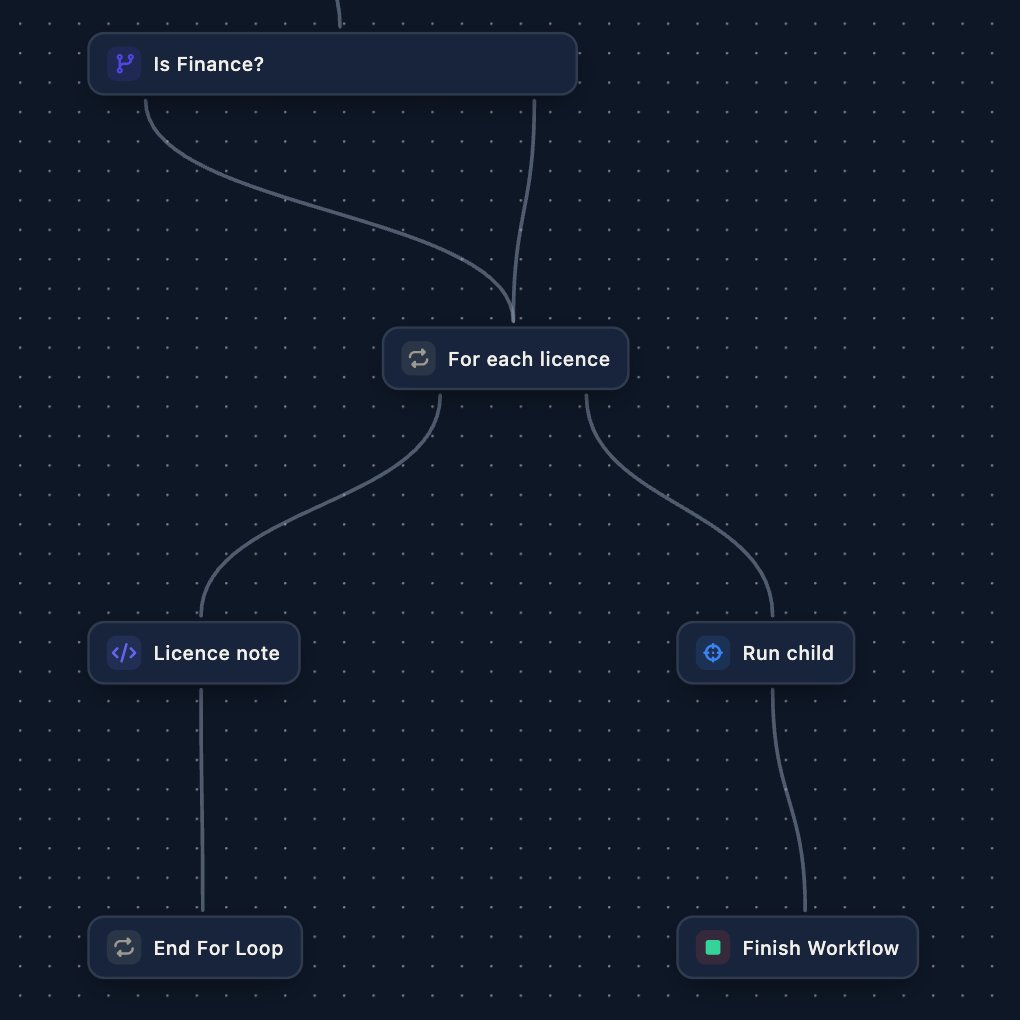
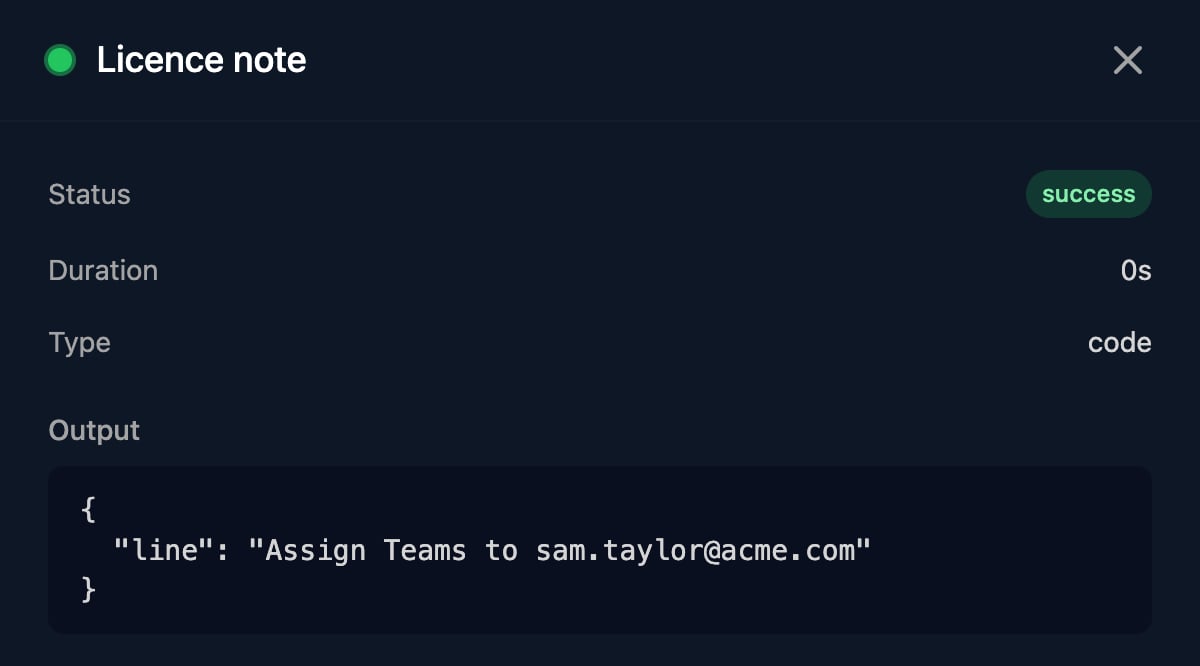
ctx.steps['Name'] holds a step’s latest pass: until the step runs again, it still holds the previous pass’s output. To keep every pass, see Collect results in a loop. Here Licence note returns 'Assign ' + ctx.licence + ' to ' + ctx.details.upn; its second pass:
Delay and Wait Until
Delay waits a fixed Duration.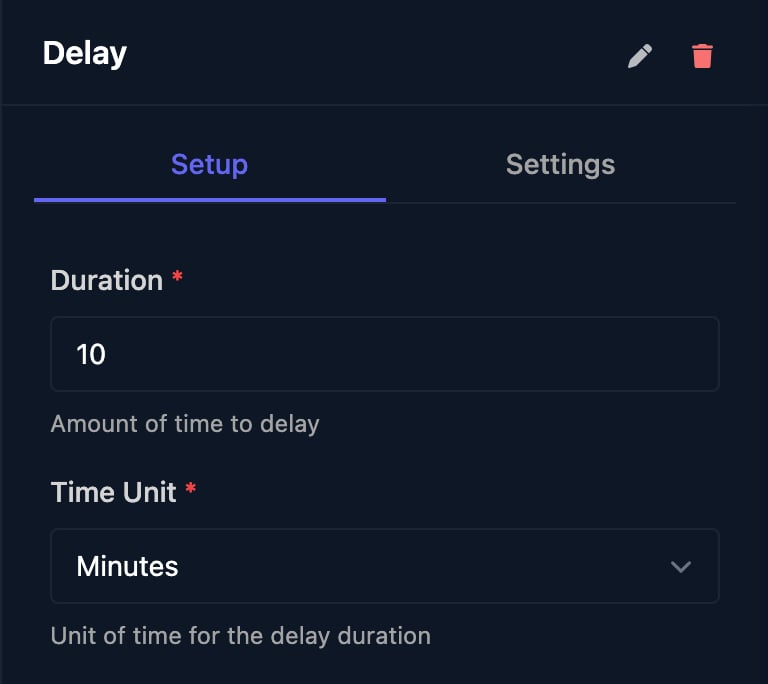
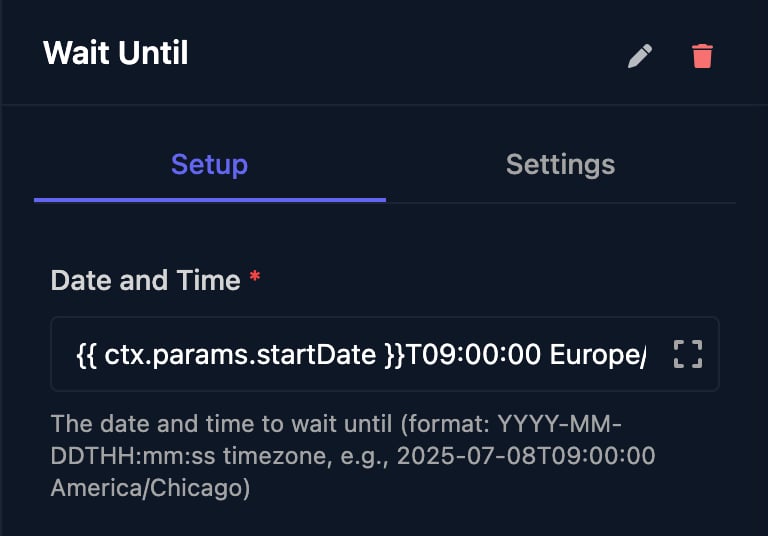
YYYY-MM-DDTHH:MM:SS and a time zone. A YYYY-MM-DD value from a webhook or Manual Trigger works as shown: {{ ctx.params.startDate }}T09:00:00 Europe/London. A form’s Date field sends a timestamp instead, so use the day from a Code step (recipe): {{ ctx.steps['Prepare details'].startDay }}T09:00:00 Europe/London.
Trigger Workflow
Trigger Workflow (Triggr) starts another workflow, which reads Parameters asctx.params. The client isn’t inherited: pass {{ ctx.client.id }} and add Set Client By ID there.
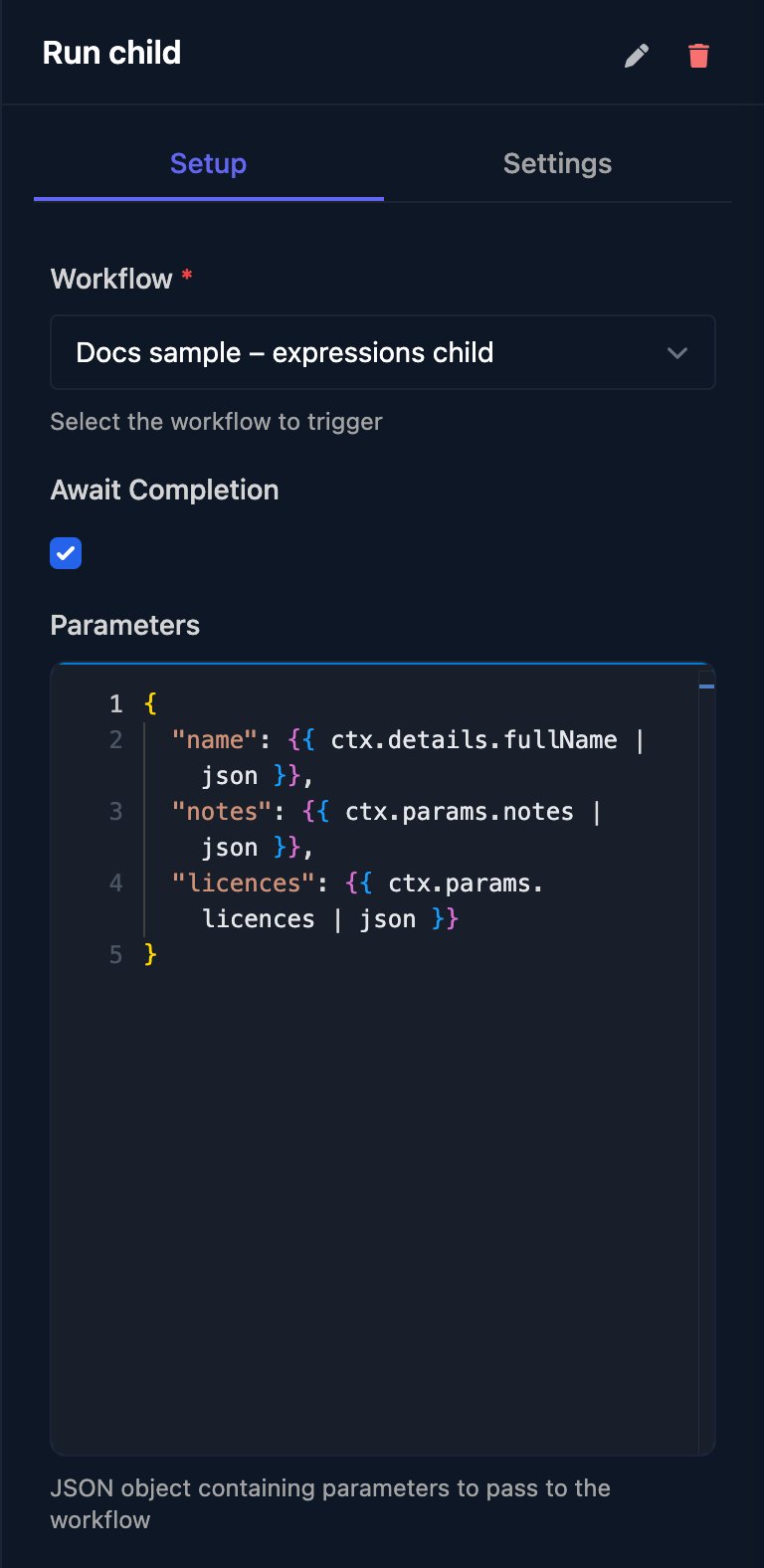
- Without Await Completion: this run carries on at once. Output:
triggeredWorkflowExecutionId,workflowName. - With it: this step waits for the other workflow, however long. Output:
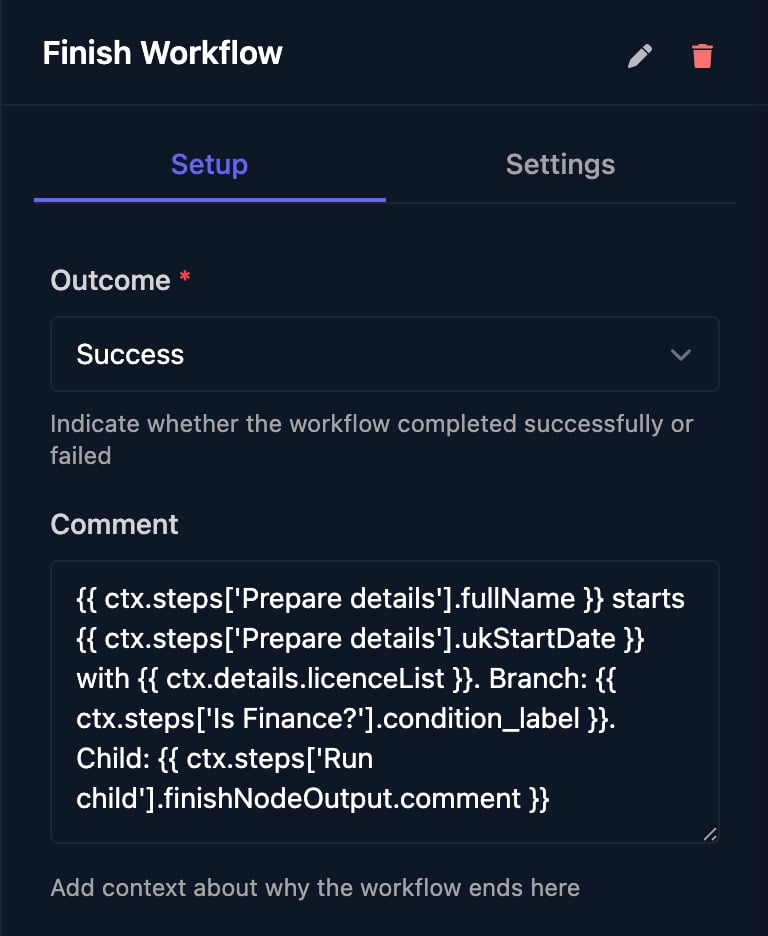
status(completedorfailed),finishNodeOutput.outcomeandfinishNodeOutput.comment, so return values in that workflow’s Finish Workflow Comment.
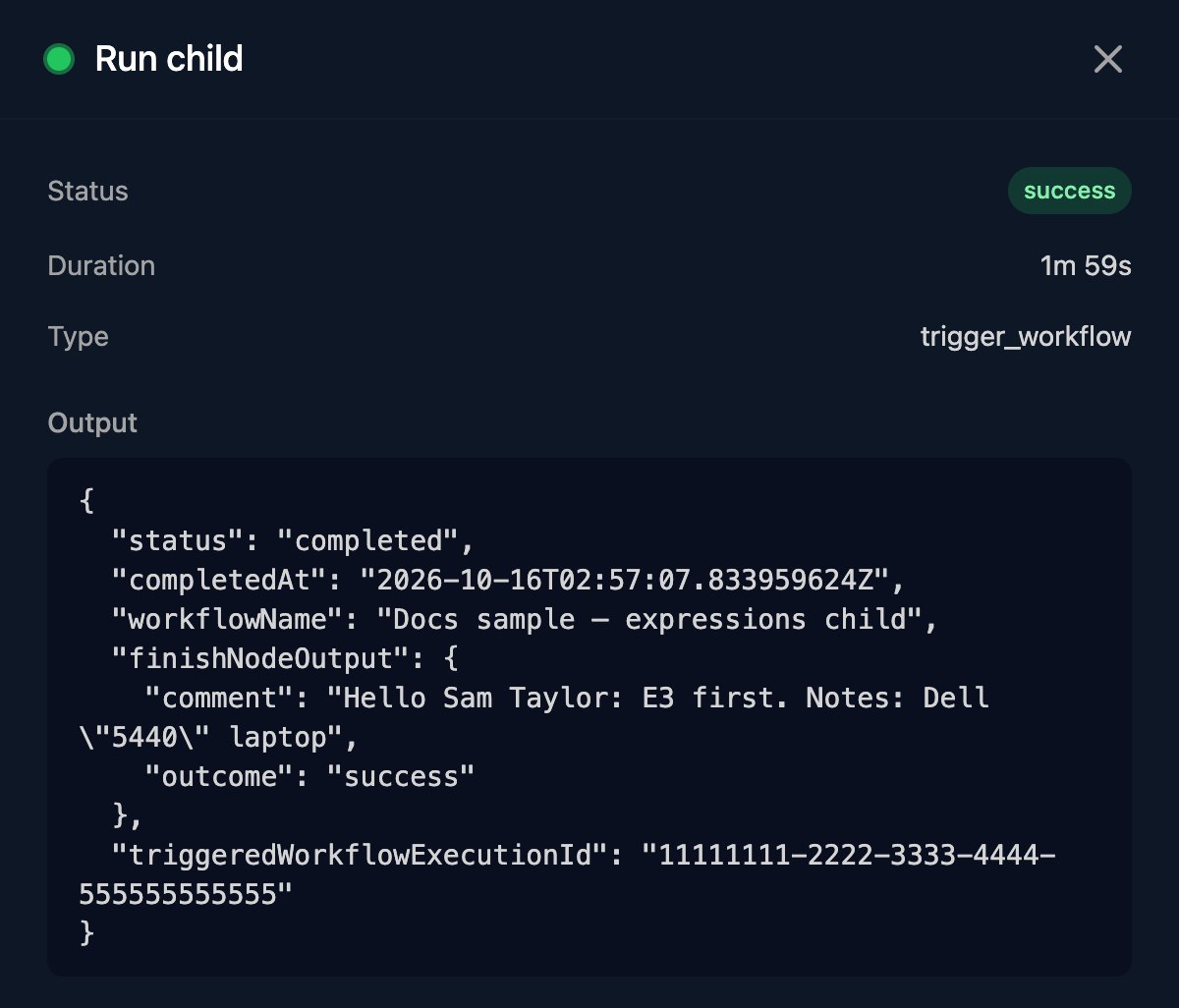
ctx.steps['Run child'].status === 'completed' with a Condition before reading finishNodeOutput.
Finish Workflow
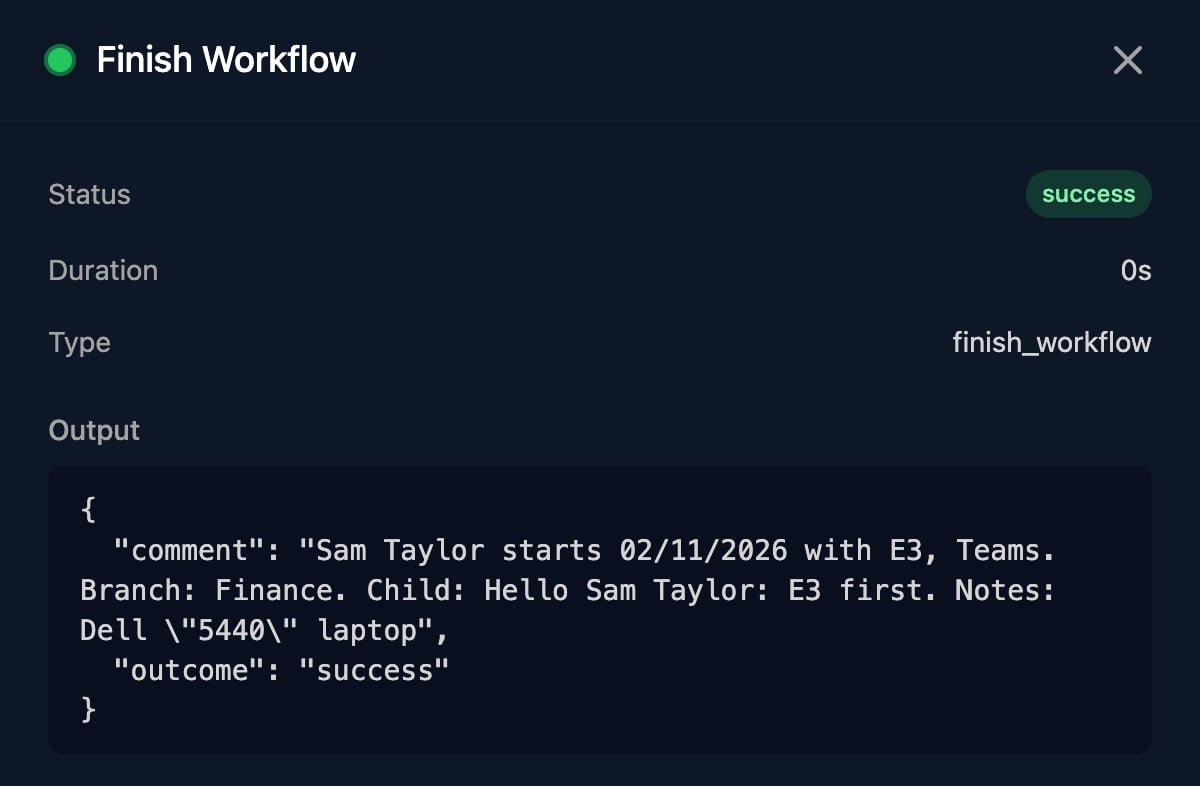
Set Outcome toSuccess to complete the run, or Fail to mark it Failed. Comment goes back to an awaiting workflow or a webhook caller with ?await=true.
Approval
See Approvals and manual steps.
Client
Microsoft, PSA and On Prem steps act on the run’s client,ctx.client. Set one first when the trigger doesn’t.
To change a client variable, use Set Client Variable in the Triggr group.
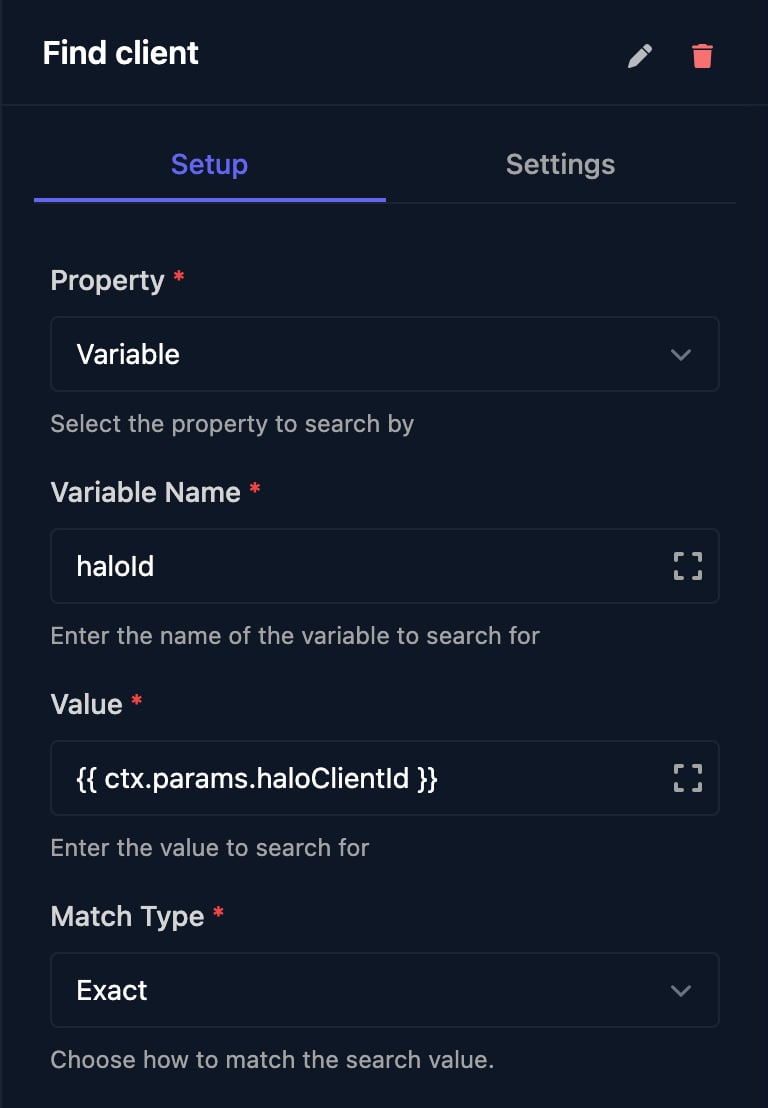
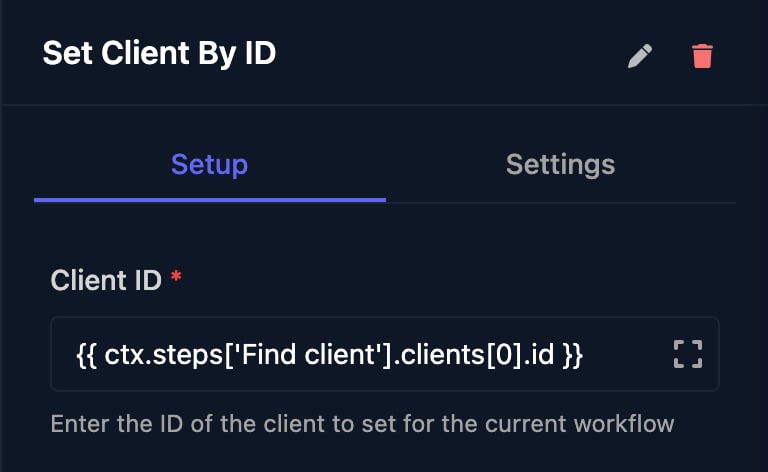
Find the ID with Search For Client (Triggr), then pass
{{ ctx.steps['Find client'].clients[0].id }}:
Communication
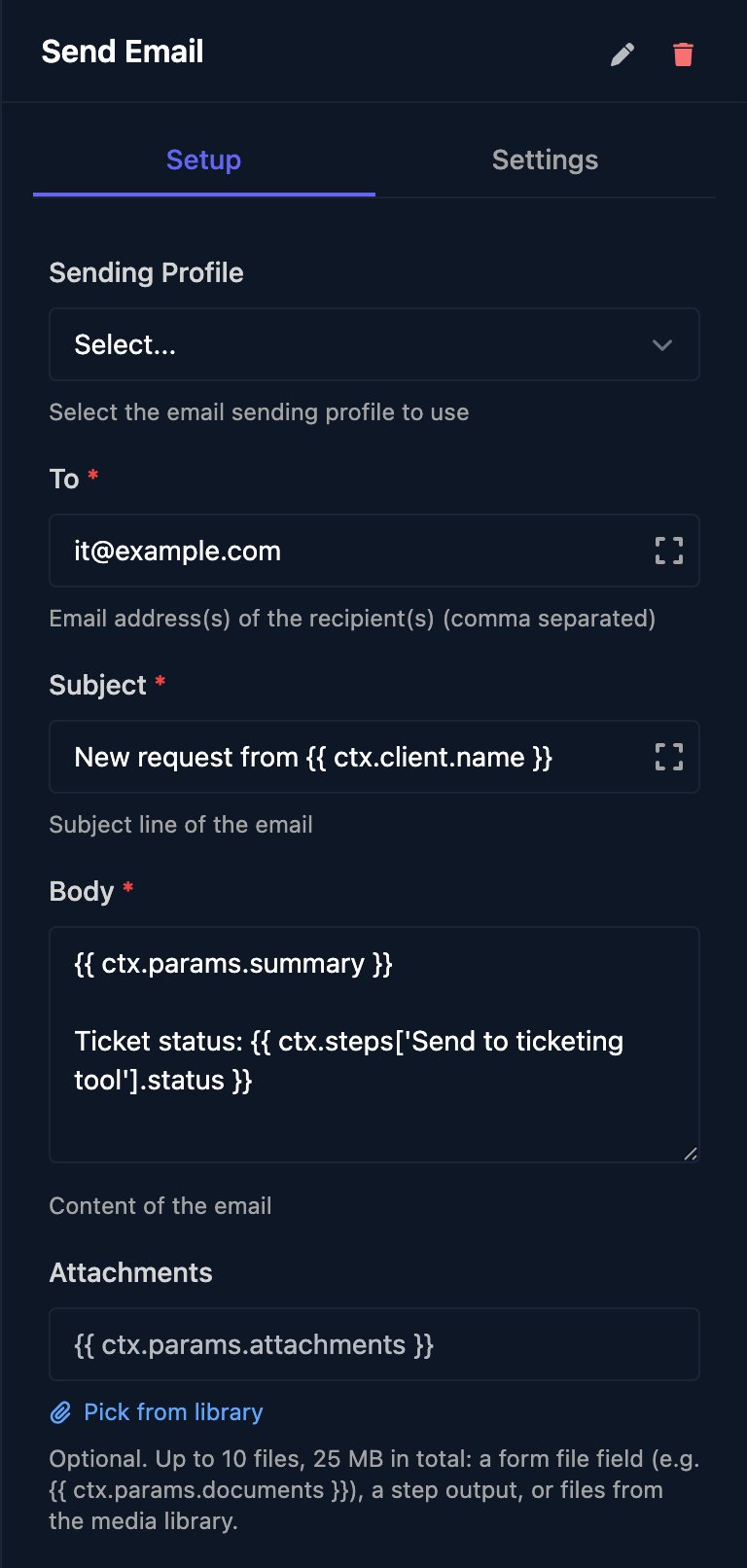
Send Email sends fromapp@triggr-app.com, or from your own address with a sending profile. To takes comma-separated addresses, each emailed separately. Body accepts HTML. Output: status, recipients, from.
Data and Database
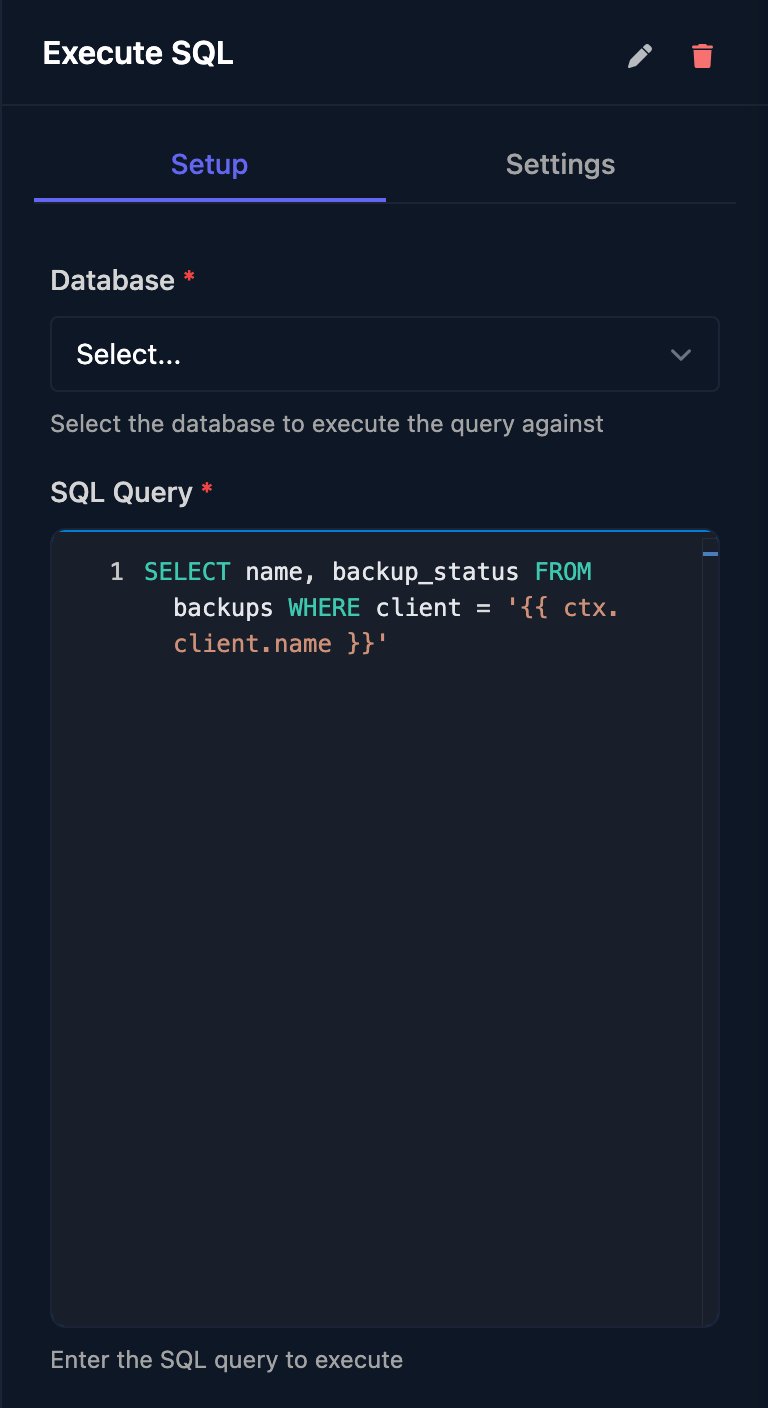
data lists the rows with every value as text; value is the number from a single-row count, sum, avg, min, max or total column. Templates go into the SQL as plain text, so quote text values.
Network
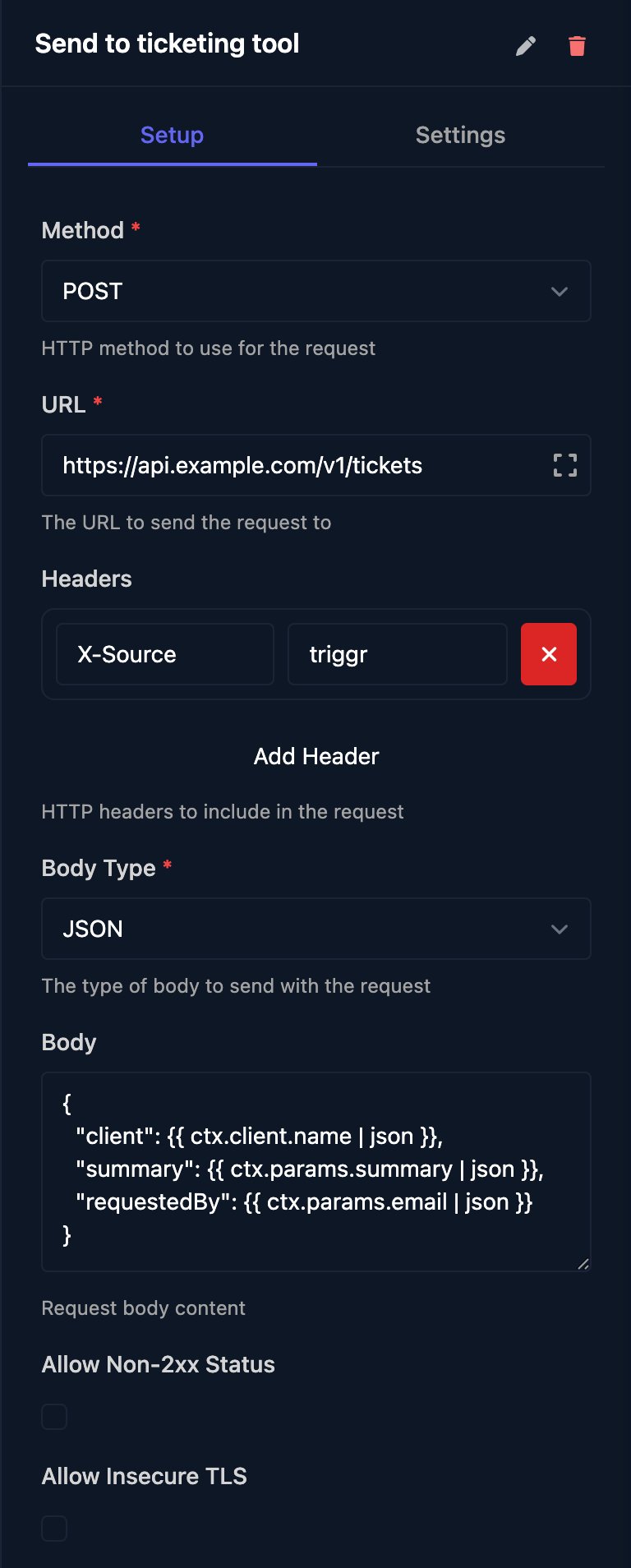
body. A status outside 200–299 fails the step unless Allow Non-2xx Status is ticked; then branch on status. Requests time out after 30 seconds.
On Prem
These run on a client’s network through the desktop agent, using scripts from On-Prem > Scripts.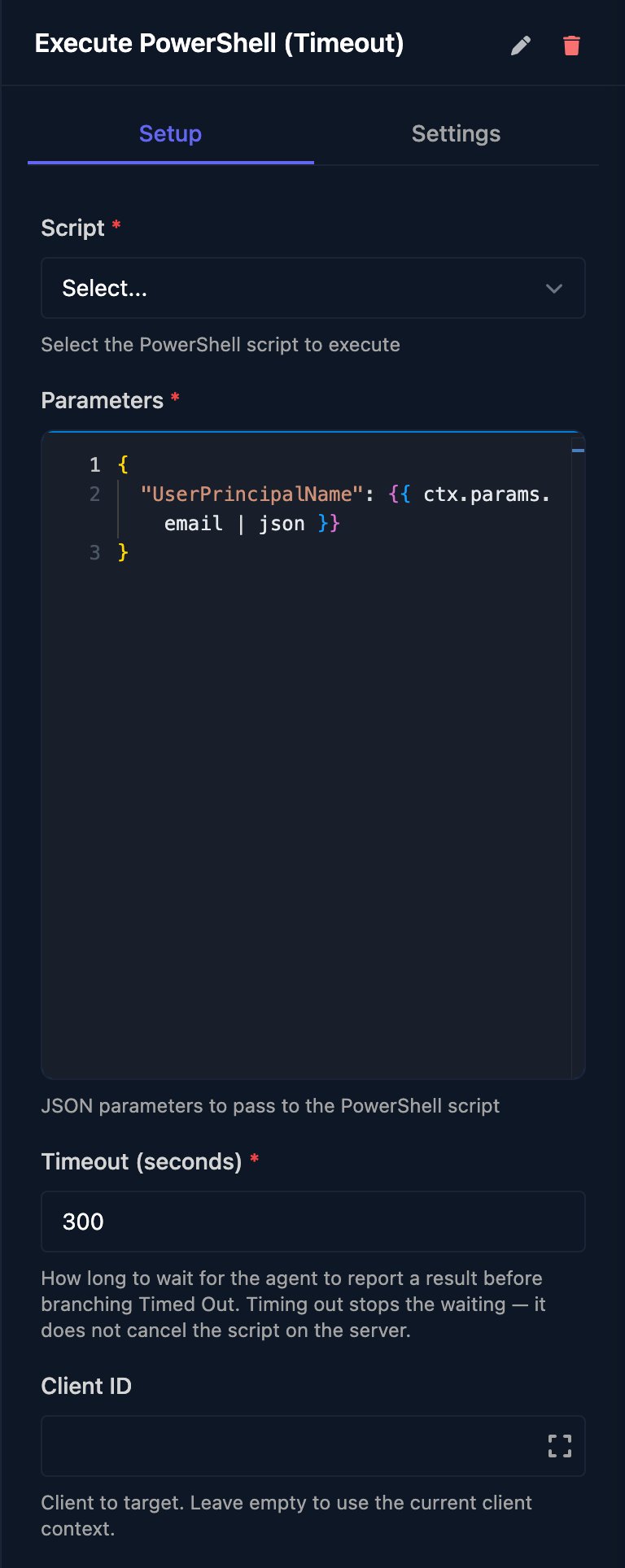
Microsoft
Each step acts on the run’s client’s Microsoft 365 tenant. Connection Type Automatic uses the org variabledefaultMicrosoftConnection; or choose CIPP, Microsoft Graph (GDAP) or Microsoft Graph (SAM). User Identifier takes a UPN or object ID.
PSA
These use your default PSA, the org variabledefaultPSA (halo, connectwise or autotask), set with Setup Wizard on Settings > Org Variables.
Triggr
Utilities
Other groups
Integrations
Below the Integrations divider, every integration has a group of its actions. Set the integration up before you use one; see the integration guides. An action outputsstatusCode, headers and body (the other system’s reply).
FAQ
“HTTP request failed with status 401 (body length: …)”
“HTTP request failed with status 401 (body length: …)”
The other system refused the call. Tick Allow Non-2xx Status and branch on
status, or use Generic Integration Action for a connected tool so Triggr signs the request.“org.defaultPSA not found or empty”
“org.defaultPSA not found or empty”
No default PSA is set. Run Setup Wizard on Settings > Org Variables and choose your PSA.
My run has been Running for hours
My run has been Running for hours
A step is waiting: an approval, a manual step, a delay, an awaited workflow or an agent. See Stop a stuck run.