

Adoption, compliance and audit: who uses Triggr, a locked compliance log written by a workflow, and the audit log (1:26).
Adoption
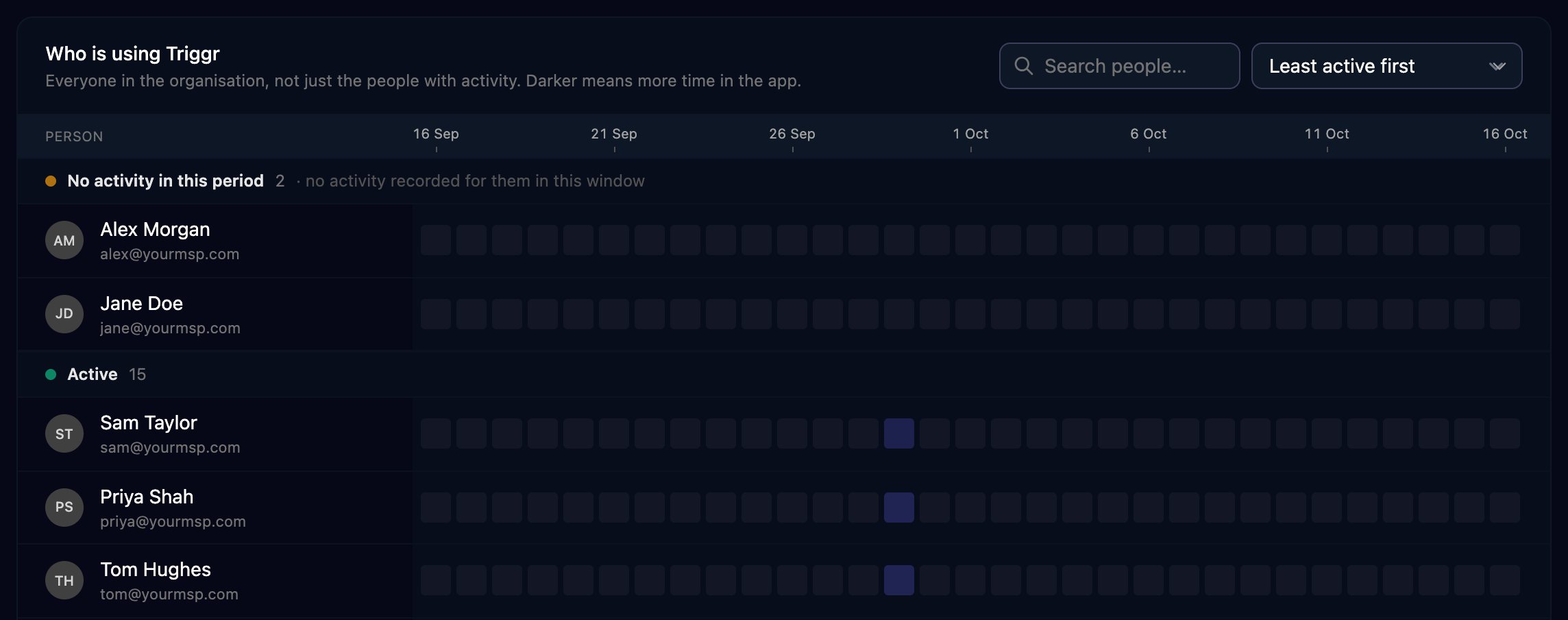
Tools > Adoption is for organisation admins only.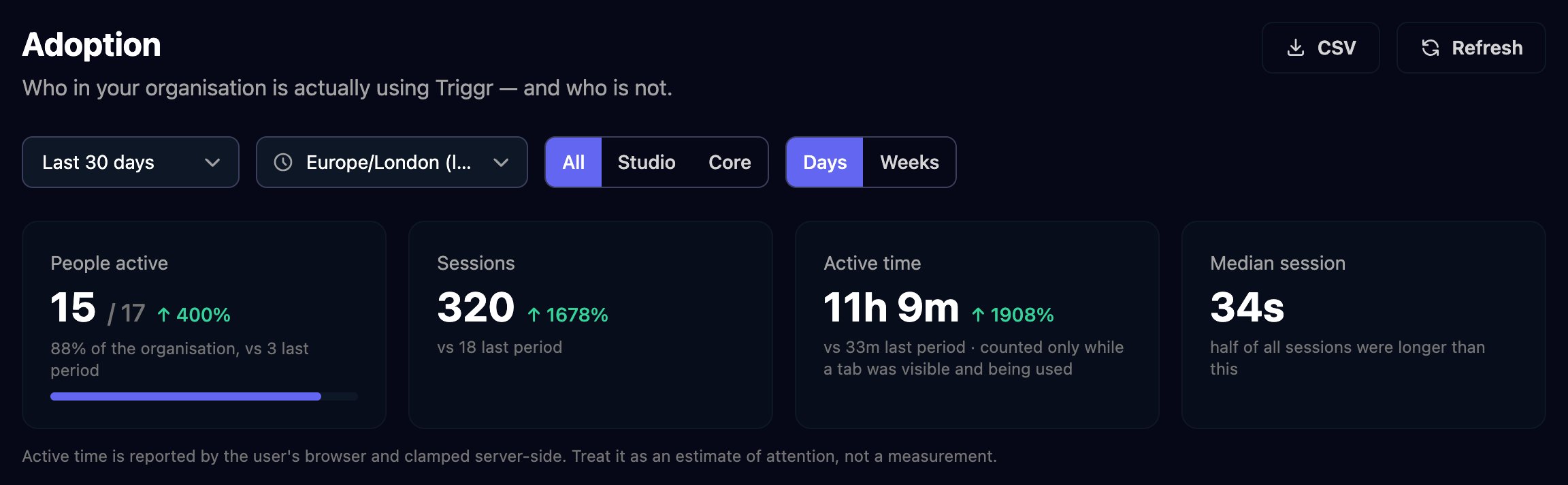
Compliance logs
A compliance log is a named, timestamped record of what a workflow did, such as every step of a leaver for a client. Once locked, nobody can change or delete it.1
Start the log
Add Start Compliance Log (Compliance) near the start of the workflow and give it a Name. The log belongs to the run’s client, if it has one.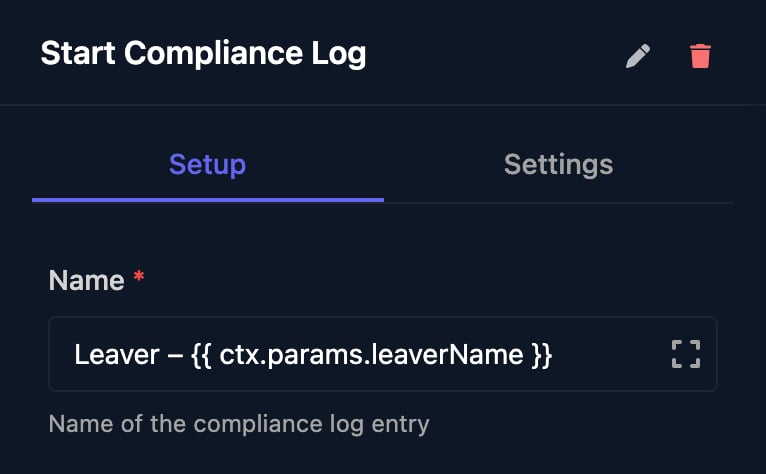
2
Add an entry after each action
Add Compliance Log Entry with a Title and Detailed Description; both accept variables.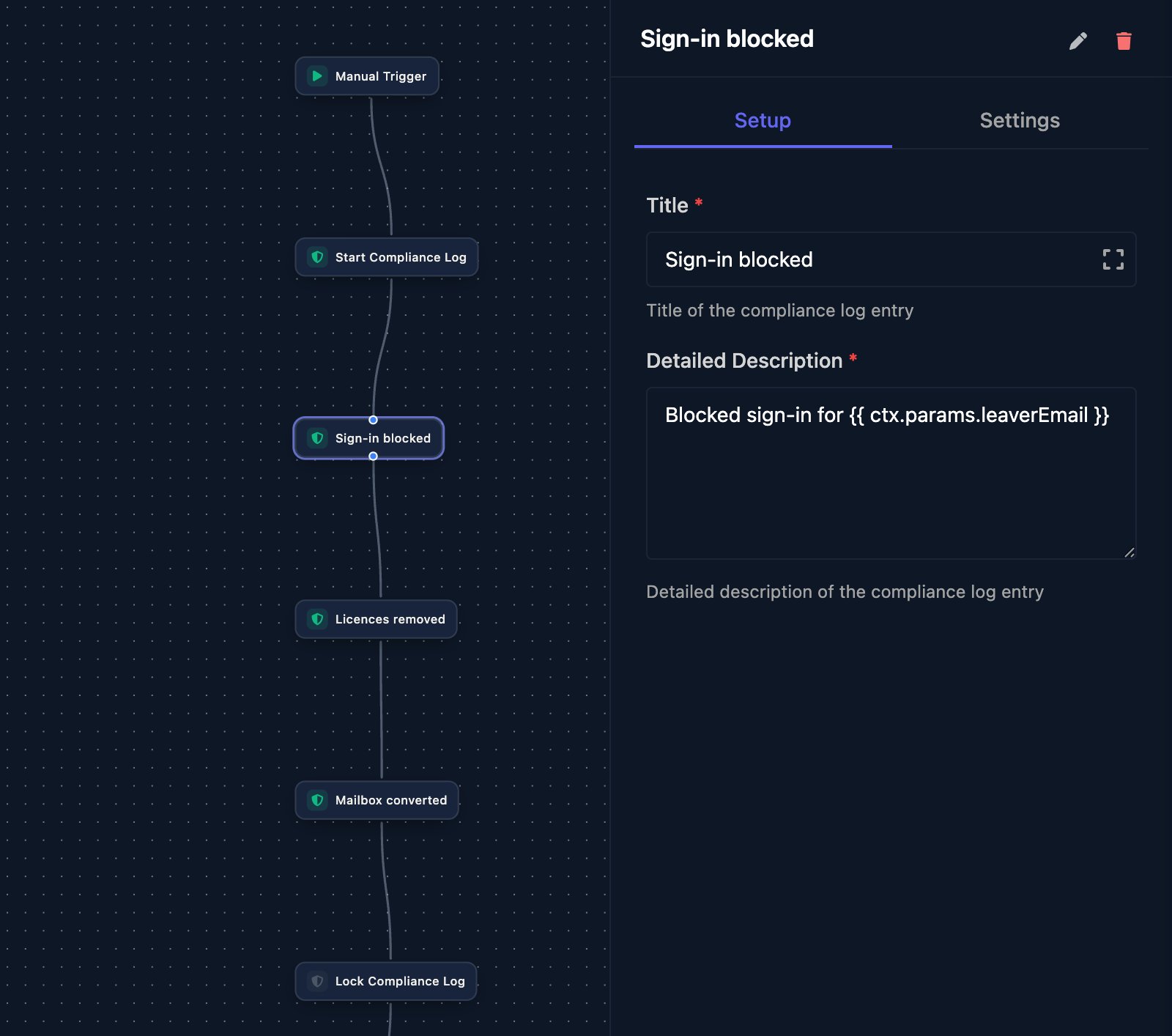
3
Lock it
End with Lock Compliance Log. It adds a final Compliance Log Locked entry and refuses further entries.
4
Read or export it
Go to Compliance > Compliance Logs, search by name or filter by client, and click View. Export PDF downloads the log.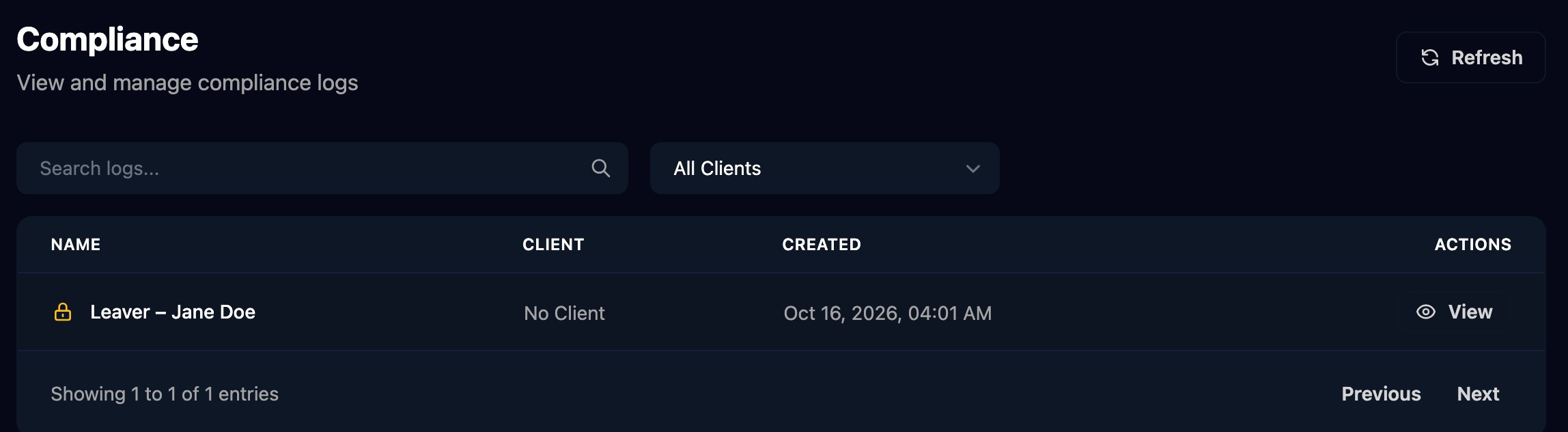
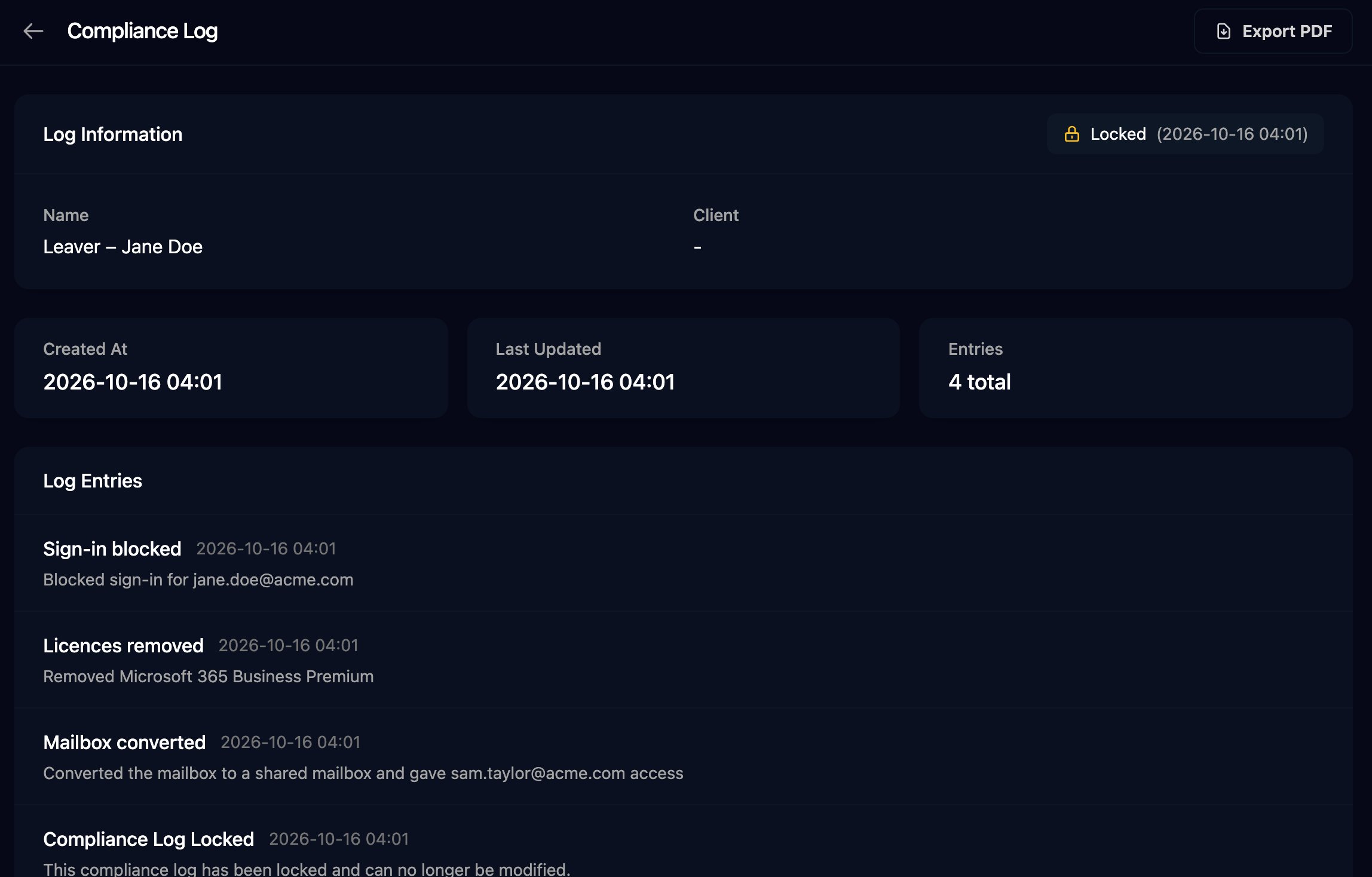
compliance_log_id output) to Set Compliance Log before the entries. Everyone in your organisation can view and export compliance logs, and Triggr keeps them indefinitely.
Audit logs
Compliance > Audit Logs lists the requests signed-in people make in Studio and Core, including page loads. It appears in the menu for admins and anyone with View Audit Logs.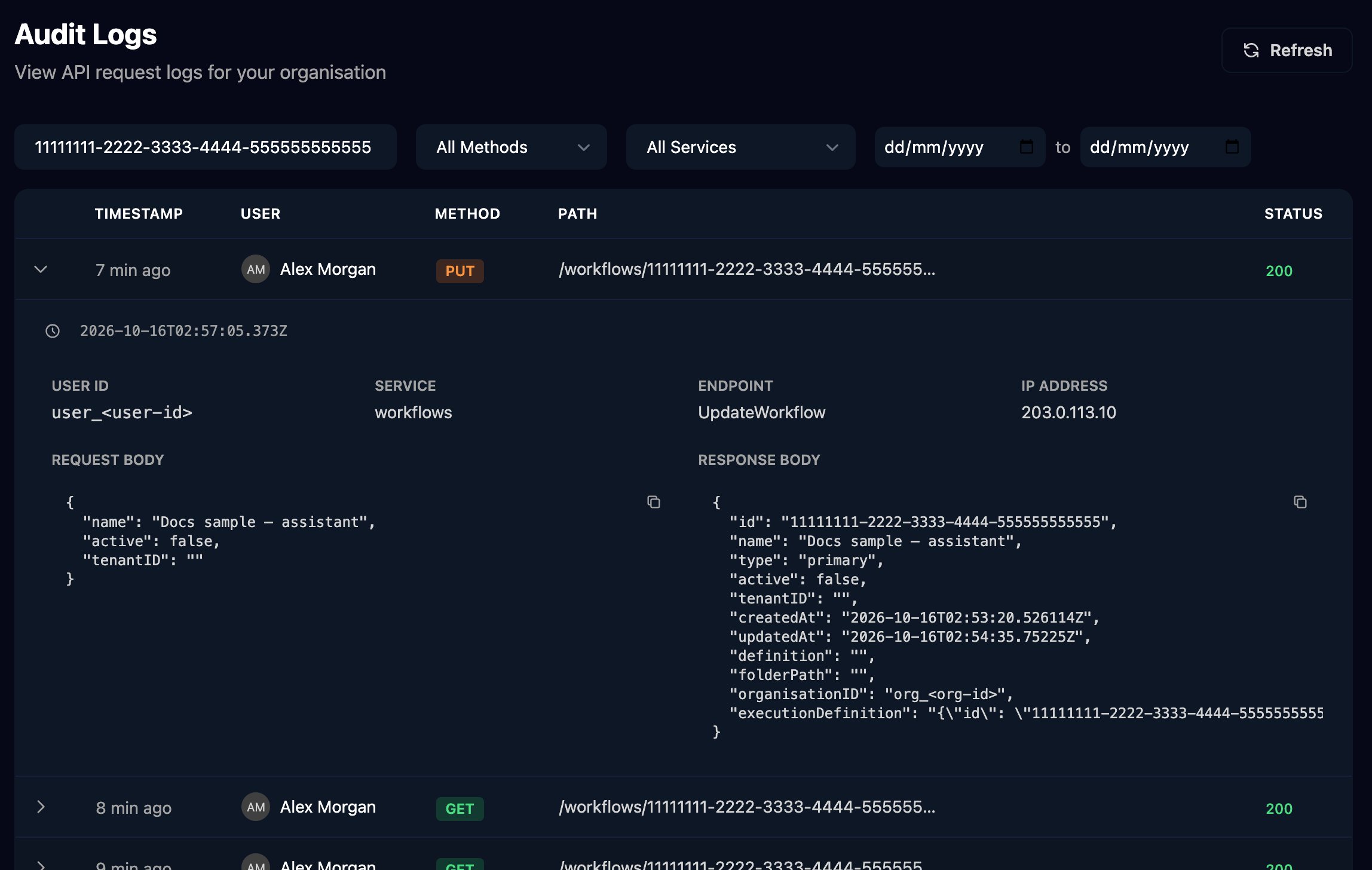
password, secret, token, key and similar show as [REDACTED]; anything else is stored as sent, including the settings you save for an integration. Bodies over 16 KB aren’t stored. Triggr keeps full entries for 30 days, then the entry without its bodies until 400 days. Workflow runs aren’t requests by a person: find them on Executions.
GDAP alerts
Settings > GDAP Alerts is the same digest as Triggr Core’s Settings > Alerts; a change in either app applies to both. See GDAP alerts.FAQ
“Adoption insights are limited to organisation admins”
“Adoption insights are limited to organisation admins”
Ask an admin to open Tools > Adoption, or to export the CSV for you.
Some people's history says it was inferred
Some people's history says it was inferred
Older activity was rebuilt from audit logs rather than measured in the browser, so it shows as inferred or not measured.
“no active compliance log found in context”
“no active compliance log found in context”
A Compliance Log Entry or Lock Compliance Log step ran before Start Compliance Log or Set Compliance Log. Move the start step earlier on every path.
“cannot add entries to a locked compliance log”
“cannot add entries to a locked compliance log”
The log was locked earlier in the run. Put Lock Compliance Log last.
My compliance log shows No Client
My compliance log shows No Client
The run had no client when Start Compliance Log ran. Set the client first, for example with Set Client By ID.
Can I export audit logs?
Can I export audit logs?
No. Copy a request or response body with the copy button on an expanded row.