

Who can open a form: New starter request switched to Microsoft sign-in, matched to Acme Corp by its tenant ID, then tested as Jane Doe with Impersonate (1:26).
Set up a client-facing form
Give each client its tenant ID
microsoftTenantId variable to each client, as in Clients and variables. Clients connected through GDAP or SAM already have it.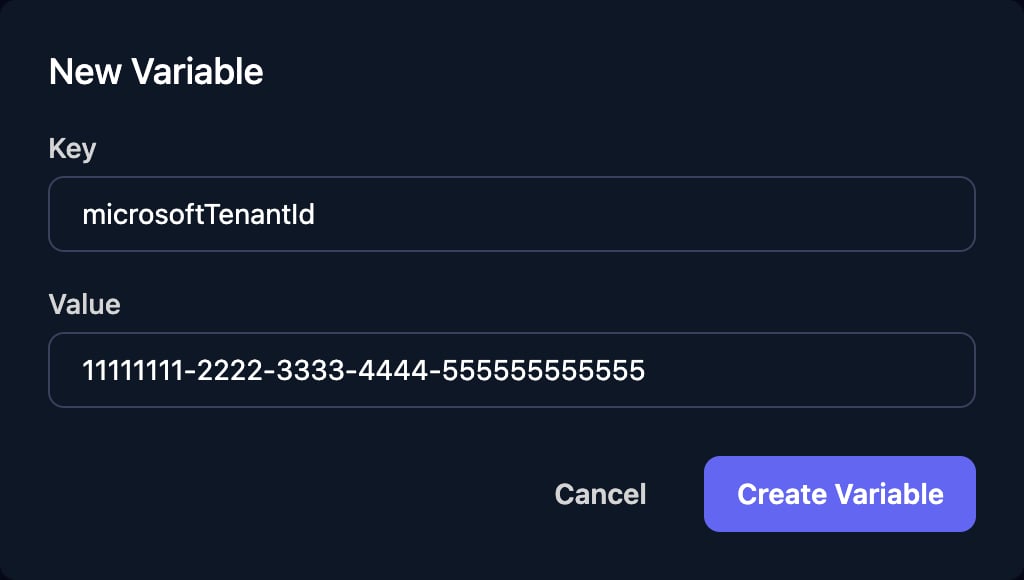
Require Microsoft sign-in
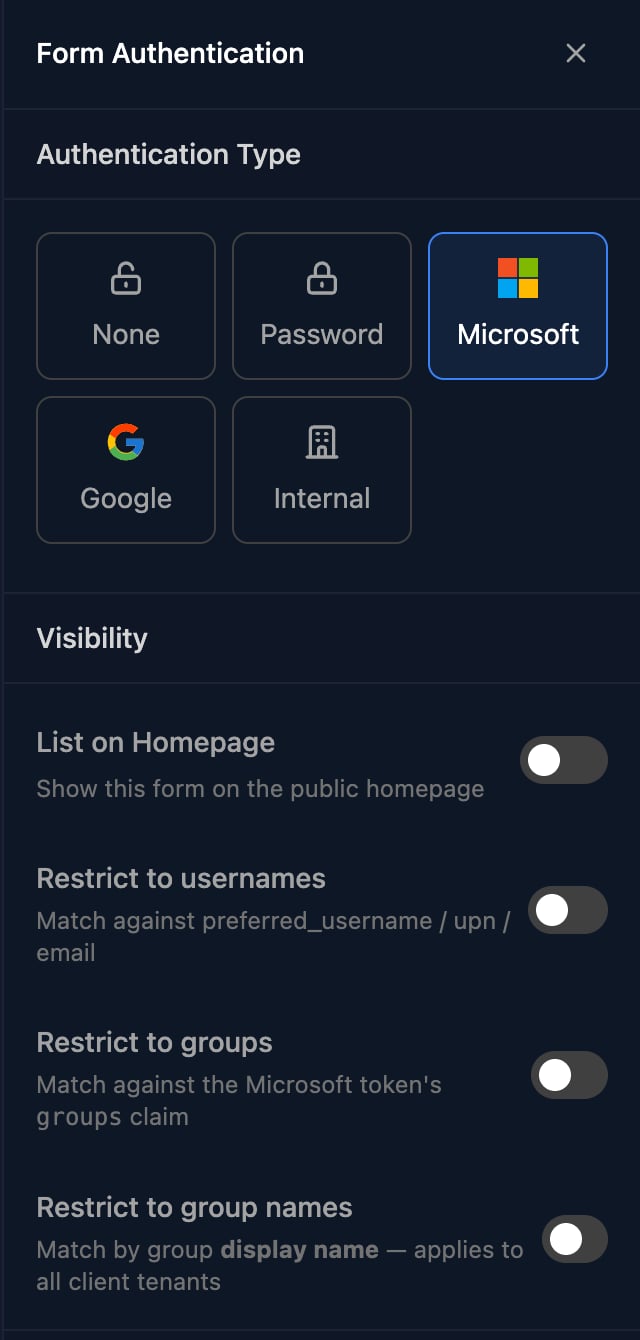
Set the client in your workflow
{{ ctx.client.name }}.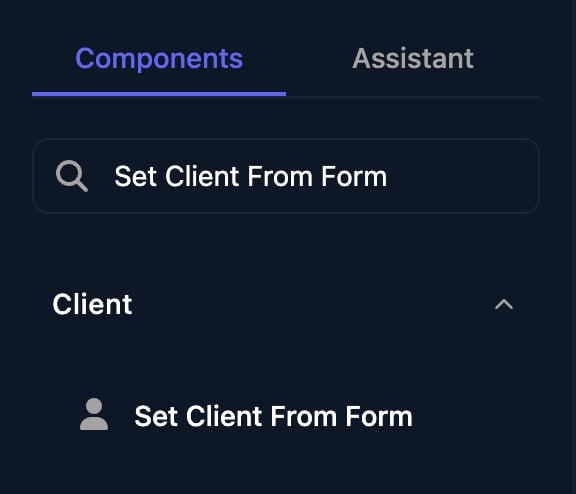
Test as a client user
ctx.metadata.custom.impersonatedByEmail set to your email.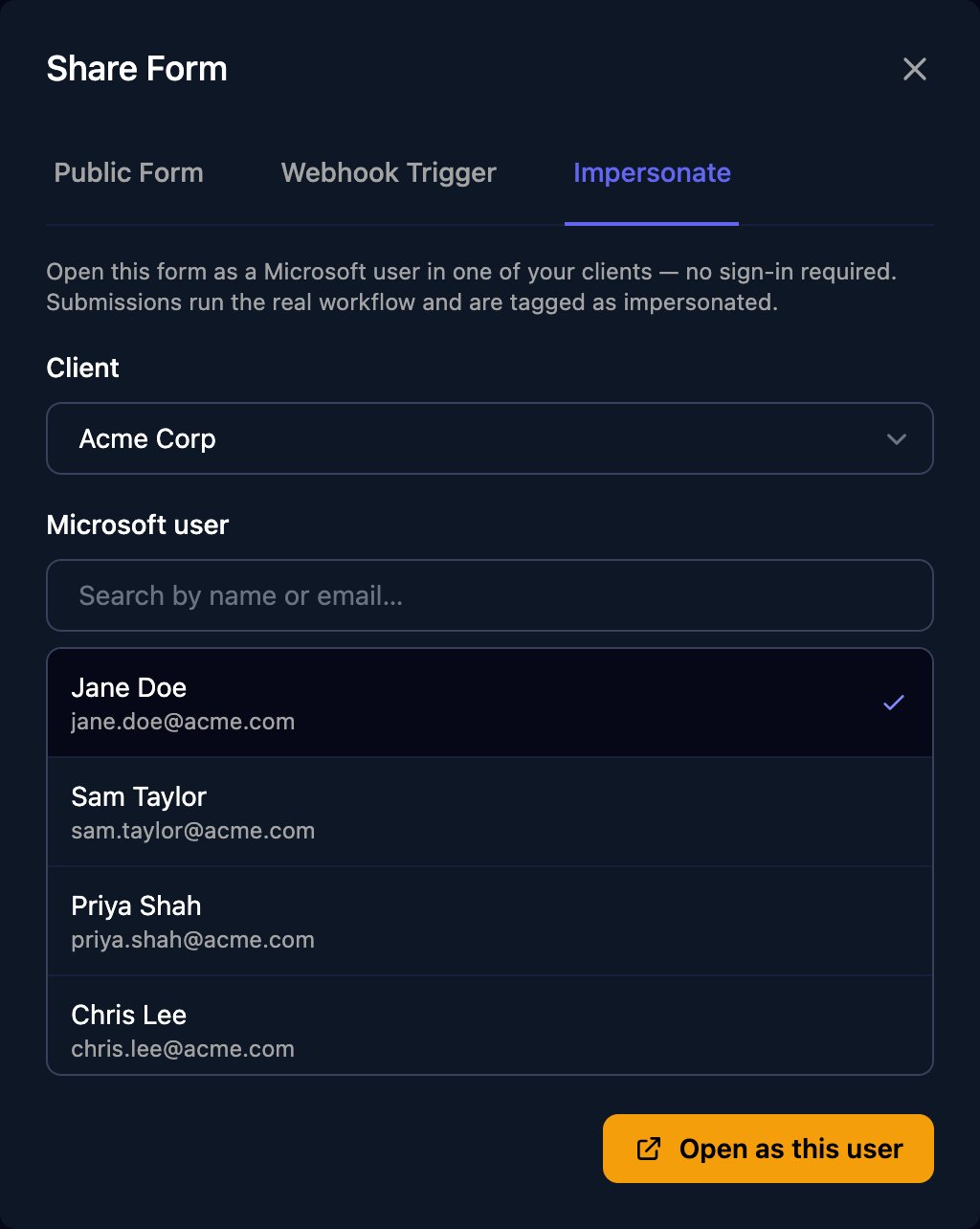
Share the link
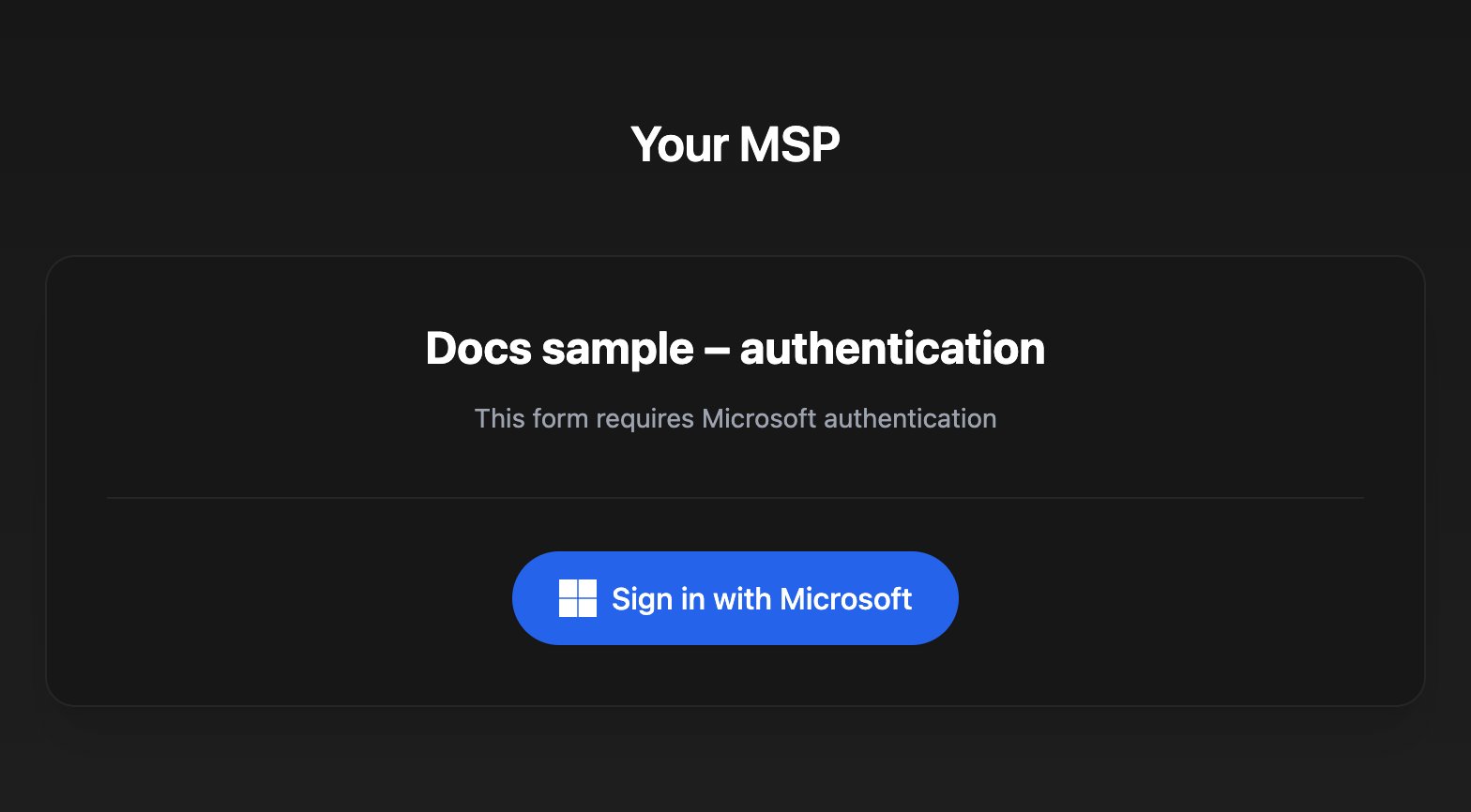
How each type works
None and Password
None opens straight away. Password asks for the form’s password (“This form requires a password to access”); the eye icon in the panel reveals it, and changing it locks out anyone who has the form open. Neither type gives the workflow a person or a client.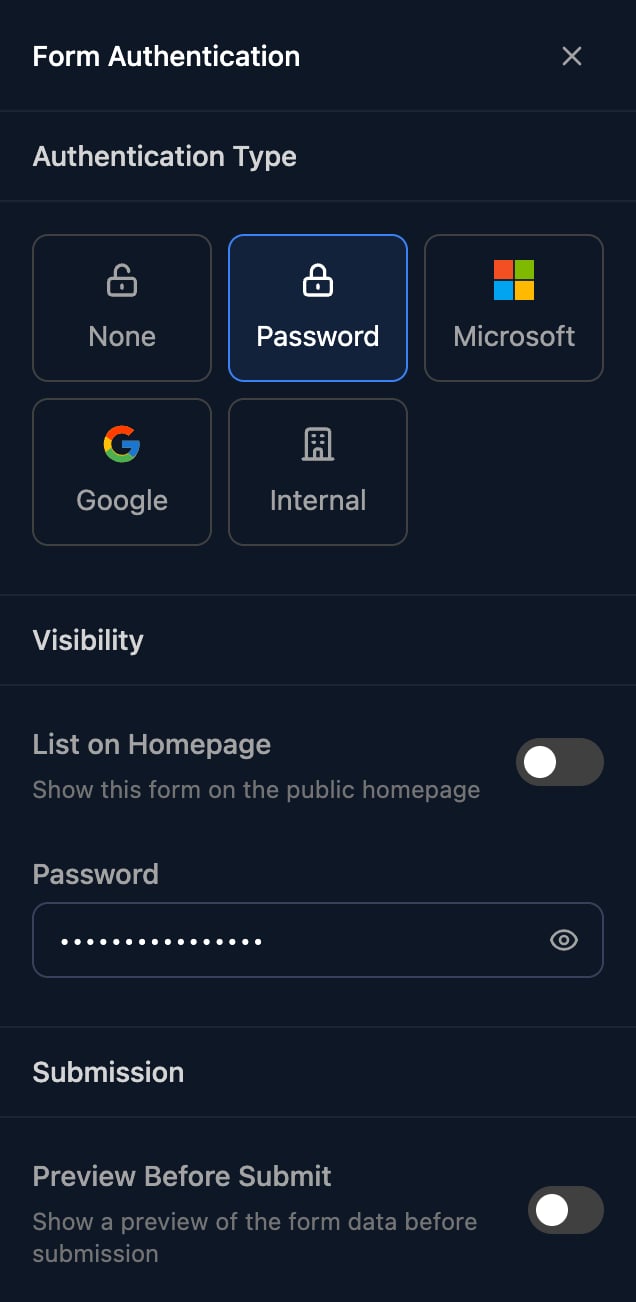
Microsoft
Visitors click Sign in with Microsoft and pick their work account (personal accounts such as outlook.com can’t get in). Triggr matches the sign-in’s tenant ID to a client’smicrosoftTenantId, ignoring case and spaces; with no match they see “you do not have permission to access this form”. Keep each tenant ID on one client.
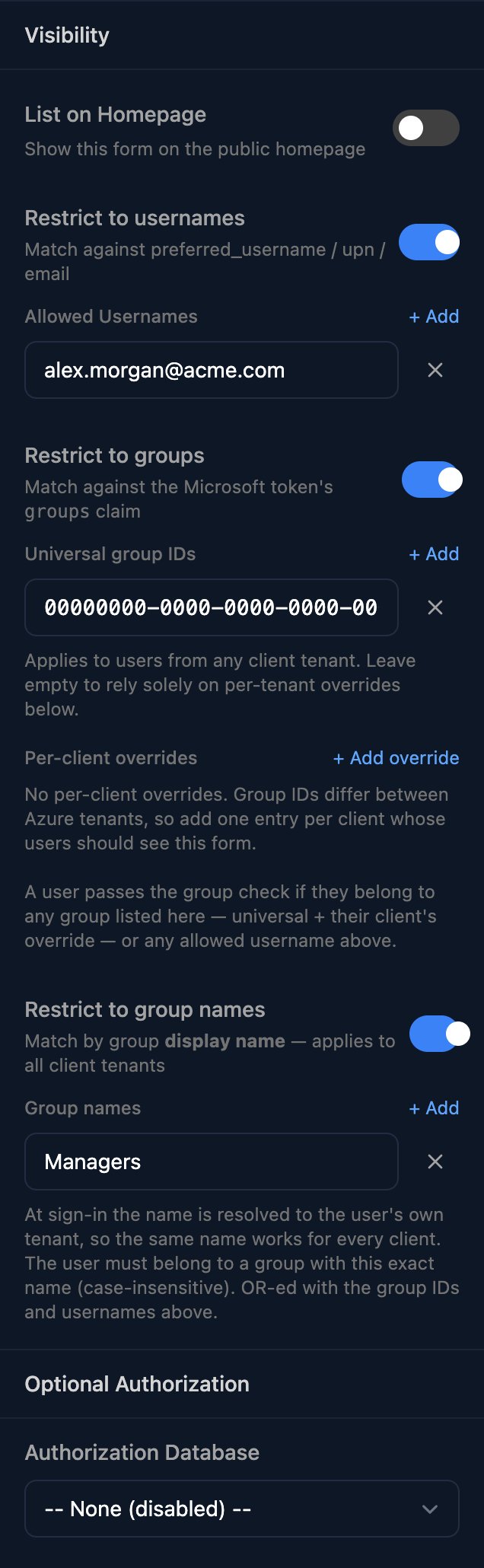
Without restrictions, anyone in a matched tenant can open the form. Turn on one or more to narrow it; a person who matches any one gets in.
{{ctx.metadata.microsoftUser.…}} value is passed as a parameter. Apply Default fills in:
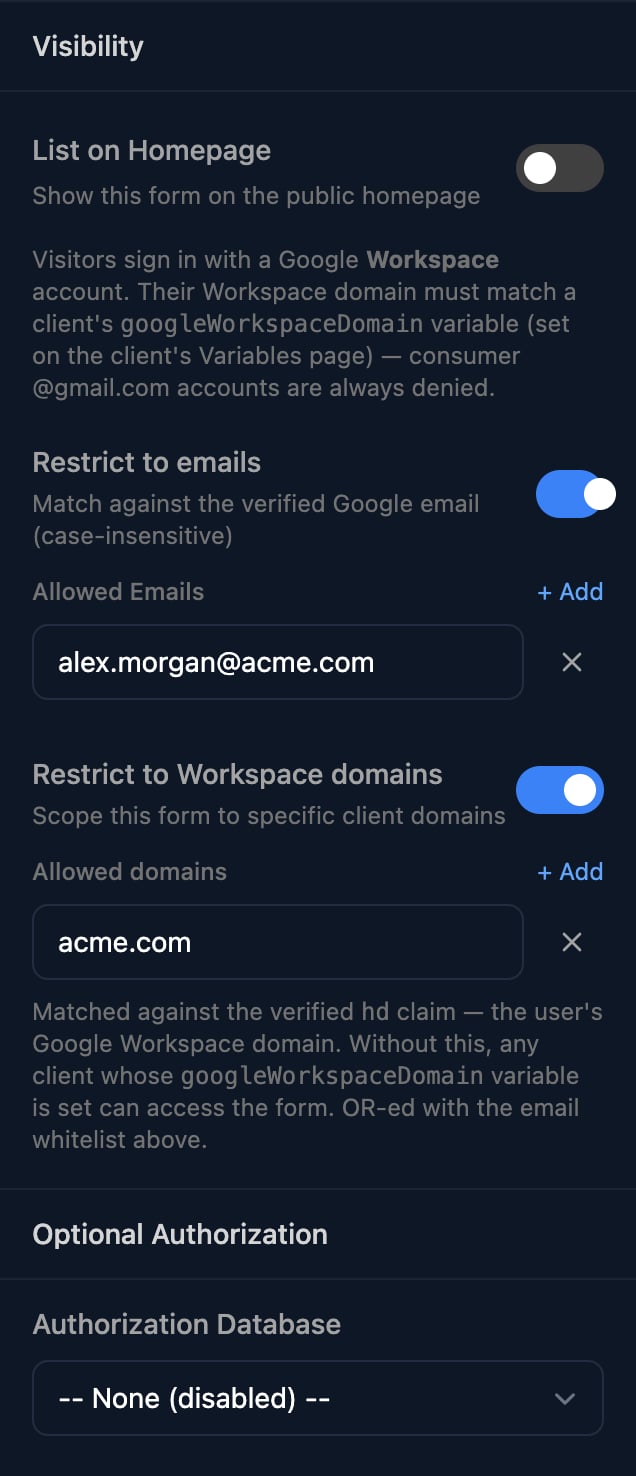
googleWorkspaceDomain variable lists it (separate several with commas: acme.com,acme.co.uk). A personal account sees “a Google Workspace account is required to access this form”; a domain on no client, or on two, sees “you do not have permission to access this form”.
Restrict to emails and Restrict to Workspace domains narrow the form; a person who matches either gets in. Optional Authorization works as for Microsoft, with {{ctx.metadata.googleUser.email}} and so on.
Internal
Your team opens the form from Complete Form in the designer or Complete on Forms; anyone else sees “This form is for internal use — sign in with your staff account to continue”. Internal forms have no Share Form dialog or List on Homepage option. Turn on Manually Set Client so your team picks a client and clicks Next before the form opens; without it, the workflow gets no client.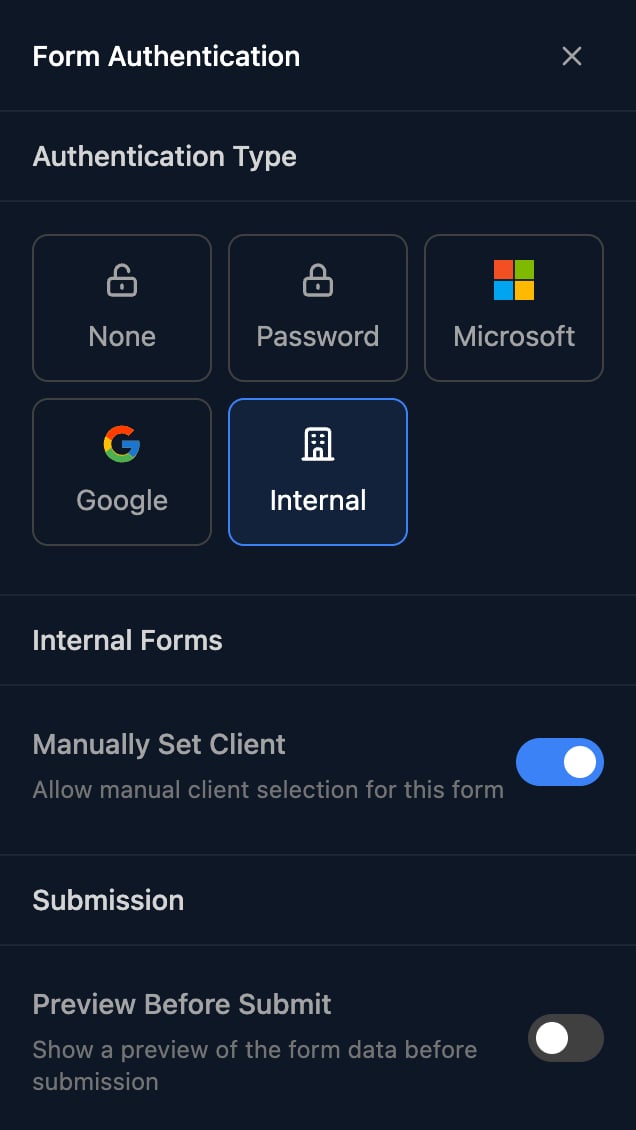
What the workflow gets
Every run a form starts hasctx.metadata.source (form_submission), ctx.metadata.formId and ctx.metadata.submissionId. Signed-in types add the person and, with Set Client From Form, the client:
{{ ctx.metadata.microsoftUser.email }}; if the account has no email address, email holds its sign-in name.
Microsoft sign-in and admin consent
Sign-in uses Triggr’s multi-tenant Microsoft Entra app (application ID75bd83ba-fbd3-47da-b68f-4adab663015f), which asks only for openid, profile, email and the delegated Microsoft Graph permission User.Read. Each person accepts this the first time they sign in. If the tenant restricts user consent, an admin there (Cloud Application Administrator or above) grants consent for the organisation once, for example by signing in to the form and ticking Consent on behalf of your organization.
Your homepage and forms domain
Set these up in Branding and client portal.- A Custom Forms Domain changes form links to
https://forms.yourmsp.com/forms/<org-id>/<form-id>and gives you a homepage athttps://forms.yourmsp.com; sign-in works on it with no extra setup. - List on Homepage shows a form on that homepage to anyone; each form still asks for its own sign-in.
- Authenticate on Telescope homepage (Settings > Branding > Telescope Authentication) makes visitors sign in with Microsoft first and shows them only the None forms and the Microsoft forms they’d be let into.
FAQ
Can guest (B2B) users open a Microsoft form?
Can guest (B2B) users open a Microsoft form?
microsoftTenantId is their home tenant, not the tenant they’re a guest in.Someone works for two clients. Which client does the form use?
Someone works for two clients. Which client does the form use?
How do I let only managers submit?
How do I let only managers submit?
Managers. For a handful of people, use Restrict to usernames.My technicians need to submit for a client. What should I use?
My technicians need to submit for a client. What should I use?
Why does Preview ask me to sign in?
Why does Preview ask me to sign in?
Troubleshooting
“you do not have permission to access this form”
“you do not have permission to access this form”
microsoftTenantId, they fail a restriction or the Authorization SQL, or a restriction list has a blank row. Google: their domain is on no client or on two, or they fail a restriction.“a Google Workspace account is required to access this form”
“a Google Workspace account is required to access this form”
“Invalid password”
“Invalid password”
Sign in does nothing, “Sign in with Google to submit this form” or “sign-in expired, please try again”
Sign in does nothing, “Sign in with Google to submit this form” or “sign-in expired, please try again”
The sign-in window says “invalid or unrecognised forms origin”
The sign-in window says “invalid or unrecognised forms origin”
“Error saving form - … requires at least one username” (or group name, email or domain)
“Error saving form - … requires at least one username” (or group name, email or domain)
@, and a Password form’s password can’t be empty.Set Client From Form fails with “no tenant ID found in context”
Set Client From Form fails with “no tenant ID found in context”
microsoftTenantId variable.“Failed to load available clients” on an Internal form
“Failed to load available clients” on an Internal form
“this client has no microsoftTenantId configured” or “Failed to load Microsoft users for this client.” when impersonating
“this client has no microsoftTenantId configured” or “Failed to load Microsoft users for this client.” when impersonating
microsoftTenantId variable and connect the client through your Microsoft integration, which Impersonate uses to list its users. For Google, type the user’s email; its domain must be in the client’s googleWorkspaceDomain.