Human In The Loop pauses a run until someone approves or rejects it; Manual Step pauses it until someone marks a task done. This example asks a manager to approve a new starter’s laptop, then gives the service desk a task to order it.

Approvals and manual steps: a workflow that waits for a manager's approval, branches on the answer and hands the team a task, then approving and completing it (1:29).
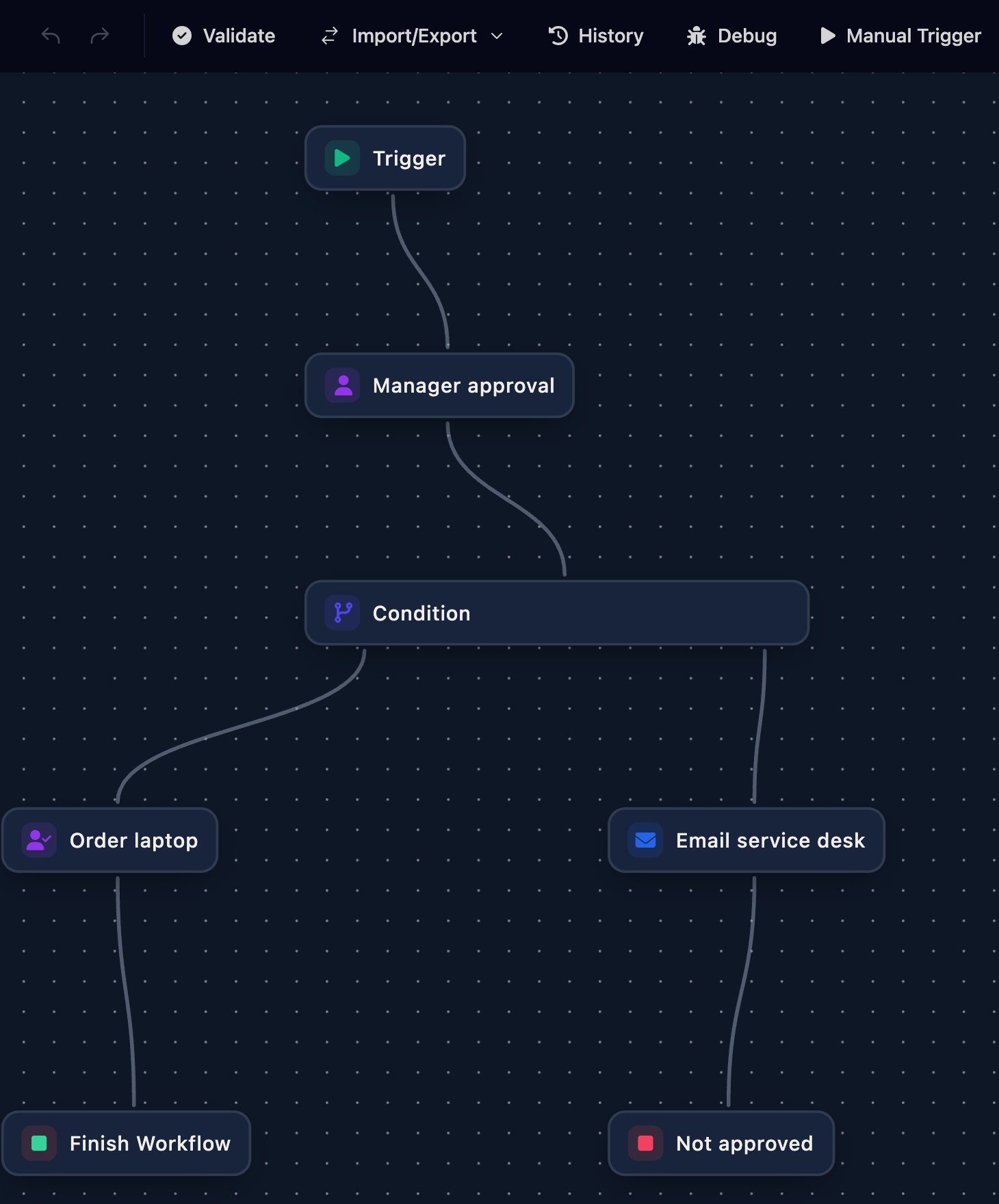
The Docs sample – approval workflow: Trigger, Manager approval, then a Condition that leads to Order laptop and Finish Workflow on one side, and Email service desk and Not approved on the other.

Ask for approval

1

Add the step

Drag Human In The Loop from Components > Approval below your trigger and rename it Manager approval: later steps read its answer by name.
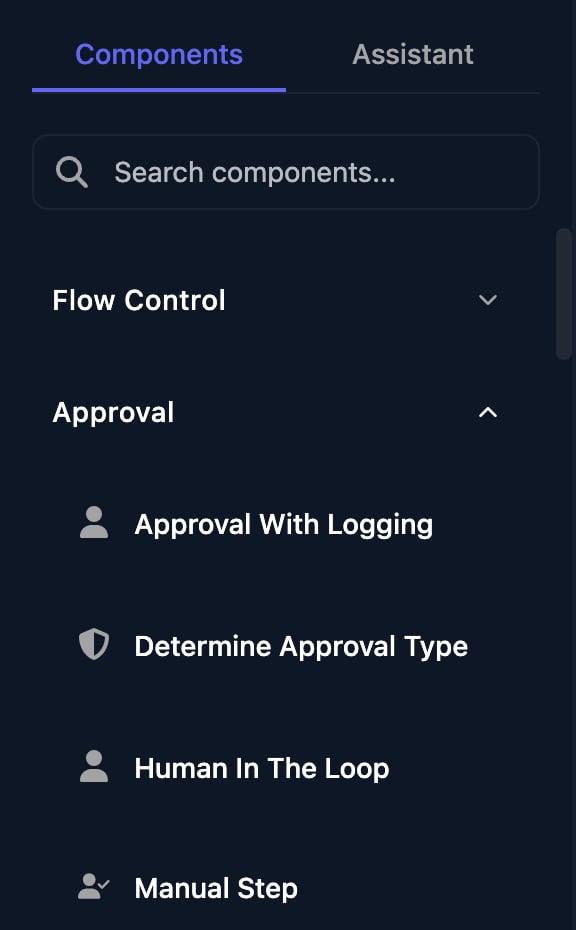
The Components panel with the Approval group open, listing Approval With Logging, Determine Approval Type, Human In The Loop and Manual Step.
2

Choose the approver and write the request
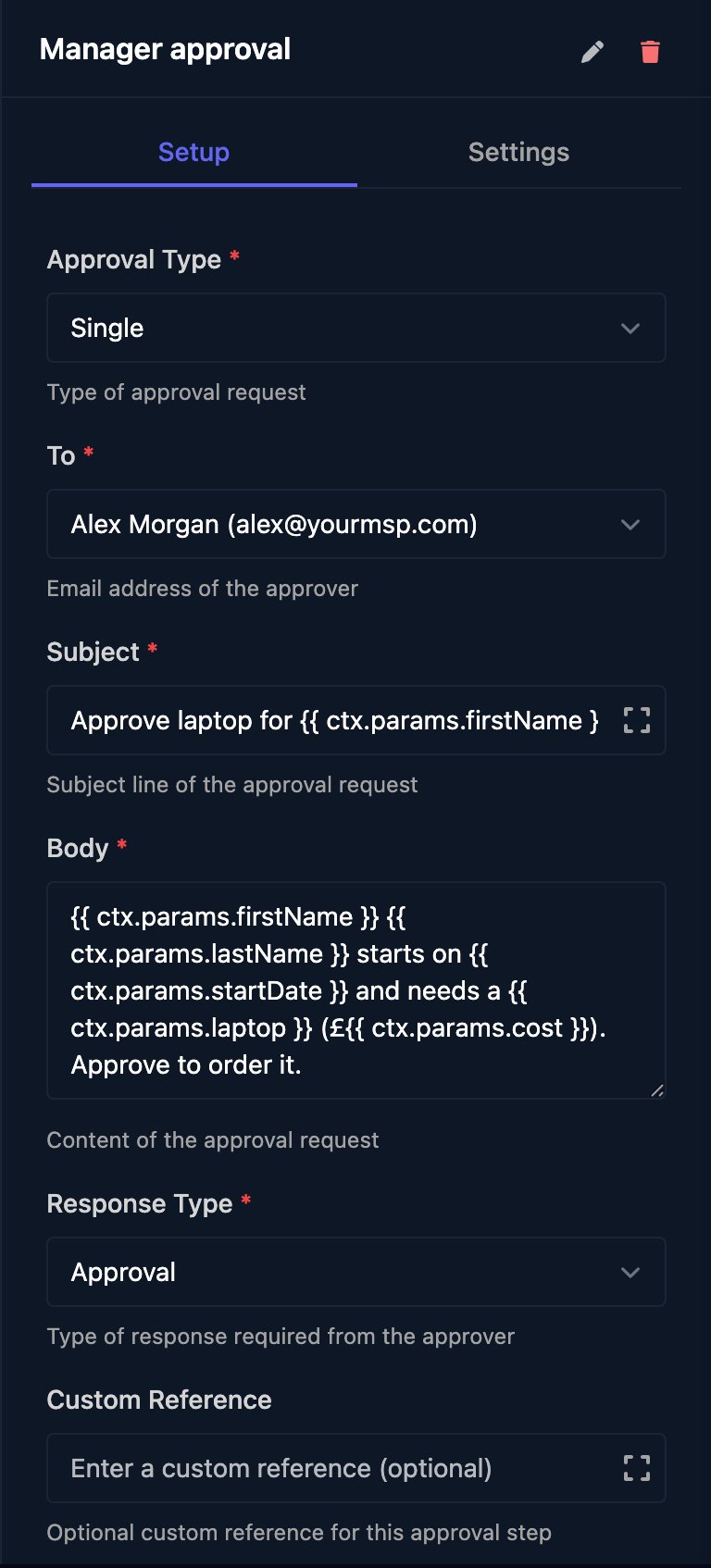
With Approval Type Single, pick the approver in To. Subject and Body are what they see.
The Manager approval step with Approval Type Single, To Alex Morgan (alex@yourmsp.com), Subject Approve laptop for the first name, and a Body built from the starter's name, start date, laptop and cost, Response Type Approval and an empty Custom Reference.
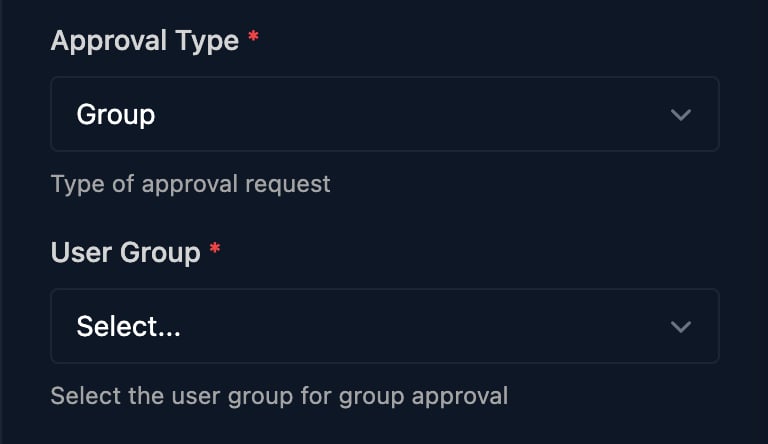
For a team, choose Group and a User Group from Settings > User Groups; the first answer decides.
Approval Type set to Group and a User Group dropdown.
3

Branch on the answer

The step carries on either way, so add a Condition with Condition Language Javascript, the expression ctx.steps['Manager approval'].approved === true, the label Approved and Default Branch Rejected.
A Condition with Condition 1 reading ctx.steps['Manager approval'].approved, Label Approved, Default Branch Rejected and Condition Language Javascript.
4

Finish both paths

On Rejected, add a Send Email to your service desk and a Finish Workflow with Outcome Fail. Add the manual step below to Approved, then click Save.

Add a manual step

Drag Manual Step from Approval onto the Approved path and fill in Title and Instructions. To collect details on completion, such as an order number, choose a Form (Optional).
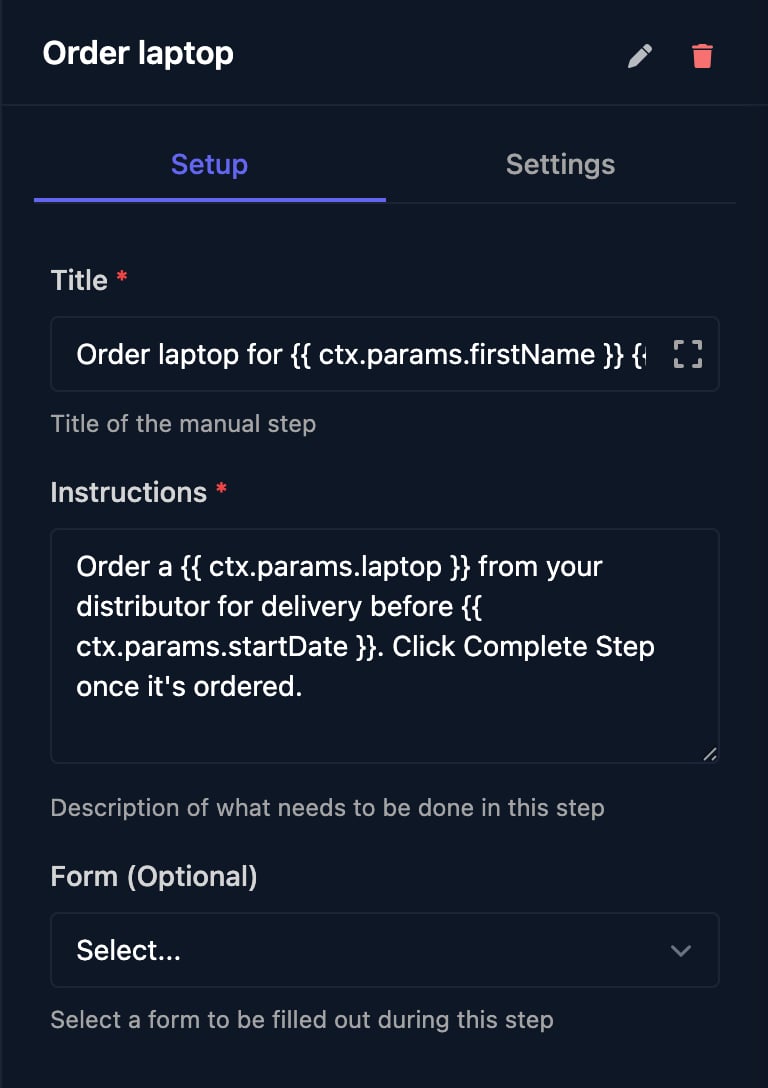
The Order laptop step with Title Order laptop for the starter's name, Instructions to order the laptop from your distributor before the start date, and an empty Form (Optional).

Test it

Click Manual Trigger and enter:
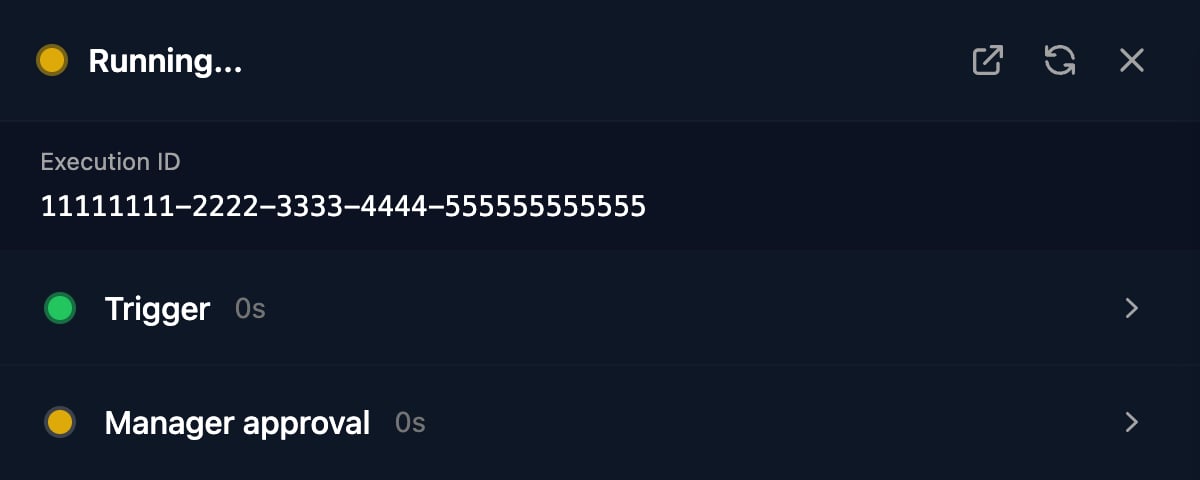
The run stays Running at Manager approval until someone answers.
The run panel showing Running..., an Execution ID, Trigger in green and Manager approval in yellow.

Approve or reject

1

Find the request

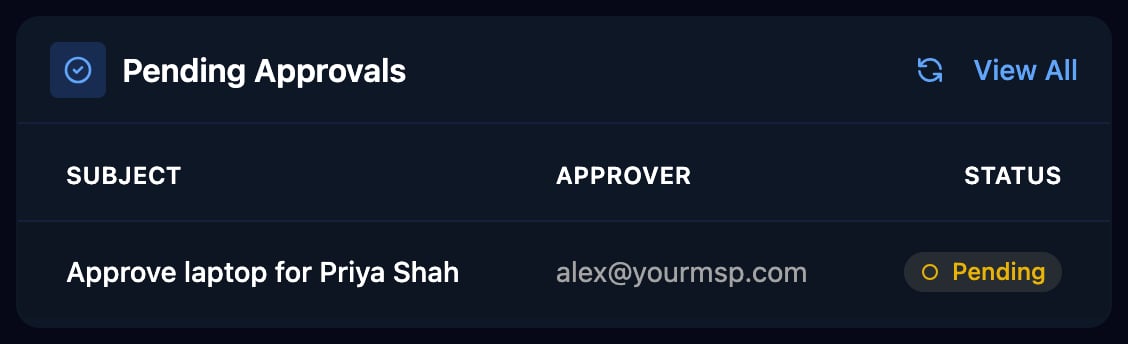
A Single approver gets an email from app@triggr-app.com with a View Approval Request button. Every request is also on Approvals and under Pending Approvals on the Dashboard.
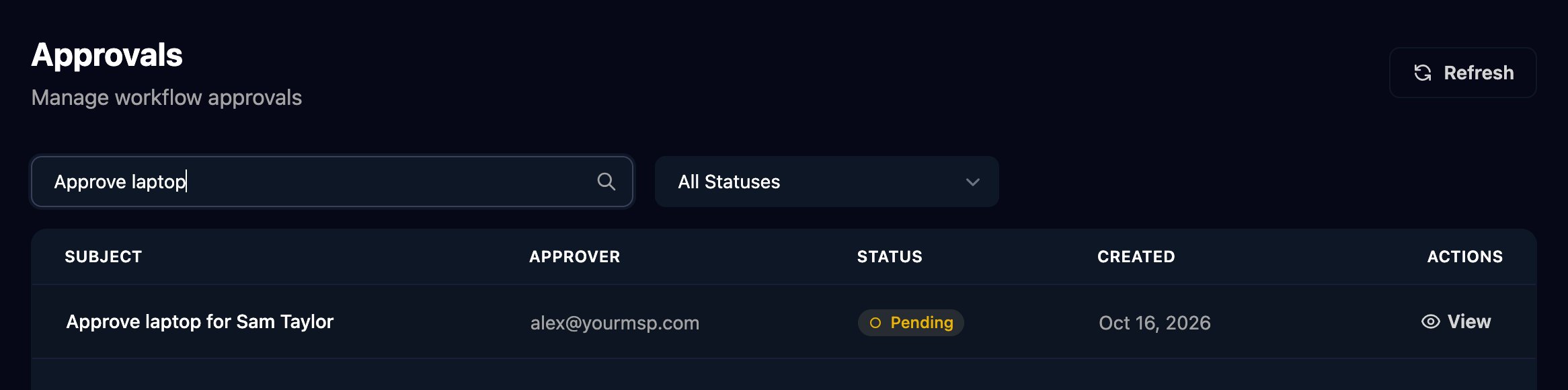
The Approvals page searched for Approve laptop, with an All Statuses filter and one Pending request, Approve laptop for Sam Taylor, approver alex@yourmsp.com, with a View button.
The Dashboard's Pending Approvals card listing Approve laptop for Priya Shah, approver alex@yourmsp.com, Pending, with a View All link.
2

Open it

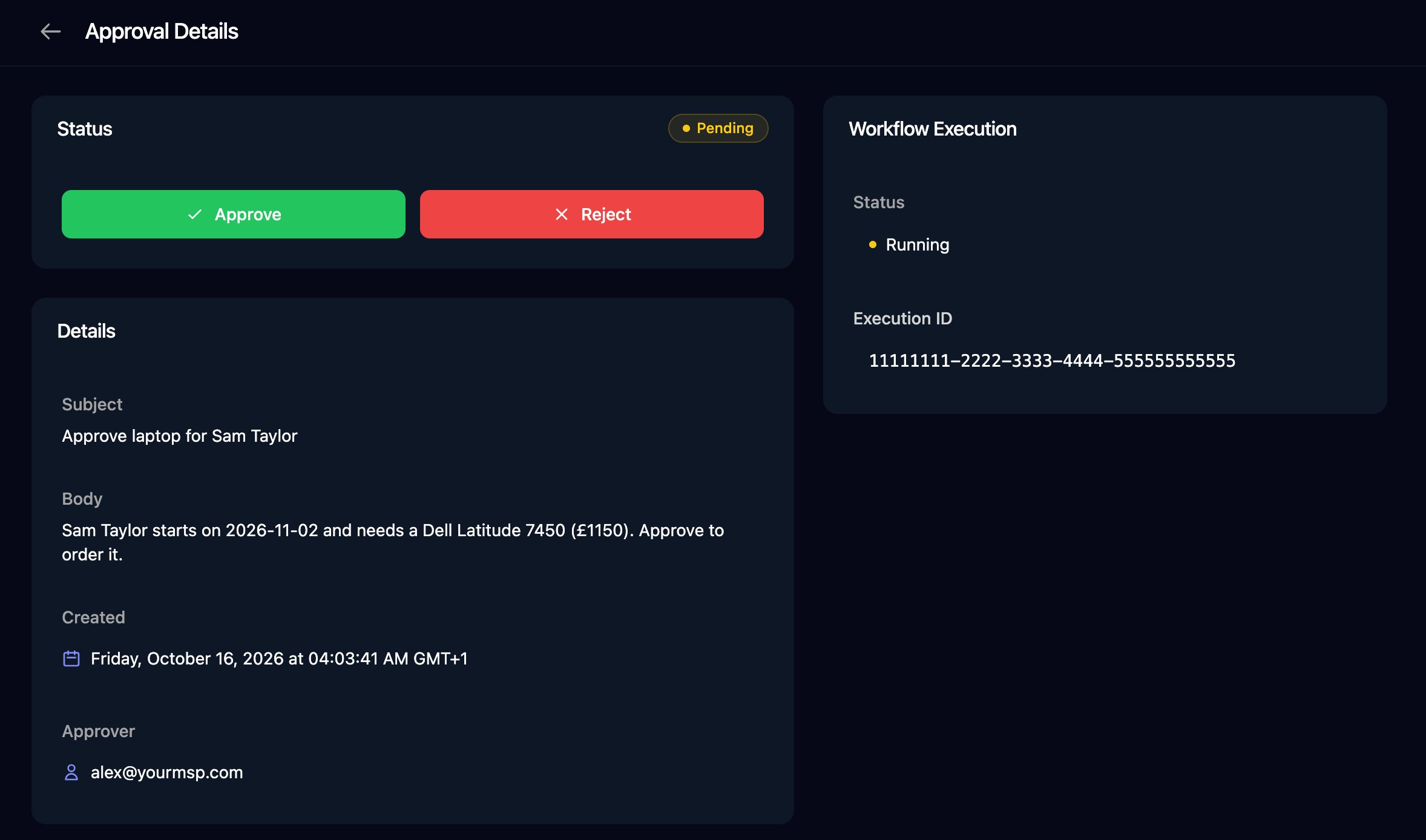
Click View.
Approval Details with a Pending status, Approve and Reject buttons, the Subject and Body of the request, its Created time and Approver, and a Workflow Execution card showing Running and the execution ID.
3

Approve

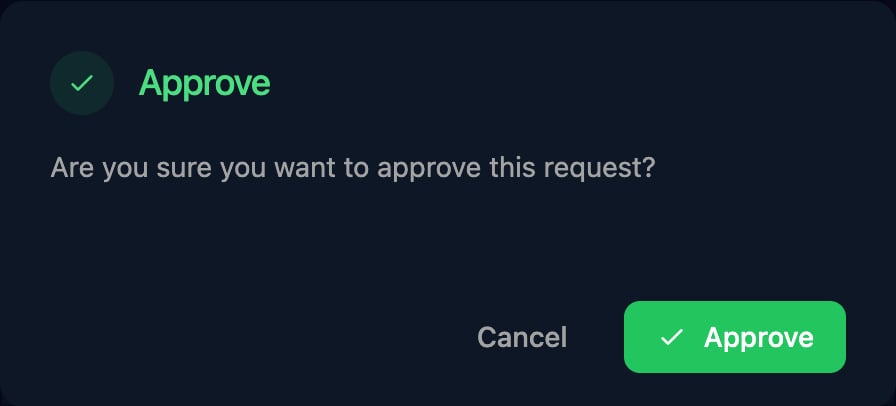
Click Approve, then Approve to confirm.
The Approve dialog: Are you sure you want to approve this request? with Cancel and Approve buttons.
4

Or reject

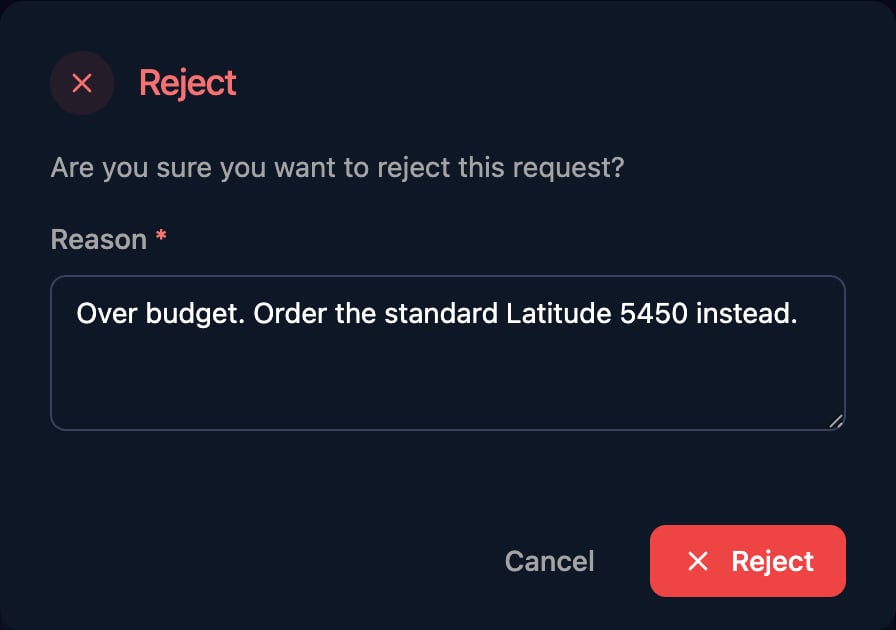
Click Reject, enter a Reason and click Reject.
The Reject dialog with the Reason Over budget. Order the standard Latitude 5450 instead., and Cancel and Reject buttons.
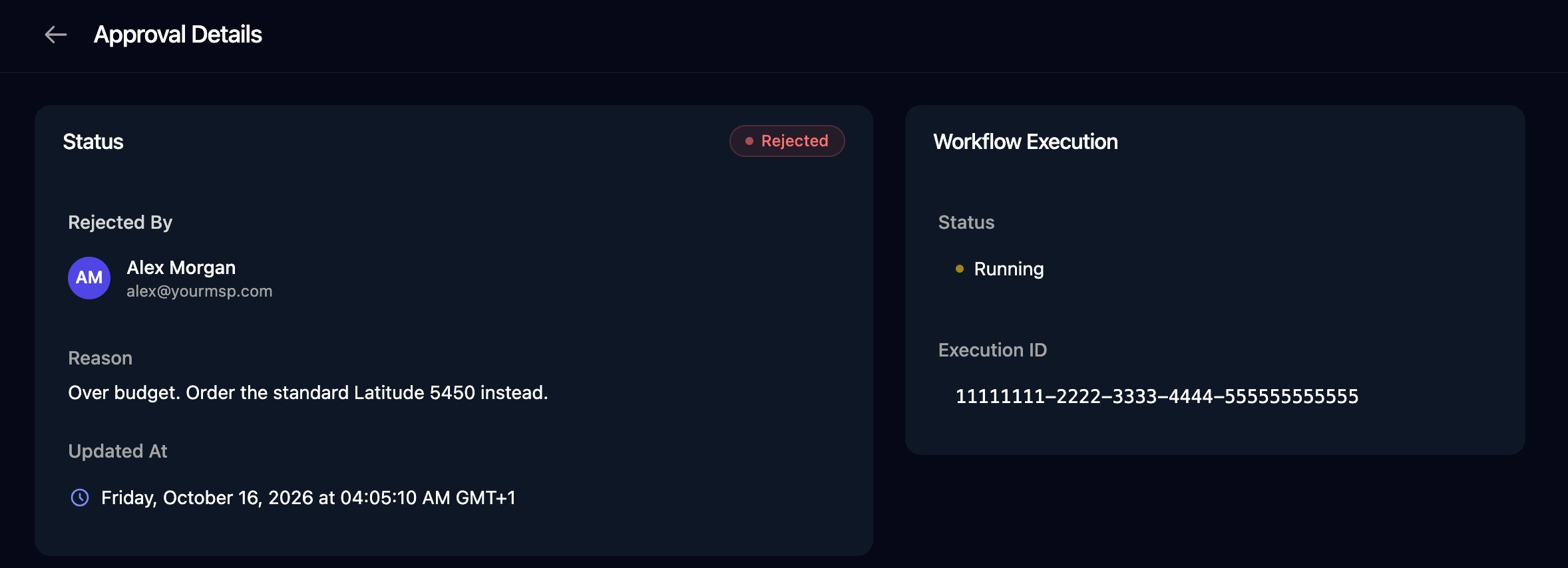
A Rejected request showing Rejected By Alex Morgan, the Reason, Updated At, and the Workflow Execution card.
Only the person named in the To field, signed in with that email, or a member of the group can decide, and decisions are final.

What the workflow gets back

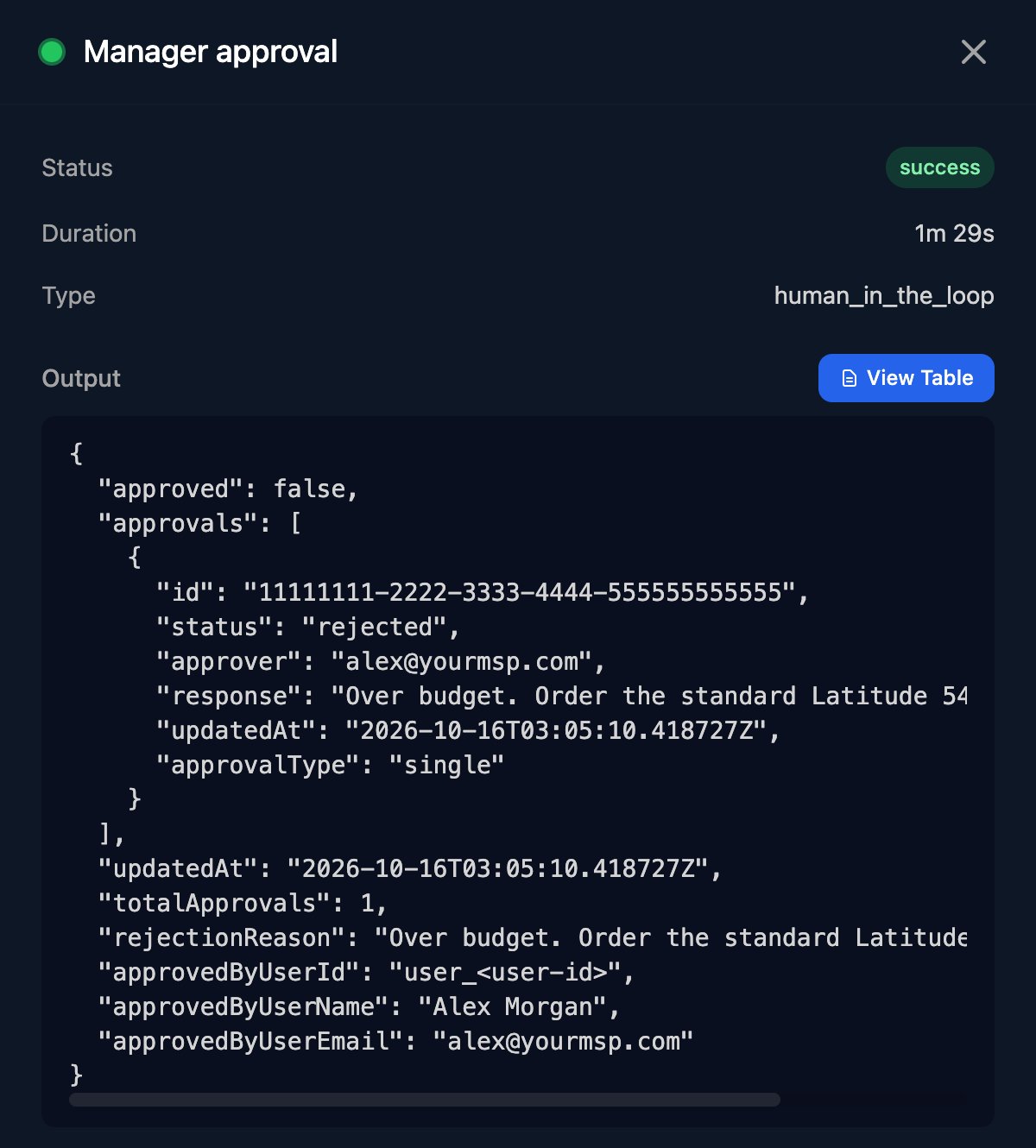
Later steps read ctx.steps['Manager approval'].<field>:
The Manager approval step's Output in a run: approved false, an approvals list with status rejected and the response, totalApprovals 1, rejectionReason, and approvedByUserName Alex Morgan with approvedByUserEmail alex@yourmsp.com.
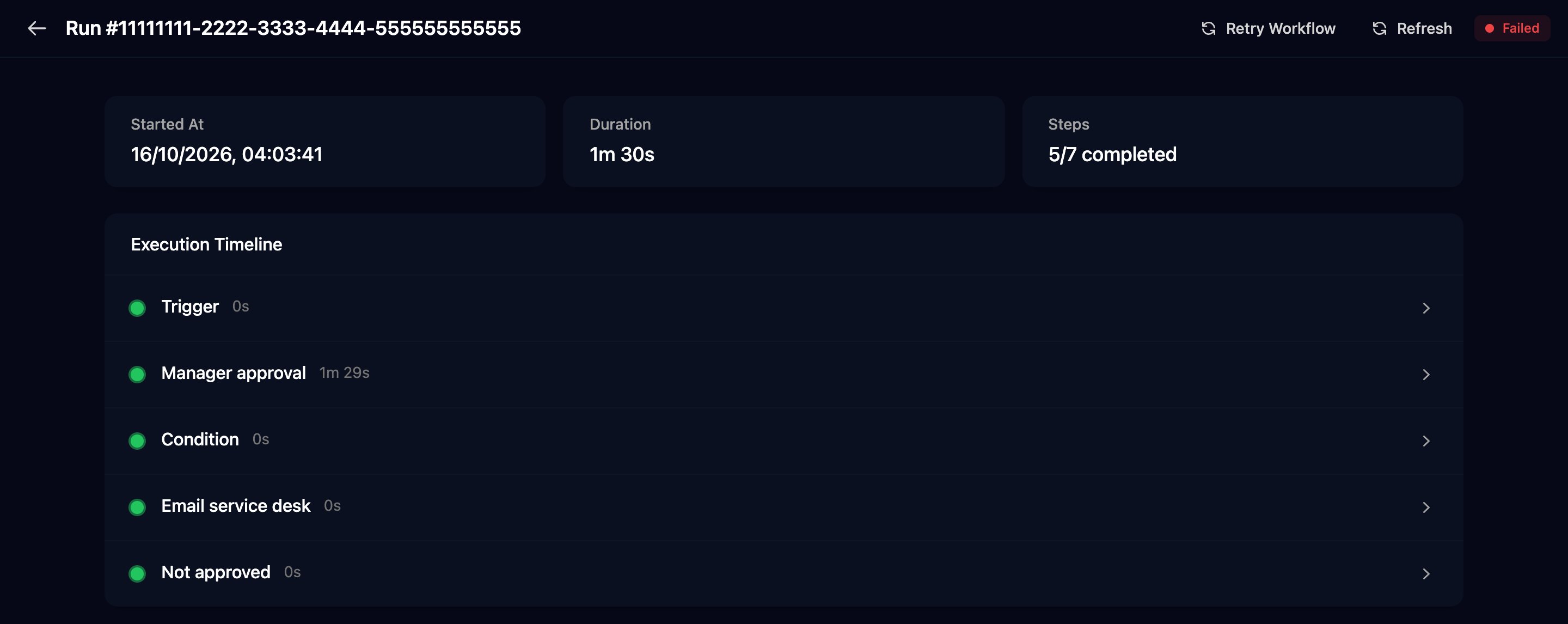
A rejected run takes the Rejected branch and ends Failed at Not approved.
A Failed run whose Execution Timeline lists Trigger, Manager approval, Condition, Email service desk and Not approved, all green.

Complete a manual step

1

Find the task

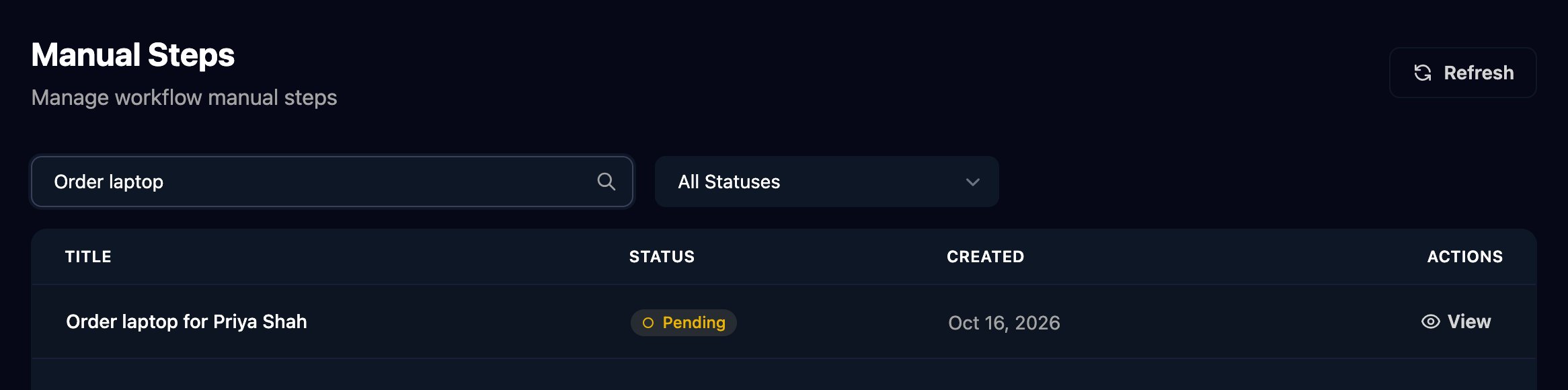
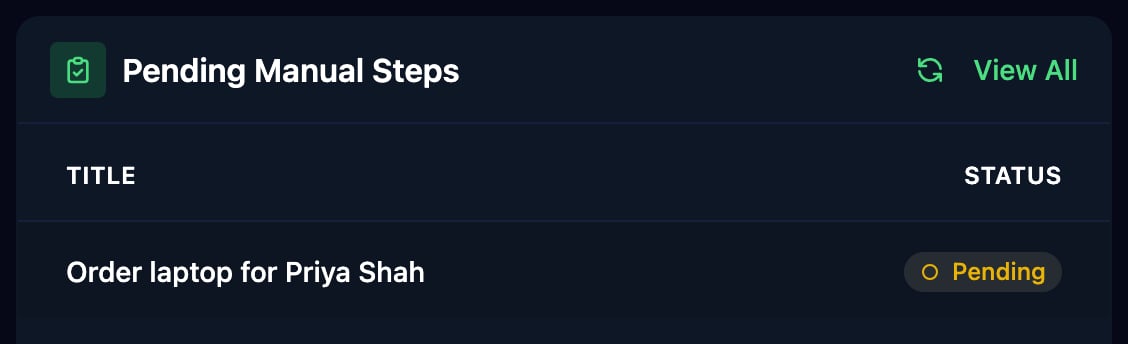
Pending tasks are on Manual Steps and under Pending Manual Steps on the Dashboard. Nobody is assigned or emailed: add a Send Email before the step if someone should be told.
The Manual Steps page searched for Order laptop, with one Pending task, Order laptop for Priya Shah, and a View button.
The Dashboard's Pending Manual Steps card listing Order laptop for Priya Shah as Pending.
2

Do the task

Click View and follow the Instructions.
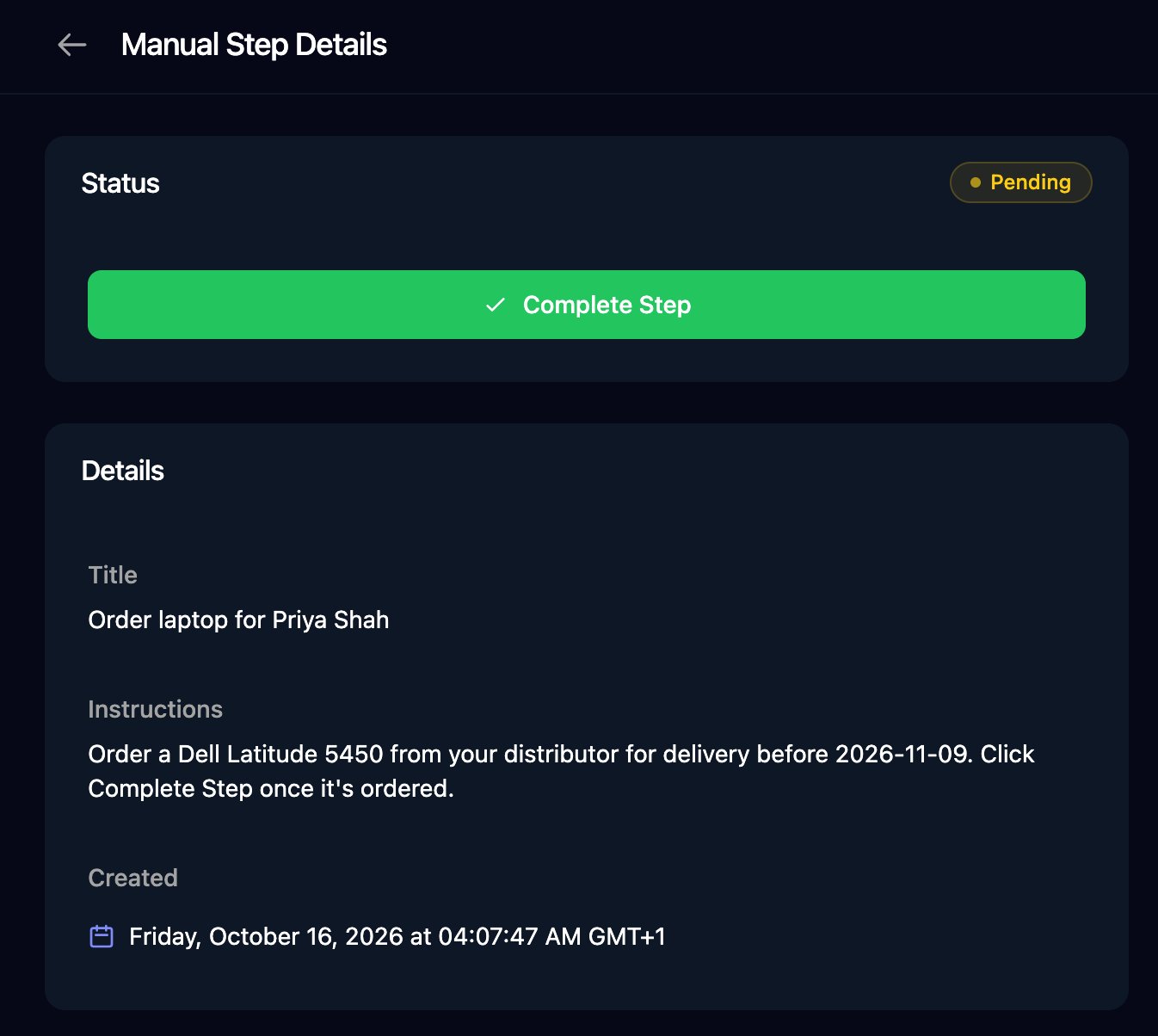
Manual Step Details with a Pending status, a Complete Step button, and the Title, Instructions and Created time.
3

Mark it complete

Click Complete Step, then Complete Step to confirm. With a form, click Complete Form and submit it instead.
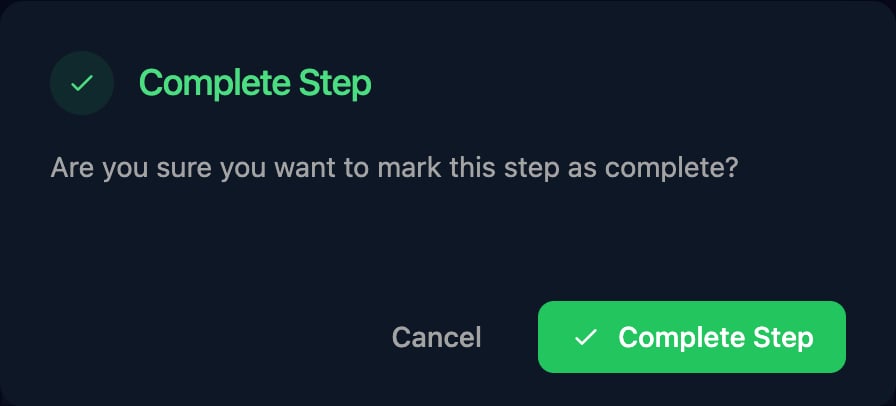
The Complete Step dialog: Are you sure you want to mark this step as complete? with Cancel and Complete Step buttons.
4

Check it's done

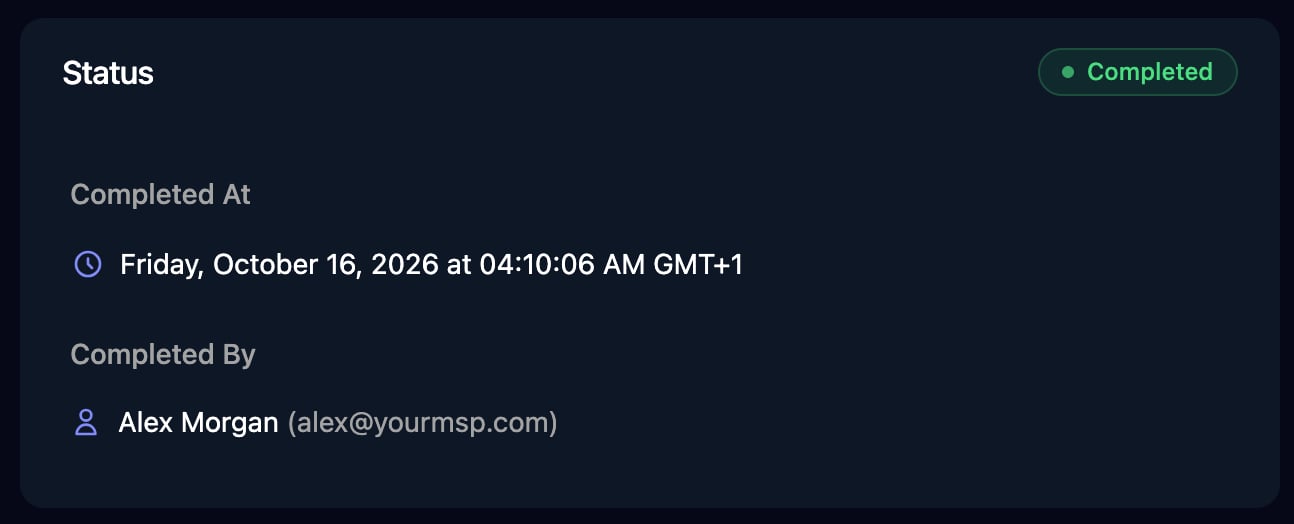
The task shows who completed it, and the run moves on.
The Status card showing Completed, Completed At and Completed By Alex Morgan (alex@yourmsp.com).
The step outputs completed, completedByName, completedByEmail and manualStepId, plus formSubmissionId and the answers in submission when it has a form.
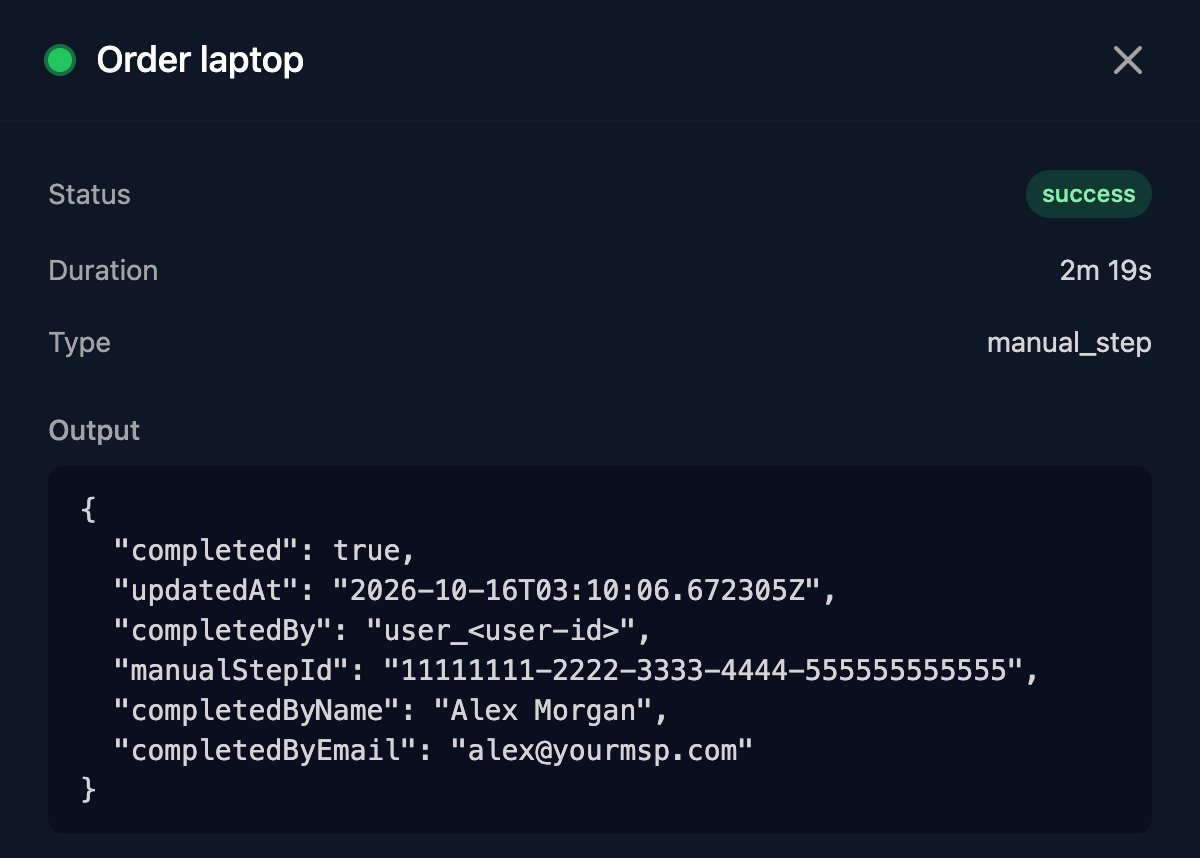
The Order laptop step's Output in a run: completed true, updatedAt, completedBy, manualStepId, completedByName Alex Morgan and completedByEmail alex@yourmsp.com.

Other approval steps

FAQ

Only the person named in the To field can decide, signed in with that email. For a group it reads “You are not a member of the group that can approve this request”: add them in Settings > User Groups.
The run has ended or was terminated. Start a new run.
Group requests aren’t emailed: members find them on Approvals or the Dashboard. For Single, check spam for mail from app@triggr-app.com.
Approvers sign in to Studio. For a client’s sign-off, send them a form with an Await Form Submission step (Forms), which emails the form and waits for the answers. See Introduction to forms.
No. To withdraw one, click Terminate Run on the run; the request then shows Expired.
Validate only knows the output of an approval that’s still waiting. Ignore it for approved, approvedByUserName, approvedByUserEmail and rejectionReason.
A manual step shows its waiting output, "status": "pending", straight away. The run stays Running until someone completes it.
No, only complete it. To stop the run instead, click Terminate Run.
Yes, with a Public API key that has the Act on running work (executions:manage) scope: POST /api/v1/approvals/<id>/approve or /reject with { "actor": { "name": "Alex Morgan" }, "response": "…" }, and POST /api/v1/manual-steps/<id>/complete. See API keys and webhooks.
To find out why a run failed, see Debug a failed run.