

Connect a database: connecting PostgreSQL, querying it from a workflow and filling a dropdown from it (1:28).
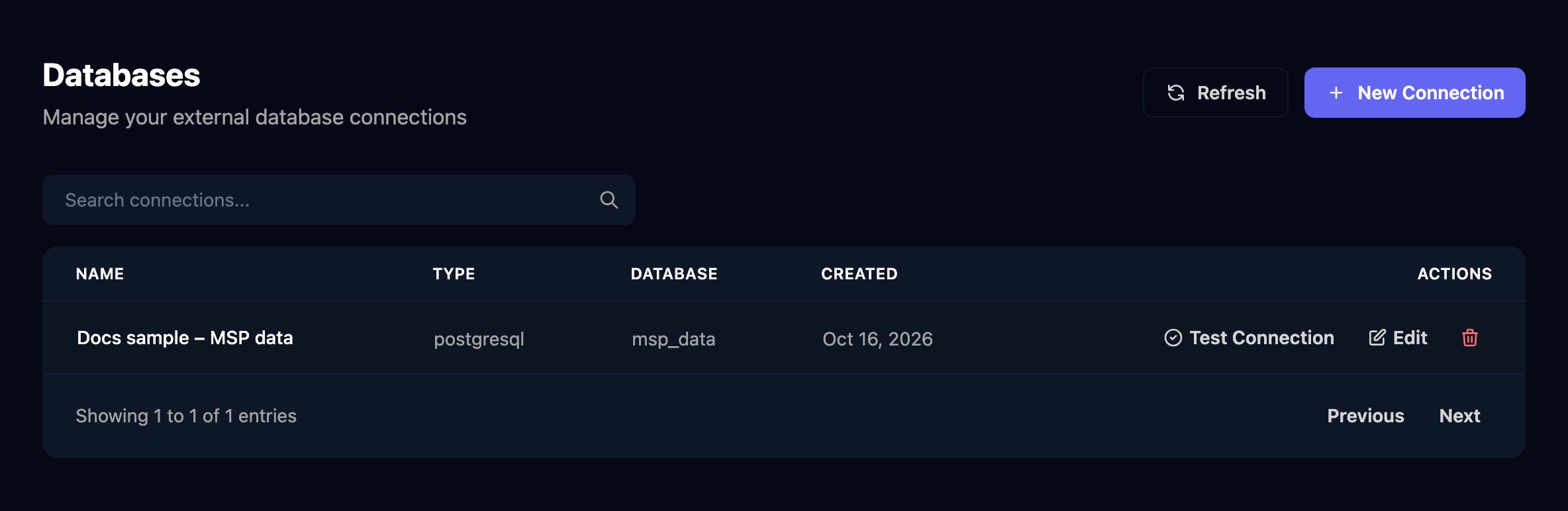
Connect a database
1
Let Triggr in
The database needs a public address. Allow Triggr’s IP addresses to its port (usually 5432), and create a database user with only the rights your workflows need.
2
Start a connection
Click New Connection, then Connection String (or Manual Setup to type each detail).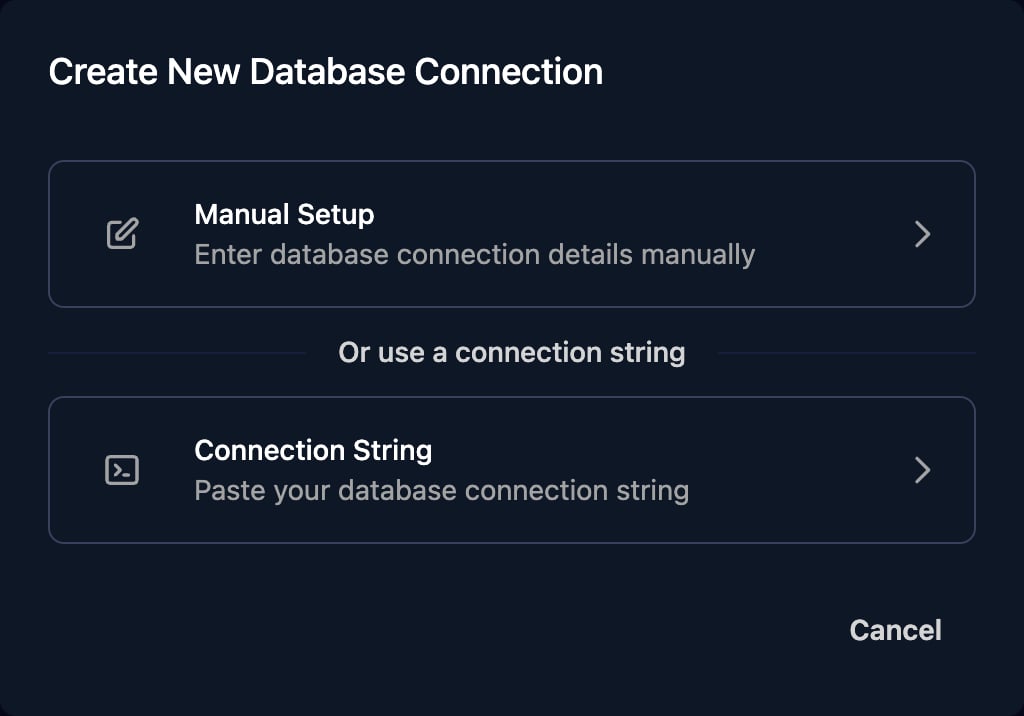
3
Paste the connection string
Paste it as 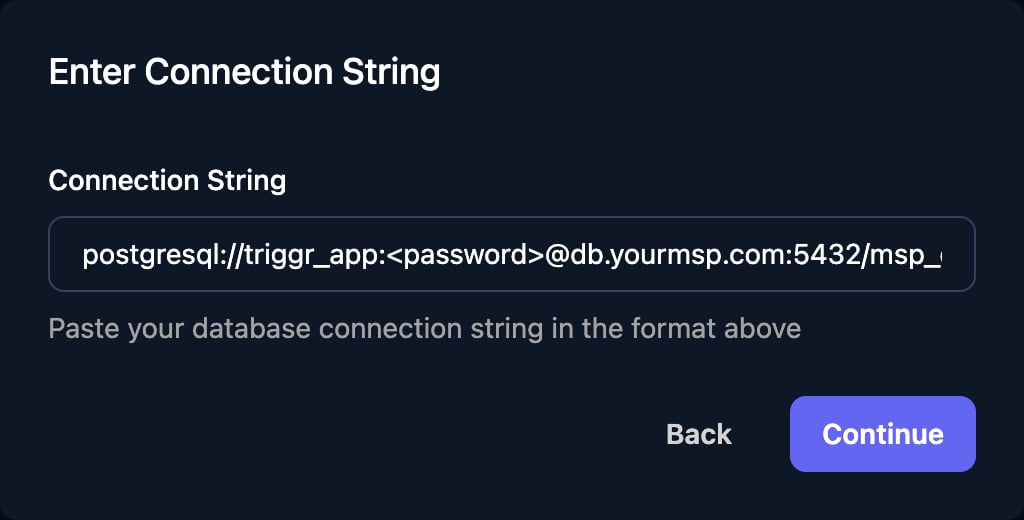
postgresql://user:password@host:5432/database?sslmode=require and click Continue.4
Check the details
Rename the connection (it starts as the database name), type the password if the string had none or it has symbols in it, and click Create Connection.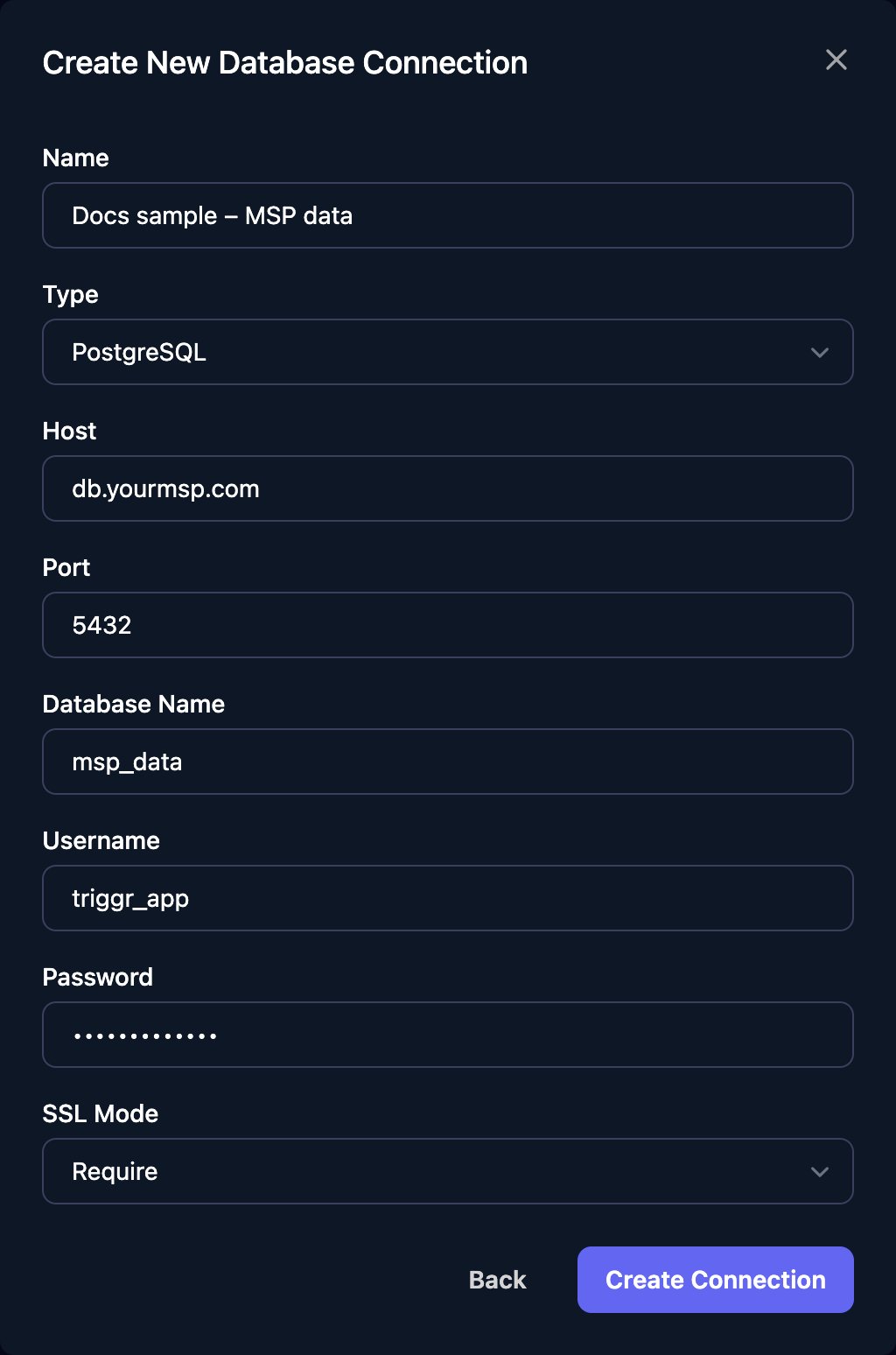
5
Test it
Click Test Connection on the connection’s row: it should say “successfully connected to the database” (otherwise see Troubleshooting).
Query it from a workflow
Add Execute SQL from Database, choose the database and replace the example query in SQL Query with yours; this one finds yesterday’s failed backups in abackup_results table.
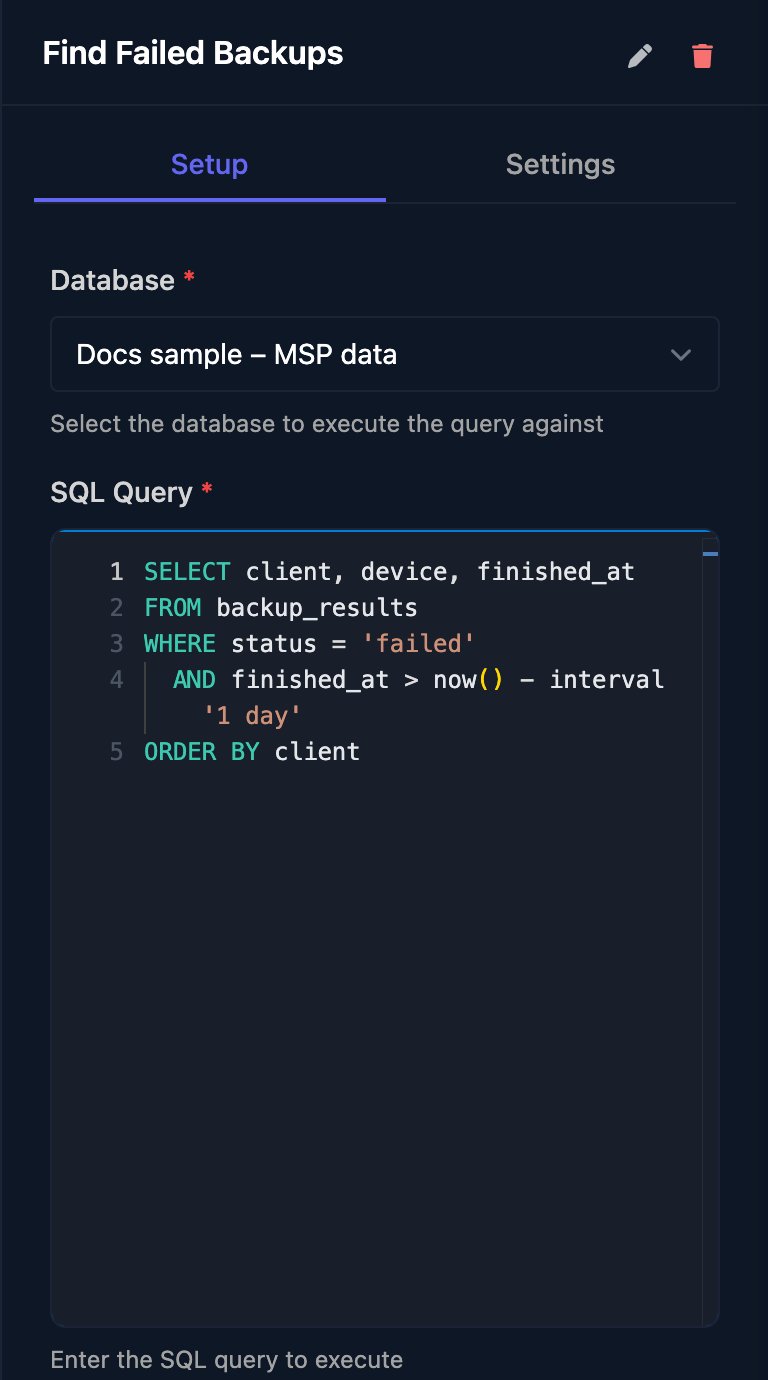
data, every value as text (empty for NULL).
ctx.steps['Find Failed Backups'].data, or read one value with {{ ctx.steps['Find Failed Backups'].data[0].client }}. A single row with a column named count, sum, avg, min, max or total also arrives as a number in value.
Change data
INSERT, UPDATE and DELETE work too; add RETURNING id to get the new rows back in data. Create tables with your own database tool. Each query has 30 seconds.
Put values in a query
Templates become part of the SQL text, so quote text values and only use values you trust:O'Brien, breaks the query and could change what it does. For anything a person or another system typed, double the apostrophes in a Code step first, as the Evaluate step does in the uptime monitor.
Use it in forms
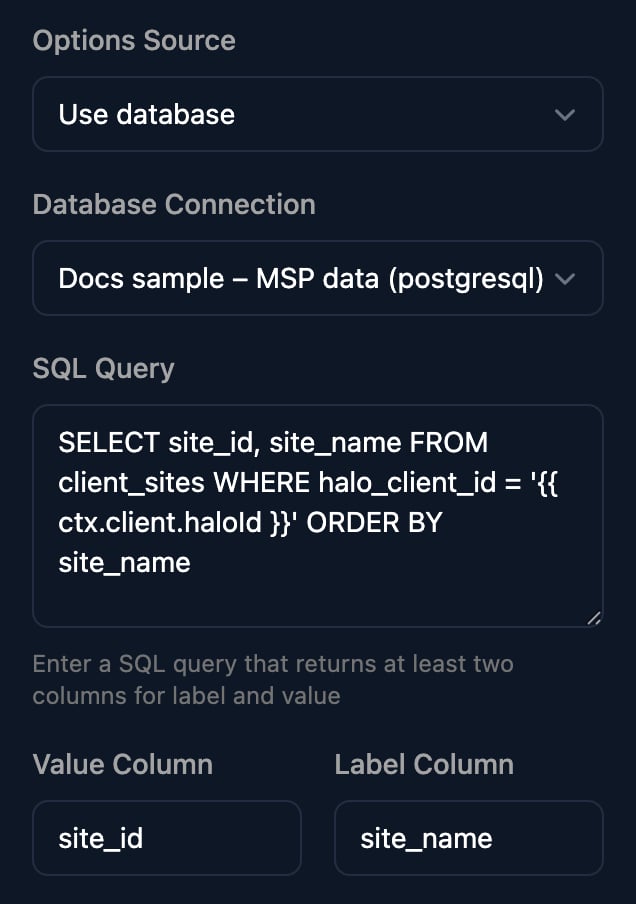
A Select field can list options from your database: set Options Source to Use database, choose the connection and write a query that returns a value column and a label column.{{ ctx.client.variableName }} inserts a client variable of the person’s client. Test Query runs the query as typed, so test it without templates first.
Security
Triggr stores the password encrypted, and every Execute SQL step runs as the database user you entered, whoever runs the workflow. Anyone with the Admin role can edit connections and write queries against them.Troubleshooting
“failed to connect to database: dial tcp: lookup … no such host”
“failed to connect to database: dial tcp: lookup … no such host”
The host isn’t a public DNS name; use the database’s internet-facing address.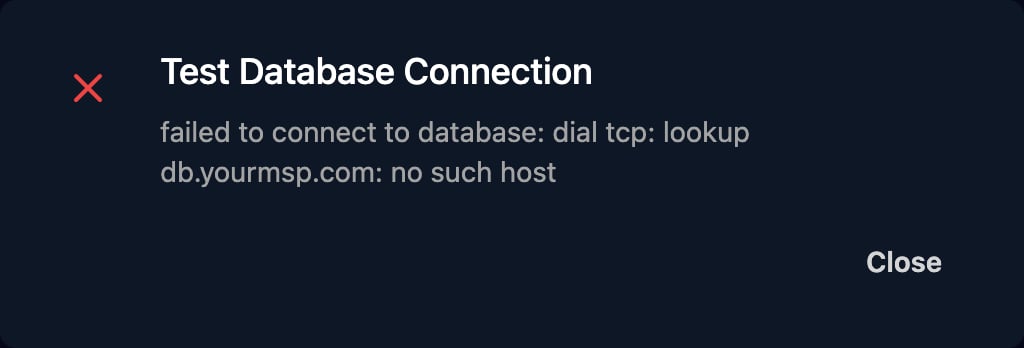
Test Connection waits, then fails with a timeout or “connection refused”
Test Connection waits, then fails with a timeout or “connection refused”
Port 5432 is blocked from Triggr. Allow Triggr’s IP addresses in your firewall, and check PostgreSQL listens on the public address.
“pq: password authentication failed for user …”
“pq: password authentication failed for user …”
Click Edit on the connection and retype the password; one pasted in a connection string keeps symbols such as
@ encoded.“pq: SSL is not enabled on the server”
“pq: SSL is not enabled on the server”
Turn on SSL in PostgreSQL so the password and data are encrypted on their way to Triggr.
“SQL query failed: invalid SQL query: …”
“SQL query failed: invalid SQL query: …”
Triggr checks each query before running it; the rest of the message is the problem: a syntax error, a missing table, a statement such as 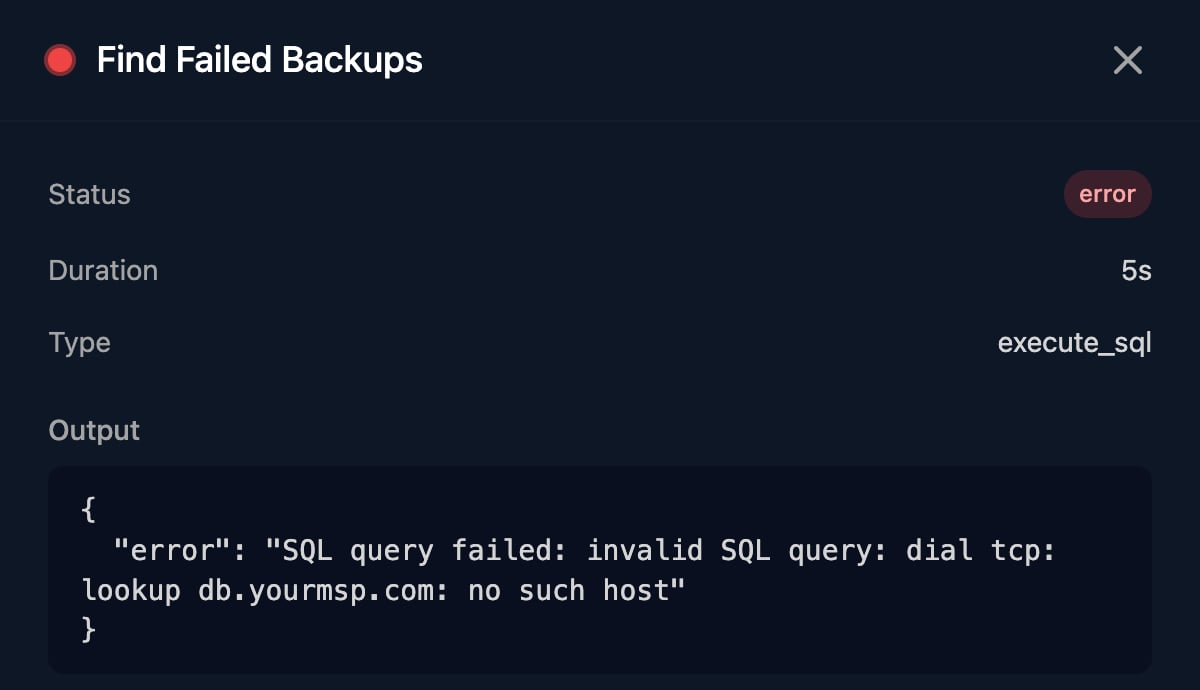
CREATE TABLE, or a connection error like those above.“Invalid connection string format. Please check and try again.”
“Invalid connection string format. Please check and try again.”
Match
postgresql://user:password@host:5432/database, or choose Manual Setup and type the details.Which databases can I connect?
Which databases can I connect?
PostgreSQL. For small registers you don’t need SQL for, use Data tables.