

PSA ticket automation: switch Hawk on, test a password reset watcher on imported HaloPSA tickets, link the workflow it starts and read its logs (1:27).
Turn on Hawk
1
Set your PSA
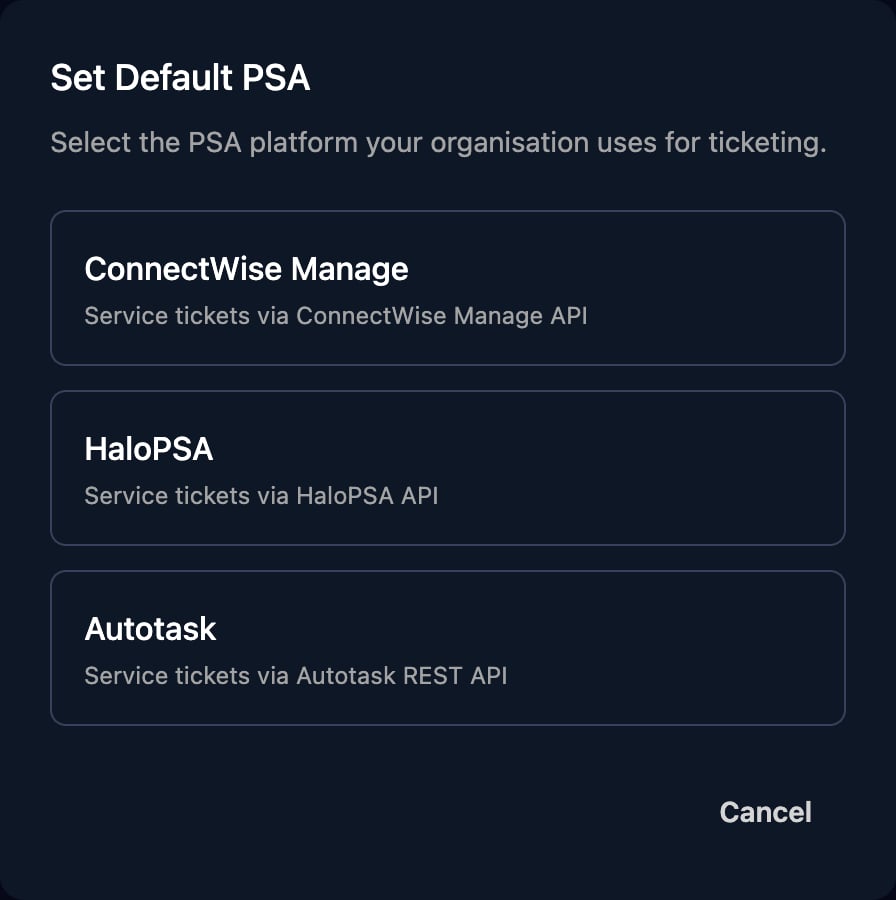
If the status card shows Set Default PSA, click it and choose your PSA (the org-wide Default PSA that ticket steps also use). Once it’s set, the card shows your PSA instead.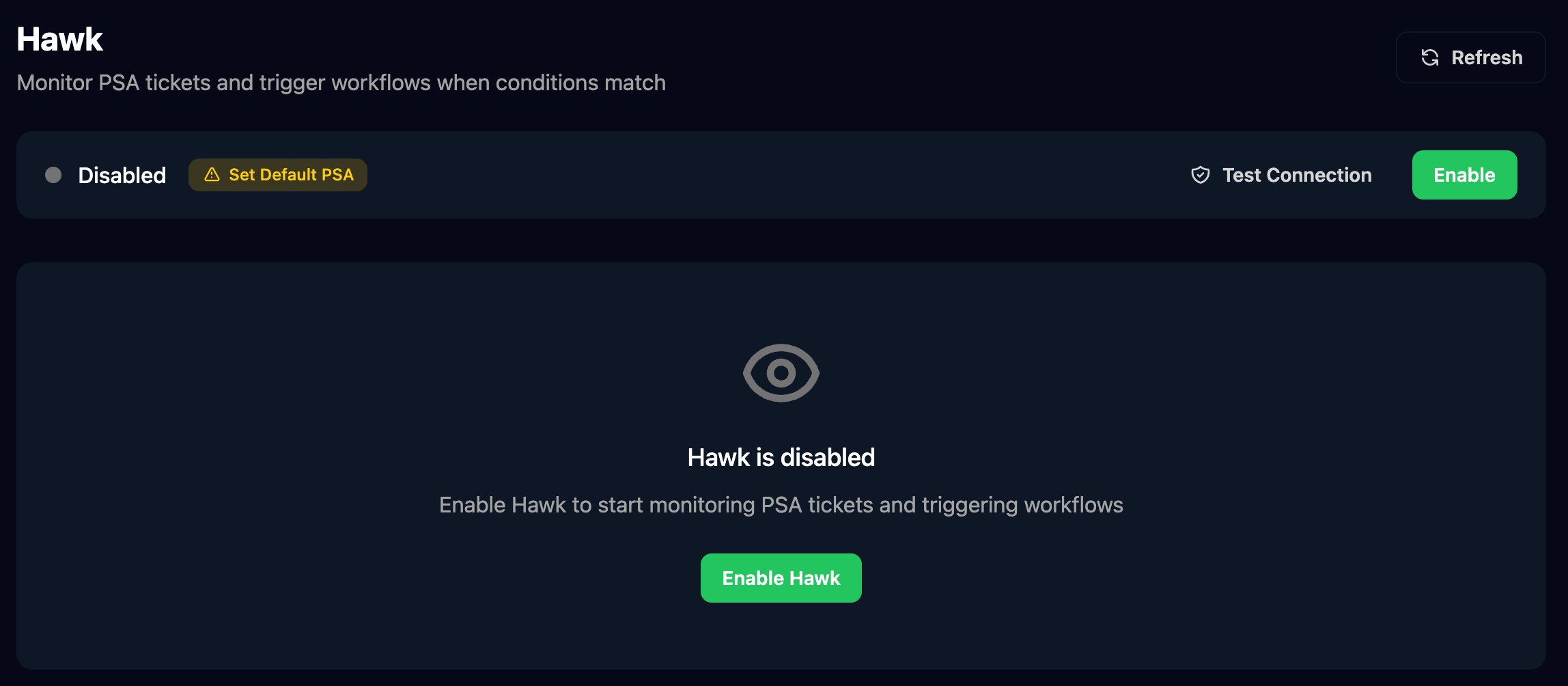
2
Test the connection
Click Test Connection. Connection Test Failed shows the PSA’s error.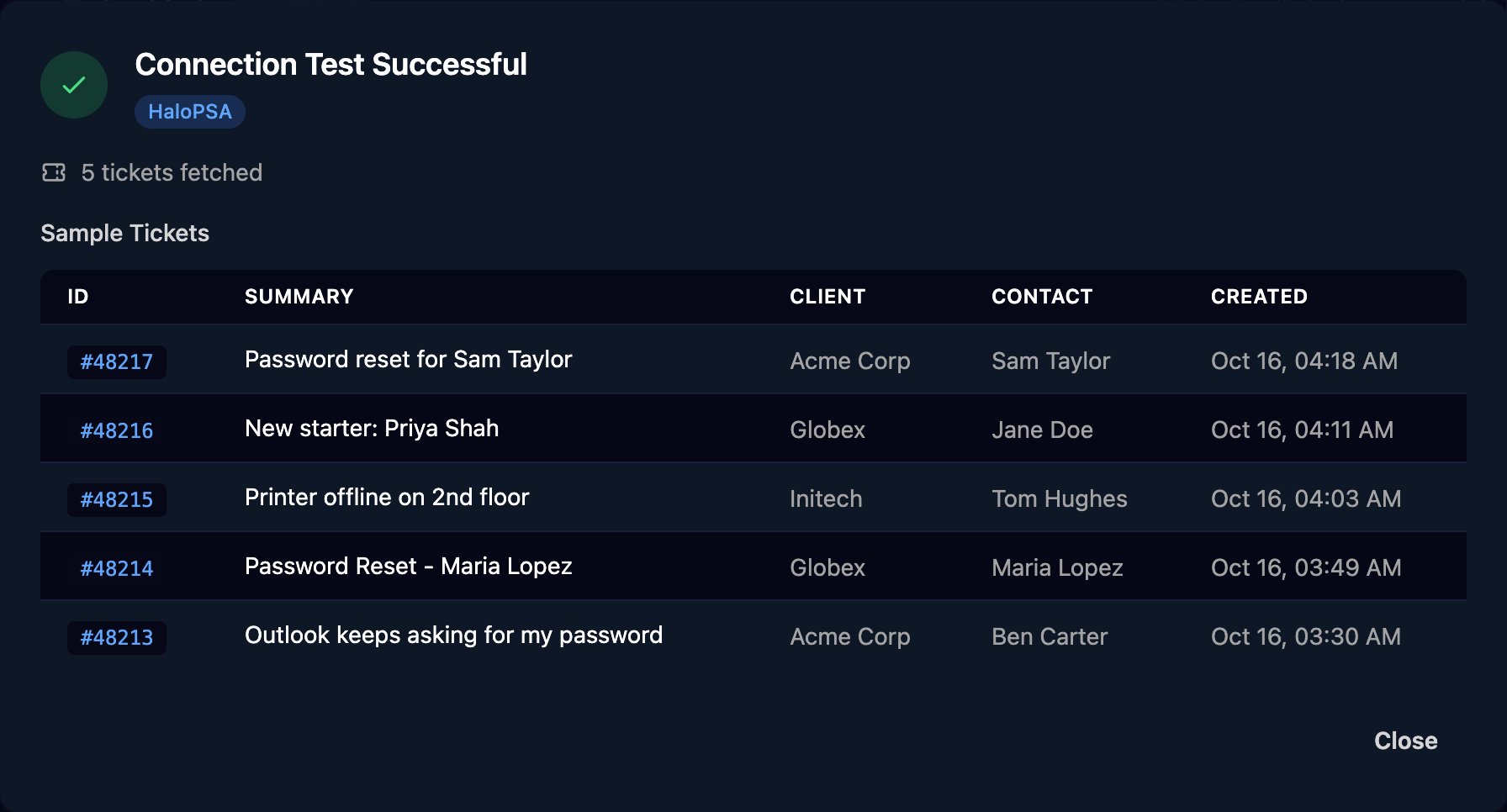
3
Enable Hawk
Click Enable. Hawk picks up tickets created from now on; with ConnectWise PSA and Autotask, tickets updated from now on too.
4
Import some history (optional)
Click Import History, choose a Time Period and click Import Tickets. Imported tickets are for Run Preview only; they never start workflows, even when they change later.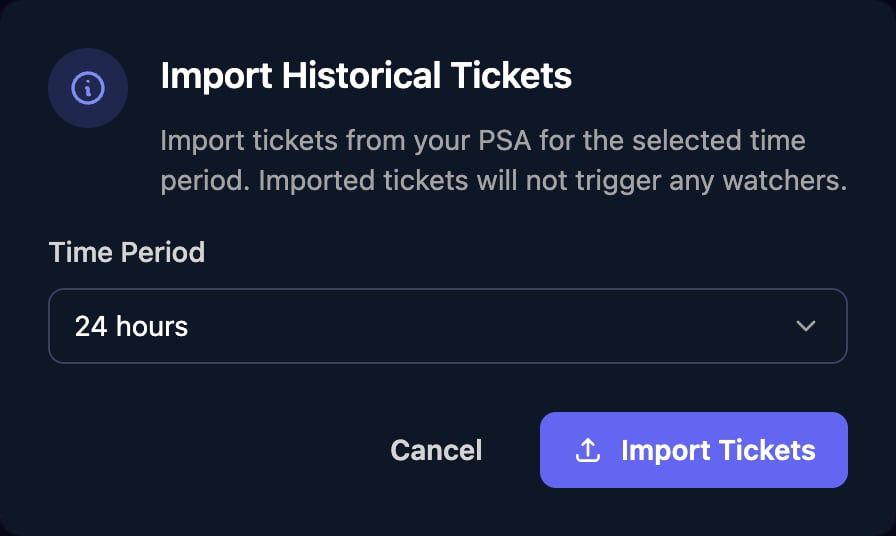
Create a watcher
This example starts a workflow for every new ticket that asks for a password reset.1
Write the condition
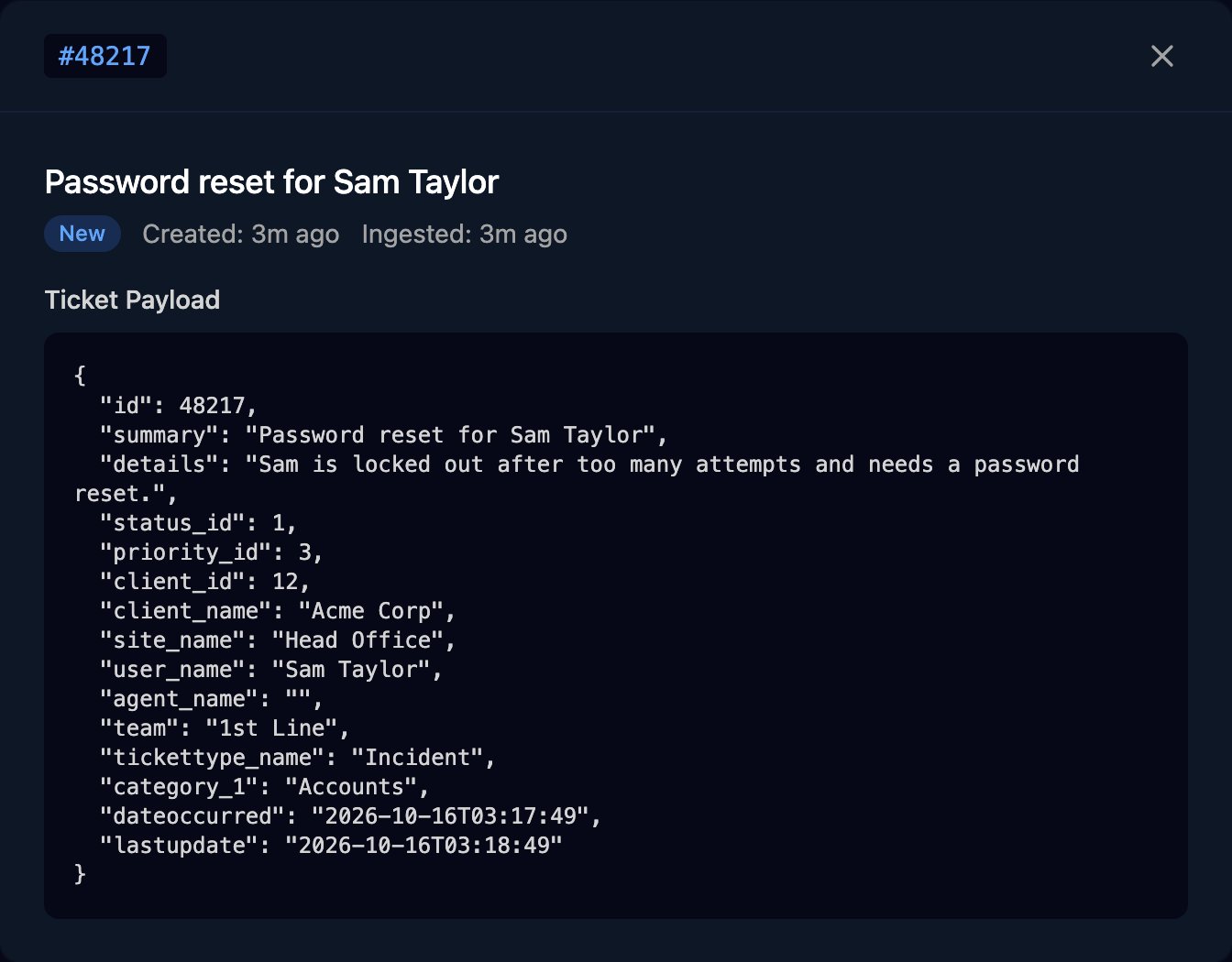
Click New Watcher, type a JavaScript condition and click Run Preview; Matching should list the tickets you expect. Click a field under Ticket Fields, or a line of the Selected Ticket Payload, to insert it.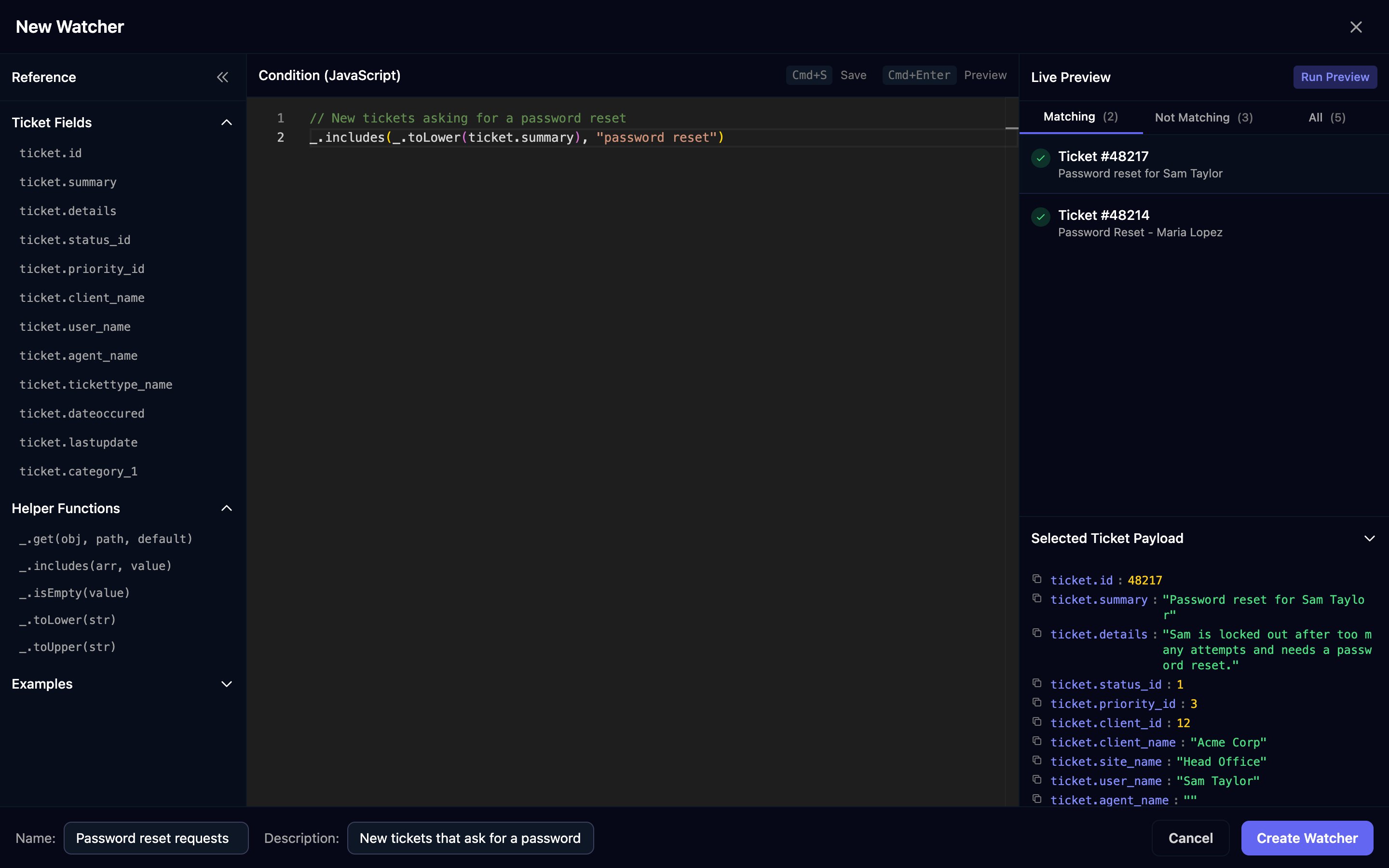
2
Name it and save
Enter a unique Name and click Create Watcher.
3
Link a workflow
Click the link icon (Link Workflows) on the watcher’s row, then + next to each workflow it should start. Links save straight away.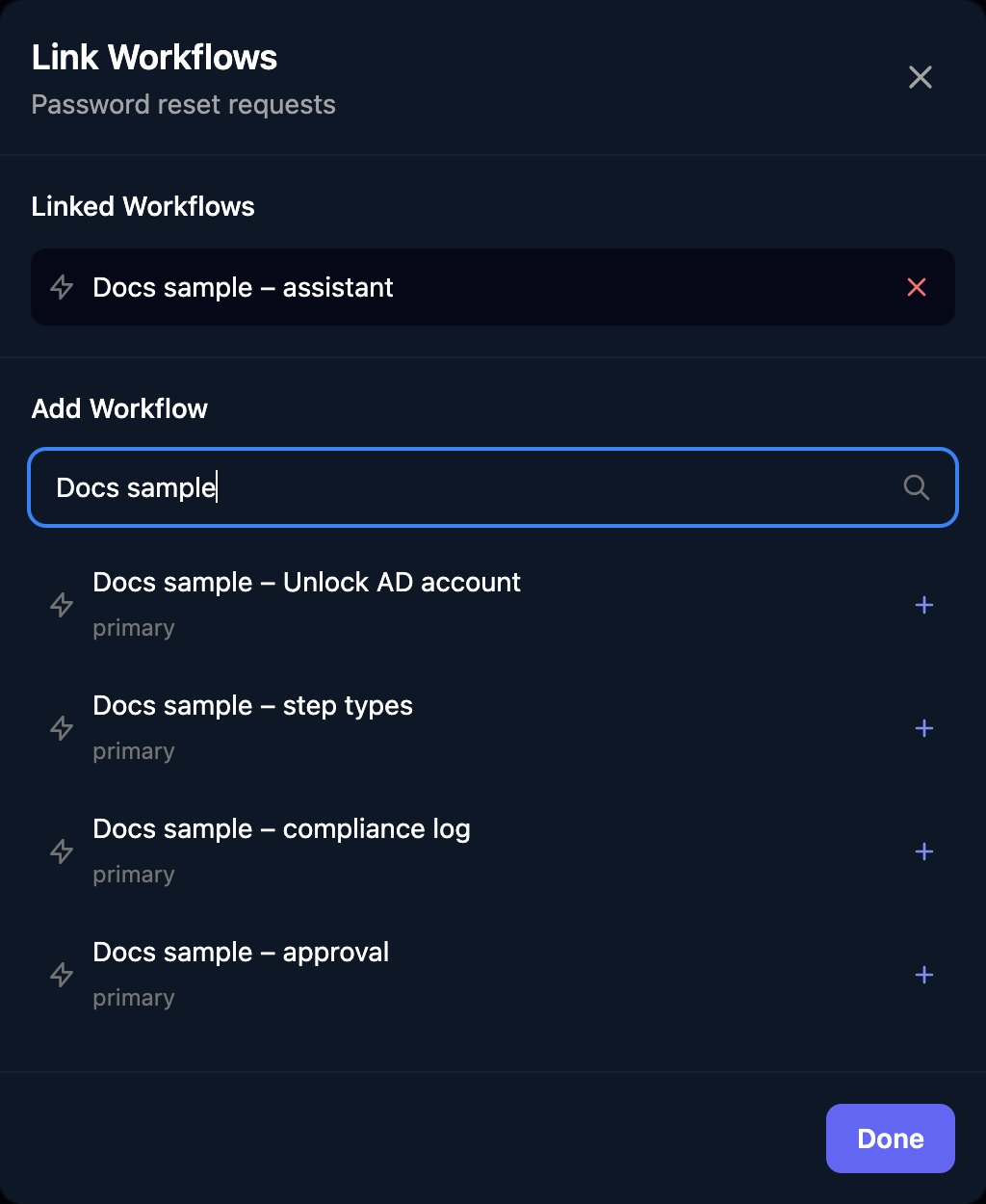
4
Turn the watcher on
New watchers start Disabled: click the play icon (Enable Watcher) on its row.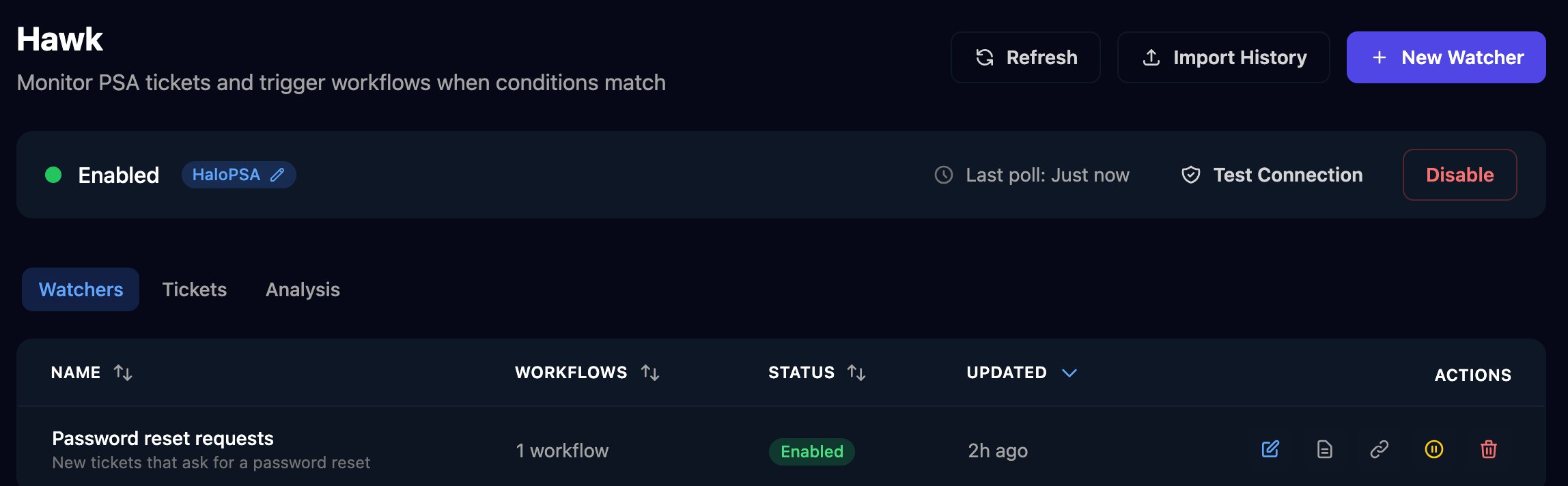
Write conditions
A condition is one JavaScript expression that’s true for tickets to act on.ticket is the ticket as your PSA returns it, so field names differ by PSA: copy them from Ticket Fields or from a ticket’s Ticket Payload on Tickets.
_.get(obj, path, default), _.includes, _.isEmpty, _.toLower and _.toUpper. Prefer them to ticket.summary.toLowerCase(), which fails when the field is missing. A condition can’t see your Triggr clients; check the client in the workflow.
What the workflow receives
Each linked workflow starts once per matching ticket, even when Inactive (unlink it or disable the watcher to stop it), with:ctx.params: the whole ticket, such as{{ ctx.params.summary }}.ctx.metadata:source(hawk),watcherId,watcherName,psaType,psaTicketIdandhawkTicketId.
Check the client ID field against a ticket’s Ticket Payload on Tickets, and add a Condition after the search so tickets from unmapped clients finish cleanly. For other ways to start workflows, see Triggers.
Check what happened
Click the document icon (View Logs) on a watcher: each ticket shows Matched, Not Matched or Error, and the IDs of the runs it started, which you find on Executions.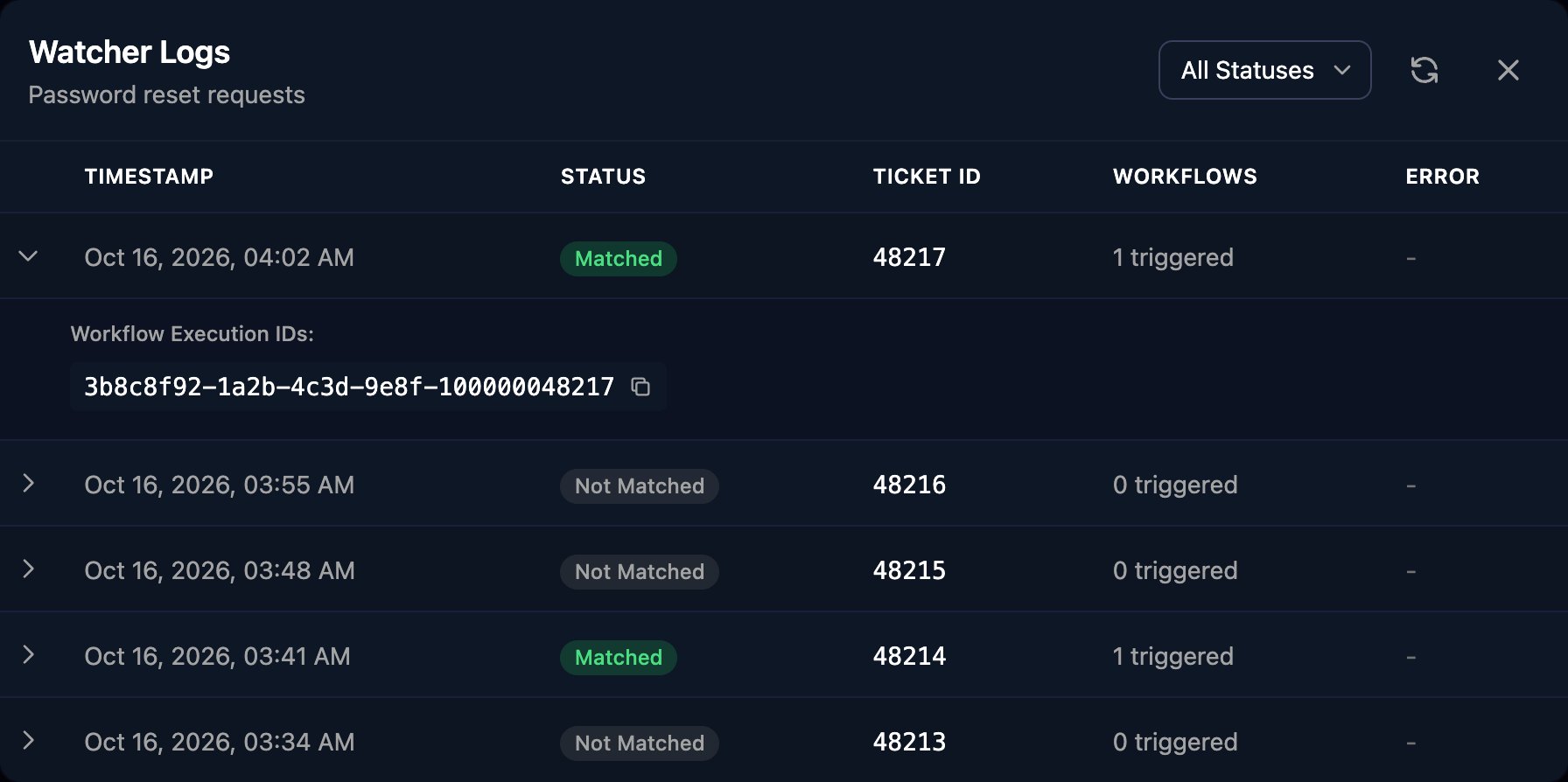
FAQ
organisation must have defaultPSA set to 'connectwise', 'halo', or 'autotask'
organisation must have defaultPSA set to 'connectwise', 'halo', or 'autotask'
Click Set Default PSA, choose your PSA, then click Enable again.
“Halo integration is missing required configuration” (or ConnectWise or Autotask)
“Halo integration is missing required configuration” (or ConnectWise or Autotask)
Fill in every field of the PSA’s Base Configuration, then click Test Connection.
My watcher matches in the preview but never starts the workflow
My watcher matches in the preview but never starts the workflow
The watcher must be Enabled with a linked workflow, and Hawk only judges tickets that arrive while it is. Imported tickets never start workflows.
A ticket was edited to match later, but nothing ran
A ticket was edited to match later, but nothing ran
Each watcher judges each ticket once, so match tickets as they look when first logged.
Hawk switched itself off
Hawk switched itself off
Hawk turns off after 10 failed checks in a row (the status card shows the last error) or when the Default PSA changes. Fix the cause, check it with Test Connection, then click Enable; it picks up where it left off.
“condition timed out after 5 seconds” or “failed to evaluate condition”
“condition timed out after 5 seconds” or “failed to evaluate condition”
The ticket counts as not matched and its log shows Error. Use
_.get and _.toLower for fields that may be missing, and avoid loops.How long does Hawk keep tickets?
How long does Hawk keep tickets?
Seven days after it last fetched them, with their watcher logs.
Is Settings > Tickets part of Hawk?
Is Settings > Tickets part of Hawk?
No. Settings > Tickets sets the email address for the support ticket Triggr raises when a workflow fails.