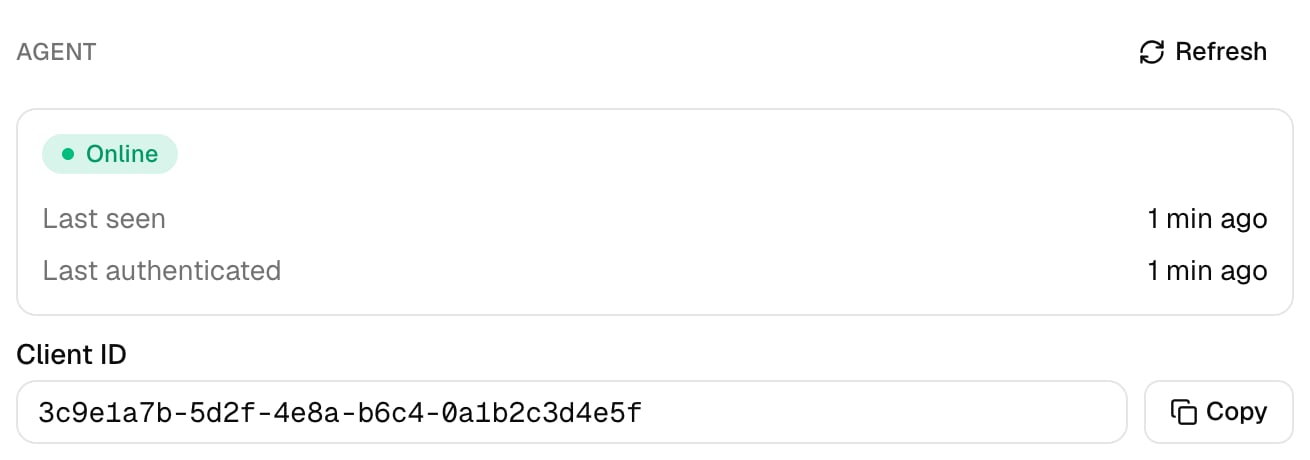
In Studio, click New Secret on the machine’s row and use the new one; the old one keeps working until you click Revoke Secret. In Core, click Regenerate.
Can two machines share one credential?
Create a client for each machine instead. Agent Summary on the client’s page then shows each one’s Status and Last Seen separately.
⌘I
{"docsConfig":{"theme":"almond","$schema":"https://mintlify.com/docs.json","name":"Triggr University","description":"Set up and run Triggr Core and Triggr Studio, and connect the tools your workflows use.","colors":{"primary":"#000000","light":"#EBECED","dark":"#767676"},"logo":{"light":"https://mintcdn.com/triggr/0aCLuL0-lL3gEqxH/logo/light.png?fit=max\u0026auto=format\u0026n=0aCLuL0-lL3gEqxH\u0026q=85\u0026s=d5d661da1b6419bed982a4f599fd5538","dark":"https://mintcdn.com/triggr/0aCLuL0-lL3gEqxH/logo/dark.png?fit=max\u0026auto=format\u0026n=0aCLuL0-lL3gEqxH\u0026q=85\u0026s=3c07d0bfdac594f7380aee63a4e33acc"},"favicon":"https://mintcdn.com/triggr/MwzXHG3UWzFixdSz/favicon.svg?fit=max\u0026auto=format\u0026n=MwzXHG3UWzFixdSz\u0026q=85\u0026s=c356f429061b4109f2c5aeb090381353","appearance":{"default":"dark"},"background":{"color":{"dark":"#000000"}},"navbar":{"links":[{"href":"https://core.triggr-app.com","label":"Open Core"},{"href":"https://app.triggr-app.com","label":"Open Studio"}]},"fonts":{"heading":{"family":"Geist","weight":500},"body":{"family":"Geist","weight":400}},"contextual":{"options":["copy","view","chatgpt","claude","mcp","add-mcp","cursor","vscode"],"display":"header"},"styling":{"latex":false},"navigation":{"pages":[]}},"deployment":{"deploymentMetadataValue":{"subdomain":"triggr","hasAudioNarration":false,"actualSubdomain":"triggr","customDomains":["university.triggr-app.com"],"gitSource":{"type":"github","owner":"phishr-ai","repo":"triggr-university","deployBranch":"main","contentDirectory":"","isPrivate":true,"mountPath":"","label":""},"chroma":{"latestBuiltDeploymentHistoryId":"6ad4c427cfe0d5be20f72b67","collectionId":"0bd06f89-1a21-40bc-a34f-bc41ad4e8370","liveDeploymentHistoryId":"6ad4c427cfe0d5be20f72b67","schemaVersion":"v3"},"entitlements":{"AI_CHAT":{"status":"ENABLED"},"WEB_MCP":{"status":"ENABLED"},"NARRATION":{"status":"ENABLED"}},"buildId":"6ad4c427cfe0d5be20f72b67","clientVersion":"0.0.3880","searchFilterCounts":[{"language":"default","tag":"Integrations","count":99},{"language":"default","tag":"API reference","count":50},{"language":"default","tag":"Endpoints","count":49},{"language":"default","tag":"Triggr Core","count":46},{"language":"default","tag":"Triggr Studio","count":34},{"language":"default","tag":"Workflows","count":33},{"language":"default","tag":"Security","count":16},{"language":"default","tag":"Get started","count":12},{"language":"default","tag":"Networking","count":11},{"language":"default","tag":"Client guides","count":10}]},"assistantConfig":{"enableAskAiButton":false,"enableStarterQuestions":false,"enableContextualStarterQuestions":false,"enableAskAiSearchBar":true},"hasChatPermissions":true,"hasWebMcpPermissions":true,"toggles":[{"name":"kill-isr","enabled":true,"variant":{"name":"disabled","enabled":false,"feature_enabled":true},"impressionData":false},{"name":"agent-mintlify-slack","enabled":true,"variant":{"name":"disabled","enabled":false,"feature_enabled":true},"impressionData":false},{"name":"editor-v7-file-tree","enabled":true,"variant":{"name":"disabled","enabled":false,"feature_enabled":true},"impressionData":false},{"name":"agent-integrations-settings","enabled":true,"variant":{"name":"disabled","enabled":false,"feature_enabled":true},"impressionData":false},{"name":"automations-pr-grouping","enabled":true,"variant":{"name":"disabled","enabled":false,"feature_enabled":true},"impressionData":false},{"name":"custom-prefix","enabled":true,"variant":{"name":"disabled","enabled":false,"feature_enabled":true},"impressionData":false},{"name":"analytics-v7","enabled":true,"variant":{"name":"disabled","enabled":false,"feature_enabled":true},"impressionData":false},{"name":"user-flows-analytics","enabled":true,"variant":{"name":"disabled","enabled":false,"feature_enabled":true},"impressionData":false},{"name":"no-publish-flow","enabled":true,"variant":{"name":"disabled","enabled":false,"feature_enabled":true},"impressionData":false},{"name":"llms-txt-v2","enabled":true,"variant":{"name":"disabled","enabled":false,"feature_enabled":true},"impressionData":false},{"name":"pause-universal-search-reconcile","enabled":true,"variant":{"name":"disabled","enabled":false,"feature_enabled":true},"impressionData":false},{"name":"snapshot-serving-live","enabled":true,"variant":{"name":"disabled","enabled":false,"feature_enabled":true},"impressionData":false},{"name":"stripTemperatureMiddleware","enabled":true,"variant":{"name":"disabled","enabled":false,"feature_enabled":true},"impressionData":false},{"name":"per-site-search-delta","enabled":true,"variant":{"name":"disabled","enabled":false,"feature_enabled":true},"impressionData":false},{"name":"support-platform-pylon-zendesk","enabled":true,"variant":{"name":"disabled","enabled":false,"feature_enabled":true},"impressionData":false},{"name":"editor-branches-v2-autocommit","enabled":true,"variant":{"name":"disabled","enabled":false,"feature_enabled":true},"impressionData":false},{"name":"editor-branches-v2","enabled":true,"variant":{"name":"disabled","enabled":false,"feature_enabled":true},"impressionData":false},{"name":"snapshot-serving","enabled":true,"variant":{"name":"disabled","enabled":false,"feature_enabled":true},"impressionData":false},{"name":"instant-rollback","enabled":true,"variant":{"name":"disabled","enabled":false,"feature_enabled":true},"impressionData":false},{"name":"granular-notifications-server","enabled":true,"variant":{"name":"disabled","enabled":false,"feature_enabled":true},"impressionData":false},{"name":"granular-notifications","enabled":true,"variant":{"name":"disabled","enabled":false,"feature_enabled":true},"impressionData":false},{"name":"editor-private-page-search","enabled":true,"variant":{"name":"disabled","enabled":false,"feature_enabled":true},"impressionData":false},{"name":"automations-fable","enabled":true,"variant":{"name":"disabled","enabled":false,"feature_enabled":true},"impressionData":false},{"name":"fixed-ai-action-pricing","enabled":true,"variant":{"name":"disabled","enabled":false,"feature_enabled":true},"impressionData":false},{"name":"automation-resolve-merge-conflict","enabled":true,"variant":{"name":"disabled","enabled":false,"feature_enabled":true},"impressionData":false},{"name":"scoped-publishing","enabled":true,"variant":{"name":"disabled","enabled":false,"feature_enabled":true},"impressionData":false},{"name":"mintql","enabled":true,"variant":{"name":"disabled","enabled":false,"feature_enabled":true},"impressionData":false},{"name":"page-level-analytics","enabled":true,"variant":{"name":"disabled","enabled":false,"feature_enabled":true},"impressionData":false},{"name":"teamspace","enabled":true,"variant":{"name":"disabled","enabled":false,"feature_enabled":true},"impressionData":false},{"name":"editor-version-history-v2","enabled":true,"variant":{"name":"disabled","enabled":false,"feature_enabled":true},"impressionData":false},{"name":"editor-nav-generations","enabled":true,"variant":{"name":"disabled","enabled":false,"feature_enabled":true},"impressionData":false},{"name":"workspace-projects","enabled":true,"variant":{"name":"disabled","enabled":false,"feature_enabled":true},"impressionData":false},{"name":"assistant-v5","enabled":true,"variant":{"name":"disabled","enabled":false,"feature_enabled":true},"impressionData":false},{"name":"byok-sep-25","enabled":true,"variant":{"name":"disabled","enabled":false,"feature_enabled":true},"impressionData":false},{"name":"revalidation-jwt","enabled":true,"variant":{"name":"disabled","enabled":false,"feature_enabled":true},"impressionData":false},{"name":"editor-agent-model-picker","enabled":true,"variant":{"name":"disabled","enabled":false,"feature_enabled":true},"impressionData":false},{"name":"client-snapshot-docs-config","enabled":true,"variant":{"name":"disabled","enabled":false,"feature_enabled":true},"impressionData":false},{"name":"hobby-abuse-scan","enabled":true,"variant":{"name":"disabled","enabled":false,"feature_enabled":true},"impressionData":false}],"isAtlas":false,"googleFontsInlined":true},"customCss":[{"filePath":"custom.css","content":"#content h2,#content h3,#content h4,#page-title{font-weight:500}"}],"page":{"pagePath":"desktop-agent/generate-credentials","slug":"/desktop-agent/generate-credentials","pageMetadata":{"title":"Generate agent credentials","description":"Create the client ID and secret that link a desktop agent to one Triggr client.","href":"/desktop-agent/generate-credentials"},"description":{"compiledSource":"\"use strict\";\nconst {jsx: _jsx} = arguments[0];\nconst {useMDXComponents: _provideComponents} = arguments[0];\nfunction _createMdxContent(props) {\n const _components = {\n p: \"p\",\n ..._provideComponents(),\n ...props.components\n };\n return _jsx(_components.p, {\n children: \"Create the client ID and secret that link a desktop agent to one Triggr client.\"\n });\n}\nfunction MDXContent(props = {}) {\n const {wrapper: MDXLayout} = {\n ..._provideComponents(),\n ...props.components\n };\n return MDXLayout ? _jsx(MDXLayout, {\n ...props,\n children: _jsx(_createMdxContent, {\n ...props\n })\n }) : _createMdxContent(props);\n}\nreturn {\n default: MDXContent\n};\n","frontmatter":{},"scope":{}},"pageType":"default","mdx":{"mdxSource":{"compiledSource":"\"use strict\";const{Fragment:_Fragment,jsx:_jsx,jsxs:_jsxs}=arguments[0];const{useMDXComponents:_provideComponents}=arguments[0];function _createMdxContent(props){const _components={a:`a`,code:`code`,p:`p`,strong:`strong`,..._provideComponents(),...props.components},{Accordion,AccordionGroup,Frame,Heading,OptimizedImage,Step,Steps,Tab,Tabs}=_components;if(!Accordion)_missingMdxReference(`Accordion`,true);if(!AccordionGroup)_missingMdxReference(`AccordionGroup`,true);if(!Frame)_missingMdxReference(`Frame`,true);if(!Heading)_missingMdxReference(`Heading`,true);if(!OptimizedImage)_missingMdxReference(`OptimizedImage`,true);if(!Step)_missingMdxReference(`Step`,true);if(!Steps)_missingMdxReference(`Steps`,true);if(!Tab)_missingMdxReference(`Tab`,true);if(!Tabs)_missingMdxReference(`Tabs`,true);return _jsxs(_Fragment,{children:[_jsx(_components.p,{children:`Each agent signs in with a client ID and secret created for the Triggr client whose network it runs in.`}),`\n`,_jsxs(Tabs,{children:[_jsx(Tab,{title:`Triggr Core`,id:`triggr-core`,children:_jsxs(Steps,{children:[_jsx(Step,{title:`Open the client`,children:_jsx(_components.p,{children:`Go to Clients and click the client. Its Environment can’t be Cloud Only.`})}),_jsx(Step,{title:`Generate the credentials`,children:_jsxs(_components.p,{children:[`Under Agent, click `,_jsx(_components.strong,{children:`Generate agent credentials`}),`.`]})}),_jsxs(Step,{title:`Copy the Client ID and secret`,children:[_jsx(_components.p,{children:`Core shows the secret only once; click Done — hide secret when you’ve copied it. Regenerate replaces it and revokes the old one.`}),_jsx(Frame,{caption:`Afterwards the Agent section keeps the Client ID and shows the agent's status once it connects.`,children:_jsx(OptimizedImage,{src:`https://mintcdn.com/triggr/MwzXHG3UWzFixdSz/images/core/add-your-clients/agent-section.png?fit=max\u0026auto=format\u0026n=MwzXHG3UWzFixdSz\u0026q=85\u0026s=e2285a85e9e2a6721a75cc38e0b40d57`,alt:`The Agent section of a client panel showing an Online status, version, Last seen and Last authenticated times, the Client ID with a Copy button, and Regenerate.`,\"data-og-width\":`1310`,width:`1310`,\"data-og-height\":`460`,height:`460`,\"data-path\":`images/core/add-your-clients/agent-section.png`,\"data-optimize\":`true`,\"data-opv\":`3`,srcset:`https://mintcdn.com/triggr/MwzXHG3UWzFixdSz/images/core/add-your-clients/agent-section.png?w=280\u0026fit=max\u0026auto=format\u0026n=MwzXHG3UWzFixdSz\u0026q=85\u0026s=7e9c80e618f7c47c496569d125d1b8fb 280w, https://mintcdn.com/triggr/MwzXHG3UWzFixdSz/images/core/add-your-clients/agent-section.png?w=560\u0026fit=max\u0026auto=format\u0026n=MwzXHG3UWzFixdSz\u0026q=85\u0026s=2ad0de85228f180d14063066578310e8 560w, https://mintcdn.com/triggr/MwzXHG3UWzFixdSz/images/core/add-your-clients/agent-section.png?w=840\u0026fit=max\u0026auto=format\u0026n=MwzXHG3UWzFixdSz\u0026q=85\u0026s=8f1c74ad44b57b4646663cf8fbc8429d 840w, https://mintcdn.com/triggr/MwzXHG3UWzFixdSz/images/core/add-your-clients/agent-section.png?w=1100\u0026fit=max\u0026auto=format\u0026n=MwzXHG3UWzFixdSz\u0026q=85\u0026s=058868ede85317427909abc968c7ce88 1100w, https://mintcdn.com/triggr/MwzXHG3UWzFixdSz/images/core/add-your-clients/agent-section.png?w=1650\u0026fit=max\u0026auto=format\u0026n=MwzXHG3UWzFixdSz\u0026q=85\u0026s=5385505b98961a9e4eaaf45d7620642e 1650w, https://mintcdn.com/triggr/MwzXHG3UWzFixdSz/images/core/add-your-clients/agent-section.png?w=2500\u0026fit=max\u0026auto=format\u0026n=MwzXHG3UWzFixdSz\u0026q=85\u0026s=8070d87b559760bb6978cfa7cd9d3fe7 2500w`})})]})]})}),_jsx(Tab,{title:`Triggr Studio`,id:`triggr-studio`,children:_jsxs(Steps,{children:[_jsxs(Step,{title:`Open the client's agent credentials`,children:[_jsxs(_components.p,{children:[`In Clients, open the client, click Agent Credentials, then click `,_jsx(_components.strong,{children:`New Client`}),`.`]}),_jsx(Frame,{children:_jsx(OptimizedImage,{src:`https://mintcdn.com/triggr/MwzXHG3UWzFixdSz/images/agent/new-client.png?fit=max\u0026auto=format\u0026n=MwzXHG3UWzFixdSz\u0026q=85\u0026s=7b8851ba7e9dc064568ca0ee8532910f`,alt:`A client's Agent OAuth Clients page with no OAuth clients yet, and a Click here pointer on the New Client button.`,\"data-og-width\":`1452`,width:`1452`,\"data-og-height\":`664`,height:`664`,\"data-path\":`images/agent/new-client.png`,\"data-optimize\":`true`,\"data-opv\":`3`,srcset:`https://mintcdn.com/triggr/MwzXHG3UWzFixdSz/images/agent/new-client.png?w=280\u0026fit=max\u0026auto=format\u0026n=MwzXHG3UWzFixdSz\u0026q=85\u0026s=e7b17fd682432be1d8436cccd376379e 280w, https://mintcdn.com/triggr/MwzXHG3UWzFixdSz/images/agent/new-client.png?w=560\u0026fit=max\u0026auto=format\u0026n=MwzXHG3UWzFixdSz\u0026q=85\u0026s=16b01f34525ba3b59071a45d1a950b8d 560w, https://mintcdn.com/triggr/MwzXHG3UWzFixdSz/images/agent/new-client.png?w=840\u0026fit=max\u0026auto=format\u0026n=MwzXHG3UWzFixdSz\u0026q=85\u0026s=bd76eb9637eebf165ff0b03c77105b68 840w, https://mintcdn.com/triggr/MwzXHG3UWzFixdSz/images/agent/new-client.png?w=1100\u0026fit=max\u0026auto=format\u0026n=MwzXHG3UWzFixdSz\u0026q=85\u0026s=df27186909023ded0b171c87a7ed6848 1100w, https://mintcdn.com/triggr/MwzXHG3UWzFixdSz/images/agent/new-client.png?w=1650\u0026fit=max\u0026auto=format\u0026n=MwzXHG3UWzFixdSz\u0026q=85\u0026s=cdf9d74f158892e6f8bb42983b827d2f 1650w, https://mintcdn.com/triggr/MwzXHG3UWzFixdSz/images/agent/new-client.png?w=2500\u0026fit=max\u0026auto=format\u0026n=MwzXHG3UWzFixdSz\u0026q=85\u0026s=7a6a4b23288217299fcb57a21d0279b6 2500w`})})]}),_jsxs(Step,{title:`Name the machine`,children:[_jsxs(_components.p,{children:[`Enter the name of the machine you’re installing the agent on, such as `,_jsx(_components.code,{children:`Client Domain Controller`}),`, and click Create Client. Create one for each machine.`]}),_jsx(Frame,{children:_jsx(OptimizedImage,{src:`https://mintcdn.com/triggr/MwzXHG3UWzFixdSz/images/agent/click-create-client.png?fit=max\u0026auto=format\u0026n=MwzXHG3UWzFixdSz\u0026q=85\u0026s=acca80ba246f56783b9dd8bd873e5213`,alt:`The Create New OAuth Client dialog with Domain Controller entered as the name, and a Click here pointer on the Create Client button.`,\"data-og-width\":`1454`,width:`1454`,\"data-og-height\":`660`,height:`660`,\"data-path\":`images/agent/click-create-client.png`,\"data-optimize\":`true`,\"data-opv\":`3`,srcset:`https://mintcdn.com/triggr/MwzXHG3UWzFixdSz/images/agent/click-create-client.png?w=280\u0026fit=max\u0026auto=format\u0026n=MwzXHG3UWzFixdSz\u0026q=85\u0026s=8304b4892b0dc56eb9d0f379703d0388 280w, https://mintcdn.com/triggr/MwzXHG3UWzFixdSz/images/agent/click-create-client.png?w=560\u0026fit=max\u0026auto=format\u0026n=MwzXHG3UWzFixdSz\u0026q=85\u0026s=2dbfde481ef7d3be44d8616d98317c79 560w, https://mintcdn.com/triggr/MwzXHG3UWzFixdSz/images/agent/click-create-client.png?w=840\u0026fit=max\u0026auto=format\u0026n=MwzXHG3UWzFixdSz\u0026q=85\u0026s=51c1e4ae21660a0b4dc80b5a8459b476 840w, https://mintcdn.com/triggr/MwzXHG3UWzFixdSz/images/agent/click-create-client.png?w=1100\u0026fit=max\u0026auto=format\u0026n=MwzXHG3UWzFixdSz\u0026q=85\u0026s=b3b6dd6e0503f48c914ec71aeaf713c7 1100w, https://mintcdn.com/triggr/MwzXHG3UWzFixdSz/images/agent/click-create-client.png?w=1650\u0026fit=max\u0026auto=format\u0026n=MwzXHG3UWzFixdSz\u0026q=85\u0026s=d210429dd674f7fe3a4881c8e1c8836d 1650w, https://mintcdn.com/triggr/MwzXHG3UWzFixdSz/images/agent/click-create-client.png?w=2500\u0026fit=max\u0026auto=format\u0026n=MwzXHG3UWzFixdSz\u0026q=85\u0026s=4f5e7d06dcffb65f9996bfaffda920b5 2500w`})})]}),_jsxs(Step,{title:`Create a secret`,children:[_jsxs(_components.p,{children:[`Click `,_jsx(_components.strong,{children:`New Secret`}),` in the new row, then Create Secret.`]}),_jsx(Frame,{children:_jsx(OptimizedImage,{src:`https://mintcdn.com/triggr/MwzXHG3UWzFixdSz/images/agent/click-new-secret.png?fit=max\u0026auto=format\u0026n=MwzXHG3UWzFixdSz\u0026q=85\u0026s=55f18c98d86e996bb9d28899f7e91af7`,alt:`An OAuth client created successfully message above the new client's row, with Copy Client ID and a Click here pointer on the New Secret button.`,\"data-og-width\":`1454`,width:`1454`,\"data-og-height\":`662`,height:`662`,\"data-path\":`images/agent/click-new-secret.png`,\"data-optimize\":`true`,\"data-opv\":`3`,srcset:`https://mintcdn.com/triggr/MwzXHG3UWzFixdSz/images/agent/click-new-secret.png?w=280\u0026fit=max\u0026auto=format\u0026n=MwzXHG3UWzFixdSz\u0026q=85\u0026s=69854d1b5dad0145a8ae7ef95c3f361e 280w, https://mintcdn.com/triggr/MwzXHG3UWzFixdSz/images/agent/click-new-secret.png?w=560\u0026fit=max\u0026auto=format\u0026n=MwzXHG3UWzFixdSz\u0026q=85\u0026s=458a7f6ffaf3afd2204085af9c6ed3f7 560w, https://mintcdn.com/triggr/MwzXHG3UWzFixdSz/images/agent/click-new-secret.png?w=840\u0026fit=max\u0026auto=format\u0026n=MwzXHG3UWzFixdSz\u0026q=85\u0026s=ce4394e59e76cca4d3db9b137f0ca2ee 840w, https://mintcdn.com/triggr/MwzXHG3UWzFixdSz/images/agent/click-new-secret.png?w=1100\u0026fit=max\u0026auto=format\u0026n=MwzXHG3UWzFixdSz\u0026q=85\u0026s=607f42d19e463408b38205bc3859c43e 1100w, https://mintcdn.com/triggr/MwzXHG3UWzFixdSz/images/agent/click-new-secret.png?w=1650\u0026fit=max\u0026auto=format\u0026n=MwzXHG3UWzFixdSz\u0026q=85\u0026s=d8e893042df5d6b9472400e1d4c53ed7 1650w, https://mintcdn.com/triggr/MwzXHG3UWzFixdSz/images/agent/click-new-secret.png?w=2500\u0026fit=max\u0026auto=format\u0026n=MwzXHG3UWzFixdSz\u0026q=85\u0026s=fbbf60e62919e65270bddc7b1f0b128a 2500w`})})]}),_jsx(Step,{title:`Copy the credentials`,children:_jsx(_components.p,{children:`Copy the Client ID and Secret. Studio shows the secret only once.`})})]})})]}),`\n`,_jsxs(_components.p,{children:[`Next: `,_jsx(_components.a,{href:`/desktop-agent/install`,children:`install the desktop agent`}),`.`]}),`\n`,_jsx(Heading,{level:`2`,id:`faq`,children:`FAQ`}),`\n`,_jsxs(AccordionGroup,{children:[_jsx(Accordion,{title:`I didn't copy the secret`,id:`i-didnt-copy-the-secret`,children:_jsx(_components.p,{children:`In Studio, click New Secret on the machine’s row and use the new one; the old one keeps working until you click Revoke Secret. In Core, click Regenerate.`})}),_jsx(Accordion,{title:`Can two machines share one credential?`,id:`can-two-machines-share-one-credential`,children:_jsx(_components.p,{children:`Create a client for each machine instead. Agent Summary on the client’s page then shows each one’s Status and Last Seen separately.`})})]})]})}function MDXContent(props={}){const{wrapper:MDXLayout}={..._provideComponents(),...props.components};return MDXLayout?_jsx(MDXLayout,{...props,children:_jsx(_createMdxContent,{...props})}):_createMdxContent(props)}return{default:MDXContent};function _missingMdxReference(id,component){throw new Error(`Expected `+(component?`component`:`object`)+\" `\"+id+\"` to be defined: you likely forgot to import, pass, or provide it.\")}","frontmatter":{},"scope":{"config":{},"pageMetadata":{"title":"Generate agent credentials","description":"Create the client ID and secret that link a desktop agent to one Triggr client.","href":"/desktop-agent/generate-credentials"}}},"mdxSourceWithNoJs":null},"mdxExtracts":{"tableOfContents":[{"title":"FAQ","slug":"faq","depth":2,"children":[]}],"codeExamples":{}},"jsLinks":[],"subdomain":"triggr","siteName":"Triggr University","title":"Generate agent credentials - Triggr University","navMaps":{"firstHrefInVersion":{},"firstHrefInLanguage":{}},"lastModified":"2026-10-17T09:52:54.981Z","originalFileLocation":"desktop-agent/generate-credentials.mdx"},"headHtml":"\u003cmeta data-mint-head name=\"description\" content=\"Create the client ID and secret that link a desktop agent to one Triggr client.\">\u003cmeta data-mint-head name=\"application-name\" content=\"Triggr University\">\u003cmeta data-mint-head name=\"generator\" content=\"Mintlify\">\u003clink data-mint-head rel=\"icon\" type=\"image/png\" sizes=\"192x192\" href=\"/mintlify-assets/_mintlify/favicons/triggr/CuZTa4V6vBELhOxx/_generated/favicon/android-chrome-192x192.png\" media=\"(prefers-color-scheme: light)\">\u003clink data-mint-head rel=\"apple-touch-icon\" type=\"image/png\" sizes=\"180x180\" href=\"/mintlify-assets/_mintlify/favicons/triggr/CuZTa4V6vBELhOxx/_generated/favicon/apple-touch-icon.png\">\u003clink data-mint-head rel=\"icon\" type=\"image/png\" sizes=\"16x16\" href=\"/mintlify-assets/_mintlify/favicons/triggr/CuZTa4V6vBELhOxx/_generated/favicon/favicon-16x16.png\" media=\"(prefers-color-scheme: light)\">\u003clink data-mint-head rel=\"icon\" type=\"image/png\" sizes=\"32x32\" href=\"/mintlify-assets/_mintlify/favicons/triggr/CuZTa4V6vBELhOxx/_generated/favicon/favicon-32x32.png\" media=\"(prefers-color-scheme: light)\">\u003clink data-mint-head rel=\"shortcut icon\" type=\"image/x-icon\" href=\"/mintlify-assets/_mintlify/favicons/triggr/CuZTa4V6vBELhOxx/_generated/favicon/favicon.ico\" media=\"(prefers-color-scheme: light)\">\u003clink data-mint-head rel=\"icon\" type=\"image/png\" sizes=\"192x192\" href=\"/mintlify-assets/_mintlify/favicons/triggr/CuZTa4V6vBELhOxx/_generated/favicon-dark/android-chrome-192x192.png\" media=\"(prefers-color-scheme: dark)\">\u003clink data-mint-head rel=\"icon\" type=\"image/png\" sizes=\"16x16\" href=\"/mintlify-assets/_mintlify/favicons/triggr/CuZTa4V6vBELhOxx/_generated/favicon-dark/favicon-16x16.png\" media=\"(prefers-color-scheme: dark)\">\u003clink data-mint-head rel=\"icon\" type=\"image/png\" sizes=\"32x32\" href=\"/mintlify-assets/_mintlify/favicons/triggr/CuZTa4V6vBELhOxx/_generated/favicon-dark/favicon-32x32.png\" media=\"(prefers-color-scheme: dark)\">\u003clink data-mint-head rel=\"shortcut icon\" type=\"image/x-icon\" href=\"/mintlify-assets/_mintlify/favicons/triggr/CuZTa4V6vBELhOxx/_generated/favicon-dark/favicon.ico\" media=\"(prefers-color-scheme: dark)\">\u003cmeta data-mint-head property=\"og:title\" content=\"Generate agent credentials - Triggr University\">\u003cmeta data-mint-head property=\"og:description\" content=\"Create the client ID and secret that link a desktop agent to one Triggr client.\">\u003cmeta data-mint-head property=\"og:site_name\" content=\"Triggr University\">\u003cmeta data-mint-head property=\"og:url\" content=\"https://university.triggr-app.com/desktop-agent/generate-credentials\">\u003cmeta data-mint-head property=\"og:type\" content=\"website\">\u003cmeta data-mint-head name=\"twitter:card\" content=\"summary_large_image\">\u003cmeta data-mint-head name=\"twitter:title\" content=\"Generate agent credentials - Triggr University\">\u003cmeta data-mint-head name=\"twitter:description\" content=\"Create the client ID and secret that link a desktop agent to one Triggr client.\">\u003cmeta data-mint-head name=\"msapplication-config\" content=\"/mintlify-assets/_mintlify/favicons/triggr/CuZTa4V6vBELhOxx/_generated/favicon/browserconfig.xml\">\u003cmeta data-mint-head name=\"apple-mobile-web-app-title\" content=\"Triggr University\">\u003cmeta data-mint-head name=\"msapplication-TileColor\" content=\"#000000\">\u003clink data-mint-head rel=\"canonical\" href=\"https://university.triggr-app.com/desktop-agent/generate-credentials\">\u003clink data-mint-head rel=\"alternate\" type=\"application/xml\" href=\"/sitemap.xml\">\u003clink data-mint-head rel=\"alternate\" type=\"text/markdown\" href=\"/desktop-agent/generate-credentials.md\">\u003cscript data-mint-head type=\"application/ld+json\">{\"@context\":\"https://schema.org\",\"@graph\":[{\"@type\":\"Organization\",\"@id\":\"https://university.triggr-app.com/#organization\",\"name\":\"Triggr University\",\"url\":\"https://university.triggr-app.com\",\"logo\":{\"@type\":\"ImageObject\",\"url\":\"https://mintcdn.com/triggr/0aCLuL0-lL3gEqxH/logo/light.png?fit=max\u0026auto=format\u0026n=0aCLuL0-lL3gEqxH\u0026q=85\u0026s=d5d661da1b6419bed982a4f599fd5538\"}},{\"@type\":\"WebSite\",\"@id\":\"https://university.triggr-app.com#website\",\"name\":\"Triggr University\",\"url\":\"https://university.triggr-app.com\",\"publisher\":{\"@id\":\"https://university.triggr-app.com/#organization\"}},{\"@type\":\"WebPage\",\"@id\":\"https://university.triggr-app.com/desktop-agent/generate-credentials#webpage\",\"url\":\"https://university.triggr-app.com/desktop-agent/generate-credentials\",\"name\":\"Generate agent credentials\",\"description\":\"Create the client ID and secret that link a desktop agent to one Triggr client.\",\"dateModified\":\"2026-10-17T09:52:54.981Z\",\"isPartOf\":{\"@id\":\"https://university.triggr-app.com#website\"},\"breadcrumb\":{\"@id\":\"https://university.triggr-app.com/desktop-agent/generate-credentials#breadcrumb\"}},{\"@type\":\"BreadcrumbList\",\"@id\":\"https://university.triggr-app.com/desktop-agent/generate-credentials#breadcrumb\",\"itemListElement\":[{\"@type\":\"ListItem\",\"position\":1,\"name\":\"Desktop agent\",\"item\":\"https://university.triggr-app.com/desktop-agent/overview\"},{\"@type\":\"ListItem\",\"position\":2,\"name\":\"Generate agent credentials\",\"item\":\"https://university.triggr-app.com/desktop-agent/generate-credentials\"}]},{\"@type\":[\"Article\",\"TechArticle\"],\"@id\":\"https://university.triggr-app.com/desktop-agent/generate-credentials#article\",\"headline\":\"Generate agent credentials\",\"name\":\"Generate agent credentials\",\"description\":\"Create the client ID and secret that link a desktop agent to one Triggr client.\",\"url\":\"https://university.triggr-app.com/desktop-agent/generate-credentials\",\"mainEntityOfPage\":{\"@id\":\"https://university.triggr-app.com/desktop-agent/generate-credentials#webpage\"},\"dateModified\":\"2026-10-17T09:52:54.981Z\",\"publisher\":{\"@id\":\"https://university.triggr-app.com/#organization\"},\"isPartOf\":{\"@id\":\"https://university.triggr-app.com#website\"}}]}\u003c/script>\u003cscript data-mint-head type=\"application/ld+json\">{\"@context\":\"https://schema.org\",\"@type\":\"WebSite\",\"name\":\"Triggr University\",\"creator\":{\"@type\":\"Organization\",\"name\":\"Mintlify\",\"url\":\"https://mintlify.com\"}}\u003c/script>","siteName":"Triggr University","nav":{"global":null,"tabs":[{"tab":"Triggr Core","pages":[{"title":"Triggr Core","href":"/core/introduction"}]},{"tab":"Triggr Studio","pages":[{"title":"Triggr Studio","href":"/studio/introduction"}]},{"tab":"Integrations","groups":[{"group":"Integrations","pages":[{"title":"Integrations","sidebarTitle":"Overview","href":"/integrations/overview"}]},{"group":"Desktop agent","pages":[{"title":"Desktop agent","sidebarTitle":"Overview","description":"An on-premises agent that lets Triggr workflows run PowerShell, such as Active Directory changes, in a client's network.","href":"/desktop-agent/overview"},{"title":"Generate agent credentials","href":"/desktop-agent/generate-credentials"},{"title":"Install the desktop agent","description":"Deploy the Triggr desktop agent as a Windows service through your RMM.","href":"/desktop-agent/install"}]},{"group":"Network access","pages":[{"title":"IP addresses to allow","href":"/security/ip-allowlist"}]},{"group":"Microsoft","pages":[{"group":"Microsoft Graph (GDAP)","pages":[{"title":"Microsoft Graph (GDAP)","sidebarTitle":"Set up GDAP","href":"/integrations/microsoft-graph/gdap-service-account"},{"title":"Conditional Access","href":"/integrations/microsoft-graph/conditional-access"},{"title":"Recommended roles","href":"/integrations/microsoft-graph/recommended-roles"},{"title":"Microsoft CSP","href":"/integrations/microsoft-graph/csp"}]},{"title":"Microsoft Graph (SAM)","href":"/integrations/microsoft-graph/sam"},{"title":"CIPP","href":"/integrations/cipp"},{"title":"Microsoft 365 email","href":"/integrations/microsoft-365-email"},{"title":"Microsoft Teams (Delegated)","href":"/integrations/microsoft-teams-delegated"},{"title":"Microsoft Exchange","href":"/integrations/microsoft-exchange"},{"title":"Microsoft Defender for Endpoint","href":"/integrations/microsoft-defender-endpoint"}]},{"group":"PSA","pages":[{"title":"Autotask PSA","href":"/integrations/autotask"},{"title":"ConnectWise PSA","href":"/integrations/connectwise-psa"},{"title":"HaloPSA","href":"/integrations/halopsa"},{"title":"Inserve","href":"/integrations/inserve"},{"title":"Simplesat","href":"/integrations/simplesat"},{"title":"SuperOps (US)","href":"/integrations/superops"},{"title":"Syncro","href":"/integrations/syncro"},{"title":"Zendesk","href":"/integrations/zendesk"}]},{"group":"RMM and endpoint management","pages":[{"title":"ConnectWise ScreenConnect","href":"/integrations/connectwise-screenconnect"},{"title":"Datto RMM","href":"/integrations/datto-rmm"},{"title":"ImmyBot","href":"/integrations/immybot"},{"title":"Level","href":"/integrations/level"},{"title":"N-able N-central","href":"/integrations/n-able-n-central"},{"title":"NinjaOne","href":"/integrations/ninjaone"}]},{"group":"Documentation and assets","pages":[{"title":"Hudu","href":"/integrations/hudu"},{"title":"IT Glue","href":"/integrations/it-glue"},{"title":"ScalePad Lifecycle Manager","href":"/integrations/scalepad-lifecycle-manager"}]},{"group":"Identity and passwords","pages":[{"group":"Duo","pages":[{"title":"Duo Admin API","href":"/integrations/duo/admin-api"},{"title":"Duo Accounts API","href":"/integrations/duo/accounts-api"},{"title":"Duo Auth API","href":"/integrations/duo/auth-api"}]},{"group":"Keeper","pages":[{"title":"Keeper SCIM","href":"/integrations/keeper/scim"},{"title":"Keeper MSP","href":"/integrations/keeper/msp"}]}]},{"group":"Verification and secret sharing","pages":[{"title":"MSP Process","href":"/integrations/msp-process"},{"title":"Onetime Secret","href":"/integrations/onetime-secret"},{"title":"Password Pusher","href":"/integrations/password-pusher"}]},{"group":"Security","pages":[{"title":"AutoElevate","href":"/integrations/autoelevate"},{"title":"ConnectSecure","href":"/integrations/connectsecure"},{"title":"DefensX","href":"/integrations/defensx"},{"title":"DNSFilter","href":"/integrations/dnsfilter"},{"title":"Field Effect","href":"/integrations/field-effect"},{"title":"Heimdal Security","href":"/integrations/heimdal-security"},{"title":"Huntress","href":"/integrations/huntress"},{"title":"Inforcer","href":"/integrations/inforcer"},{"title":"Liongard","href":"/integrations/liongard"},{"title":"Mesh","href":"/integrations/mesh"},{"title":"Petra Security","href":"/integrations/petra-security"},{"title":"Proofpoint Essentials","href":"/integrations/proofpoint-essentials"},{"title":"SentinelOne","href":"/integrations/sentinelone"},{"title":"ThreatLocker","href":"/integrations/threatlocker"},{"title":"Twingate","href":"/integrations/twingate"},{"title":"Zorus","href":"/integrations/zorus"}]},{"group":"Security awareness training","pages":[{"title":"KnowBe4","href":"/integrations/knowbe4"},{"title":"Phishr","href":"/integrations/phishr"}]},{"group":"Backup","pages":[{"title":"Acronis Cyber Protect Cloud","href":"/integrations/acronis"},{"title":"Cove Data Protection","href":"/integrations/cove"},{"title":"Datto BCDR","href":"/integrations/datto-bcdr"},{"title":"Datto SaaS Protection","href":"/integrations/datto-saas-protection"},{"title":"Veeam Service Provider Console","href":"/integrations/veeam-vspc"},{"title":"Axcient x360Cloud","href":"/integrations/x360cloud"},{"title":"Axcient x360Recover","href":"/integrations/x360recover"}]},{"group":"Networking","pages":[{"title":"Auvik","href":"/integrations/auvik"},{"title":"Cisco Meraki","href":"/integrations/cisco-meraki"},{"group":"Fortinet","pages":[{"title":"FortiGate","href":"/integrations/fortinet/fortigate"},{"title":"FortiManager","href":"/integrations/fortinet/fortimanager"},{"title":"FortiGate Cloud","href":"/integrations/fortinet/fortigate-cloud"},{"title":"FortiCloud Asset Management","href":"/integrations/fortinet/forticloud-asset-management"}]},{"group":"SonicWall","pages":[{"title":"SonicWall firewalls (SonicOS)","href":"/integrations/sonicwall/sonicos"},{"title":"SonicWall NSM","href":"/integrations/sonicwall/nsm"},{"title":"SonicWall Cloud Secure Edge","href":"/integrations/sonicwall/cse"}]},{"group":"UniFi","pages":[{"title":"UniFi Network","href":"/integrations/unifi/network"},{"title":"UniFi Site Manager","href":"/integrations/unifi/site-manager"}]}]},{"group":"Monitoring","pages":[{"title":"Domotz","href":"/integrations/domotz"},{"group":"PRTG","pages":[{"title":"PRTG","href":"/integrations/prtg/prtg"},{"title":"PRTG (API v1)","href":"/integrations/prtg/prtg-v1"}]}]},{"group":"Licensing and distribution","pages":[{"title":"Pax8","href":"/integrations/pax8"},{"title":"Sherweb","href":"/integrations/sherweb"},{"title":"TD SYNNEX StreamOne Stellr","href":"/integrations/td-synnex/stellr"}]},{"group":"Communication","pages":[{"title":"3CX","href":"/integrations/3cx"},{"title":"ClickSend","href":"/integrations/clicksend"},{"title":"RingCentral","href":"/integrations/ringcentral"},{"group":"Slack","pages":[{"title":"Slack","href":"/integrations/slack/slack"},{"title":"Slack Notifications","href":"/integrations/slack/notifications"}]},{"title":"Zoom","href":"/integrations/zoom"}]},{"group":"CRM and marketing","pages":[{"title":"HubSpot","href":"/integrations/hubspot"}]},{"group":"HR","pages":[{"title":"Employment Hero","href":"/integrations/employment-hero"},{"title":"HiBob","href":"/integrations/hibob"}]},{"group":"Productivity","pages":[{"title":"Airtable","href":"/integrations/airtable"},{"title":"Google Workspace","href":"/integrations/google-workspace"},{"title":"Jira","href":"/integrations/jira"},{"title":"Smartsheet","href":"/integrations/smartsheet"}]},{"group":"Accounting","pages":[{"title":"QuickBooks Online","href":"/integrations/quickbooks-online"}]},{"group":"Other tools","pages":[{"title":"Gandi","href":"/integrations/gandi"},{"title":"OpenAI","href":"/integrations/openai"}]}]},{"tab":"API reference","pages":[{"title":"API reference","href":"/api-reference/introduction"}]},{"tab":"Client guides","pages":[{"title":"Client guides","href":"/guides/overview"}]}]},"title":"Generate agent credentials - Triggr University","buildId":"dpl_8yzRtH9eErzJnpfBBed2uBNYhAmY","deploymentId":"dpl_8yzRtH9eErzJnpfBBed2uBNYhAmY","dynamics":["07c022d89b","a74be98ba7"],"chunks":["Frame-DdQVcPWg.js","DynamicMarkdown-CgudvU3l.js","zoom-image-lightbox-DvOftRu4.js","PlusIcon-Dp6gKFvH.js","lightbox-handle-r17bVUz3.js"]}