

Set up TD SYNNEX
You need a PartnerFirst user with the Admin role.1
Open the Developer Portal
Sign in to the TD SYNNEX Developer Portal with your PartnerFirst credentials and click Get API Access.
2
Check the application
Under My Account → Applications, use your region’s Default Application, or a Custom Application with access to the StreamOne Stellr API.
3
Copy the credentials
In My Account → Client Credentials, copy the Production client ID and client secret. Sandbox credentials don’t work against production.
Connect it in Triggr
1
Open the configuration
Go to Integrations > TD Synnex Stellr and click Configure on the Base Configuration card.
2
Enter the credentials and hosts
Enter the Client ID and Client Secret, your region’s API Hostname, and 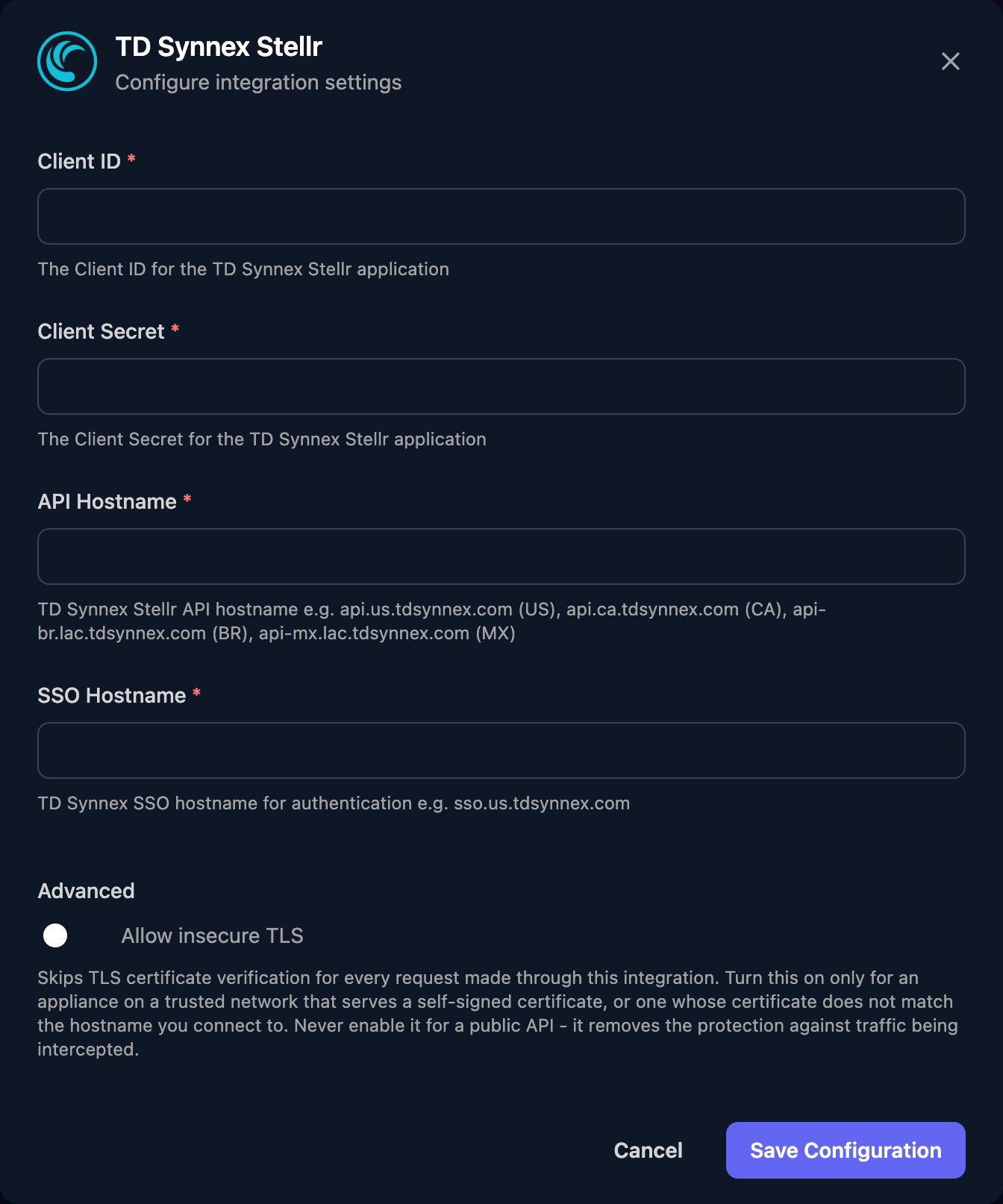
sso.us.tdsynnex.com as SSO Hostname unless TD SYNNEX’s Authentication guide gives a different token host for your region. Enter both hostnames without https://, then click Save Configuration.Regional hosts
TD SYNNEX lists these on its Servers page.
Use it in workflows
There’s no per-client setup. Actions for one end customer take its customer number (customerNo) from List Customers; list actions number pages from 1. Subscription changes return an operationId to pass to Get Operation Result.
Use it in Triggr Core
Core can buy a licence seat at TD SYNNEX when a new starter has none free. Set Default distributor to TD Synnex Stellr in Core’s Settings > General, then link each client to its TD SYNNEX customer (saved as the client’stdSynnexId variable) and map its licences. See Licences and distributors.
Troubleshooting
Triggr can't get an access token
Triggr can't get an access token
Check you pasted the full Production client ID and secret with no spaces, and SSO Hostname is the token host only, such as
sso.us.tdsynnex.com. New credentials can take a few minutes to become active.Authentication errors (401)
Authentication errors (401)
API Hostname must be the host only, for the region and environment your credentials were created for.
TD Synnex configuration is incomplete (need ClientID, ClientSecret, hostname, ssoHostname)
TD Synnex configuration is incomplete (need ClientID, ClientSecret, hostname, ssoHostname)
Core found a saved connection with a blank field. Click Edit on the Base Configuration card and fill in all four.
Client not linked to TD Synnex Stellr — won't auto-buy
Client not linked to TD Synnex Stellr — won't auto-buy
In Core, open the client, click Map next to TD Synnex Stellr under Integrations, pick its customer and click Save mapping.
Lost the client secret
Lost the client secret
Create a new secret under My Account → Client Credentials, then click Edit on the Base Configuration card and paste the new Client ID and Client Secret.
Some calls are refused although authentication works
Some calls are refused although authentication works
Give your Custom Application access to the StreamOne Stellr API, or use your region’s Default Application. Otherwise ask StreamOne support to confirm API access is enabled for your account.
Rate limits (429)
Rate limits (429)
TD SYNNEX allows 50 requests a second per API client and per source IP address, and blocks calls over the limit for at least 60 seconds. Run bulk workflows in smaller batches. See Rate Limits.