

Set up Microsoft Entra
Register one multitenant app in your own tenant (you need a role such as Application Administrator); every client uses it. See Microsoft’s Partner access through Microsoft Defender for Endpoint APIs.1
Register the app
In the Microsoft Entra admin center, go to Entra ID > App registrations > New registration, name it
Triggr Defender for Endpoint, choose Multiple Entra ID tenants (or Accounts in any organizational directory), select Register and copy the Application (client) ID.2
Add the redirect URI
In Authentication, select Add Redirect URI (or Add a platform), choose Web, enter
https://app.triggr-app.com/oauth/admin-consent-callback and select Configure.3
Add the permissions
In API permissions, select Add a permission > APIs my organization uses, type
WindowsDefenderATP, choose Application permissions and tick what your workflows need.4
Create a client secret
In Certificates & secrets > Client secrets, select New client secret, choose an expiry (up to 24 months) and copy the Value, not the Secret ID.
Connect it in Triggr
Each client needs Defender for Endpoint Plan 1 or 2, or Defender for Business, with devices onboarded. Per-client integrations never fall back to the Base Configuration when a workflow runs for a client.1
Open the integration
Go to Integrations > Microsoft Defender for Endpoint and click Configure on the Base Configuration card.
2
Enter your app
Enter the Application (client) ID, the secret’s Value as Client Secret and your own tenant ID as Microsoft Tenant ID (used only by runs without a client), then click Save Configuration. There’s no Authorize step, and this card’s Admin Consent can stay Not Granted unless you run Defender actions without a client.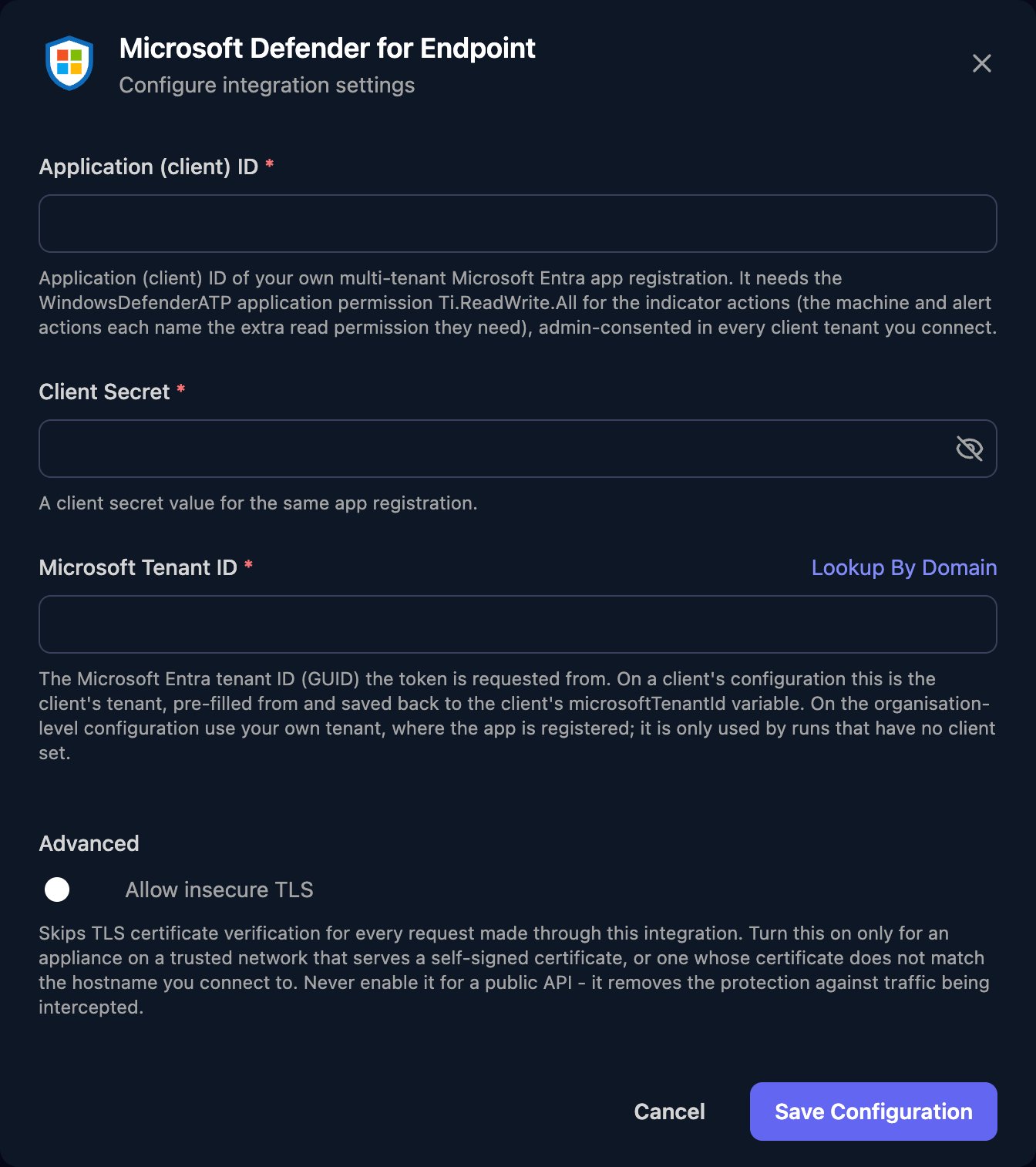
3
Add each client's tenant ID
On the Per-Client Configuration card, click Configure on the client’s row, enter its Microsoft Tenant ID (or use Lookup By Domain) and click Save Configuration. Triggr saves it as the client’s 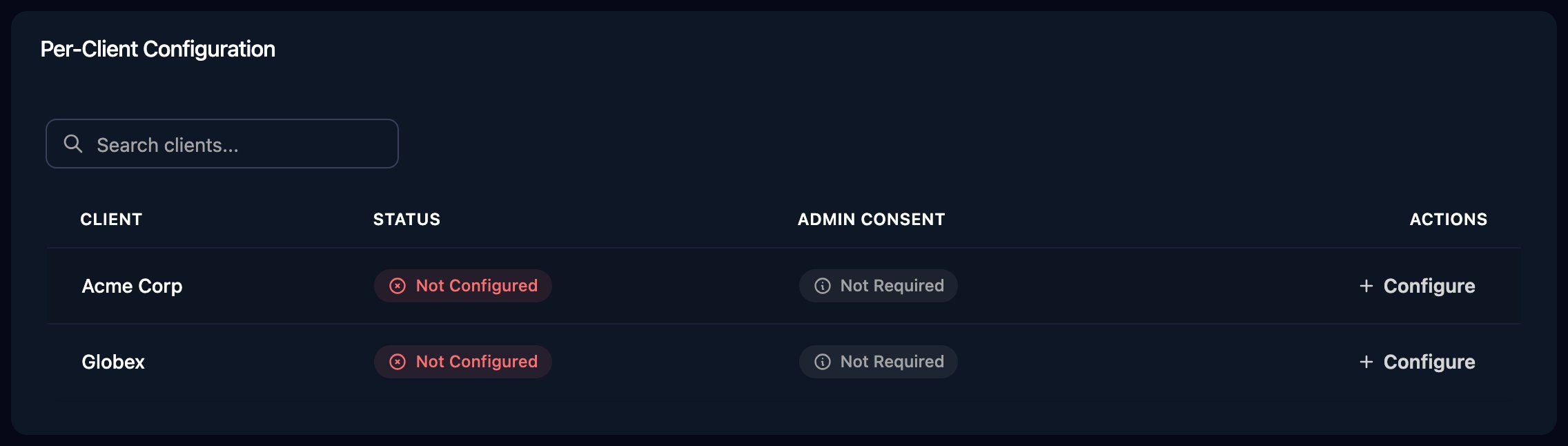
microsoftTenantId variable; for clients that already have that variable, click Automap, then Approve All.4
Grant admin consent for each client
Click Admin Consent on the client’s row, sign in as a Global Administrator, Privileged Role Administrator, Cloud Application Administrator or Application Administrator of the client’s tenant and select Accept. If you add a permission to the app later, grant consent again.
Troubleshooting
no Microsoft Defender for Endpoint integration is configured for this client
no Microsoft Defender for Endpoint integration is configured for this client
The client has no configuration. Add its tenant ID in the Per-Client Configuration card, then grant admin consent for it.
AADSTS50011 or AADSTS700016 during consent
AADSTS50011 or AADSTS700016 during consent
AADSTS50011: add the redirect URI above to the app exactly. AADSTS700016: the client hasn’t consented yet, the app isn’t multitenant, or Application (client) ID is wrong.
AADSTS650052 during consent
AADSTS650052 during consent
The client’s tenant has no Defender for Endpoint. Check it has a Defender for Endpoint or Defender for Business licence and is set up in the Defender portal, then try again.
AADSTS7000215, AADSTS7000222 or AADSTS90002
AADSTS7000215, AADSTS7000222 or AADSTS90002
The secret is the Secret ID instead of the Value (7000215) or has expired (7000222), or the client’s Microsoft Tenant ID is wrong (90002).
A step returns 403 Forbidden
A step returns 403 Forbidden
The app lacks the Application permission the action needs, or you added it after the client consented: click Admin Consent again.
List Machines returns 404
List Machines returns 404
The tenant has no recently seen devices. Check devices are onboarded and reporting in the client’s Defender portal. Get Machine returns 404 when no device matches the ID or computer name.
Indicators are created but nothing is blocked
Indicators are created but nothing is blocked
In the client’s Defender portal, under Settings > Endpoints > General > Advanced features, turn on Custom network indicators (IP, URL and domain) or Allow or block file (file hashes). IP indicators take single public addresses, not ranges, and network indicators can take up to 48 hours to apply.
429 Too Many Requests
429 Too Many Requests
Defender limits most calls to 100 a minute and 1,500 an hour, and Import Indicators and Batch Delete Indicators to 30 a minute. Use the bulk actions and spread large jobs out.