Let Triggr run Exchange Online PowerShell in your clients’ Microsoft 365 tenants, signed in as Triggr’s own Microsoft app.
Triggr runs Exchange Online PowerShell in your clients’ tenants as its own Microsoft app, for shared mailboxes, out-of-office replies, mailbox permissions, distribution groups and your own cmdlets. Microsoft 365 steps use it through GDAP or SAM; steps that run through CIPP use CIPP instead.In each tenant, Triggr’s app (e0ce32ae-7ba3-4f66-b686-d22dd0eb7841) needs Exchange.ManageAsApp on Office 365 Exchange Online and the Exchange Administrator role. See Microsoft’s app-only authentication.
For clients linked through Microsoft Graph (GDAP), Triggr does this itself, as long as Triggr’s security group has Privileged Role Administrator in their GDAP relationships.
1
Link the client
Linking a client through Microsoft Graph (GDAP) creates its Exchange configuration from its default verified domain, saved as its microsoftTenantDomain variable. If that didn’t happen, Triggr tries again the first time an Exchange step runs for the client.
2
Run Repair
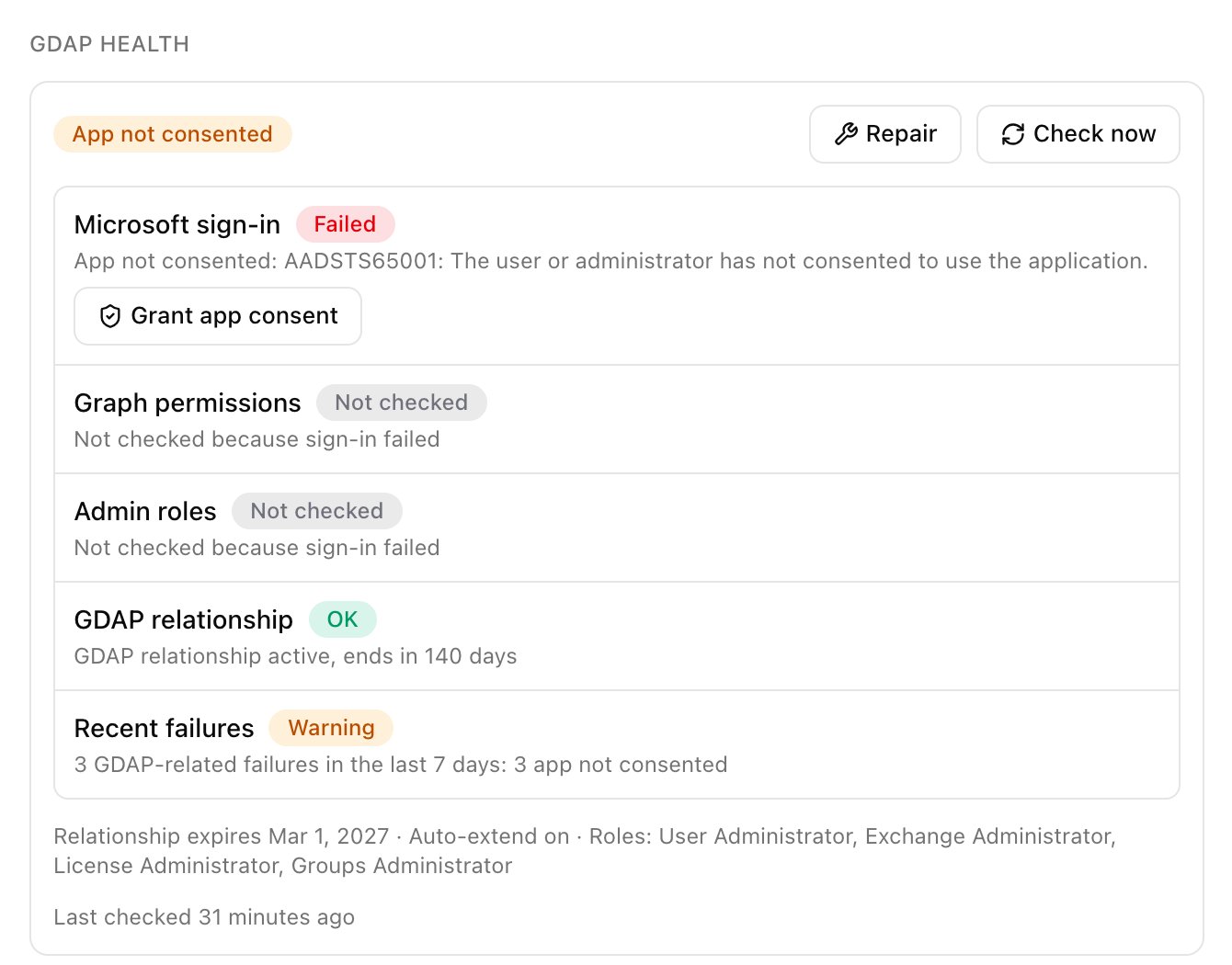
Open the client from Clients and click Repair on its GDAP Health card, if shown. It grants Exchange.ManageAsApp, assigns Exchange Administrator and adds any missing configuration.
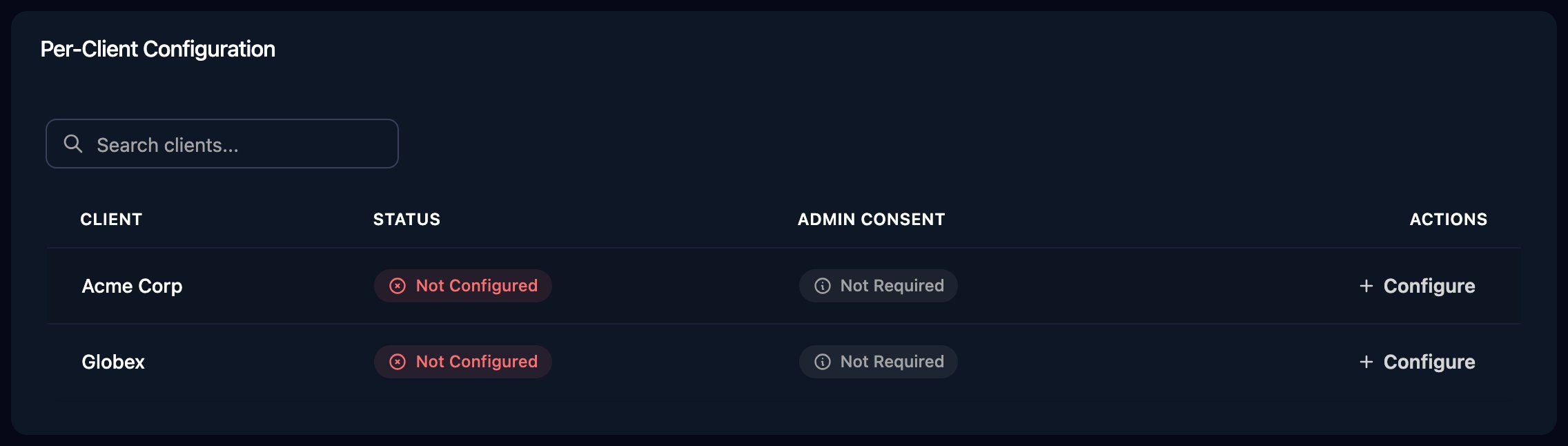
Go to Integrations > Microsoft Exchange and click Configure (or Edit) on the client’s row in the Per-Client Configuration card.
2
Enter the client's domain
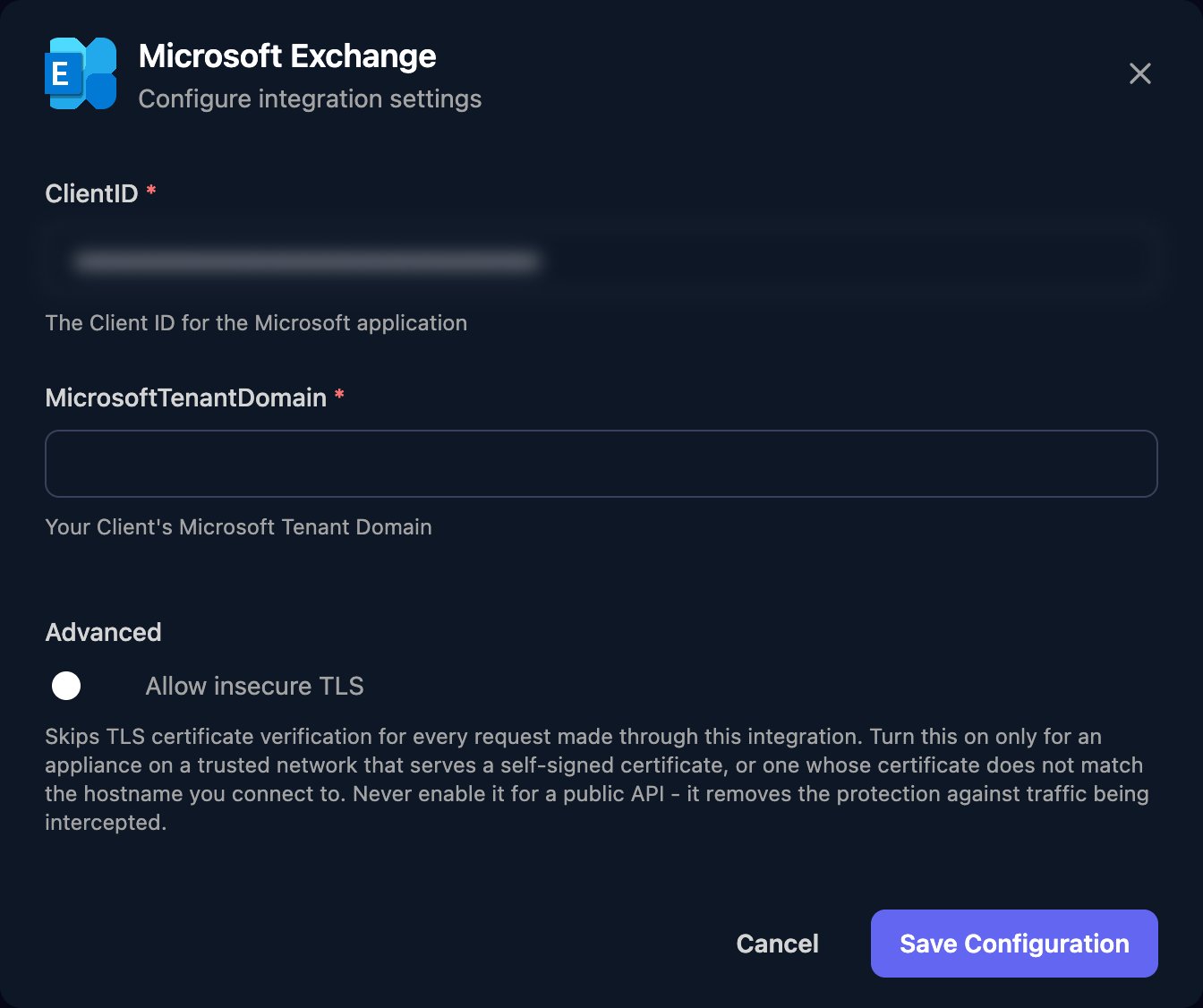
Leave ClientID as e0ce32ae-7ba3-4f66-b686-d22dd0eb7841, enter a domain of the client’s tenant in MicrosoftTenantDomain without https:// (ideally its .onmicrosoft.com domain), and click Save Configuration.
Triggr saves the domain as the client’s microsoftTenantDomain variable. For many clients, click Automap, then Approve All; clients without that variable are skipped. Per-client integrations never fall back to the Base Configuration when a workflow runs for a client.To use Exchange in your own tenant, for workflows without a client, enter your own domain on the Base Configuration card and grant Exchange access yourself.
Use this in your own tenant, or when Repair can’t. Triggr’s app must already be in the tenant: GDAP consent adds it to a client’s, and Admin Consent on the Microsoft Graph (GDAP) Base Configuration adds it to yours (check under Entra ID > Enterprise apps > All applications, with Application Type set to All applications, by searching for e0ce32ae). Sign in to Microsoft Graph PowerShell as a Privileged Role Administrator or Global Administrator and run this, replacing <tenant-id>:
Run Cmdlet runs the PowerShell in script in the client’s tenant (or yours, without a client) and returns its output as JSON in body.output. Add -ErrorAction Stop to fail the step on an error, and return only the properties you need:
Microsoft doesn’t allow New-UnifiedGroup, Remove-UnifiedGroup, Add-UnifiedGroupLinks or Remove-UnifiedGroupLinks with this sign-in; use Triggr’s Microsoft 365 group steps.
Microsoft Exchange integration is not configured for tenant
The client has no configuration, or no MicrosoftTenantDomain. Configure it, run Automap, or click Repair on its GDAP Health card.
Failed to connect to Exchange Online
Check MicrosoftTenantDomain is the client’s domain (try its .onmicrosoft.com one) and ClientID is Triggr’s app. Then click Repair, or grant Exchange.ManageAsApp yourself.
Exchange steps fail with a permission error
Triggr’s app lacks Exchange Administrator in that tenant. Click Repair, or assign it yourself.
Repair can't assign Exchange Administrator
Add Privileged Role Administrator to the client’s GDAP relationship for Triggr’s security group and run Repair again, or grant access yourself.
MicrosoftTenantDomain is a Microsoft tenant ID, not a domain
The configuration holds a GUID. Click Edit on the client’s row and enter a domain of its tenant, such as contoso.onmicrosoft.com, or click Repair to correct it.
Triggr's app isn't in this client's tenant yet, or Microsoft is still applying Triggr's new consent
Grant Triggr’s consent from the client’s GDAP Health card, wait a couple of minutes, then click Repair again. “Another Microsoft setup check for this client is still running” means the same: wait a few minutes and retry.
Exchange Online isn't set up in this client's tenant
Triggr couldn’t find Exchange Online there. Check the client has a Microsoft 365 subscription that includes Exchange Online.
⌘I
{"docsConfig":{"theme":"almond","$schema":"https://mintlify.com/docs.json","name":"Triggr University","description":"Set up and run Triggr Core and Triggr Studio, and connect the tools your workflows use.","colors":{"primary":"#000000","light":"#EBECED","dark":"#767676"},"logo":{"light":"https://mintcdn.com/triggr/0aCLuL0-lL3gEqxH/logo/light.png?fit=max\u0026auto=format\u0026n=0aCLuL0-lL3gEqxH\u0026q=85\u0026s=d5d661da1b6419bed982a4f599fd5538","dark":"https://mintcdn.com/triggr/0aCLuL0-lL3gEqxH/logo/dark.png?fit=max\u0026auto=format\u0026n=0aCLuL0-lL3gEqxH\u0026q=85\u0026s=3c07d0bfdac594f7380aee63a4e33acc"},"favicon":"https://mintcdn.com/triggr/MwzXHG3UWzFixdSz/favicon.svg?fit=max\u0026auto=format\u0026n=MwzXHG3UWzFixdSz\u0026q=85\u0026s=c356f429061b4109f2c5aeb090381353","appearance":{"default":"dark"},"background":{"color":{"dark":"#000000"}},"navbar":{"links":[{"href":"https://core.triggr-app.com","label":"Open Core"},{"href":"https://app.triggr-app.com","label":"Open Studio"}]},"fonts":{"heading":{"family":"Geist","weight":500},"body":{"family":"Geist","weight":400}},"contextual":{"options":["copy","view","chatgpt","claude","mcp","add-mcp","cursor","vscode"],"display":"header"},"styling":{"latex":false},"navigation":{"pages":[]}},"deployment":{"deploymentMetadataValue":{"subdomain":"triggr","hasAudioNarration":false,"actualSubdomain":"triggr","customDomains":["university.triggr-app.com"],"gitSource":{"type":"github","owner":"phishr-ai","repo":"triggr-university","deployBranch":"main","contentDirectory":"","isPrivate":true,"mountPath":"","label":""},"chroma":{"latestBuiltDeploymentHistoryId":"6ad4c427cfe0d5be20f72b67","collectionId":"0bd06f89-1a21-40bc-a34f-bc41ad4e8370","liveDeploymentHistoryId":"6ad4c427cfe0d5be20f72b67","schemaVersion":"v3"},"entitlements":{"AI_CHAT":{"status":"ENABLED"},"WEB_MCP":{"status":"ENABLED"},"NARRATION":{"status":"ENABLED"}},"buildId":"6ad4c427cfe0d5be20f72b67","clientVersion":"0.0.3880","searchFilterCounts":[{"language":"default","tag":"Integrations","count":99},{"language":"default","tag":"API reference","count":50},{"language":"default","tag":"Endpoints","count":49},{"language":"default","tag":"Triggr Core","count":46},{"language":"default","tag":"Triggr Studio","count":34},{"language":"default","tag":"Workflows","count":33},{"language":"default","tag":"Security","count":16},{"language":"default","tag":"Get started","count":12},{"language":"default","tag":"Networking","count":11},{"language":"default","tag":"Client guides","count":10}]},"assistantConfig":{"enableAskAiButton":false,"enableStarterQuestions":false,"enableContextualStarterQuestions":false,"enableAskAiSearchBar":true},"hasChatPermissions":true,"hasWebMcpPermissions":true,"toggles":[{"name":"kill-isr","enabled":true,"variant":{"name":"disabled","enabled":false,"feature_enabled":true},"impressionData":false},{"name":"agent-mintlify-slack","enabled":true,"variant":{"name":"disabled","enabled":false,"feature_enabled":true},"impressionData":false},{"name":"editor-v7-file-tree","enabled":true,"variant":{"name":"disabled","enabled":false,"feature_enabled":true},"impressionData":false},{"name":"agent-integrations-settings","enabled":true,"variant":{"name":"disabled","enabled":false,"feature_enabled":true},"impressionData":false},{"name":"automations-pr-grouping","enabled":true,"variant":{"name":"disabled","enabled":false,"feature_enabled":true},"impressionData":false},{"name":"custom-prefix","enabled":true,"variant":{"name":"disabled","enabled":false,"feature_enabled":true},"impressionData":false},{"name":"analytics-v7","enabled":true,"variant":{"name":"disabled","enabled":false,"feature_enabled":true},"impressionData":false},{"name":"user-flows-analytics","enabled":true,"variant":{"name":"disabled","enabled":false,"feature_enabled":true},"impressionData":false},{"name":"no-publish-flow","enabled":true,"variant":{"name":"disabled","enabled":false,"feature_enabled":true},"impressionData":false},{"name":"llms-txt-v2","enabled":true,"variant":{"name":"disabled","enabled":false,"feature_enabled":true},"impressionData":false},{"name":"pause-universal-search-reconcile","enabled":true,"variant":{"name":"disabled","enabled":false,"feature_enabled":true},"impressionData":false},{"name":"snapshot-serving-live","enabled":true,"variant":{"name":"disabled","enabled":false,"feature_enabled":true},"impressionData":false},{"name":"stripTemperatureMiddleware","enabled":true,"variant":{"name":"disabled","enabled":false,"feature_enabled":true},"impressionData":false},{"name":"per-site-search-delta","enabled":true,"variant":{"name":"disabled","enabled":false,"feature_enabled":true},"impressionData":false},{"name":"support-platform-pylon-zendesk","enabled":true,"variant":{"name":"disabled","enabled":false,"feature_enabled":true},"impressionData":false},{"name":"editor-branches-v2-autocommit","enabled":true,"variant":{"name":"disabled","enabled":false,"feature_enabled":true},"impressionData":false},{"name":"editor-branches-v2","enabled":true,"variant":{"name":"disabled","enabled":false,"feature_enabled":true},"impressionData":false},{"name":"snapshot-serving","enabled":true,"variant":{"name":"disabled","enabled":false,"feature_enabled":true},"impressionData":false},{"name":"instant-rollback","enabled":true,"variant":{"name":"disabled","enabled":false,"feature_enabled":true},"impressionData":false},{"name":"granular-notifications-server","enabled":true,"variant":{"name":"disabled","enabled":false,"feature_enabled":true},"impressionData":false},{"name":"granular-notifications","enabled":true,"variant":{"name":"disabled","enabled":false,"feature_enabled":true},"impressionData":false},{"name":"editor-private-page-search","enabled":true,"variant":{"name":"disabled","enabled":false,"feature_enabled":true},"impressionData":false},{"name":"automations-fable","enabled":true,"variant":{"name":"disabled","enabled":false,"feature_enabled":true},"impressionData":false},{"name":"fixed-ai-action-pricing","enabled":true,"variant":{"name":"disabled","enabled":false,"feature_enabled":true},"impressionData":false},{"name":"automation-resolve-merge-conflict","enabled":true,"variant":{"name":"disabled","enabled":false,"feature_enabled":true},"impressionData":false},{"name":"scoped-publishing","enabled":true,"variant":{"name":"disabled","enabled":false,"feature_enabled":true},"impressionData":false},{"name":"mintql","enabled":true,"variant":{"name":"disabled","enabled":false,"feature_enabled":true},"impressionData":false},{"name":"page-level-analytics","enabled":true,"variant":{"name":"disabled","enabled":false,"feature_enabled":true},"impressionData":false},{"name":"teamspace","enabled":true,"variant":{"name":"disabled","enabled":false,"feature_enabled":true},"impressionData":false},{"name":"editor-version-history-v2","enabled":true,"variant":{"name":"disabled","enabled":false,"feature_enabled":true},"impressionData":false},{"name":"editor-nav-generations","enabled":true,"variant":{"name":"disabled","enabled":false,"feature_enabled":true},"impressionData":false},{"name":"workspace-projects","enabled":true,"variant":{"name":"disabled","enabled":false,"feature_enabled":true},"impressionData":false},{"name":"assistant-v5","enabled":true,"variant":{"name":"disabled","enabled":false,"feature_enabled":true},"impressionData":false},{"name":"byok-sep-25","enabled":true,"variant":{"name":"disabled","enabled":false,"feature_enabled":true},"impressionData":false},{"name":"revalidation-jwt","enabled":true,"variant":{"name":"disabled","enabled":false,"feature_enabled":true},"impressionData":false},{"name":"editor-agent-model-picker","enabled":true,"variant":{"name":"disabled","enabled":false,"feature_enabled":true},"impressionData":false},{"name":"client-snapshot-docs-config","enabled":true,"variant":{"name":"disabled","enabled":false,"feature_enabled":true},"impressionData":false},{"name":"hobby-abuse-scan","enabled":true,"variant":{"name":"disabled","enabled":false,"feature_enabled":true},"impressionData":false}],"isAtlas":false,"googleFontsInlined":true},"customCss":[{"filePath":"custom.css","content":"#content h2,#content h3,#content h4,#page-title{font-weight:500}"}],"page":{"pagePath":"integrations/microsoft-exchange","slug":"/integrations/microsoft-exchange","pageMetadata":{"title":"Microsoft Exchange","description":"Let Triggr run Exchange Online PowerShell in your clients' Microsoft 365 tenants, signed in as Triggr's own Microsoft app.","href":"/integrations/microsoft-exchange"},"description":{"compiledSource":"\"use strict\";\nconst {jsx: _jsx} = arguments[0];\nconst {useMDXComponents: _provideComponents} = arguments[0];\nfunction _createMdxContent(props) {\n const _components = {\n p: \"p\",\n ..._provideComponents(),\n ...props.components\n };\n return _jsx(_components.p, {\n children: \"Let Triggr run Exchange Online PowerShell in your clients’ Microsoft 365 tenants, signed in as Triggr’s own Microsoft app.\"\n });\n}\nfunction MDXContent(props = {}) {\n const {wrapper: MDXLayout} = {\n ..._provideComponents(),\n ...props.components\n };\n return MDXLayout ? _jsx(MDXLayout, {\n ...props,\n children: _jsx(_createMdxContent, {\n ...props\n })\n }) : _createMdxContent(props);\n}\nreturn {\n default: MDXContent\n};\n","frontmatter":{},"scope":{}},"pageType":"default","mdx":{"mdxSource":{"compiledSource":"\"use strict\";const{Fragment:_Fragment,jsx:_jsx,jsxs:_jsxs}=arguments[0];const{useMDXComponents:_provideComponents}=arguments[0];function _createMdxContent(props){const _components={a:`a`,code:`code`,p:`p`,pre:`pre`,span:`span`,strong:`strong`,..._provideComponents(),...props.components},{Accordion,AccordionGroup,CodeBlock,Frame,Heading,OptimizedImage,Step,Steps}=_components;if(!Accordion)_missingMdxReference(`Accordion`,true);if(!AccordionGroup)_missingMdxReference(`AccordionGroup`,true);if(!CodeBlock)_missingMdxReference(`CodeBlock`,true);if(!Frame)_missingMdxReference(`Frame`,true);if(!Heading)_missingMdxReference(`Heading`,true);if(!OptimizedImage)_missingMdxReference(`OptimizedImage`,true);if(!Step)_missingMdxReference(`Step`,true);if(!Steps)_missingMdxReference(`Steps`,true);return _jsxs(_Fragment,{children:[_jsxs(_components.p,{children:[`Triggr runs Exchange Online PowerShell in your clients’ tenants as its own Microsoft app, for shared mailboxes, out-of-office replies, mailbox permissions, distribution groups and your own cmdlets. Microsoft 365 steps use it through GDAP or SAM; steps that run through `,_jsx(_components.a,{href:`/integrations/cipp`,children:`CIPP`}),` use CIPP instead.`]}),`\n`,_jsxs(_components.p,{children:[`In each tenant, Triggr’s app (`,_jsx(_components.code,{children:`e0ce32ae-7ba3-4f66-b686-d22dd0eb7841`}),`) needs Exchange.ManageAsApp on Office 365 Exchange Online and the Exchange Administrator role. See Microsoft’s `,_jsx(_components.a,{href:`https://learn.microsoft.com/en-us/powershell/exchange/app-only-auth-powershell-v2?view=exchange-ps`,children:`app-only authentication`}),`.`]}),`\n`,_jsx(Heading,{level:`2`,id:`set-up-exchange-for-gdap-clients`,children:`Set up Exchange for GDAP clients`}),`\n`,_jsxs(_components.p,{children:[`For clients linked through `,_jsx(_components.a,{href:`/integrations/microsoft-graph/gdap-service-account`,children:`Microsoft Graph (GDAP)`}),`, Triggr does this itself, as long as Triggr’s security group has Privileged Role Administrator in their GDAP relationships.`]}),`\n`,_jsxs(Steps,{children:[_jsx(Step,{title:`Link the client`,children:_jsxs(_components.p,{children:[`Linking a client through Microsoft Graph (GDAP) creates its Exchange configuration from its default verified domain, saved as its `,_jsx(_components.code,{children:`microsoftTenantDomain`}),` variable. If that didn’t happen, Triggr tries again the first time an Exchange step runs for the client.`]})}),_jsxs(Step,{title:`Run Repair`,children:[_jsxs(_components.p,{children:[`Open the client from Clients and click `,_jsx(_components.strong,{children:`Repair`}),` on its GDAP Health card, if shown. It grants Exchange.ManageAsApp, assigns Exchange Administrator and adds any missing configuration.`]}),_jsx(Frame,{caption:`A client's GDAP Health card in Triggr Core.`,children:_jsx(OptimizedImage,{src:`https://mintcdn.com/triggr/MwzXHG3UWzFixdSz/images/core/add-your-clients/gdap-health.png?fit=max\u0026auto=format\u0026n=MwzXHG3UWzFixdSz\u0026q=85\u0026s=15946d35b88336c73e7719d95c3f8efe`,alt:`GDAP health showing App not consented with Repair and Check now buttons, and checks for Microsoft sign-in, Graph permissions, Admin roles, GDAP relationship and Recent failures.`,\"data-og-width\":`1340`,width:`1340`,\"data-og-height\":`1050`,height:`1050`,\"data-path\":`images/core/add-your-clients/gdap-health.png`,\"data-optimize\":`true`,\"data-opv\":`3`,srcset:`https://mintcdn.com/triggr/MwzXHG3UWzFixdSz/images/core/add-your-clients/gdap-health.png?w=280\u0026fit=max\u0026auto=format\u0026n=MwzXHG3UWzFixdSz\u0026q=85\u0026s=a0f26480fc8a6fdd15c4b1b29853f13f 280w, https://mintcdn.com/triggr/MwzXHG3UWzFixdSz/images/core/add-your-clients/gdap-health.png?w=560\u0026fit=max\u0026auto=format\u0026n=MwzXHG3UWzFixdSz\u0026q=85\u0026s=6363dcc3d3febefad62221a3c68206ce 560w, https://mintcdn.com/triggr/MwzXHG3UWzFixdSz/images/core/add-your-clients/gdap-health.png?w=840\u0026fit=max\u0026auto=format\u0026n=MwzXHG3UWzFixdSz\u0026q=85\u0026s=00f772e291e02c6d748b5ad1dc95d7ad 840w, https://mintcdn.com/triggr/MwzXHG3UWzFixdSz/images/core/add-your-clients/gdap-health.png?w=1100\u0026fit=max\u0026auto=format\u0026n=MwzXHG3UWzFixdSz\u0026q=85\u0026s=a25c2f4a3144a5c948baddd71c803c59 1100w, https://mintcdn.com/triggr/MwzXHG3UWzFixdSz/images/core/add-your-clients/gdap-health.png?w=1650\u0026fit=max\u0026auto=format\u0026n=MwzXHG3UWzFixdSz\u0026q=85\u0026s=ca6ccf6c1ced1d1fe3c839feeabc3470 1650w, https://mintcdn.com/triggr/MwzXHG3UWzFixdSz/images/core/add-your-clients/gdap-health.png?w=2500\u0026fit=max\u0026auto=format\u0026n=MwzXHG3UWzFixdSz\u0026q=85\u0026s=226087cd399b640b9a1d8e18b40ee0fb 2500w`})})]})]}),`\n`,_jsx(Heading,{level:`2`,id:`connect-it-in-triggr`,children:`Connect it in Triggr`}),`\n`,_jsx(_components.p,{children:`To add or fix a client’s configuration yourself:`}),`\n`,_jsxs(Steps,{children:[_jsxs(Step,{title:`Open the client's row`,children:[_jsxs(_components.p,{children:[`Go to `,_jsx(_components.strong,{children:`Integrations > Microsoft Exchange`}),` and click Configure (or Edit) on the client’s row in the Per-Client Configuration card.`]}),_jsx(Frame,{children:_jsx(OptimizedImage,{src:`https://mintcdn.com/triggr/nyuVXZ1rouDTTEvu/images/integrations-common/per-client-configuration.png?fit=max\u0026auto=format\u0026n=nyuVXZ1rouDTTEvu\u0026q=85\u0026s=11464b4946bea0b580c73330d9114a41`,alt:`The Per-Client Configuration card listing Acme Corp and Globex, each Not Configured with Admin Consent Not Required and a Configure button.`,\"data-og-width\":`2272`,width:`2272`,\"data-og-height\":`646`,height:`646`,\"data-path\":`images/integrations-common/per-client-configuration.png`,\"data-optimize\":`true`,\"data-opv\":`3`,srcset:`https://mintcdn.com/triggr/nyuVXZ1rouDTTEvu/images/integrations-common/per-client-configuration.png?w=280\u0026fit=max\u0026auto=format\u0026n=nyuVXZ1rouDTTEvu\u0026q=85\u0026s=84dae166bfcfc7781683d7b382795e54 280w, https://mintcdn.com/triggr/nyuVXZ1rouDTTEvu/images/integrations-common/per-client-configuration.png?w=560\u0026fit=max\u0026auto=format\u0026n=nyuVXZ1rouDTTEvu\u0026q=85\u0026s=69e4d480b62b78a21924c03d65a5dd13 560w, https://mintcdn.com/triggr/nyuVXZ1rouDTTEvu/images/integrations-common/per-client-configuration.png?w=840\u0026fit=max\u0026auto=format\u0026n=nyuVXZ1rouDTTEvu\u0026q=85\u0026s=ce7b12c004e030a6ccdba5f17c50cb58 840w, https://mintcdn.com/triggr/nyuVXZ1rouDTTEvu/images/integrations-common/per-client-configuration.png?w=1100\u0026fit=max\u0026auto=format\u0026n=nyuVXZ1rouDTTEvu\u0026q=85\u0026s=164c1e6c669f5e1656b48130a4ae56ea 1100w, https://mintcdn.com/triggr/nyuVXZ1rouDTTEvu/images/integrations-common/per-client-configuration.png?w=1650\u0026fit=max\u0026auto=format\u0026n=nyuVXZ1rouDTTEvu\u0026q=85\u0026s=827ead4b8fe12a004b680588bdd2b3dc 1650w, https://mintcdn.com/triggr/nyuVXZ1rouDTTEvu/images/integrations-common/per-client-configuration.png?w=2500\u0026fit=max\u0026auto=format\u0026n=nyuVXZ1rouDTTEvu\u0026q=85\u0026s=62a37c4fd8ef3cbe13e65139a77d64c3 2500w`})})]}),_jsxs(Step,{title:`Enter the client's domain`,children:[_jsxs(_components.p,{children:[`Leave ClientID as `,_jsx(_components.code,{children:`e0ce32ae-7ba3-4f66-b686-d22dd0eb7841`}),`, enter a domain of the client’s tenant in MicrosoftTenantDomain without `,_jsx(_components.code,{children:`https://`}),` (ideally its `,_jsx(_components.code,{children:`.onmicrosoft.com`}),` domain), and click Save Configuration.`]}),_jsx(Frame,{children:_jsx(OptimizedImage,{src:`https://mintcdn.com/triggr/nyuVXZ1rouDTTEvu/images/microsoft-exchange/configure.png?fit=max\u0026auto=format\u0026n=nyuVXZ1rouDTTEvu\u0026q=85\u0026s=6411f36542b0ace3c3d4cf7fcbe6048a`,alt:`The Microsoft Exchange configuration window with ClientID already filled in (blurred), an empty MicrosoftTenantDomain field, an Allow insecure TLS switch under Advanced, and a Save Configuration button.`,\"data-og-width\":`1344`,width:`1344`,\"data-og-height\":`1126`,height:`1126`,\"data-path\":`images/microsoft-exchange/configure.png`,\"data-optimize\":`true`,\"data-opv\":`3`,srcset:`https://mintcdn.com/triggr/nyuVXZ1rouDTTEvu/images/microsoft-exchange/configure.png?w=280\u0026fit=max\u0026auto=format\u0026n=nyuVXZ1rouDTTEvu\u0026q=85\u0026s=b74fe5303ccf018413e0e888c93c2305 280w, https://mintcdn.com/triggr/nyuVXZ1rouDTTEvu/images/microsoft-exchange/configure.png?w=560\u0026fit=max\u0026auto=format\u0026n=nyuVXZ1rouDTTEvu\u0026q=85\u0026s=01584970d9272e3e0251a2fd7e240512 560w, https://mintcdn.com/triggr/nyuVXZ1rouDTTEvu/images/microsoft-exchange/configure.png?w=840\u0026fit=max\u0026auto=format\u0026n=nyuVXZ1rouDTTEvu\u0026q=85\u0026s=c007248295ae123f7f8da8c63737fe2d 840w, https://mintcdn.com/triggr/nyuVXZ1rouDTTEvu/images/microsoft-exchange/configure.png?w=1100\u0026fit=max\u0026auto=format\u0026n=nyuVXZ1rouDTTEvu\u0026q=85\u0026s=3ad9485b45322f663910c59623fba39f 1100w, https://mintcdn.com/triggr/nyuVXZ1rouDTTEvu/images/microsoft-exchange/configure.png?w=1650\u0026fit=max\u0026auto=format\u0026n=nyuVXZ1rouDTTEvu\u0026q=85\u0026s=f5bf301fd9bc11735a3b4818d52ad004 1650w, https://mintcdn.com/triggr/nyuVXZ1rouDTTEvu/images/microsoft-exchange/configure.png?w=2500\u0026fit=max\u0026auto=format\u0026n=nyuVXZ1rouDTTEvu\u0026q=85\u0026s=2f41c9620762a27c91a78fb5cb52d94d 2500w`})})]})]}),`\n`,_jsxs(_components.p,{children:[`Triggr saves the domain as the client’s `,_jsx(_components.code,{children:`microsoftTenantDomain`}),` variable. For many clients, click `,_jsx(_components.strong,{children:`Automap`}),`, then Approve All; clients without that variable are skipped. Per-client integrations never fall back to the Base Configuration when a workflow runs for a client.`]}),`\n`,_jsxs(_components.p,{children:[`To use Exchange in your own tenant, for workflows without a client, enter your own domain on the Base Configuration card and `,_jsx(_components.a,{href:`#grant-exchange-access-yourself`,children:`grant Exchange access yourself`}),`.`]}),`\n`,_jsx(Heading,{level:`2`,id:`grant-exchange-access-yourself`,children:`Grant Exchange access yourself`}),`\n`,_jsxs(_components.p,{children:[`Use this in your own tenant, or when Repair can’t. Triggr’s app must already be in the tenant: GDAP consent adds it to a client’s, and Admin Consent on the Microsoft Graph (GDAP) Base Configuration adds it to yours (check under `,_jsx(_components.strong,{children:`Entra ID > Enterprise apps > All applications`}),`, with Application Type set to All applications, by searching for `,_jsx(_components.code,{children:`e0ce32ae`}),`). Sign in to `,_jsx(_components.a,{href:`https://learn.microsoft.com/en-us/powershell/microsoftgraph/installation`,children:`Microsoft Graph PowerShell`}),` as a Privileged Role Administrator or Global Administrator and run this, replacing `,_jsx(_components.code,{children:`\u003ctenant-id>`}),`:`]}),`\n`,_jsx(CodeBlock,{filename:``,numberOfLines:`16`,language:`powershell`,children:_jsx(_components.pre,{className:`shiki shiki-themes github-light-default dark-plus`,style:{backgroundColor:`#ffffff`,\"--shiki-dark-bg\":`#0B0C0E`,color:`#1f2328`,\"--shiki-dark\":`#D4D4D4`},language:`powershell`,children:_jsxs(_components.code,{language:`powershell`,numberOfLines:`16`,children:[_jsxs(_components.span,{className:`line`,children:[_jsx(_components.span,{style:{color:`#0550AE`,\"--shiki-dark\":`#DCDCAA`},children:`Connect-MgGraph`}),_jsx(_components.span,{style:{color:`#CF222E`,\"--shiki-dark\":`#D4D4D4`},children:` -`}),_jsx(_components.span,{style:{color:`#1F2328`,\"--shiki-dark\":`#D4D4D4`},children:`TenantId `}),_jsx(_components.span,{style:{color:`#0A3069`,\"--shiki-dark\":`#CE9178`},children:`\"\u003ctenant-id>\"`}),_jsx(_components.span,{style:{color:`#CF222E`,\"--shiki-dark\":`#D4D4D4`},children:` -`}),_jsx(_components.span,{style:{color:`#1F2328`,\"--shiki-dark\":`#D4D4D4`},children:`Scopes `}),_jsx(_components.span,{style:{color:`#0A3069`,\"--shiki-dark\":`#CE9178`},children:`\"AppRoleAssignment.ReadWrite.All\"`}),_jsx(_components.span,{style:{color:`#CF222E`,\"--shiki-dark\":`#D4D4D4`},children:`,`}),_jsx(_components.span,{style:{color:`#0A3069`,\"--shiki-dark\":`#CE9178`},children:`\"Application.Read.All\"`}),_jsx(_components.span,{style:{color:`#CF222E`,\"--shiki-dark\":`#D4D4D4`},children:`,`}),_jsx(_components.span,{style:{color:`#0A3069`,\"--shiki-dark\":`#CE9178`},children:`\"RoleManagement.ReadWrite.Directory\"`})]}),`\n`,_jsx(_components.span,{className:`line`}),`\n`,_jsx(_components.span,{className:`line`,children:_jsx(_components.span,{style:{color:`#6E7781`,\"--shiki-dark\":`#6A9955`},children:`# Triggr's app and Exchange Online in this tenant`})}),`\n`,_jsxs(_components.span,{className:`line`,children:[_jsx(_components.span,{style:{color:`#1F2328`,\"--shiki-dark\":`#9CDCFE`},children:`$triggr`}),_jsx(_components.span,{style:{color:`#CF222E`,\"--shiki-dark\":`#D4D4D4`},children:` =`}),_jsx(_components.span,{style:{color:`#0550AE`,\"--shiki-dark\":`#DCDCAA`},children:` Get-MgServicePrincipal`}),_jsx(_components.span,{style:{color:`#CF222E`,\"--shiki-dark\":`#D4D4D4`},children:` -`}),_jsx(_components.span,{style:{color:`#1F2328`,\"--shiki-dark\":`#D4D4D4`},children:`Filter `}),_jsx(_components.span,{style:{color:`#0A3069`,\"--shiki-dark\":`#CE9178`},children:`\"appId eq 'e0ce32ae-7ba3-4f66-b686-d22dd0eb7841'\"`})]}),`\n`,_jsxs(_components.span,{className:`line`,children:[_jsx(_components.span,{style:{color:`#1F2328`,\"--shiki-dark\":`#9CDCFE`},children:`$exo`}),_jsx(_components.span,{style:{color:`#CF222E`,\"--shiki-dark\":`#D4D4D4`},children:` =`}),_jsx(_components.span,{style:{color:`#0550AE`,\"--shiki-dark\":`#DCDCAA`},children:` Get-MgServicePrincipal`}),_jsx(_components.span,{style:{color:`#CF222E`,\"--shiki-dark\":`#D4D4D4`},children:` -`}),_jsx(_components.span,{style:{color:`#1F2328`,\"--shiki-dark\":`#D4D4D4`},children:`Filter `}),_jsx(_components.span,{style:{color:`#0A3069`,\"--shiki-dark\":`#CE9178`},children:`\"appId eq '00000002-0000-0ff1-ce00-000000000000'\"`})]}),`\n`,_jsxs(_components.span,{className:`line`,children:[_jsx(_components.span,{style:{color:`#1F2328`,\"--shiki-dark\":`#9CDCFE`},children:`$manageAsApp`}),_jsx(_components.span,{style:{color:`#CF222E`,\"--shiki-dark\":`#D4D4D4`},children:` =`}),_jsx(_components.span,{style:{color:`#1F2328`,\"--shiki-dark\":`#9CDCFE`},children:` $exo`}),_jsx(_components.span,{style:{color:`#1F2328`,\"--shiki-dark\":`#DCDCAA`},children:`.AppRoles`}),_jsx(_components.span,{style:{color:`#CF222E`,\"--shiki-dark\":`#D4D4D4`},children:` |`}),_jsx(_components.span,{style:{color:`#0550AE`,\"--shiki-dark\":`#DCDCAA`},children:` Where-Object`}),_jsx(_components.span,{style:{color:`#1F2328`,\"--shiki-dark\":`#D4D4D4`},children:` { `}),_jsx(_components.span,{style:{color:`#0550AE`,\"--shiki-dark\":`#9CDCFE`},children:`$_`}),_jsx(_components.span,{style:{color:`#1F2328`,\"--shiki-dark\":`#DCDCAA`},children:`.Value`}),_jsx(_components.span,{style:{color:`#CF222E`,\"--shiki-dark\":`#D4D4D4`},children:` -eq`}),_jsx(_components.span,{style:{color:`#0A3069`,\"--shiki-dark\":`#CE9178`},children:` \"Exchange.ManageAsApp\"`}),_jsx(_components.span,{style:{color:`#1F2328`,\"--shiki-dark\":`#D4D4D4`},children:` }`})]}),`\n`,_jsx(_components.span,{className:`line`}),`\n`,_jsx(_components.span,{className:`line`,children:_jsx(_components.span,{style:{color:`#6E7781`,\"--shiki-dark\":`#6A9955`},children:`# Grant Exchange.ManageAsApp to Triggr's app`})}),`\n`,_jsxs(_components.span,{className:`line`,children:[_jsx(_components.span,{style:{color:`#0550AE`,\"--shiki-dark\":`#DCDCAA`},children:`New-MgServicePrincipalAppRoleAssignment`}),_jsx(_components.span,{style:{color:`#CF222E`,\"--shiki-dark\":`#D4D4D4`},children:` -`}),_jsx(_components.span,{style:{color:`#1F2328`,\"--shiki-dark\":`#D4D4D4`},children:`ServicePrincipalId `}),_jsx(_components.span,{style:{color:`#1F2328`,\"--shiki-dark\":`#9CDCFE`},children:`$triggr`}),_jsx(_components.span,{style:{color:`#1F2328`,\"--shiki-dark\":`#DCDCAA`},children:`.Id`}),_jsx(_components.span,{style:{color:`#CF222E`,\"--shiki-dark\":`#D4D4D4`},children:` -`}),_jsx(_components.span,{style:{color:`#1F2328`,\"--shiki-dark\":`#D4D4D4`},children:`BodyParameter `}),_jsx(_components.span,{style:{color:`#CF222E`,\"--shiki-dark\":`#569CD6`},children:`@`}),_jsx(_components.span,{style:{color:`#1F2328`,\"--shiki-dark\":`#D4D4D4`},children:`{`})]}),`\n`,_jsxs(_components.span,{className:`line`,children:[_jsx(_components.span,{style:{color:`#1F2328`,\"--shiki-dark\":`#9CDCFE`},children:` principalId`}),_jsx(_components.span,{style:{color:`#CF222E`,\"--shiki-dark\":`#D4D4D4`},children:` =`}),_jsx(_components.span,{style:{color:`#1F2328`,\"--shiki-dark\":`#9CDCFE`},children:` $triggr`}),_jsx(_components.span,{style:{color:`#1F2328`,\"--shiki-dark\":`#DCDCAA`},children:`.Id`})]}),`\n`,_jsxs(_components.span,{className:`line`,children:[_jsx(_components.span,{style:{color:`#1F2328`,\"--shiki-dark\":`#9CDCFE`},children:` resourceId`}),_jsx(_components.span,{style:{color:`#CF222E`,\"--shiki-dark\":`#D4D4D4`},children:` =`}),_jsx(_components.span,{style:{color:`#1F2328`,\"--shiki-dark\":`#9CDCFE`},children:` $exo`}),_jsx(_components.span,{style:{color:`#1F2328`,\"--shiki-dark\":`#DCDCAA`},children:`.Id`})]}),`\n`,_jsxs(_components.span,{className:`line`,children:[_jsx(_components.span,{style:{color:`#1F2328`,\"--shiki-dark\":`#9CDCFE`},children:` appRoleId`}),_jsx(_components.span,{style:{color:`#CF222E`,\"--shiki-dark\":`#D4D4D4`},children:` =`}),_jsx(_components.span,{style:{color:`#1F2328`,\"--shiki-dark\":`#9CDCFE`},children:` $manageAsApp`}),_jsx(_components.span,{style:{color:`#1F2328`,\"--shiki-dark\":`#DCDCAA`},children:`.Id`})]}),`\n`,_jsx(_components.span,{className:`line`,children:_jsx(_components.span,{style:{color:`#1F2328`,\"--shiki-dark\":`#D4D4D4`},children:`}`})}),`\n`,_jsx(_components.span,{className:`line`}),`\n`,_jsx(_components.span,{className:`line`,children:_jsx(_components.span,{style:{color:`#6E7781`,\"--shiki-dark\":`#6A9955`},children:`# Assign Exchange Administrator (role template 29232cdf-9323-42fd-ade2-1d097af3e4de) to Triggr's app`})}),`\n`,_jsxs(_components.span,{className:`line`,children:[_jsx(_components.span,{style:{color:`#0550AE`,\"--shiki-dark\":`#DCDCAA`},children:`New-MgRoleManagementDirectoryRoleAssignment`}),_jsx(_components.span,{style:{color:`#CF222E`,\"--shiki-dark\":`#D4D4D4`},children:` -`}),_jsx(_components.span,{style:{color:`#1F2328`,\"--shiki-dark\":`#D4D4D4`},children:`DirectoryScopeId `}),_jsx(_components.span,{style:{color:`#0A3069`,\"--shiki-dark\":`#CE9178`},children:`\"/\"`}),_jsx(_components.span,{style:{color:`#CF222E`,\"--shiki-dark\":`#D4D4D4`},children:` -`}),_jsx(_components.span,{style:{color:`#1F2328`,\"--shiki-dark\":`#D4D4D4`},children:`PrincipalId `}),_jsx(_components.span,{style:{color:`#1F2328`,\"--shiki-dark\":`#9CDCFE`},children:`$triggr`}),_jsx(_components.span,{style:{color:`#1F2328`,\"--shiki-dark\":`#DCDCAA`},children:`.Id`}),_jsx(_components.span,{style:{color:`#CF222E`,\"--shiki-dark\":`#D4D4D4`},children:` -`}),_jsx(_components.span,{style:{color:`#1F2328`,\"--shiki-dark\":`#D4D4D4`},children:`RoleDefinitionId `}),_jsx(_components.span,{style:{color:`#0A3069`,\"--shiki-dark\":`#CE9178`},children:`\"29232cdf-9323-42fd-ade2-1d097af3e4de\"`})]}),`\n`]})})}),`\n`,_jsxs(_components.p,{children:[`Or assign the role in the admin centre: `,_jsx(_components.strong,{children:`Entra ID > Roles \u0026 admins > Exchange Administrator > Add assignments`}),`, select Triggr’s app and click Add.`]}),`\n`,_jsx(Heading,{level:`2`,id:`run-your-own-cmdlets`,children:`Run your own cmdlets`}),`\n`,_jsxs(_components.p,{children:[`Run Cmdlet runs the PowerShell in `,_jsx(_components.code,{children:`script`}),` in the client’s tenant (or yours, without a client) and returns its output as JSON in `,_jsx(_components.code,{children:`body.output`}),`. Add `,_jsx(_components.code,{children:`-ErrorAction Stop`}),` to fail the step on an error, and return only the properties you need:`]}),`\n`,_jsx(CodeBlock,{filename:``,numberOfLines:`1`,language:`powershell`,children:_jsx(_components.pre,{className:`shiki shiki-themes github-light-default dark-plus`,style:{backgroundColor:`#ffffff`,\"--shiki-dark-bg\":`#0B0C0E`,color:`#1f2328`,\"--shiki-dark\":`#D4D4D4`},language:`powershell`,children:_jsxs(_components.code,{language:`powershell`,numberOfLines:`1`,children:[_jsxs(_components.span,{className:`line`,children:[_jsx(_components.span,{style:{color:`#0550AE`,\"--shiki-dark\":`#DCDCAA`},children:`Get-Mailbox`}),_jsx(_components.span,{style:{color:`#CF222E`,\"--shiki-dark\":`#D4D4D4`},children:` -`}),_jsx(_components.span,{style:{color:`#1F2328`,\"--shiki-dark\":`#D4D4D4`},children:`RecipientTypeDetails SharedMailbox `}),_jsx(_components.span,{style:{color:`#CF222E`,\"--shiki-dark\":`#D4D4D4`},children:`-`}),_jsx(_components.span,{style:{color:`#1F2328`,\"--shiki-dark\":`#D4D4D4`},children:`ResultSize `}),_jsx(_components.span,{style:{color:`#0550AE`,\"--shiki-dark\":`#B5CEA8`},children:`200`}),_jsx(_components.span,{style:{color:`#CF222E`,\"--shiki-dark\":`#D4D4D4`},children:` |`}),_jsx(_components.span,{style:{color:`#0550AE`,\"--shiki-dark\":`#DCDCAA`},children:` Select-Object`}),_jsx(_components.span,{style:{color:`#1F2328`,\"--shiki-dark\":`#D4D4D4`},children:` DisplayName`}),_jsx(_components.span,{style:{color:`#CF222E`,\"--shiki-dark\":`#D4D4D4`},children:`,`}),_jsx(_components.span,{style:{color:`#1F2328`,\"--shiki-dark\":`#D4D4D4`},children:`PrimarySmtpAddress`})]}),`\n`]})})}),`\n`,_jsxs(_components.p,{children:[`Microsoft doesn’t allow `,_jsx(_components.code,{children:`New-UnifiedGroup`}),`, `,_jsx(_components.code,{children:`Remove-UnifiedGroup`}),`, `,_jsx(_components.code,{children:`Add-UnifiedGroupLinks`}),` or `,_jsx(_components.code,{children:`Remove-UnifiedGroupLinks`}),` with this sign-in; use Triggr’s Microsoft 365 group steps.`]}),`\n`,_jsx(Heading,{level:`2`,id:`troubleshooting`,children:`Troubleshooting`}),`\n`,_jsxs(AccordionGroup,{children:[_jsx(Accordion,{title:`Microsoft Exchange integration is not configured for tenant`,id:`microsoft-exchange-integration-is-not-configured-for-tenant`,children:_jsxs(_components.p,{children:[`The client has no configuration, or no MicrosoftTenantDomain. Configure it, run Automap, or click `,_jsx(_components.strong,{children:`Repair`}),` on its GDAP Health card.`]})}),_jsx(Accordion,{title:`Failed to connect to Exchange Online`,id:`failed-to-connect-to-exchange-online`,children:_jsxs(_components.p,{children:[`Check MicrosoftTenantDomain is the client’s domain (try its `,_jsx(_components.code,{children:`.onmicrosoft.com`}),` one) and ClientID is Triggr’s app. Then click Repair, or `,_jsx(_components.a,{href:`#grant-exchange-access-yourself`,children:`grant Exchange.ManageAsApp yourself`}),`.`]})}),_jsx(Accordion,{title:`Exchange steps fail with a permission error`,id:`exchange-steps-fail-with-a-permission-error`,children:_jsxs(_components.p,{children:[`Triggr’s app lacks Exchange Administrator in that tenant. Click Repair, or `,_jsx(_components.a,{href:`#grant-exchange-access-yourself`,children:`assign it yourself`}),`.`]})}),_jsx(Accordion,{title:`Repair can't assign Exchange Administrator`,id:`repair-cant-assign-exchange-administrator`,children:_jsxs(_components.p,{children:[`Add Privileged Role Administrator to the client’s GDAP relationship for Triggr’s security group and run Repair again, or `,_jsx(_components.a,{href:`#grant-exchange-access-yourself`,children:`grant access yourself`}),`.`]})}),_jsx(Accordion,{title:`MicrosoftTenantDomain is a Microsoft tenant ID, not a domain`,id:`microsofttenantdomain-is-a-microsoft-tenant-id-not-a-domain`,children:_jsxs(_components.p,{children:[`The configuration holds a GUID. Click `,_jsx(_components.strong,{children:`Edit`}),` on the client’s row and enter a domain of its tenant, such as `,_jsx(_components.code,{children:`contoso.onmicrosoft.com`}),`, or click Repair to correct it.`]})}),_jsx(Accordion,{title:`Triggr's app isn't in this client's tenant yet, or Microsoft is still applying Triggr's new consent`,id:`triggrs-app-isnt-in-this-clients-tenant-yet-or-microsoft-is-still-applying-triggrs-new-consent`,children:_jsx(_components.p,{children:`Grant Triggr’s consent from the client’s GDAP Health card, wait a couple of minutes, then click Repair again. “Another Microsoft setup check for this client is still running” means the same: wait a few minutes and retry.`})}),_jsx(Accordion,{title:`Exchange Online isn't set up in this client's tenant`,id:`exchange-online-isnt-set-up-in-this-clients-tenant`,children:_jsx(_components.p,{children:`Triggr couldn’t find Exchange Online there. Check the client has a Microsoft 365 subscription that includes Exchange Online.`})})]})]})}function MDXContent(props={}){const{wrapper:MDXLayout}={..._provideComponents(),...props.components};return MDXLayout?_jsx(MDXLayout,{...props,children:_jsx(_createMdxContent,{...props})}):_createMdxContent(props)}return{default:MDXContent};function _missingMdxReference(id,component){throw new Error(`Expected `+(component?`component`:`object`)+\" `\"+id+\"` to be defined: you likely forgot to import, pass, or provide it.\")}","frontmatter":{},"scope":{"config":{},"pageMetadata":{"title":"Microsoft Exchange","description":"Let Triggr run Exchange Online PowerShell in your clients' Microsoft 365 tenants, signed in as Triggr's own Microsoft app.","href":"/integrations/microsoft-exchange"}}},"mdxSourceWithNoJs":null},"mdxExtracts":{"tableOfContents":[{"title":"Set up Exchange for GDAP clients","slug":"set-up-exchange-for-gdap-clients","depth":2,"children":[]},{"title":"Connect it in Triggr","slug":"connect-it-in-triggr","depth":2,"children":[]},{"title":"Grant Exchange access yourself","slug":"grant-exchange-access-yourself","depth":2,"children":[]},{"title":"Run your own cmdlets","slug":"run-your-own-cmdlets","depth":2,"children":[]},{"title":"Troubleshooting","slug":"troubleshooting","depth":2,"children":[]}],"codeExamples":{}},"jsLinks":[],"subdomain":"triggr","siteName":"Triggr University","title":"Microsoft Exchange - Triggr University","navMaps":{"firstHrefInVersion":{},"firstHrefInLanguage":{}},"lastModified":"2026-10-17T09:52:53.926Z","originalFileLocation":"integrations/microsoft-exchange.mdx"},"headHtml":"\u003cmeta data-mint-head name=\"description\" content=\"Let Triggr run Exchange Online PowerShell in your clients\u0026#x27; Microsoft 365 tenants, signed in as Triggr\u0026#x27;s own Microsoft app.\">\u003cmeta data-mint-head name=\"application-name\" content=\"Triggr University\">\u003cmeta data-mint-head name=\"generator\" content=\"Mintlify\">\u003clink data-mint-head rel=\"icon\" type=\"image/png\" sizes=\"192x192\" href=\"/mintlify-assets/_mintlify/favicons/triggr/CuZTa4V6vBELhOxx/_generated/favicon/android-chrome-192x192.png\" media=\"(prefers-color-scheme: light)\">\u003clink data-mint-head rel=\"apple-touch-icon\" type=\"image/png\" sizes=\"180x180\" href=\"/mintlify-assets/_mintlify/favicons/triggr/CuZTa4V6vBELhOxx/_generated/favicon/apple-touch-icon.png\">\u003clink data-mint-head rel=\"icon\" type=\"image/png\" sizes=\"16x16\" href=\"/mintlify-assets/_mintlify/favicons/triggr/CuZTa4V6vBELhOxx/_generated/favicon/favicon-16x16.png\" media=\"(prefers-color-scheme: light)\">\u003clink data-mint-head rel=\"icon\" type=\"image/png\" sizes=\"32x32\" href=\"/mintlify-assets/_mintlify/favicons/triggr/CuZTa4V6vBELhOxx/_generated/favicon/favicon-32x32.png\" media=\"(prefers-color-scheme: light)\">\u003clink data-mint-head rel=\"shortcut icon\" type=\"image/x-icon\" href=\"/mintlify-assets/_mintlify/favicons/triggr/CuZTa4V6vBELhOxx/_generated/favicon/favicon.ico\" media=\"(prefers-color-scheme: light)\">\u003clink data-mint-head rel=\"icon\" type=\"image/png\" sizes=\"192x192\" href=\"/mintlify-assets/_mintlify/favicons/triggr/CuZTa4V6vBELhOxx/_generated/favicon-dark/android-chrome-192x192.png\" media=\"(prefers-color-scheme: dark)\">\u003clink data-mint-head rel=\"icon\" type=\"image/png\" sizes=\"16x16\" href=\"/mintlify-assets/_mintlify/favicons/triggr/CuZTa4V6vBELhOxx/_generated/favicon-dark/favicon-16x16.png\" media=\"(prefers-color-scheme: dark)\">\u003clink data-mint-head rel=\"icon\" type=\"image/png\" sizes=\"32x32\" href=\"/mintlify-assets/_mintlify/favicons/triggr/CuZTa4V6vBELhOxx/_generated/favicon-dark/favicon-32x32.png\" media=\"(prefers-color-scheme: dark)\">\u003clink data-mint-head rel=\"shortcut icon\" type=\"image/x-icon\" href=\"/mintlify-assets/_mintlify/favicons/triggr/CuZTa4V6vBELhOxx/_generated/favicon-dark/favicon.ico\" media=\"(prefers-color-scheme: dark)\">\u003cmeta data-mint-head property=\"og:title\" content=\"Microsoft Exchange - Triggr University\">\u003cmeta data-mint-head property=\"og:description\" content=\"Let Triggr run Exchange Online PowerShell in your clients\u0026#x27; Microsoft 365 tenants, signed in as Triggr\u0026#x27;s own Microsoft app.\">\u003cmeta data-mint-head property=\"og:site_name\" content=\"Triggr University\">\u003cmeta data-mint-head property=\"og:url\" content=\"https://university.triggr-app.com/integrations/microsoft-exchange\">\u003cmeta data-mint-head property=\"og:type\" content=\"website\">\u003cmeta data-mint-head name=\"twitter:card\" content=\"summary_large_image\">\u003cmeta data-mint-head name=\"twitter:title\" content=\"Microsoft Exchange - Triggr University\">\u003cmeta data-mint-head name=\"twitter:description\" content=\"Let Triggr run Exchange Online PowerShell in your clients\u0026#x27; Microsoft 365 tenants, signed in as Triggr\u0026#x27;s own Microsoft app.\">\u003cmeta data-mint-head name=\"msapplication-config\" content=\"/mintlify-assets/_mintlify/favicons/triggr/CuZTa4V6vBELhOxx/_generated/favicon/browserconfig.xml\">\u003cmeta data-mint-head name=\"apple-mobile-web-app-title\" content=\"Triggr University\">\u003cmeta data-mint-head name=\"msapplication-TileColor\" content=\"#000000\">\u003clink data-mint-head rel=\"canonical\" href=\"https://university.triggr-app.com/integrations/microsoft-exchange\">\u003clink data-mint-head rel=\"alternate\" type=\"application/xml\" href=\"/sitemap.xml\">\u003clink data-mint-head rel=\"alternate\" type=\"text/markdown\" href=\"/integrations/microsoft-exchange.md\">\u003cscript data-mint-head type=\"application/ld+json\">{\"@context\":\"https://schema.org\",\"@graph\":[{\"@type\":\"Organization\",\"@id\":\"https://university.triggr-app.com/#organization\",\"name\":\"Triggr University\",\"url\":\"https://university.triggr-app.com\",\"logo\":{\"@type\":\"ImageObject\",\"url\":\"https://mintcdn.com/triggr/0aCLuL0-lL3gEqxH/logo/light.png?fit=max\u0026auto=format\u0026n=0aCLuL0-lL3gEqxH\u0026q=85\u0026s=d5d661da1b6419bed982a4f599fd5538\"}},{\"@type\":\"WebSite\",\"@id\":\"https://university.triggr-app.com#website\",\"name\":\"Triggr University\",\"url\":\"https://university.triggr-app.com\",\"publisher\":{\"@id\":\"https://university.triggr-app.com/#organization\"}},{\"@type\":\"WebPage\",\"@id\":\"https://university.triggr-app.com/integrations/microsoft-exchange#webpage\",\"url\":\"https://university.triggr-app.com/integrations/microsoft-exchange\",\"name\":\"Microsoft Exchange\",\"description\":\"Let Triggr run Exchange Online PowerShell in your clients' Microsoft 365 tenants, signed in as Triggr's own Microsoft app.\",\"dateModified\":\"2026-10-17T09:52:53.926Z\",\"isPartOf\":{\"@id\":\"https://university.triggr-app.com#website\"},\"breadcrumb\":{\"@id\":\"https://university.triggr-app.com/integrations/microsoft-exchange#breadcrumb\"}},{\"@type\":\"BreadcrumbList\",\"@id\":\"https://university.triggr-app.com/integrations/microsoft-exchange#breadcrumb\",\"itemListElement\":[{\"@type\":\"ListItem\",\"position\":1,\"name\":\"Microsoft\",\"item\":\"https://university.triggr-app.com/integrations/microsoft-graph/gdap-service-account\"},{\"@type\":\"ListItem\",\"position\":2,\"name\":\"Microsoft Exchange\",\"item\":\"https://university.triggr-app.com/integrations/microsoft-exchange\"}]},{\"@type\":[\"Article\",\"TechArticle\"],\"@id\":\"https://university.triggr-app.com/integrations/microsoft-exchange#article\",\"headline\":\"Microsoft Exchange\",\"name\":\"Microsoft Exchange\",\"description\":\"Let Triggr run Exchange Online PowerShell in your clients' Microsoft 365 tenants, signed in as Triggr's own Microsoft app.\",\"url\":\"https://university.triggr-app.com/integrations/microsoft-exchange\",\"mainEntityOfPage\":{\"@id\":\"https://university.triggr-app.com/integrations/microsoft-exchange#webpage\"},\"dateModified\":\"2026-10-17T09:52:53.926Z\",\"publisher\":{\"@id\":\"https://university.triggr-app.com/#organization\"},\"isPartOf\":{\"@id\":\"https://university.triggr-app.com#website\"}}]}\u003c/script>\u003cscript data-mint-head type=\"application/ld+json\">{\"@context\":\"https://schema.org\",\"@type\":\"WebSite\",\"name\":\"Triggr University\",\"creator\":{\"@type\":\"Organization\",\"name\":\"Mintlify\",\"url\":\"https://mintlify.com\"}}\u003c/script>","siteName":"Triggr University","nav":{"global":null,"tabs":[{"tab":"Triggr Core","pages":[{"title":"Triggr Core","href":"/core/introduction"}]},{"tab":"Triggr Studio","pages":[{"title":"Triggr Studio","href":"/studio/introduction"}]},{"tab":"Integrations","groups":[{"group":"Integrations","pages":[{"title":"Integrations","sidebarTitle":"Overview","href":"/integrations/overview"}]},{"group":"Desktop agent","pages":[{"title":"Desktop agent","sidebarTitle":"Overview","href":"/desktop-agent/overview"},{"title":"Generate agent credentials","href":"/desktop-agent/generate-credentials"},{"title":"Install the desktop agent","href":"/desktop-agent/install"}]},{"group":"Network access","pages":[{"title":"IP addresses to allow","href":"/security/ip-allowlist"}]},{"group":"Microsoft","pages":[{"group":"Microsoft Graph (GDAP)","pages":[{"title":"Microsoft Graph (GDAP)","sidebarTitle":"Set up GDAP","href":"/integrations/microsoft-graph/gdap-service-account"},{"title":"Conditional Access","href":"/integrations/microsoft-graph/conditional-access"},{"title":"Recommended roles","href":"/integrations/microsoft-graph/recommended-roles"},{"title":"Microsoft CSP","href":"/integrations/microsoft-graph/csp"}]},{"title":"Microsoft Graph (SAM)","href":"/integrations/microsoft-graph/sam"},{"title":"CIPP","href":"/integrations/cipp"},{"title":"Microsoft 365 email","href":"/integrations/microsoft-365-email"},{"title":"Microsoft Teams (Delegated)","description":"Send 1:1 Microsoft Teams chat messages from a service account in your MSP's tenant, through an Entra app you register.","href":"/integrations/microsoft-teams-delegated"},{"title":"Microsoft Exchange","href":"/integrations/microsoft-exchange"},{"title":"Microsoft Defender for Endpoint","description":"Connect Microsoft Defender for Endpoint in your clients' tenants to Triggr with your own multitenant Microsoft Entra app registration.","href":"/integrations/microsoft-defender-endpoint"}]},{"group":"PSA","pages":[{"title":"Autotask PSA","href":"/integrations/autotask"},{"title":"ConnectWise PSA","href":"/integrations/connectwise-psa"},{"title":"HaloPSA","href":"/integrations/halopsa"},{"title":"Inserve","href":"/integrations/inserve"},{"title":"Simplesat","href":"/integrations/simplesat"},{"title":"SuperOps (US)","href":"/integrations/superops"},{"title":"Syncro","href":"/integrations/syncro"},{"title":"Zendesk","href":"/integrations/zendesk"}]},{"group":"RMM and endpoint management","pages":[{"title":"ConnectWise ScreenConnect","href":"/integrations/connectwise-screenconnect"},{"title":"Datto RMM","href":"/integrations/datto-rmm"},{"title":"ImmyBot","href":"/integrations/immybot"},{"title":"Level","href":"/integrations/level"},{"title":"N-able N-central","href":"/integrations/n-able-n-central"},{"title":"NinjaOne","href":"/integrations/ninjaone"}]},{"group":"Documentation and assets","pages":[{"title":"Hudu","href":"/integrations/hudu"},{"title":"IT Glue","href":"/integrations/it-glue"},{"title":"ScalePad Lifecycle Manager","href":"/integrations/scalepad-lifecycle-manager"}]},{"group":"Identity and passwords","pages":[{"group":"Duo","pages":[{"title":"Duo Admin API","href":"/integrations/duo/admin-api"},{"title":"Duo Accounts API","href":"/integrations/duo/accounts-api"},{"title":"Duo Auth API","href":"/integrations/duo/auth-api"}]},{"group":"Keeper","pages":[{"title":"Keeper SCIM","href":"/integrations/keeper/scim"},{"title":"Keeper MSP","href":"/integrations/keeper/msp"}]}]},{"group":"Verification and secret sharing","pages":[{"title":"MSP Process","href":"/integrations/msp-process"},{"title":"Onetime Secret","href":"/integrations/onetime-secret"},{"title":"Password Pusher","href":"/integrations/password-pusher"}]},{"group":"Security","pages":[{"title":"AutoElevate","href":"/integrations/autoelevate"},{"title":"ConnectSecure","href":"/integrations/connectsecure"},{"title":"DefensX","href":"/integrations/defensx"},{"title":"DNSFilter","href":"/integrations/dnsfilter"},{"title":"Field Effect","href":"/integrations/field-effect"},{"title":"Heimdal Security","href":"/integrations/heimdal-security"},{"title":"Huntress","href":"/integrations/huntress"},{"title":"Inforcer","href":"/integrations/inforcer"},{"title":"Liongard","href":"/integrations/liongard"},{"title":"Mesh","href":"/integrations/mesh"},{"title":"Petra Security","href":"/integrations/petra-security"},{"title":"Proofpoint Essentials","href":"/integrations/proofpoint-essentials"},{"title":"SentinelOne","href":"/integrations/sentinelone"},{"title":"ThreatLocker","href":"/integrations/threatlocker"},{"title":"Twingate","href":"/integrations/twingate"},{"title":"Zorus","href":"/integrations/zorus"}]},{"group":"Security awareness training","pages":[{"title":"KnowBe4","href":"/integrations/knowbe4"},{"title":"Phishr","href":"/integrations/phishr"}]},{"group":"Backup","pages":[{"title":"Acronis Cyber Protect Cloud","href":"/integrations/acronis"},{"title":"Cove Data Protection","href":"/integrations/cove"},{"title":"Datto BCDR","href":"/integrations/datto-bcdr"},{"title":"Datto SaaS Protection","href":"/integrations/datto-saas-protection"},{"title":"Veeam Service Provider Console","href":"/integrations/veeam-vspc"},{"title":"Axcient x360Cloud","href":"/integrations/x360cloud"},{"title":"Axcient x360Recover","href":"/integrations/x360recover"}]},{"group":"Networking","pages":[{"title":"Auvik","href":"/integrations/auvik"},{"title":"Cisco Meraki","href":"/integrations/cisco-meraki"},{"group":"Fortinet","pages":[{"title":"FortiGate","href":"/integrations/fortinet/fortigate"},{"title":"FortiManager","href":"/integrations/fortinet/fortimanager"},{"title":"FortiGate Cloud","href":"/integrations/fortinet/fortigate-cloud"},{"title":"FortiCloud Asset Management","href":"/integrations/fortinet/forticloud-asset-management"}]},{"group":"SonicWall","pages":[{"title":"SonicWall firewalls (SonicOS)","href":"/integrations/sonicwall/sonicos"},{"title":"SonicWall NSM","href":"/integrations/sonicwall/nsm"},{"title":"SonicWall Cloud Secure Edge","href":"/integrations/sonicwall/cse"}]},{"group":"UniFi","pages":[{"title":"UniFi Network","href":"/integrations/unifi/network"},{"title":"UniFi Site Manager","href":"/integrations/unifi/site-manager"}]}]},{"group":"Monitoring","pages":[{"title":"Domotz","href":"/integrations/domotz"},{"group":"PRTG","pages":[{"title":"PRTG","href":"/integrations/prtg/prtg"},{"title":"PRTG (API v1)","href":"/integrations/prtg/prtg-v1"}]}]},{"group":"Licensing and distribution","pages":[{"title":"Pax8","href":"/integrations/pax8"},{"title":"Sherweb","href":"/integrations/sherweb"},{"title":"TD SYNNEX StreamOne Stellr","href":"/integrations/td-synnex/stellr"}]},{"group":"Communication","pages":[{"title":"3CX","href":"/integrations/3cx"},{"title":"ClickSend","href":"/integrations/clicksend"},{"title":"RingCentral","href":"/integrations/ringcentral"},{"group":"Slack","pages":[{"title":"Slack","href":"/integrations/slack/slack"},{"title":"Slack Notifications","href":"/integrations/slack/notifications"}]},{"title":"Zoom","href":"/integrations/zoom"}]},{"group":"CRM and marketing","pages":[{"title":"HubSpot","href":"/integrations/hubspot"}]},{"group":"HR","pages":[{"title":"Employment Hero","href":"/integrations/employment-hero"},{"title":"HiBob","href":"/integrations/hibob"}]},{"group":"Productivity","pages":[{"title":"Airtable","href":"/integrations/airtable"},{"title":"Google Workspace","href":"/integrations/google-workspace"},{"title":"Jira","href":"/integrations/jira"},{"title":"Smartsheet","href":"/integrations/smartsheet"}]},{"group":"Accounting","pages":[{"title":"QuickBooks Online","href":"/integrations/quickbooks-online"}]},{"group":"Other tools","pages":[{"title":"Gandi","href":"/integrations/gandi"},{"title":"OpenAI","href":"/integrations/openai"}]}]},{"tab":"API reference","pages":[{"title":"API reference","href":"/api-reference/introduction"}]},{"tab":"Client guides","pages":[{"title":"Client guides","href":"/guides/overview"}]}]},"title":"Microsoft Exchange - Triggr University","buildId":"dpl_8yzRtH9eErzJnpfBBed2uBNYhAmY","deploymentId":"dpl_8yzRtH9eErzJnpfBBed2uBNYhAmY","dynamics":["07c022d89b","a74be98ba7"],"chunks":["Frame-DdQVcPWg.js","DynamicMarkdown-CgudvU3l.js","zoom-image-lightbox-DvOftRu4.js","PlusIcon-Dp6gKFvH.js","lightbox-handle-r17bVUz3.js"]}