

Set up N-central
1
Prepare a role and access groups
Pick a least-privilege role that can do in the UI what Triggr should do, and access groups that include every customer you’ll map; Triggr only sees customers and devices in them. Both are under Administration > User Management.
2
Create the API user
At your service organization level, not under a customer, go to Administration > User Management > Users and click Create User. Assign the role and access groups on the Role and Access Groups tabs, clear Use Two-Factor Authentication under User Details > User Information (and tick MFA Not Required if MFA is enforced), then click Save.
3
Generate the JSON Web Token
Open the user, click the API Access tab, tick API-Only User and click Generate JSON Web Token. Copy the token, then click OK and Save. Generating a new token revokes the old one. See N-able’s Create an API-only user.
4
Allow scripts through the API (optional)
In Configuration > Scheduled Tasks > Script/Software Repository, turn on Enable API for each script or Automation Policy Triggr should run. Its Repository ID is the
itemId for Run Script or Automation Policy; pass a script’s command line as CommandLine, and an Automation Policy’s inputs by their Input Parameter names. See N-able’s Manage tasks and jobs.Connect it in Triggr
1
Open the integration
Go to Integrations > N-able N-central and click Configure on the Base Configuration card.
2
Enter the token and server
Paste the token into API Token (User-API JWT). In N-central Server URL, enter the final address you sign in at, such as 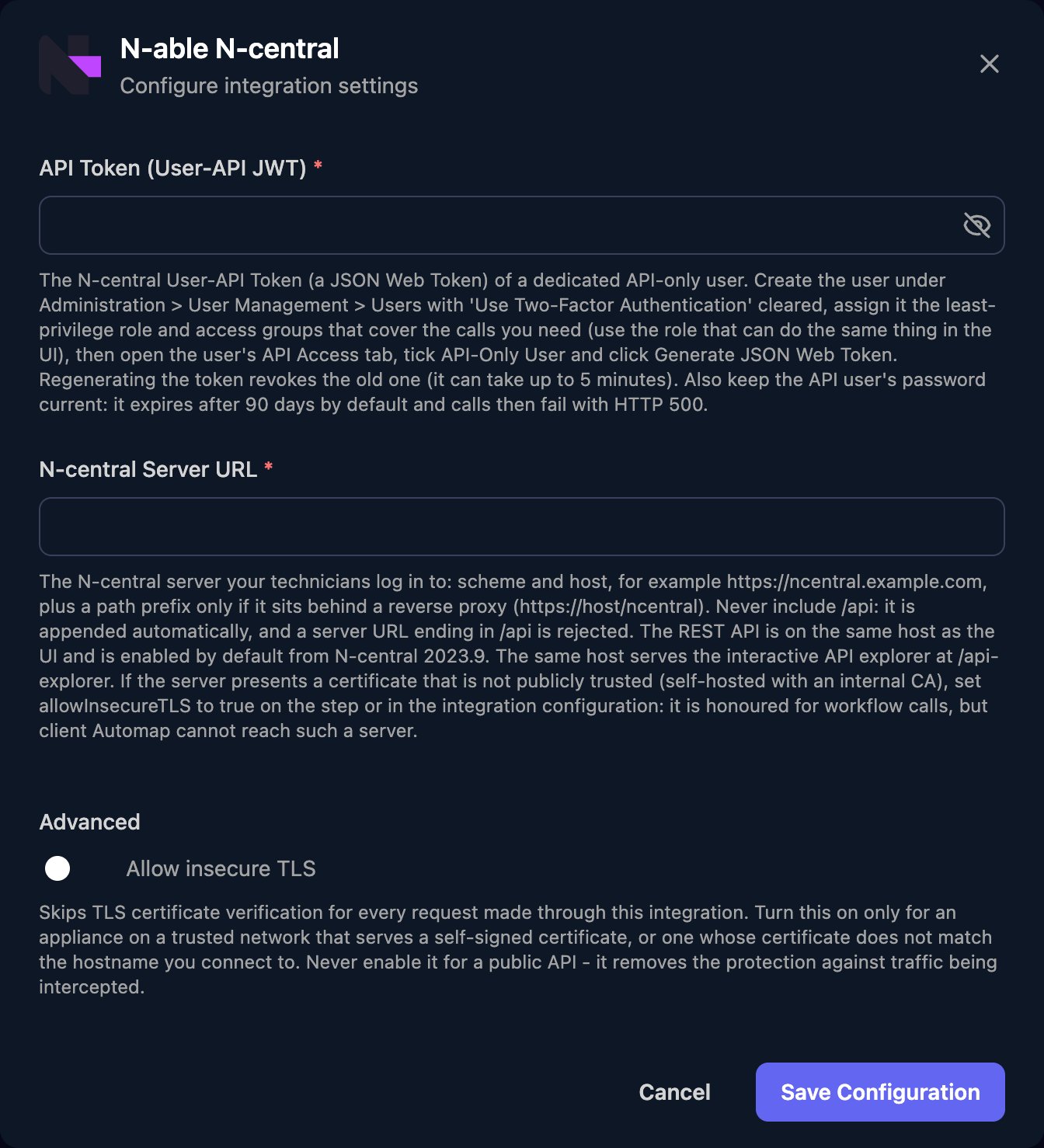
https://ncentral.example.com, without /api (add a path only behind a reverse proxy). Turn on Allow insecure TLS for a self-signed or internal certificate, then click Save Configuration.Map your clients
On the Client Mapping card, click Apply 100% Matches, then choose the customer in Mapped to for anyone left. Triggr saves each match as the client’sncentralCustomerId variable, which is also the customer’s org unit ID, so use it wherever an action asks for either. A client mapped to several customers gets comma-separated IDs.
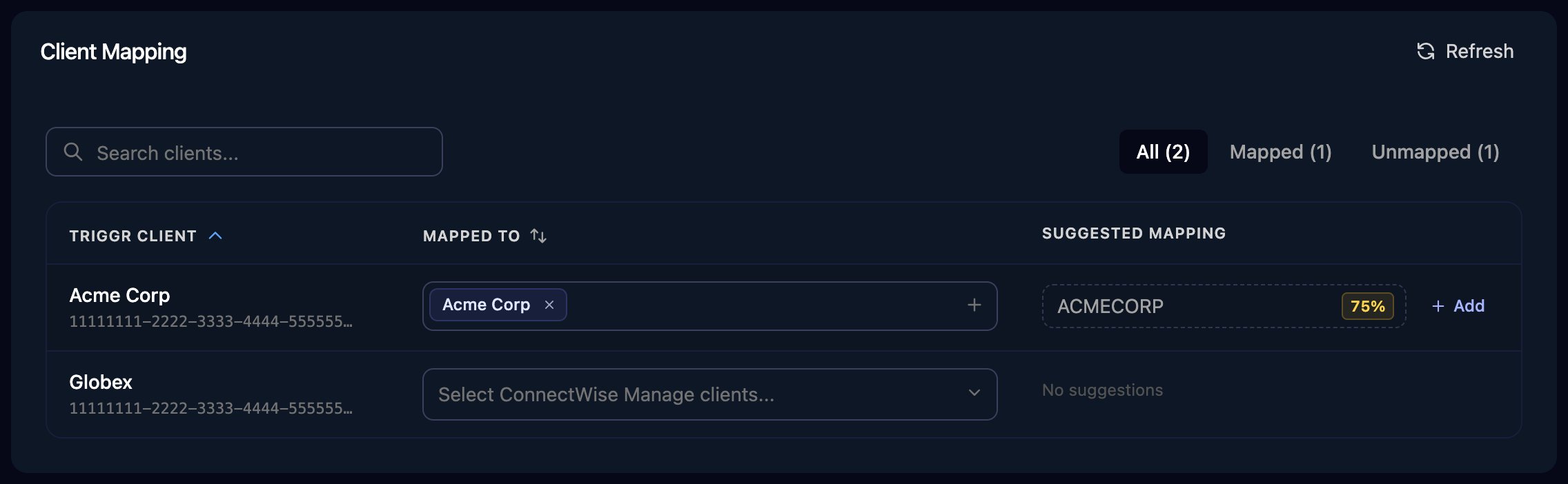
The Client Mapping card, shown here for ConnectWise Manage.
ncentralCustomerId variable yourself: open the client in Clients, click Manage Variables on the Variables card, then New Variable. The ID is the customerId from List Customers.
Troubleshooting
Failed to load integration clients, or every action fails
Failed to load integration clients, or every action fails
Triggr couldn’t get a token from
/api/auth/authenticate. For 401 or 403, check the token is current and the user is enabled, API-Only User and without two-factor authentication. For 404, check the server URL and version. For a redirect, use the server’s final address. If only Client Mapping fails and Allow insecure TLS is on, see Map your clients.remove /api from the server URL, or refusing to send the API token over plain http
remove /api from the server URL, or refusing to send the API token over plain http
Enter N-central Server URL as
https:// plus the host only, such as https://ncentral.example.com. Triggr adds /api itself and never sends the token over http://.HTTP 500 after working for weeks
HTTP 500 after working for weeks
The API user’s password expired (every 90 days by default). Set a new one in N-central and, if calls still fail, generate a new token. See N-able’s known issues.
Customers or devices are missing
Customers or devices are missing
Add them to an access group assigned to the API user, then click Refresh on Client Mapping.
An action is refused with 403
An action is refused with 403
Give the user’s role the permission a technician would need. For scripts, also check Enable API is on.