

Create an API key in Axcient
You need an administrator account in the Axcient x360Portal.1
Add a key
Sign in to the x360Portal, go to Settings > API Keys and click Add API Key.
2
Generate and copy it
Name it
Triggr, select x360Cloud if the form lists products, accept the license agreement and click Generate API Key. Axcient shows the key only once. See Axcient’s Generating and Managing API Keys.Connect it in Triggr
1
Open the configuration
Go to Integrations > x360Cloud and click Configure on the Base Configuration card.
2
Enter the key
Paste the key into API Key and click Save Configuration.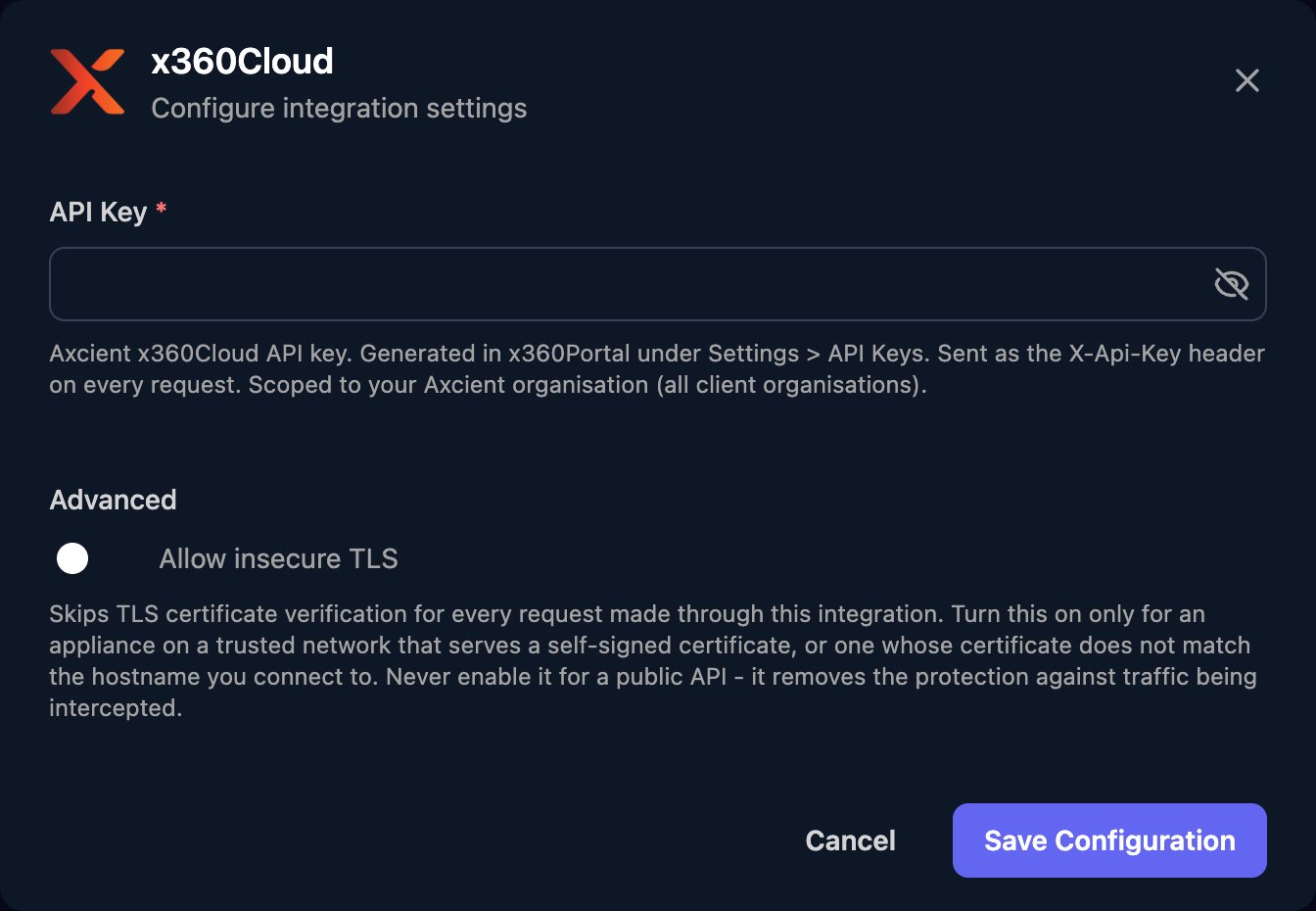
Work with x360Cloud in workflows
There’s no client mapping. Run List Client Organizations and pass the organisation’sid as clientId to actions such as Get Client Backup Status; Get User and Get Shared Resource take the ID from the matching list action. Lists are paged from 0, 20 results a page by default, and numberOfAvailableResults gives the total.
Dates on Get Client Backup Status take
2024-12-11 or 2025-01-11T16:29:36Z. See the x360Cloud API reference.
Troubleshooting
Every action fails with an authentication error
Every action fails with an authentication error
Check the key is complete and still exists under Settings > API Keys; any administrator can delete it. If it’s gone, create a new one and paste it in with Edit on the Base Configuration card.
A client organisation is missing
A client organisation is missing
Configured returns only organisations set up to protect data. Set the type to AllTypes.Lists stop short
Lists stop short
If
numberOfAvailableResults is larger than what came back, request the next page or a larger page size.