

Set up Zendesk
You need a Zendesk admin account.1
Turn on API token access
In Admin Center, go to Apps and integrations > APIs > API configuration, select Allow API token access and click Save. See Zendesk’s Turning on and off API access.
2
Create an API token
Go to APIs > API tokens, click Add API token, enter a Description such as
Triggr and click Save. Copy the token before you click Save again; Zendesk won’t show it in full afterwards. See Zendesk’s Managing API token access.3
Choose the user Triggr acts as
Triggr sends the token with a user’s email address and sees only what that user can. Use an admin, or an agent with access to the tickets, organizations and views your workflows need; a dedicated user such as
triggr@yourcompany.com makes Triggr’s changes easy to spot.Connect it in Triggr
The Base Configuration serves workflows that don’t run for a client.1
Open the configuration
Go to Integrations > Zendesk and click Configure on the Base Configuration card.
2
Enter the token, address and user
Enter the token as ApiKey, your Zendesk address with nothing after the host as BaseURL (such as 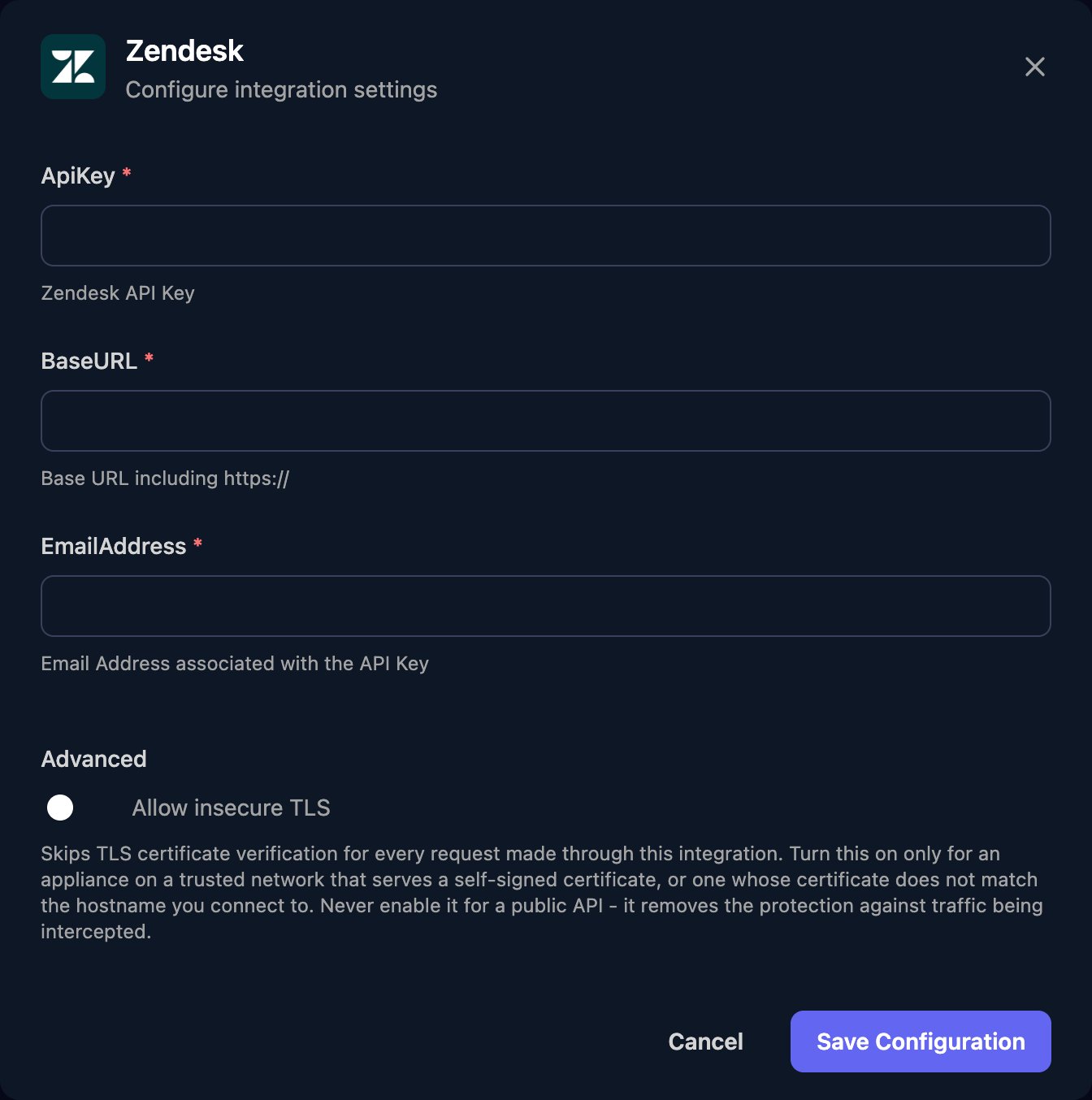
https://yourcompany.zendesk.com), and the user’s email as EmailAddress. Click Save Configuration.Set up each client
Per-client integrations never fall back to the Base Configuration, so a client’s Zendesk steps fail until it’s configured. Click Configure on each client’s row and fill in all three fields: your own Zendesk details, or a token from the client’s own Zendesk account.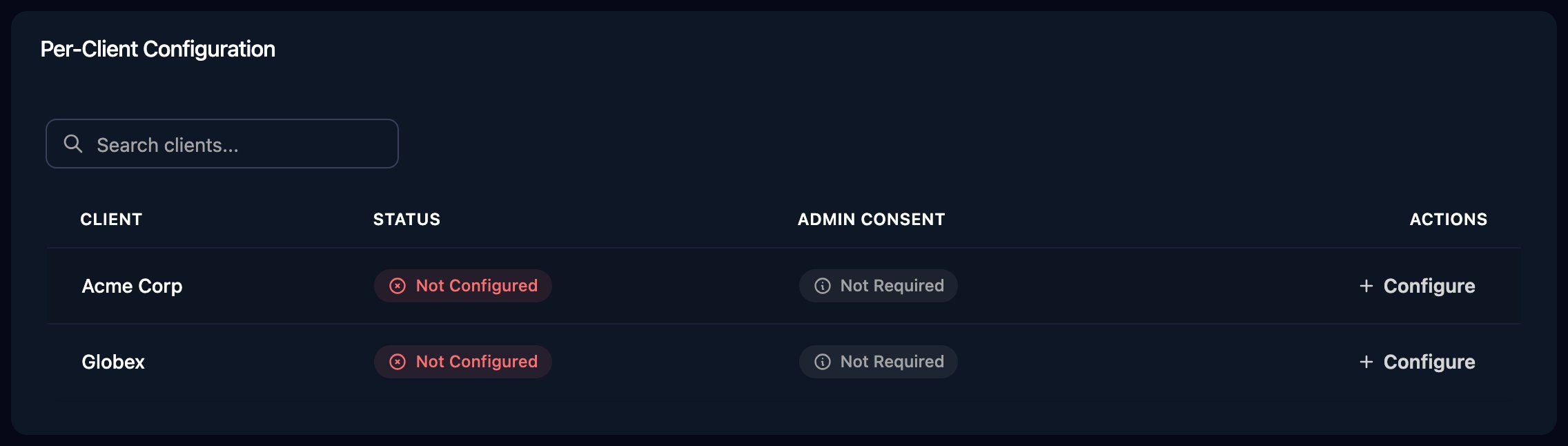
Use Zendesk in workflows
-
Create Ticket takes a
ticketobject injsonBody, in the shape of Zendesk’s Create Ticket endpoint. Onlycommentis required; addrequester_idororganization_idas needed. -
List Tickets For Organization takes an
organizationIdfrom Get Organizations. -
Global Search takes Zendesk search syntax, such as
type:ticket status:open, withpageandperPage(up to 100). -
Actions with
pageSizeuse cursor pagination: passmeta.after_cursorasafterCursorwhilemeta.has_moreistrue.
Troubleshooting
no Zendesk integration is configured for this client
no Zendesk integration is configured for this client
Configure the client as described in Set up each client.
Authentication errors (401)
Authentication errors (401)
Check ApiKey is the full token, EmailAddress is a verified user in the same account, the token is still active (Zendesk deletes tokens unused for 30 days) and Allow API token access is still on.
Permission errors (403) or missing results
Permission errors (403) or missing results
The EmailAddress user can’t see what the action asks for. Use an admin, or widen the user’s role.
Every request returns 404
Every request returns 404
BaseURL must be
https:// plus the host only. Triggr adds /api/v2 itself.Replace the token
Replace the token
Create a new one, paste it into ApiKey in every configuration that uses it, then deactivate the old one under APIs > API tokens.