

Set up Domotz
1
Create a Full Access key
In the Domotz Portal, go to Settings > API Keys and click Create an API Key, not Create a Collector Activation Key. Enter your password, click Unlock, name the key and click Create.
2
Copy the key and endpoint
Click Copy next to API Key and note the host in the Endpoint URL, then click Done. Domotz shows the key and endpoint only in this dialog.
Connect it in Triggr
1
Open the integration
Go to Integrations > Domotz and click Configure on the Base Configuration card.
2
Enter the host and key
Enter the API Endpoint Host and API Key, then click Save Configuration. For the endpoint 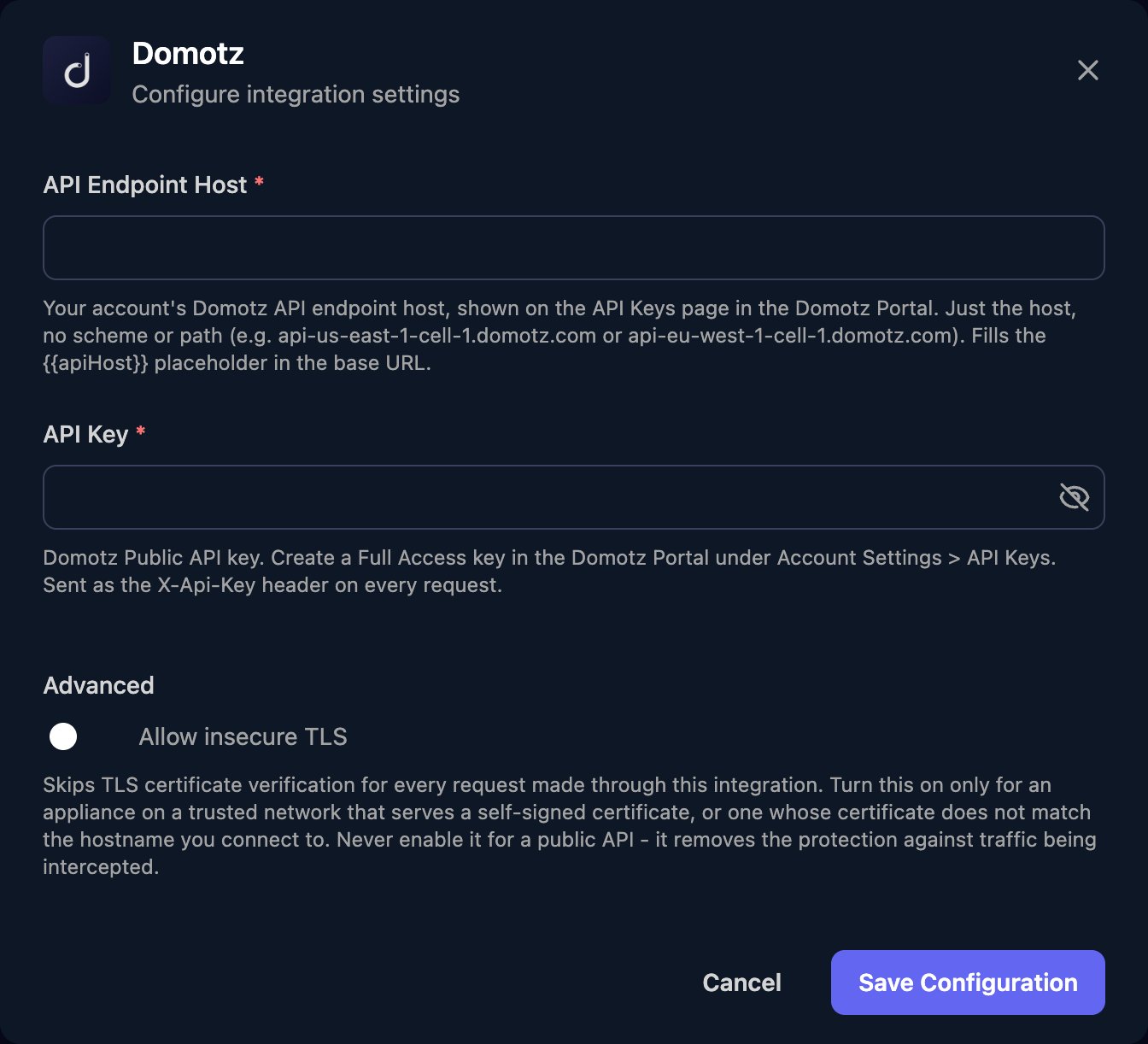
https://api-eu-west-1-cell-1.domotz.com/public-api/v1/, the host is api-eu-west-1-cell-1.domotz.com.agentId) and Collector devices list to find device IDs (deviceId). Time ranges use UTC in the format yyyy-mm-ddThh:mm:ss.
Troubleshooting
Requests fail before reaching Domotz
Requests fail before reaching Domotz
API Endpoint Host takes the host name only, with no
https://, path or spaces.Every action fails with an authentication error
Every action fails with an authentication error
Check the key is a Full Access key, pasted in full, still listed on API Keys, and that the host matches its Endpoint. If you’ve lost either value, create a new key and click Edit on the Base Configuration card.
Collectors are missing
Collectors are missing
The key sees only the collectors its creator can access. Create it as the account owner or an Administrator.
Calls fail during large workflows
Calls fail during large workflows
Your account has hit a Domotz API limit. Run API usage and limits to check, and spread large workflows out.