

Create an API key in Axcient
You need an administrator account in the Axcient x360Portal.1
Add a key
Sign in to the x360Portal, go to Settings > API Keys and click Add API Key.
2
Generate and copy it
Name it
Triggr, select x360Recover if the form lists products, accept the license agreement and click Generate API Key. Axcient shows the key only once. See Axcient’s Generating and Managing API Keys.Connect it in Triggr
1
Open the configuration
Go to Integrations > x360Recover and click Configure on the Base Configuration card.
2
Enter the key
Paste the key into API Key and click Save Configuration.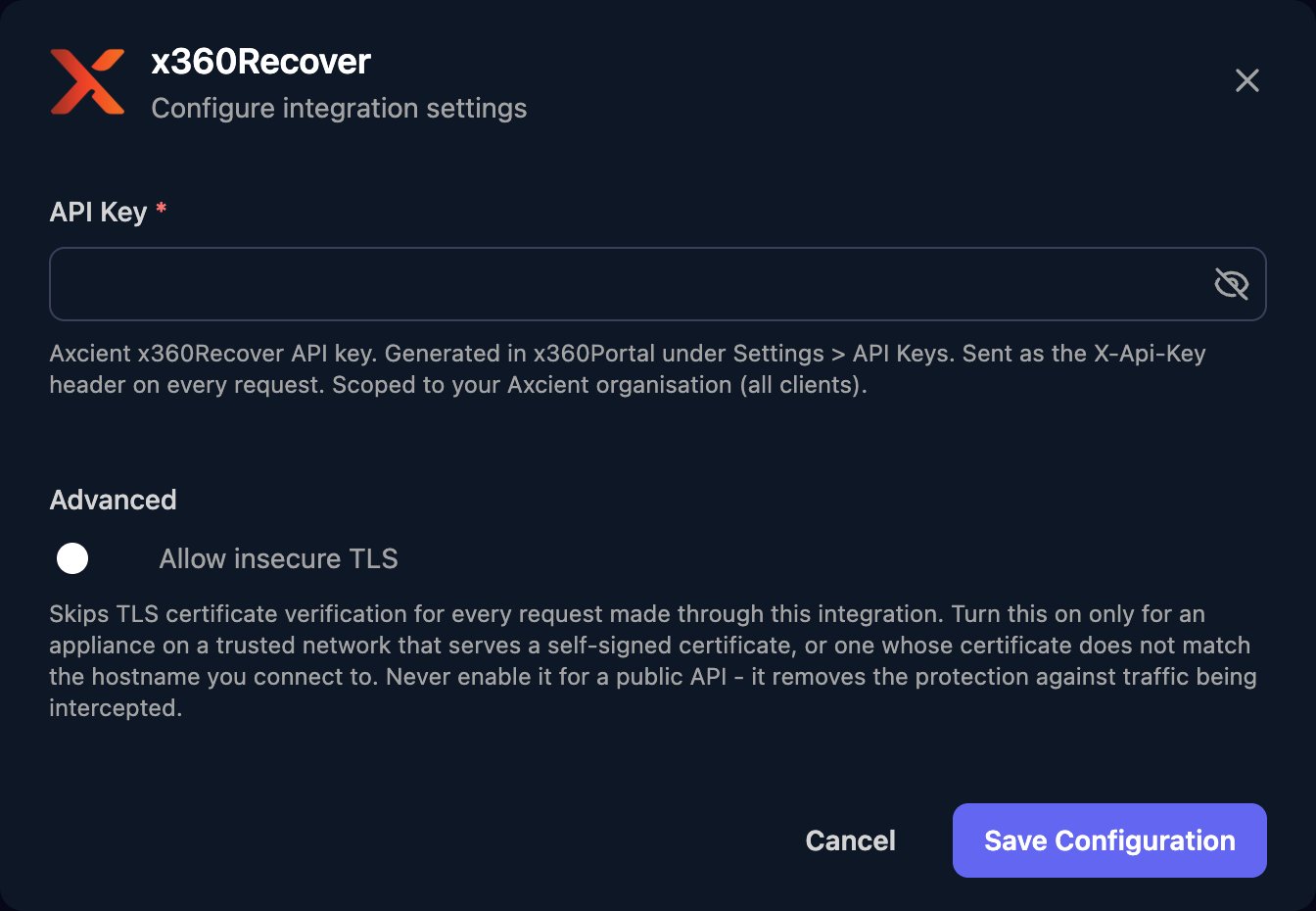
Work with x360Recover in workflows
There’s no client mapping. Run List Clients and pass the client’sid as clientId. Other IDs come from list actions:
Job actions need both
deviceId and the device’s client_id as clientId. Timestamps such as maxTimestamp and starttimeBegin are Unix seconds. Set Vault Connectivity Threshold takes {"threshold": 240} (minutes) in jsonBody, and Create D2C Agent Token takes {}. List Devices and Get Job History return up to 500 results; use offset for more. See the x360Recover API reference.
Troubleshooting
Every action fails with an authentication error
Every action fails with an authentication error
Check the key is complete and still exists under Settings > API Keys; any administrator can delete it. If it’s gone, create a new one and paste it in with Edit on the Base Configuration card.
An action returns 400 or 404
An action returns 400 or 404
Pass the numeric
id from the matching list action, not a name. For job actions, use the device’s client_id as clientId.