

Set up Cisco Meraki
The key has exactly the access of the administrator who generates it, and that administrator must sign in with a Meraki password, not SAML single sign-on.1
Add an administrator for Triggr
In each organisation Triggr should work with, go to Organization > Configure > Administrators and click Add admin. Enter a Name such as
Triggr and a mailbox you control, set Organization Access to Full (or Read-only if workflows only read data), click Create admin, then Save changes.2
Generate an API key
Set the administrator’s password from Meraki’s email and sign in as them. Click the avatar in the top right to open My Profile, click Generate API key under API access and copy the key. Meraki shows it only once.
3
Allow Triggr's IP addresses, if you restrict API access
If an organisation uses Login IP ranges (Organization > Configure > Settings), add Triggr’s IP addresses to its API ranges, and to its dashboard ranges too if you’ve set both.
Connect it in Triggr
1
Open the integration
Go to Integrations > Cisco Meraki and click Configure on the Base Configuration card.
2
Paste the key
Paste it into API Key, without 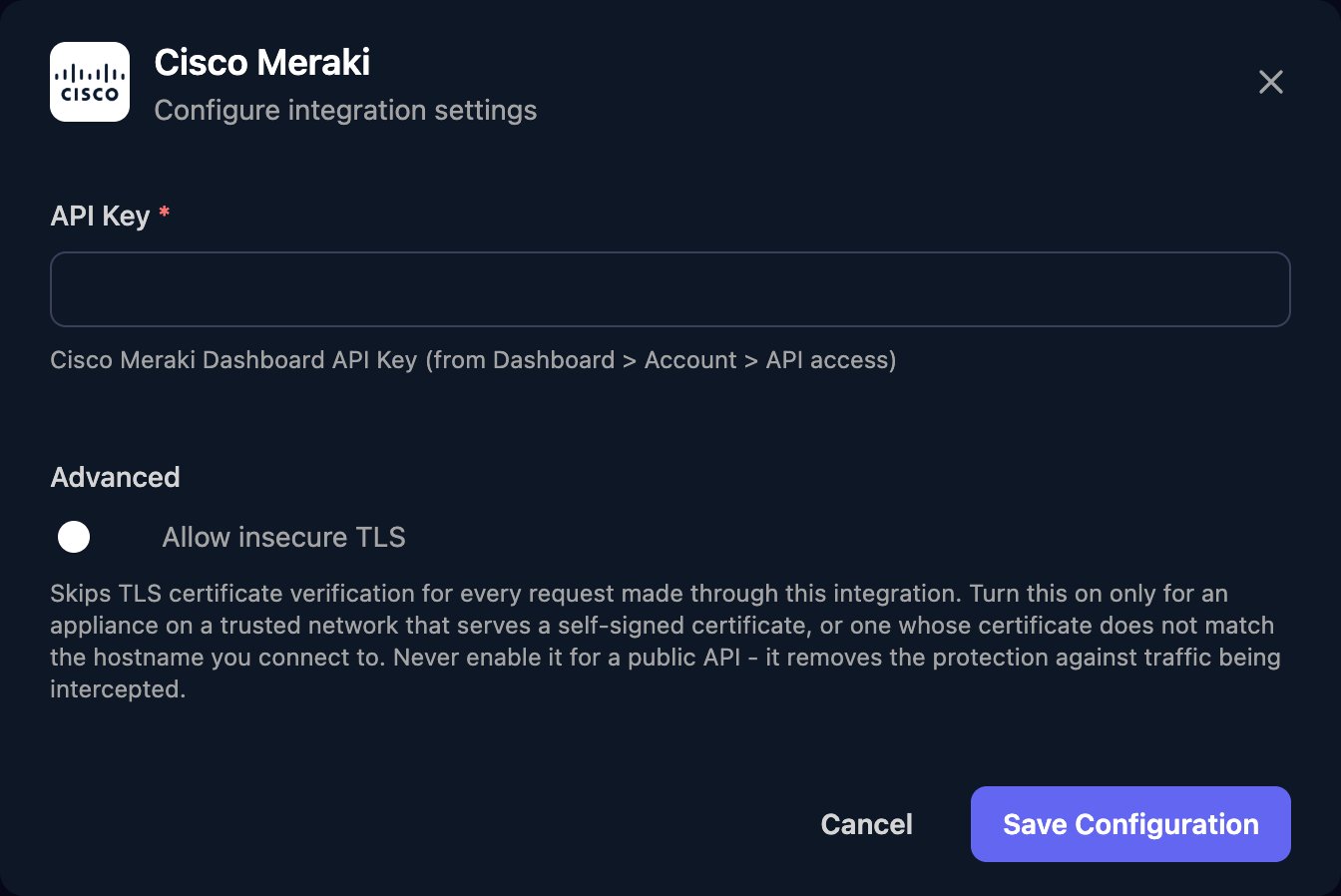
Bearer in front, and click Save Configuration.organizationId, networkId or device serial it acts on; List Organizations returns the organisations the key can reach.
To replace the key, generate a new one in My Profile, paste it in via Edit on the Base Configuration card, then revoke the old one. Each administrator can have two keys at a time.
Troubleshooting
404 Not Found on every request
404 Not Found on every request
Meraki returns 404 for a missing or wrong key. Check it was pasted in full, without
Bearer, and hasn’t been revoked. If only some actions fail, check the step’s IDs.403 Forbidden when making changes
403 Forbidden when making changes
The administrator has Read-only access in that organisation. Change its Organization Access to Full.
Requests to one organisation are refused
Requests to one organisation are refused
Add the Triggr administrator to that organisation, and check its Login IP ranges include Triggr’s IP addresses. List Organizations ignores those ranges, so the organisation can appear there while other requests to it fail.
No API access section on My Profile
No API access section on My Profile
The account signs in through SAML. Use an administrator that signs in with a Meraki password.