

Set up ThreatLocker
1
Create a role for Triggr
In Users > Roles, click + New Role, name it
Triggr, tick the permissions your workflows need and click + Create Role. Create it in the organisation where you’ll create the API user.Other endpoints list their permissions under Help > API Documentation in the portal. See ThreatLocker’s user permissions guide.
2
Create an API user
Select the Manage icon, go to Users > API Users and click New API User. Name it
Triggr with Basic Authentication (API Token), not OAuth 2.0; click Generate API Token and copy the token (ThreatLocker won’t show it again); add the Triggr role and leave Organization empty to cover every organisation. Tick Accept EULA and click Create. See ThreatLocker’s API Users guide.3
Find your instance
Select Help in the portal. Your instance letter, such as
g, is next to ThreatLocker Access. See Locating Your Organization’s Instance.Connect it in Triggr
1
Open the configuration
Go to Integrations > ThreatLocker and click Configure on the Base Configuration card.
2
Enter the token and instance
Paste the token alone into API Key, with no 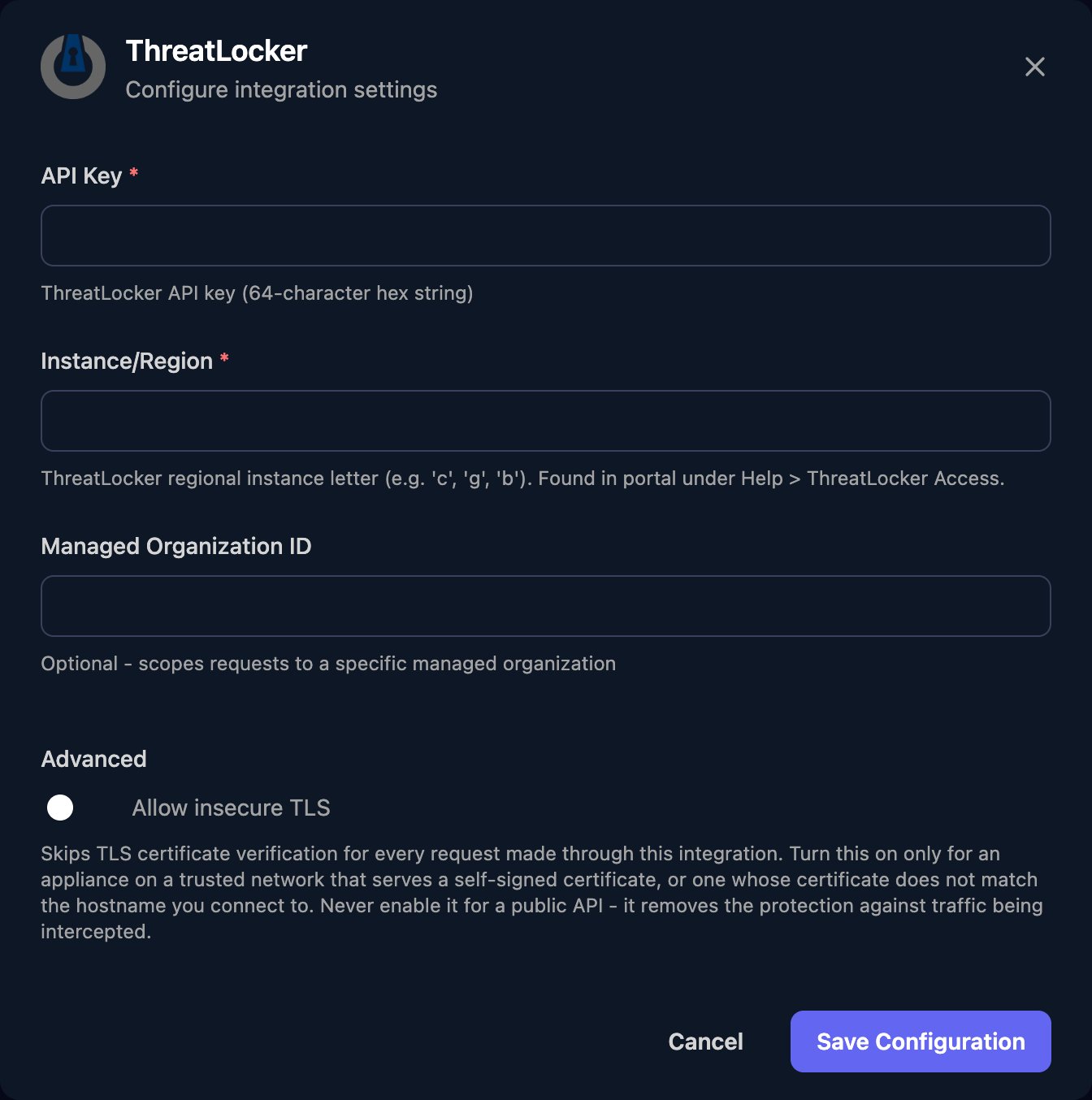
Bearer, and enter just the letter as Instance/Region. Leave Managed Organization ID blank to work in the API user’s own organisation, or enter an Organization ID (from Manage > Organizations) to scope Triggr to that one. Click Save Configuration.childOrganizations on List Computers.
Troubleshooting
Every action fails with 403 Forbidden
Every action fails with 403 Forbidden
ThreatLocker didn’t accept the token. Check Instance/Region matches the letter under Help, API Key holds the full token alone, and the API user uses Basic Authentication (API Token).
Results come from the wrong organisation
Results come from the wrong organisation
Managed Organization ID scopes every action to that organisation. Otherwise, add the role to more organisations, and use View Computers rather than View Computers - Managed Organization Only.
The API token was lost or expired
The API token was lost or expired
In Users > API Users, use Reset API Token on the
Triggr user and copy the new token. In Triggr, click Edit on the Base Configuration card and paste it into API Key.