

Set up Twingate
You need the Admin role in the Twingate Admin Console.1
Start a token
In the Admin Console, go to Settings > API, click Generate Token and name it
Triggr. Choose the lowest permission your workflows need:2
Limit the token to Triggr's addresses (optional)
Add Triggr’s outbound IP addresses to the token’s allowed ranges. The default,
0.0.0.0/0, ::/0, allows every address.3
Copy the token
Generate the token and copy it before you close the window. Twingate won’t show it again.
Connect it in Triggr
1
Open the configuration
Go to Integrations > Twingate and click Configure on the Base Configuration card.
2
Enter the token and network
Paste the token into API Key. For Network (subdomain), enter everything before 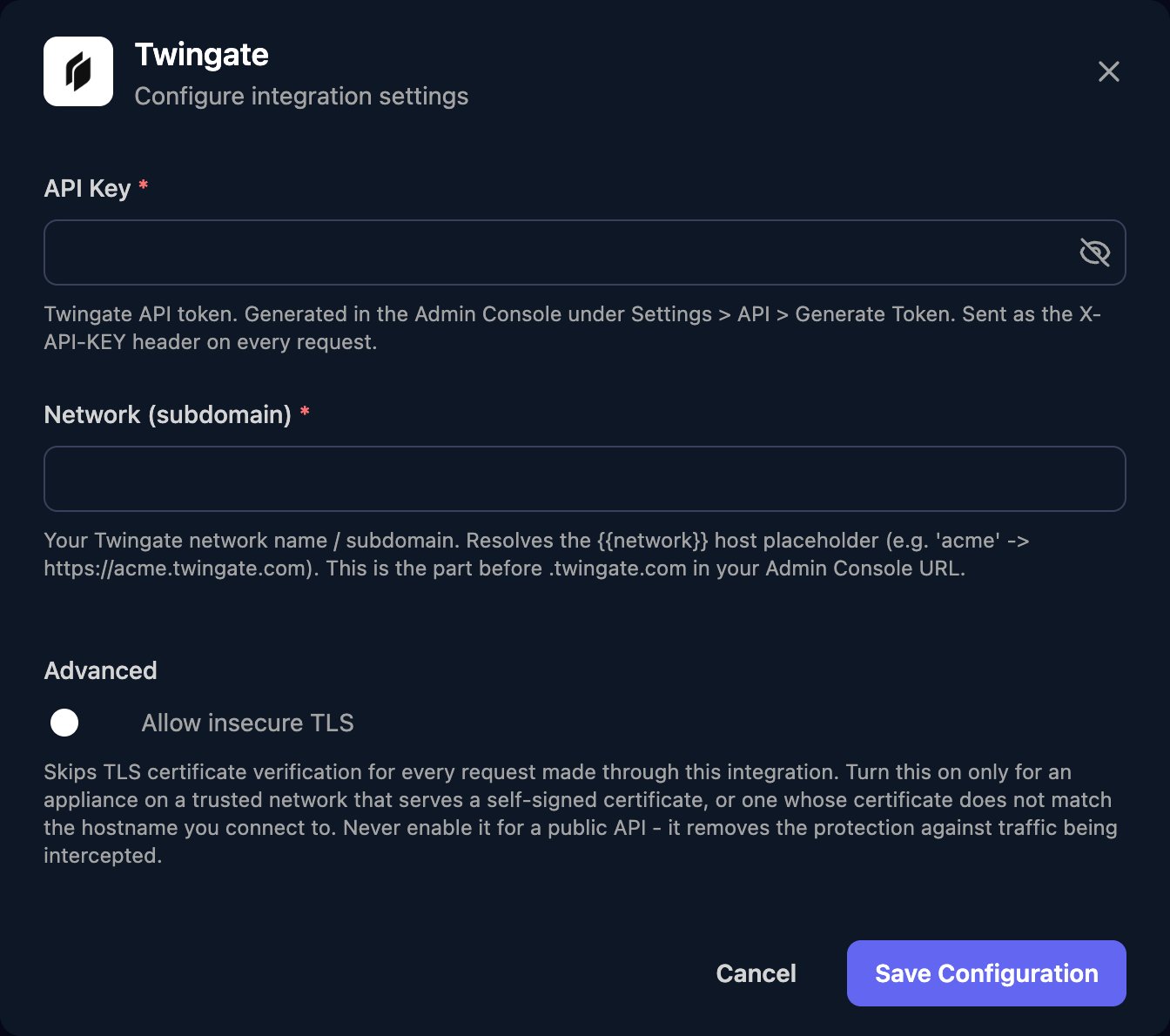
.twingate.com in your Admin Console address: acme for https://acme.twingate.com, or acme.us1 if it includes a region. Click Save Configuration.Use it in workflows
- Take IDs from the
idof items that List and Get actions return underdata, such asdata.users.edges[].node.userIdsandresourceIdstake a JSON array, or[]in Create Group. - Actions that change something return
okanderror. Checkokbefore later steps rely on the change. - Execute GraphQL Query takes
{"query": "...", "variables": {...}}ingraphQlQuery. See Twingate’s schema reference.
Troubleshooting
Every action fails to reach Twingate
Every action fails to reach Twingate
Network (subdomain) must be only the part before
.twingate.com, exactly as your Admin Console address shows it, with no https:// or trailing /.Every action fails with an authentication error
Every action fails with an authentication error
Check API Key holds the full token with no spaces, the token is still enabled under Settings > API, and any allowed ranges include Triggr’s IP addresses.
Lookups work but changes fail
Lookups work but changes fail
Raise the token’s permission under Settings > API. Otherwise,
error in the response gives Twingate’s reason.Replace the token
Replace the token
Generate a new token, click Edit on the Base Configuration card and paste it into API Key. Then disable the old token under Settings > API.