

Set up Petra Security
1
Create an API key
Sign in to the Petra portal as an Admin, go to Settings > API Keys and click Create API Key. Enter a description such as
Triggr and click Create API Key again.2
Copy the key
Copy the key, which starts with
petra_. Petra shows it only once.Connect it in Triggr
1
Open the configuration
Go to Integrations > Petra Security and click Configure on the Base Configuration card.
2
Enter the key
Paste the key into API Key and click Save Configuration.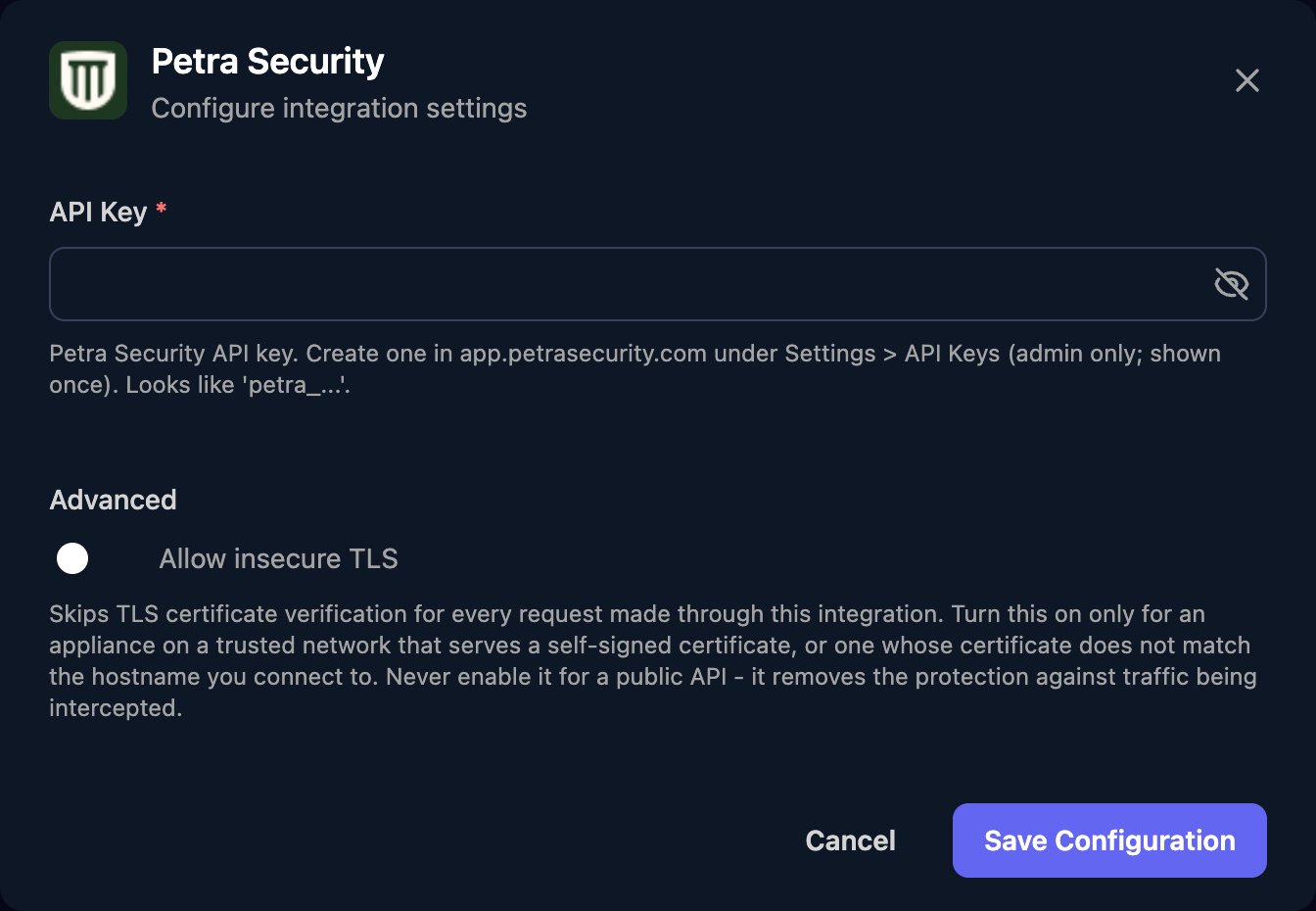
Tenant IDs and action inputs
Run List Tenants to get each tenant’spetraTenantId and microsoftTenantId. The Petra ID is also in the portal URL: app.petrasecurity.com/tenant/<petraTenantId>.
Enter dates as
2026-03-01 or a UTC date-time ending in Z. Petra’s API reference describes what each action returns.
Troubleshooting
Every action fails with 401
Every action fails with 401
Check the key is pasted in full, starts with
petra_, still exists under Settings > API Keys, and comes from the organisation that holds your tenants.An action fails with 403 or 404
An action fails with 403 or 404
Use a tenant ID from List Tenants. Get Billable Users needs the Petra ID, not the Microsoft one.
An action fails with 400
An action fails with 400
Petra rejected a date. Use
YYYY-MM-DD or a UTC date-time ending in Z.Requests fail with 429
Requests fail with 429
Get Billable Users and Get Failed Attacks allow one request a minute; other actions allow 10. Spread out calls when looping over many tenants.