

api.superops.ai. It acts as the user whose token you use.
Set up SuperOps
1
Generate an API token
Sign in as the user Triggr should act as, go to Settings > Your Profile > API token, click Generate Token and copy it. Each user has one token, and generating a new one replaces it.
2
Find your subdomain
Go to Settings > Company information and copy your subdomain.
Connect it in Triggr
1
Open the configuration
Go to Integrations > SuperOps (US) and click Configure on the Base Configuration card.
2
Enter the token and subdomain
Paste the token into apiKey, enter your subdomain alone as customerSubDomain, such as 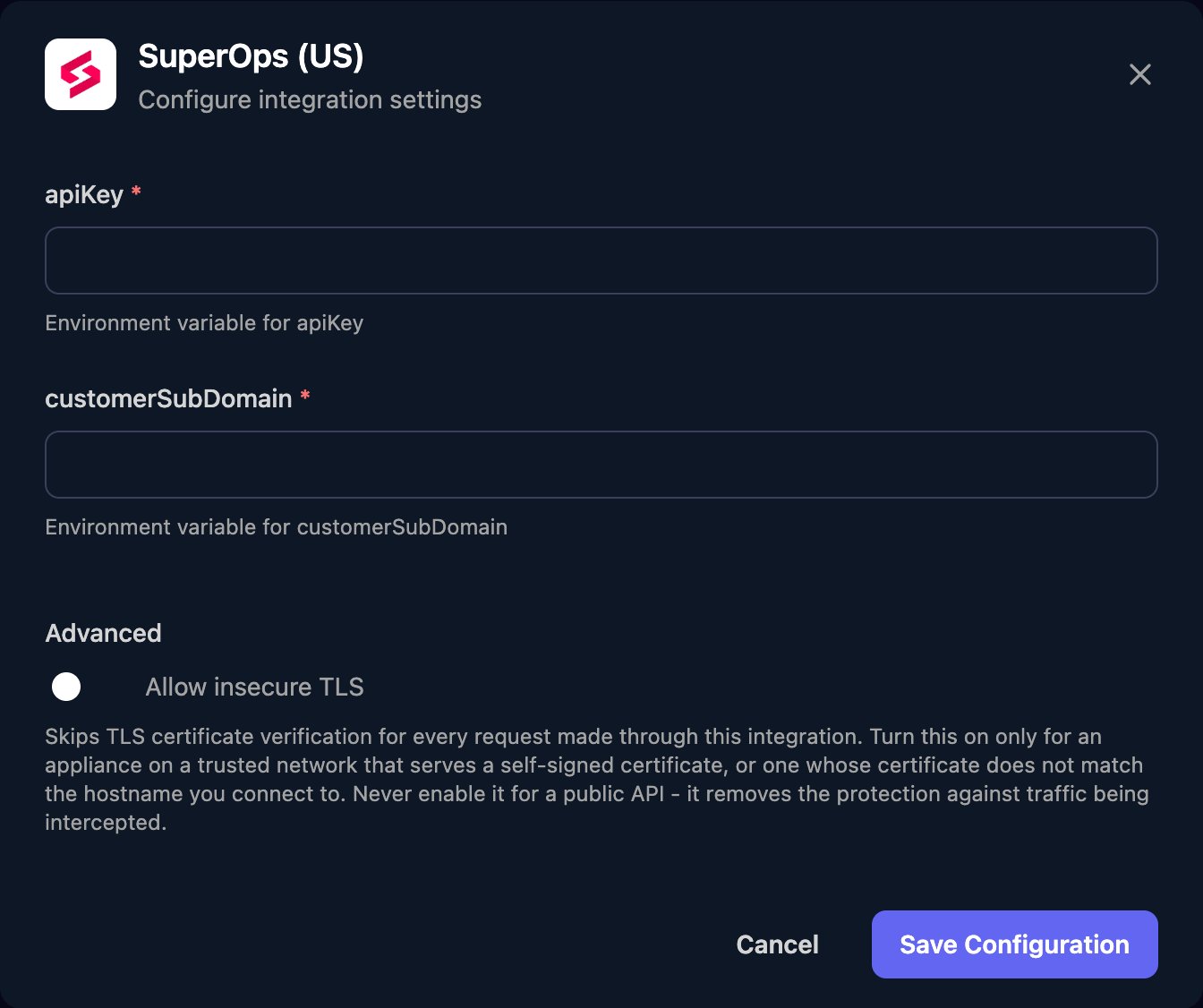
yourcompany, and click Save Configuration.query (and variables if needed), not the query text alone.
Troubleshooting
integration request failed with status code: 401
integration request failed with status code: 401
SuperOps rejected the token, perhaps because it was regenerated. Generate a new one and paste it into apiKey.
Requests fail although the token is right
Requests fail although the token is right
customerSubDomain must be the subdomain alone, without
https:// or .superops.ai, and the account must be hosted in SuperOps’s US data centre.The step succeeds but returns errors
The step succeeds but returns errors
SuperOps reports query problems in
body.errors in the step’s output. Check the query and variables against the API reference.Requests are blocked by IP restrictions
Requests are blocked by IP restrictions
If IP Restrictions is on in Settings > Security Management, add Triggr’s IP addresses to the allowed ranges.