

Set up Hudu
You need the Admin or Super Admin role in Hudu.1
Create an API key
In Hudu’s admin area, go to Account Administration > API Keys, click + New API Key and name it
Triggr.2
Set its scope
You can’t change these settings after you create the key.
- Limit scope to: Full access.
- Company: leave empty, so one key covers all your clients.
- Allowed IP Addresses: leave blank, or enter Triggr’s IP addresses, one per line.
- Under Key can perform the following actions, tick View passwords, Delete data or Export data if your workflows use password, delete or export actions.
3
Copy the key
Click Create and copy the key straight away. Hudu hides it after five minutes.
Connect it in Triggr
1
Open the integration
Go to Integrations > Hudu and click Configure on the Base Configuration card.
2
Enter the key and address
Paste the key into apiKey, enter the address you sign in to Hudu with as baseUrl, such as 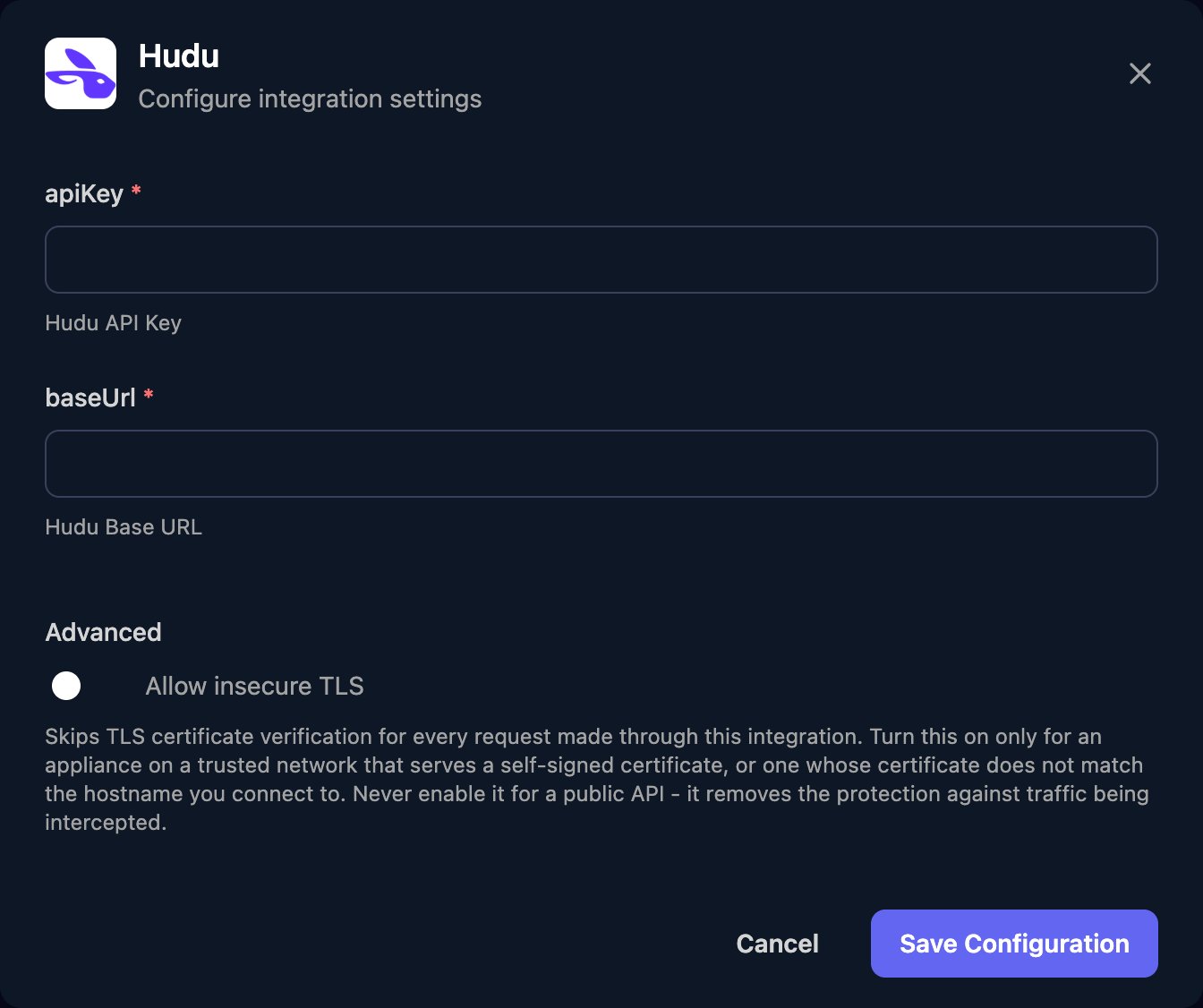
https://yourcompany.huducloud.com (without /api/v1), and click Save Configuration.Troubleshooting
Authentication fails
Authentication fails
Check apiKey holds the full key with no spaces. If you copied it after Hudu hid it, you copied the masked value: create a new key.
Every action fails or returns not found
Every action fails or returns not found
baseUrl must start with
https:// and have nothing after the domain.Requests are blocked by IP address
Requests are blocked by IP address
Add Triggr’s IP addresses to IP Access Control. A key’s Allowed IP Addresses can’t be edited, so create a new key if they’re missing.
Hudu is self-hosted
Hudu is self-hosted
Publish it at a public address and allow Triggr’s IP addresses through your firewall. If it uses a self-signed certificate, turn on Advanced > Allow insecure TLS in the configuration window.
Password, delete or export actions fail, or companies are missing
Password, delete or export actions fail, or companies are missing
The key was created without View passwords, Delete data or Export data, or with a Company selected. Create a new key with the right settings.