

Set up RingCentral
Repeat in each client’s RingCentral account, or use one app for every client.1
Create a REST API app
In the Developer Console, go to Apps > Create App and select REST API App. Name it
Triggr, select JWT auth flow under Auth, add the scopes below, keep the app private and click Create. If Create App is disabled, ask the account’s administrator for permission.An action needs both the app scope and the permission in the JWT user’s role; Super Admin covers every action.
2
Copy the Client ID and Client Secret
Open the app and copy its Client ID and Client Secret.
3
Create a JWT
Sign in as the user Triggr acts as, ideally a dedicated service user. Hover over your name, select Credentials and click Create JWT. Permit apps within your organisation, or Only specific apps of my choice with the app’s Client ID. Click Create and copy the JWT.
Use one app for every client
A private app only accepts JWTs from its own account. To use one app, make it public in your own account (RingCentral reviews public apps more closely) and, in each client’s account, create the JWT with Only specific apps of my choice and your app’s Client ID. See RingCentral’s JWT for public apps guide.Connect it in Triggr
1
Open the client's configuration
Go to Integrations > Ring Central and click Configure on the client’s row on the Per-Client Configuration card, or on the Base Configuration card for workflows that don’t run for a client.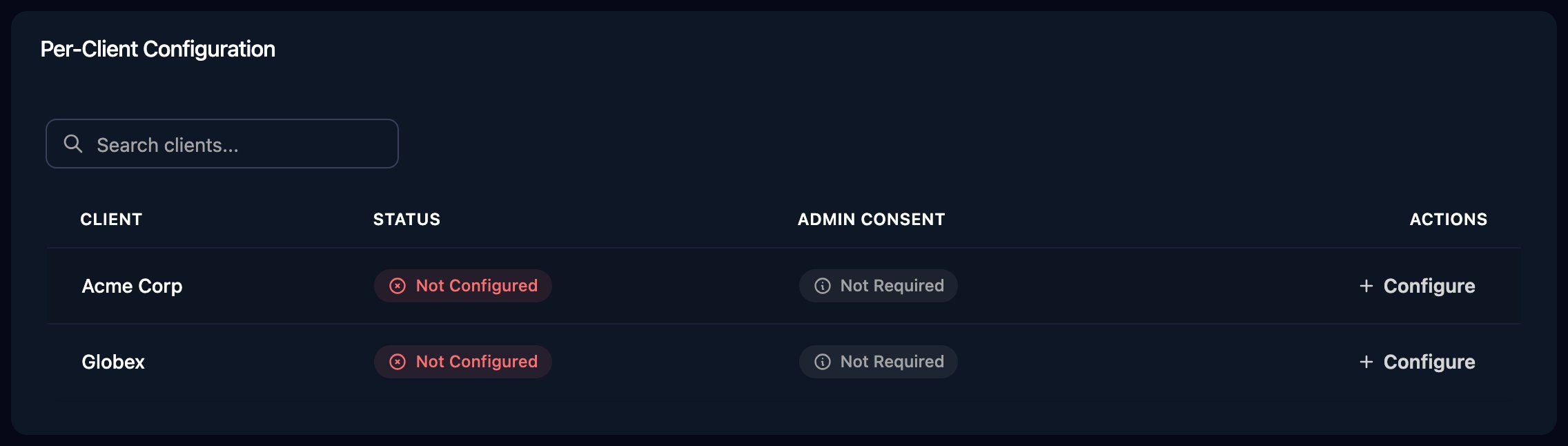
2
Enter the app and JWT
Enter ClientID, ClientSecret and the full JwtToken, then click Save Configuration. There’s no Authorize step.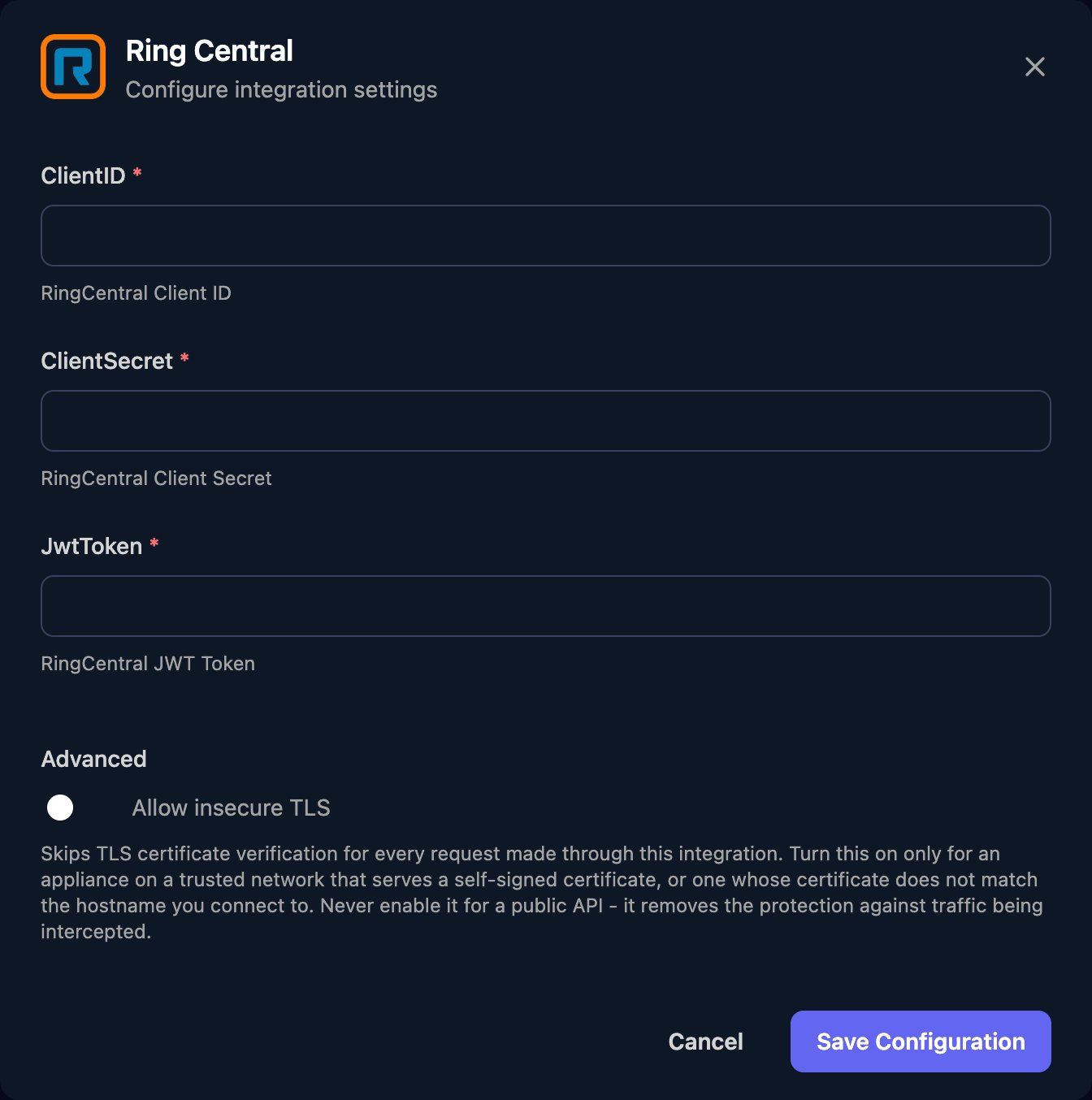
~ as accountId so the same workflow works for every client; List Extensions returns each extension’s id.
To replace a JWT, click Edit on the configuration, paste the new one into JwtToken and save, then revoke the old one.
Troubleshooting
no Ring Central integration is configured for this client
no Ring Central integration is configured for this client
Configure the client on the Per-Client Configuration card, then run the workflow again.
No access token in JWT Bearer response
No access token in JWT Bearer response
Check ClientID and ClientSecret come from the same app, the app uses JWT auth flow, and the JWT is still valid and permits the app. A private app must be in the same account as the JWT.
CMN-401 or CMN-408
CMN-401 or CMN-408
CMN-401: add the missing scope to the app. CMN-408: give the JWT’s user a role with the named permission, or create the JWT as a user who has it.429 errors
429 errors
RingCentral limits requests per user and per app. Spread large workflows out or run them in smaller batches. See RingCentral’s rate limits.