

Set up HiBob
Do this in each client’s Bob account, and in your own if you use Bob.1
Create a service user
In Bob, go to Settings > Integrations, select Automation and click Manage on the Service users tile, then click New service user, name it, click Next and copy the ID and Token. Bob shows the token only once. See HiBob’s API service users.
2
Add it to a permission group
In Settings > Account > Permission Groups, create a group such as
Triggr API and add the service user. See HiBob’s Create a service user permission group.3
Grant permissions
A new group has nothing enabled. Grant what your workflows need from Permissions for each action:
- Features: click Edit and tick the permissions.
- People’s fields: click Edit permissions, open People’s data > People’s fields and enable View, Edit or View history.
- Access data for: on the People’s data tab, choose Everyone, Select people by condition or Select people by name.
Permissions for each action
Bob leaves fields the service user can’t see out of responses without warning. See HiBob’s Permissions and Categories and permissions.Employees and lifecycle
Employees and lifecycle
Sensitive fields, such as full date of birth, need both View and Edit. For Invite Employee, Revoke Employee Access, Set Employee Start Date and the avatar actions, see HiBob’s People API.
Employee history and custom tables
Employee history and custom tables
Time off
Time off
Tasks and reports
Tasks and reports
Connect it in Triggr
Per-client integrations never fall back to the Base Configuration, so every client whose workflows use HiBob needs its own configuration.1
Open the client's row
Go to Integrations > HiBob and click Configure on the client’s row in the Per-Client Configuration card (or on the Base Configuration card for your own Bob account).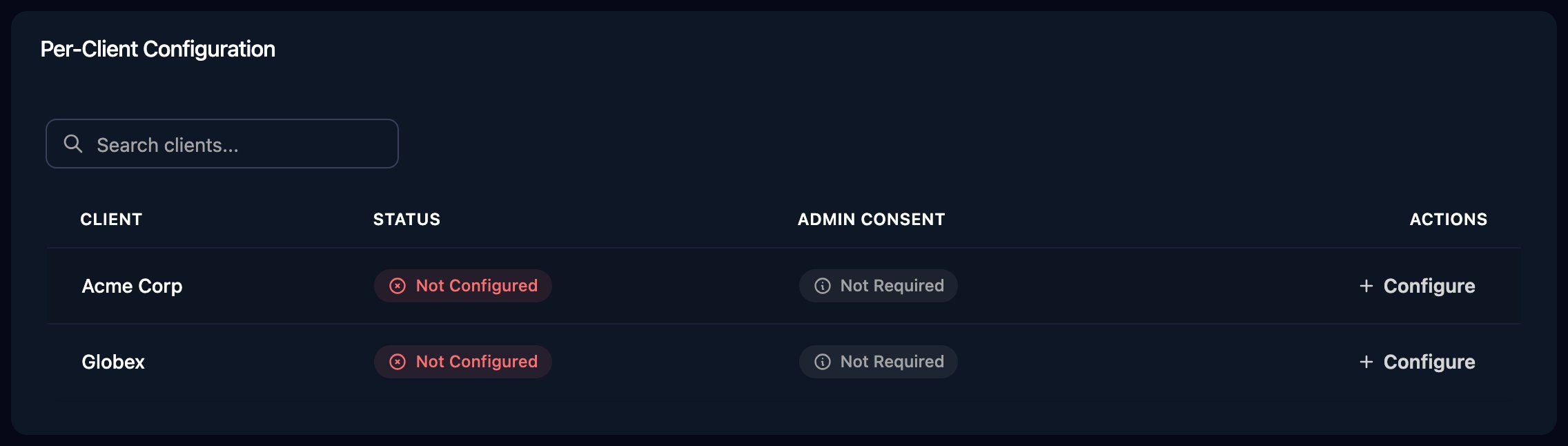
2
Enter the service user
Enter the Service User ID and Service User Token from the live Bob account (not a sandbox), then click Save Configuration.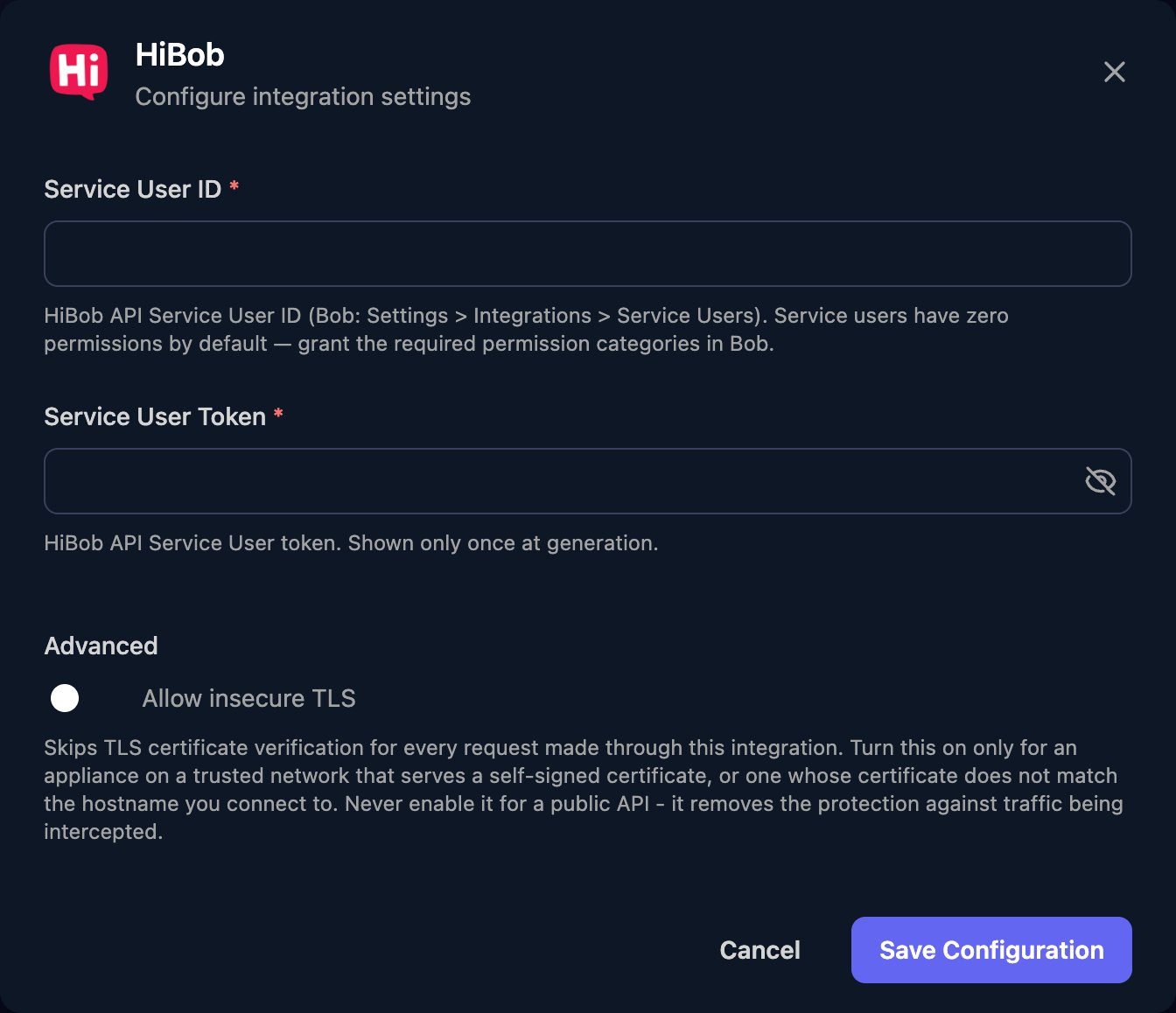
root.id. Search Employees returns active employees only unless jsonBody includes "showInactive": true. Create Employee needs firstName, surname, email, work.site and work.startDate.
Troubleshooting
no HiBob integration is configured for this client
no HiBob integration is configured for this client
Configure the client on the Per-Client Configuration card.
Authentication errors (401)
Authentication errors (401)
Check the ID and token are complete and not swapped, and that the token hasn’t been regenerated. To replace a token, generate a new one in Bob and click Edit on the configuration.
Permission errors (403), or missing fields or employees
Permission errors (403), or missing fields or employees
Add the permission from Permissions for each action. Missing employees are outside Access data for, or inactive.
Rate limits (429) or temporary blocks
Rate limits (429) or temporary blocks
Creating, updating and terminating employees are limited to 10 requests a minute, and searching to 50. Bob also blocks requests for five minutes after more than 50 failed requests in ten seconds. See HiBob’s Rate limiting.