

Set up AutoElevate
1
Create a service user
In the Web Admin Portal at
msp.autoelevate.com, go to Users, click Add User, choose Service and name it Triggr. Its role must cover every permission you grant the key.2
Add an API key
Select the user, open API Keys and click Add API Key. Set Type to AE-BEARER (not HMAC), grant the permissions below and choose an Expiration.
3
Copy the token
Click Generate and copy the token, which starts with
aeb_. AutoElevate shows it only once.Permissions
companyView is required for client mapping, List Companies and Get Company. Add the others your workflows need.
Connect it in Triggr
1
Open the integration
Go to Integrations > AutoElevate and click Configure on the Base Configuration card.
2
Paste the token
Paste it into API Token and click Save Configuration.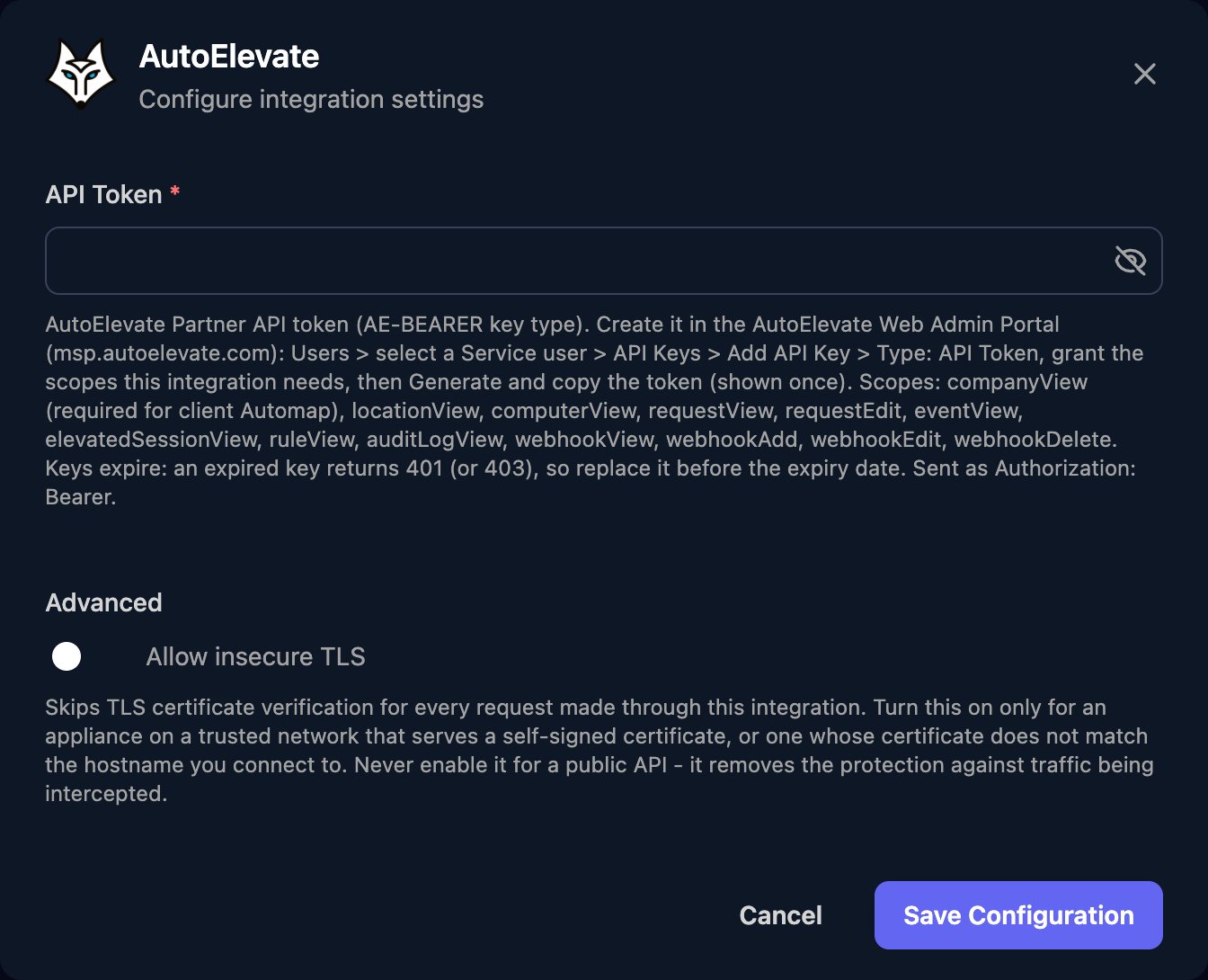
3
Rotate the key before it expires
Add a new key with the same permissions, click Edit on the Base Configuration card and paste its token in, then revoke the old key.
/v1/computers.
Map your clients
On the Client Mapping card, click Apply 100% Matches, then choose the AutoElevate company in Mapped to for anyone left. Triggr saves each match as the client’sautoElevateCompanyId variable, which you can pass as companyId on list actions.
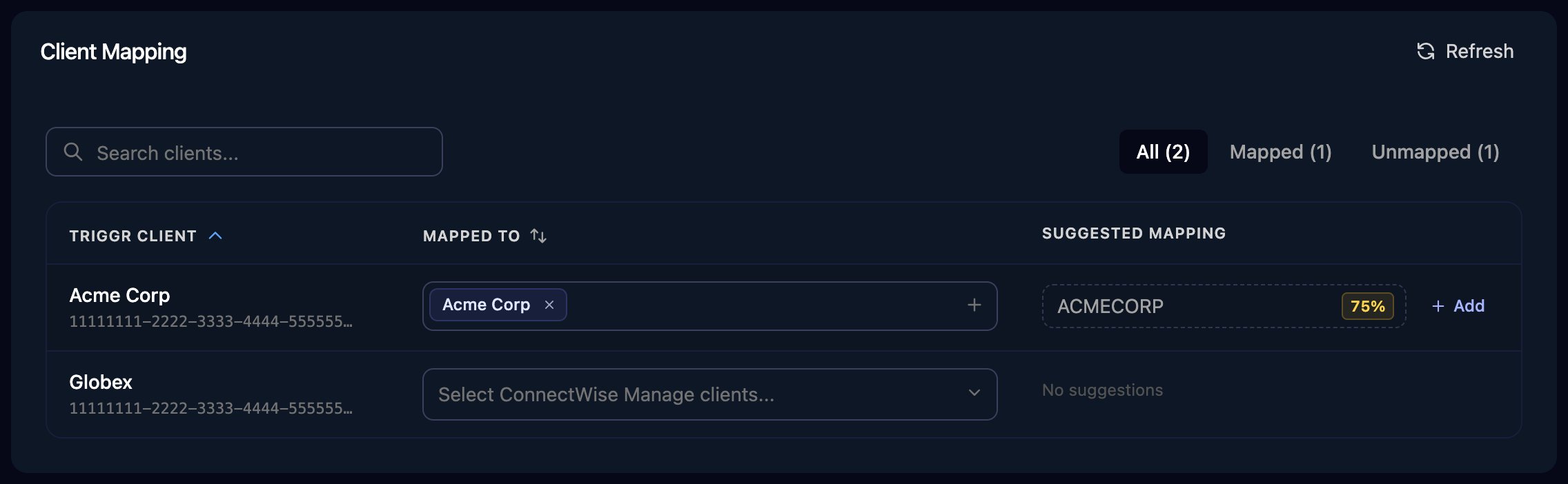
The Client Mapping card, shown here for ConnectWise Manage as an example.
Troubleshooting
Every action fails with 401
Every action fails with 401
Check the token was pasted in full, hasn’t expired or been revoked, and is an AE-BEARER key. If not, create a new key and paste its token into API Token.
An action fails with 403
An action fails with 403
The key lacks the action’s permission, is restricted to some companies, or calls an endpoint, such as audit logs, that needs CyberFOX’s Early Access programme.
Companies are missing from Client Mapping
Companies are missing from Client Mapping
The key needs
companyView and access to every company. Then click Refresh on Client Mapping.A computer is missing from List Computers
A computer is missing from List Computers
AutoElevate only returns computers whose agent has checked in within the last 30 days.
Requests fail with 429
Requests fail with 429
AutoElevate allows 20 requests per minute per endpoint across your account. Call a list action once without a company filter, with
take set to 200, and group the results by companyId.