

Set up Veeam Service Provider Console
1
Create a Windows account for Triggr
Create a dedicated local or domain account, such as
triggr-api, with a password (not SSO or an API key) and the Allow log on locally right on the VSPC Server machine.2
Give the account a portal role
As a Portal Administrator, go to Configuration > Roles & Users > My Company > Windows Users, click New, find the account, set its type to User and choose a role. For Portal Operator or Read-only User, choose All companies, including newly added on the Companies step.
See Veeam’s Portal Administrators, Portal Operators and Read-only Users guides.
3
Keep MFA off for the account
VSPC refuses the REST API password of any account with MFA set up, so don’t sign in to the web UI with it if MFA is enforced. To undo it, select the account in Windows Users, click MFA and choose Reset configured MFA (MFA guide).
4
Install a trusted web UI certificate
Import a trusted certificate into the Windows certificate store on the web UI machine, install it in Configuration > Certificates > Install > Web UI, then restart the Veeam Service Provider Console site in IIS Manager. See Veeam’s Configuring Web UI Certificate guide.
5
Allow Triggr through your firewall
Allow inbound HTTPS to the web UI port from Triggr’s IP addresses.
Connect it in Triggr
1
Open the configuration
Go to Integrations > Veeam Service Provider Console and click Configure on the Base Configuration card.
2
Enter the console and account
Enter the Console URL with 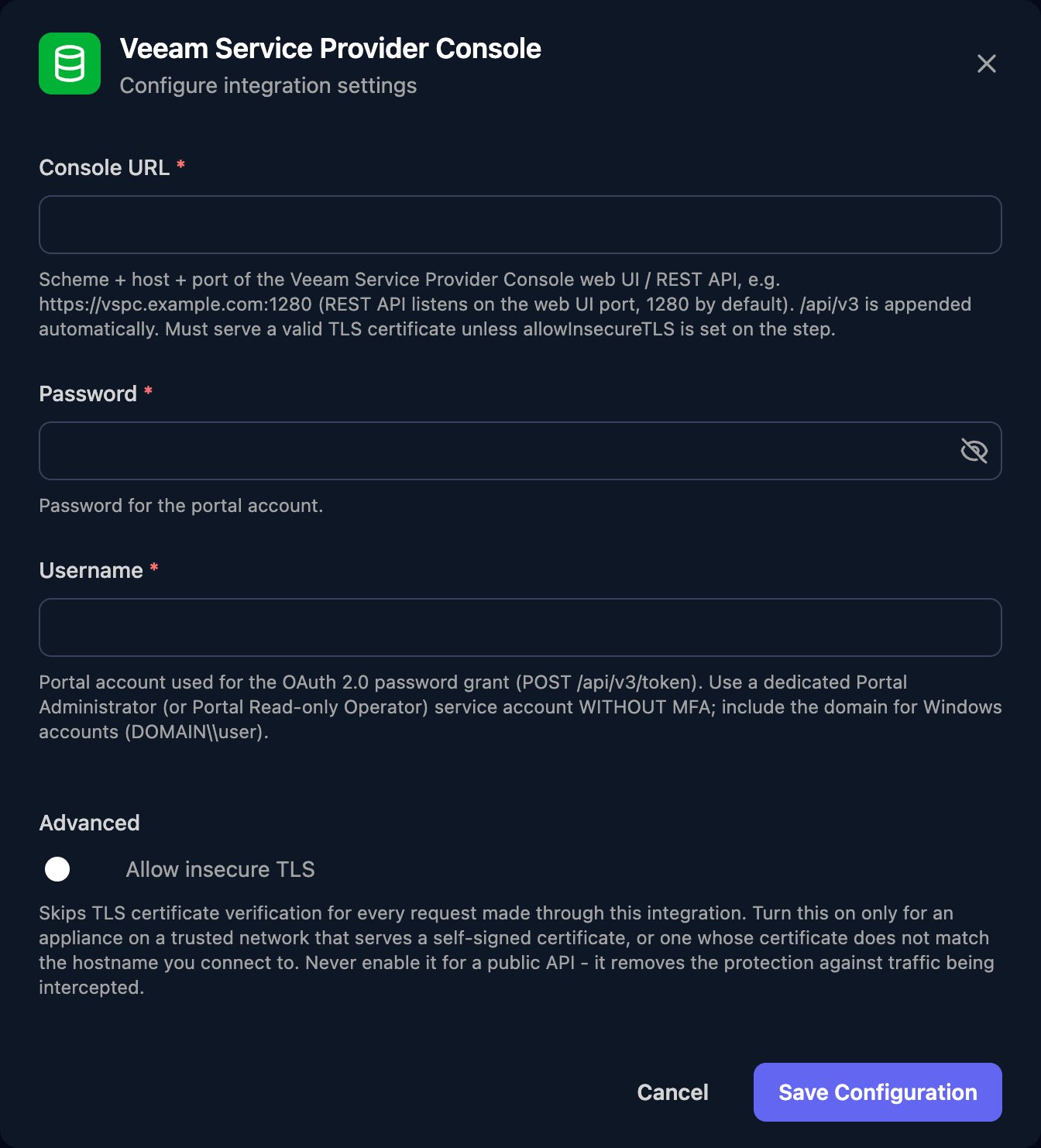
https:// and the port, such as https://vspc.example.com:1280, with no /api/v3 or trailing slash. Enter the Username as DOMAIN\USERNAME with one backslash, such as VSPC01\triggr-api for a local account (VSPC01 being the server’s computer name), and the Password. Click Save Configuration.Work with companies in workflows
Company actions take acompanyUid. Run List Companies with a filter such as the one below and use the company’s instanceUid:
limit (up to 500) and offset to page. See Veeam’s Query Parameters for filter and sort.
Troubleshooting
no access token in password grant response
no access token in password grant response
VSPC refused the sign-in. Check Username includes the domain, the password is current, and the account is enabled, has a portal role, has no MFA and is in Allow log on locally.
failed to parse or execute the password grant token request
failed to parse or execute the password grant token request
Check Console URL is the web UI address with the right port and no path, resolves to a public IP address, and allows Triggr’s IP addresses. An
x509 or certificate error means the certificate isn’t publicly trusted or doesn’t match the host name.An action is refused with 403, or companies are missing
An action is refused with 403, or companies are missing
Portal Operators and Read-only Users only see their assigned companies. Assign the companies, or give the account Portal Administrator.
Requests fail with 429
Requests fail with 429
VSPC limits concurrent and per-period requests. Spread bulk workflows out or retry after a short wait.