

Set up Cove
1
Add an API user
Sign in to the Cove Management Console as a SuperUser or Administrator, go to Management > Users > API Users and click Add API user.
2
Fill in the details
Set Customer to your top-level customer, usually your own company, so it contains every customer your workflows use, and note its name exactly. Enter a Requested login name such as
triggr (Cove adds a suffix, such as -ab12c34d). Any Role can view devices and customers; to change or remove devices, choose one that can edit and delete them, such as Manager or SuperUser.3
Copy the token
Click Save and continue, then Copy token to clipboard. Cove shows the token only once. Note the full login name, including the suffix.
Connect it in Triggr
1
Open the integration
Go to Integrations > Cove Data Protection and click Configure on the Base Configuration card.
2
Enter the credentials
Enter your top-level customer’s name as Partner (customer) name, the token as API user token and the full login name as API user login name, then click Save Configuration.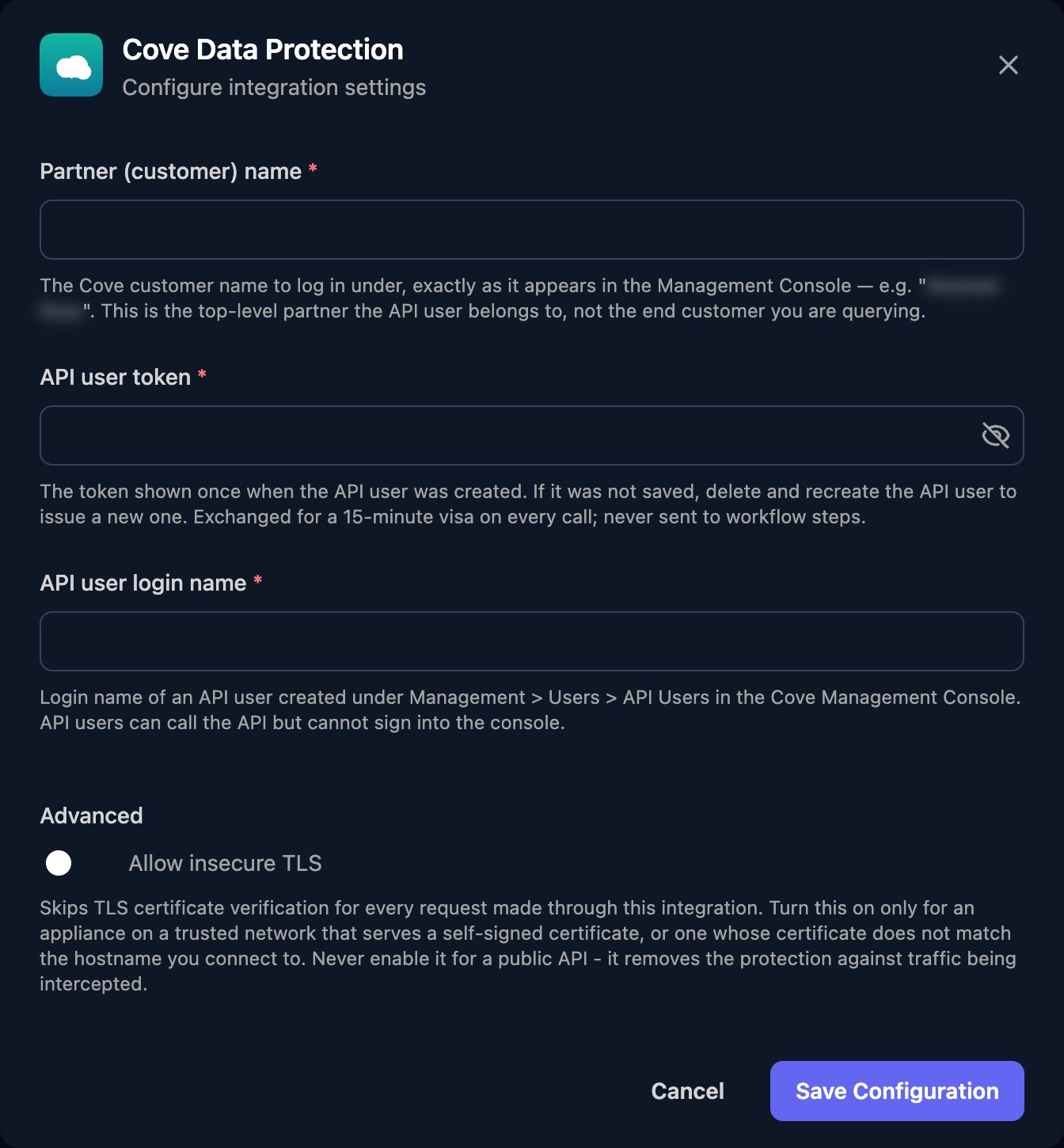
partnerId or PartnerId.
Troubleshooting
Cove login failed
Cove login failed
Partner (customer) name must match exactly, and API user login name must include the suffix. If you’ve lost the token, delete the API user and create a new one.
Customers or devices are missing
Customers or devices are missing
The API user only works within its own customer. Create one under your top-level customer.
A step returns an error object
A step returns an error object
Cove can report failures in the body with status 200. Method and parameter names are case-sensitive, and changing devices needs a role that can edit and delete them.