

Set up PRTG
1
Create a PRTG user for Triggr
In Setup > System Administration > User Accounts, add a user (Invite User on Hosted Monitor). Set User Type to Read-only user, with Allow user to acknowledge alarms if workflows acknowledge alarms, and a Primary Group that can see the objects your workflows read.
2
Create an API key
Signed in as that user, go to Setup > Account Settings > API Keys and select Add API Key (not the MultiBoard option). Set Access Level to Read access, or Acknowledge access to acknowledge alarms. Copy the key before you click OK; PRTG shows it only once.
3
Let Triggr reach PRTG
A self-hosted PRTG needs its HTTPS port reachable at a public address, with Triggr’s IP addresses allowed through any firewall.
Connect it in Triggr
The Base Configuration serves workflows that run without a client.1
Open the configuration
Go to Integrations > PRTG V1 and click Configure on the Base Configuration card.
2
Enter the key and address
Paste the key into apiToken. In hostname, enter the web interface address with 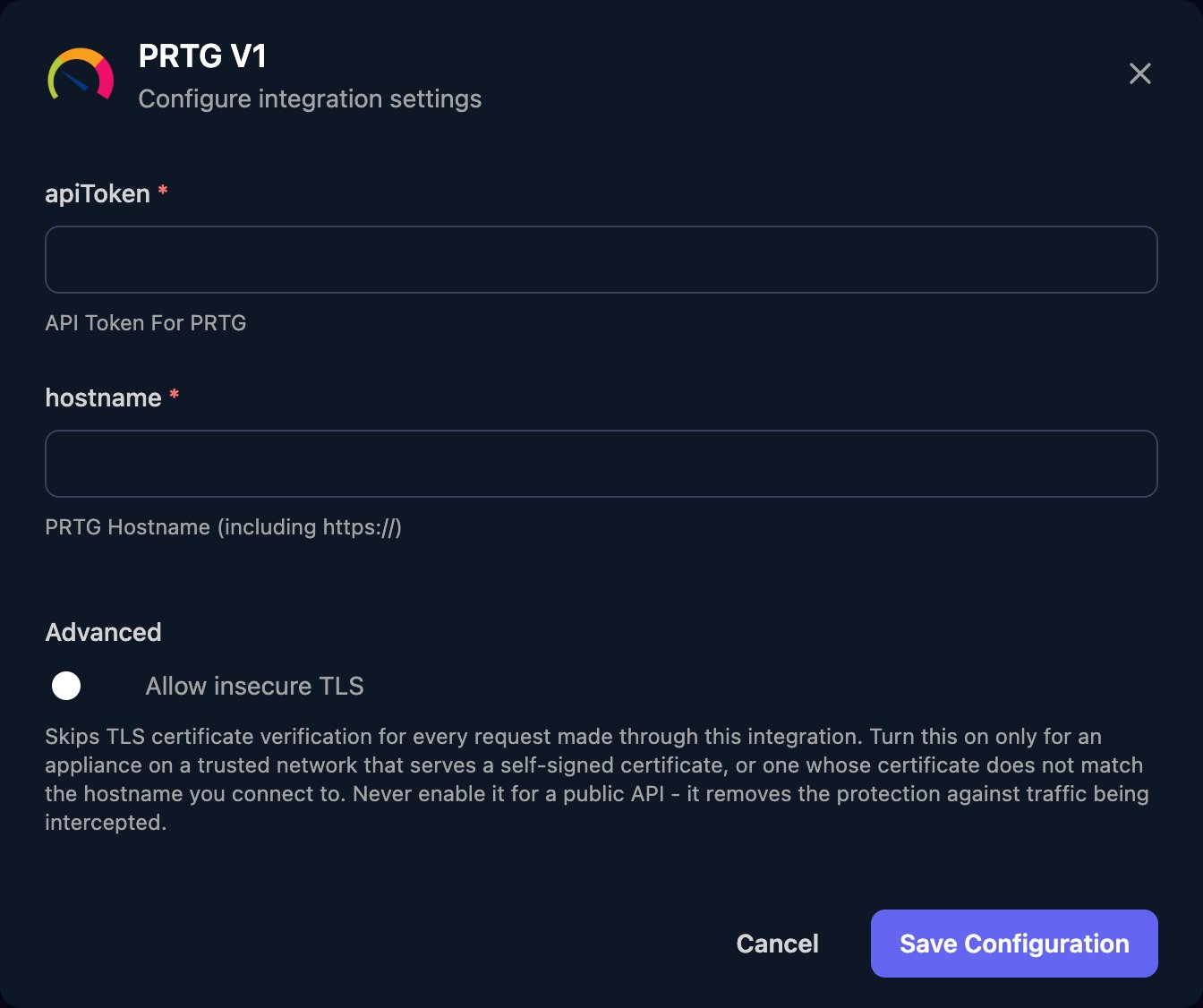
https:// and any non-443 port, such as https://prtg.example.com or https://yourcompany.my-prtg.com, with no path. Turn on Allow insecure TLS if PRTG uses its self-signed certificate, then click Save Configuration.content set to sensors and columns set to objid,sensor,status.
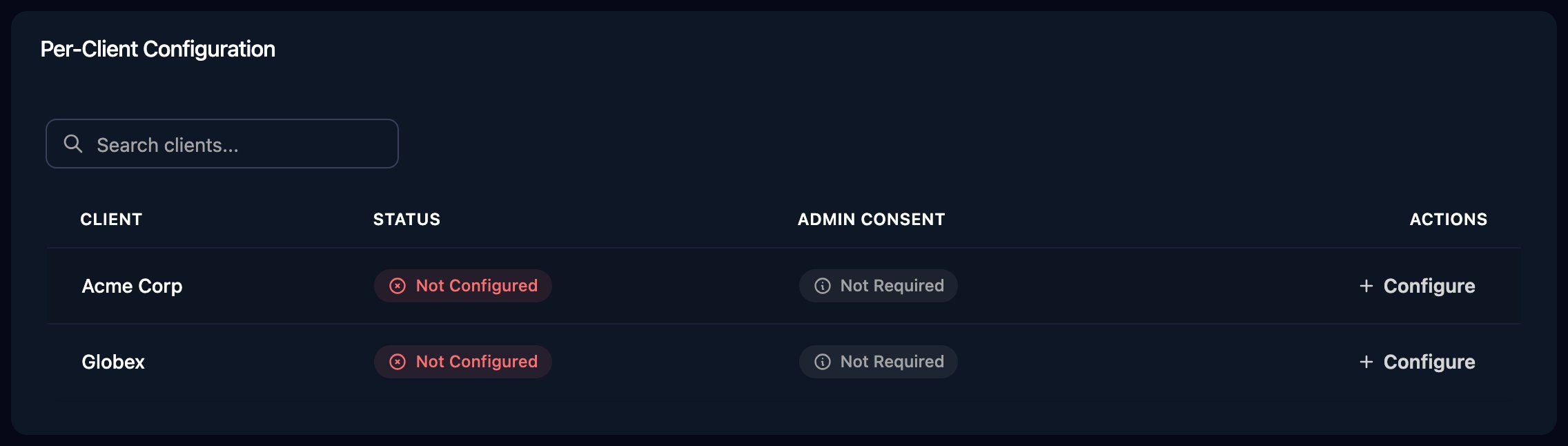
Set up each client
Per-client integrations never fall back to the Base Configuration, so click Configure on each client’s row and enter its own hostname, apiToken and Allow insecure TLS. Triggr saves the hostname as the client’sprtgHostname variable. If one server monitors several clients, give each client its own PRTG user whose group sees only its part of the device tree.
Use the actions
- Get JSON and Get XML:
contentpicks the table (sensors,devices,messages) andcolumnslists fields separated by commas, such asobjid,group,device,sensor,status,message. See Paessler’s table reference. - Acknowledge Alarm:
objectIdis the sensor’sobjidandacknowledgeMessageis the text PRTG shows.
Troubleshooting
no PRTG V1 integration is configured for this client
no PRTG V1 integration is configured for this client
Configure the client on the Per-Client Configuration card.
Authentication errors (401)
Authentication errors (401)
Check the configuration the workflow used (the client’s, if it ran for one) has the full key, and the key still exists under the Triggr user’s API Keys.
Acknowledge Alarm is refused
Acknowledge Alarm is refused
Set the key’s Access Level to Acknowledge access or higher, and check the user may acknowledge alarms.
Connection or certificate errors
Connection or certificate errors
Check hostname is a public address with
https://, any non-443 port and no path, and your firewall allows Triggr’s IP addresses. For certificate errors, turn on Allow insecure TLS or install a trusted certificate.