

Set up CSE
1
Add an API key
In the Command Center at
https://net.banyanops.com, go to Settings > Identity and Access > API Keys (or Settings > API Keys in older versions), click Add API Key and name it Triggr.2
Choose the scope
Admin can manage and read everything; ReadOnly only reads; ServiceAuthor, PolicyAuthor and EventWriter sit in between. See SonicWall’s API key privileges.
3
Copy the secret
Copy the API Key Secret.
Connect it in Triggr
1
Open the configuration
Go to Integrations > SonicWall CSE and click Configure on the Base Configuration card.
2
Enter the secret
Paste the secret into API Key Secret and click Save Configuration.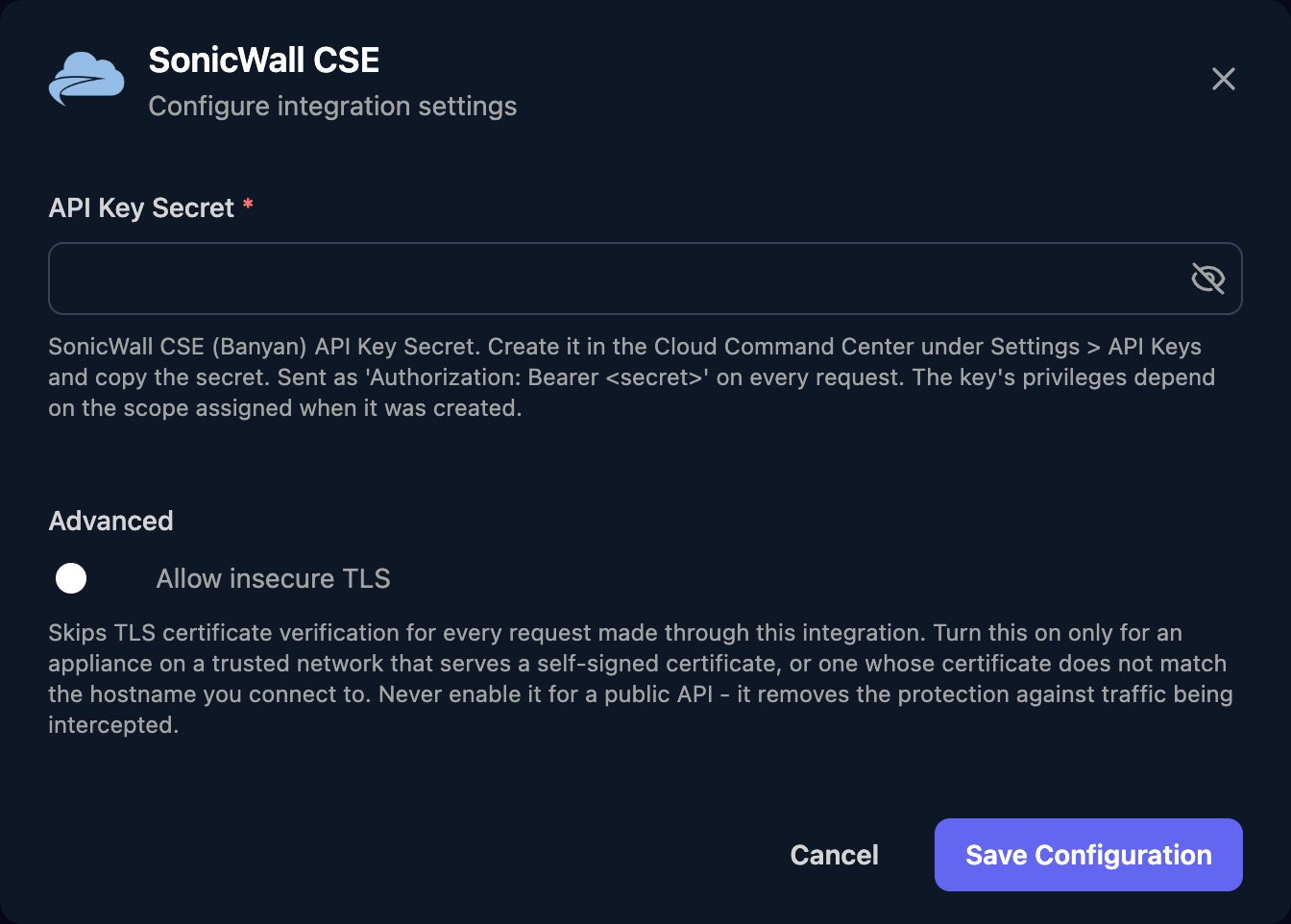
Troubleshooting
401 errors
401 errors
Check the secret was pasted in full and the key still exists under API Keys, or paste a fresh secret.
403 errors
403 errors
The key’s scope doesn’t allow the action. Create a key with a scope that does, such as Admin.
404 errors
404 errors
Get IDs from the same org with the matching list action, such as List services or List roles.