

Set up FortiCloud
1
Create a permission profile
In FortiCloud IAM, go to Permission Profiles > Add New, set Status to Active, click Add Portal and add Asset Management. Under Resources, choose Read Only, or Read & Write if workflows register, update or decommission products, then click Save.
2
Add a dedicated API user
Go to Users > Add New > API User, enter an Email, select the profile in Permission Profile and click Add. A FortiCloud API user can have only one active token, so don’t share it with scripts, other tools or FortiGate Cloud.
3
Download the credentials
Click Download Credentials, set a password for the ZIP file and click Proceed. The file holds the API user’s ID and password; each download resets them, and the previous ones stop working.
Connect it in Triggr
1
Open the integration
Go to Integrations > FortiCloud Asset Management and click Configure on the Base Configuration card.
2
Enter the API user's credentials
Enter the IAM API User Password and IAM API User ID from the credentials file, leave OAuth client_id (optional) empty, then click Save Configuration.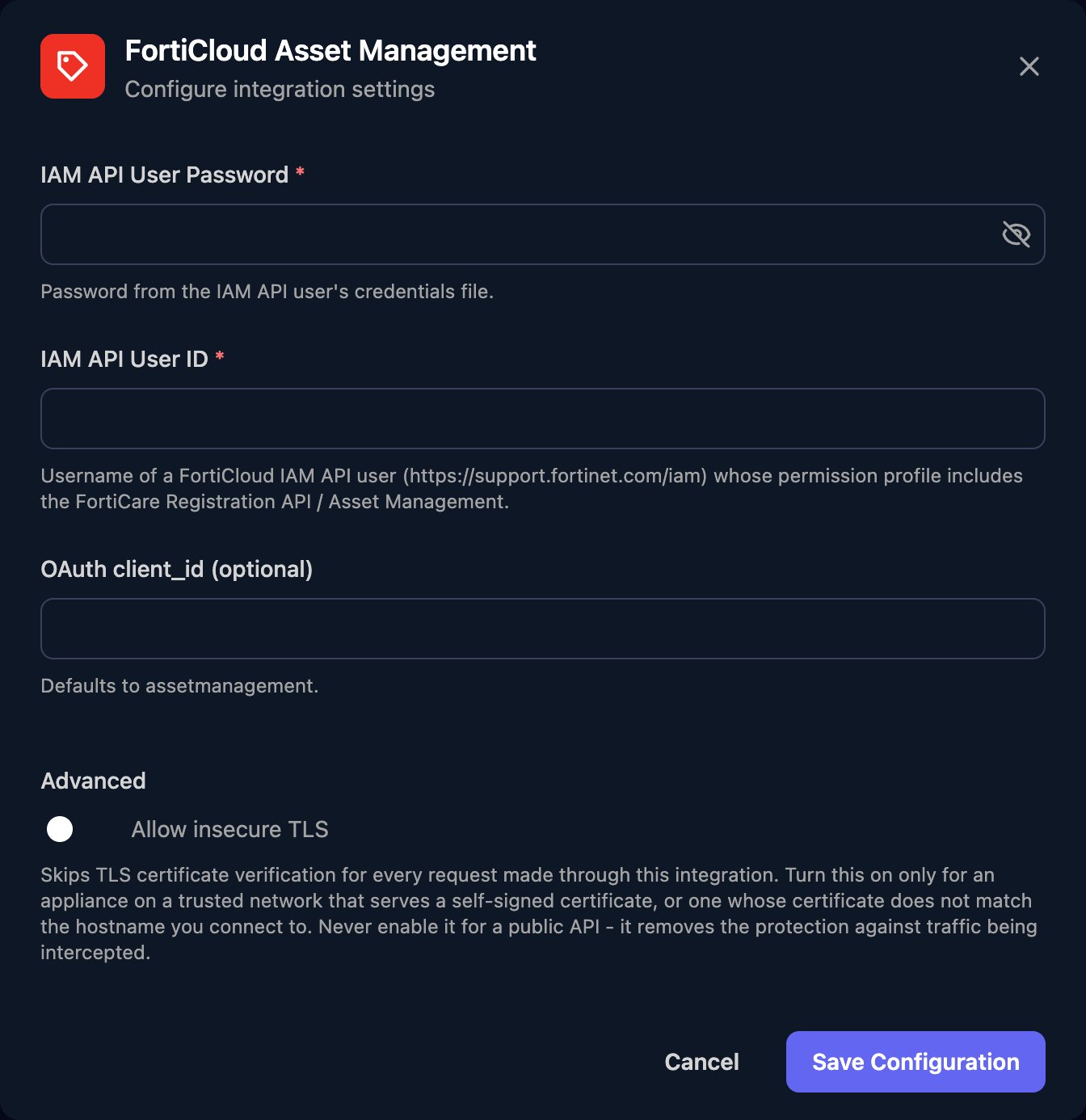
serialNumber or expireBefore in its body; to list everything, use a far-future date such as { "expireBefore": "2030-01-01T00:00:00" }.
Troubleshooting
Errors mentioning customerapiauth
Errors mentioning customerapiauth
Fortinet rejected the sign-in. Use the API user’s ID (not your sign-in email) and the newest credentials file, and check it lists
assetmanagement as a client ID.401 or 403 errors from actions
401 or 403 errors from actions
Changes need Read & Write on Asset Management. If the API user is used elsewhere, create a dedicated one for Triggr.
List Products returns no products
List Products returns no products
The API user only sees the FortiCloud account it was created in.
Rate limits
Rate limits
Fortinet allows 100 calls a minute, 1,000 an hour and 10 failed calls an hour. Run large workflows in smaller batches.